



D Fosse
Community Expert
Community Expert
October 23, 2018
Question

The ProPhoto cyan shadow banding bug

  • October 23, 2018
  • 9 replies
  • 8943 views

Since Noel is back with us, I thought this header might catch his attention. He was the one who first reported it six or seven years ago.

The reason I'm bringing this up now, is that someone in the Lightroom forum had this problem just yesterday (he was sending ProPhoto files to Photoshop and couldn't understand the cyan cast in his dark grays). There's no doubt it's the same issue.

This made me dig up my old ProPhoto test gradient file. I don't use ProPhoto all that much, so I haven't really looked for it in a while. To recap, this is an example of what it could look like (this is an old screenshot that I've kept). Open and view against a darkish background:
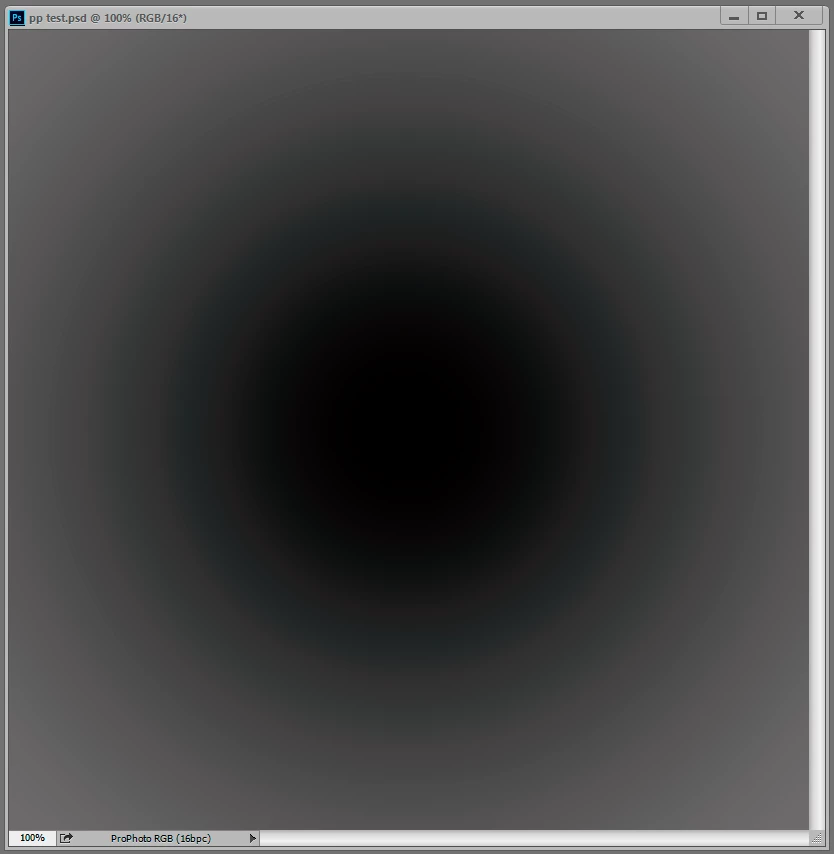
But when I opened the test gradient now, there was no trace of it, zero. The gradient is smooth as silk. That surprised me, because while the effect can vary, it always seemed to be there in some form.

Technically, this is an inaccuracy in the conversion from ProPhoto into the monitor profile. This conversion is performed by OpenGL in the GPU when you have the PS preference set to Normal and Advanced modes. In Basic mode it's shifted back to the CPU, which is more accurate so the problem disappears. And you only see it in ProPhoto files because ProPhoto is very compressed in the shadow values compared to other color spaces. The stratospheric gamut has a price, and that's it. With this compression, inaccuracies get amplified.

So what has changed on my system over the last 12 to 24 months? Not much. I still use Eizo Colornavigator as I did then, still producing similar matrix monitor profiles. But one thing has changed - going from GeForce to Quadro, and with that, 10 bits per ch output.

So Noel, if you're reading this - I understand you have Quadro GPU too, and running displays at 10 bit. Do you still see it?

Anyone else?

    This topic has been closed for replies.

    9 replies

    Participating Frequently
    February 15, 2019

    2019 Feb, the problem still exists, the same banding when doing "Edit in Photo" from Lightroom, but in Lightroom, there is no banding. Since Lightroom recommends to use ProPhoto to Handle File when export to an external app, why it's not working in Photoshop when the GPU takes over, I don't want to set it to Basic.

    Using Win 10 and Geforce 1080ti

    Noel Carboni
    Legend
    October 28, 2018

    Hey Dag, I had an idea that's a bit out there...  Here's my sniffer-out.txt file.  Does it differ from yours in any important ways?

    Number of Launches: 331

    stdout:

    # Photoshop Version: 20180920.r.24 2018/09/20: 1193433

    Tester="Photoshop"

    snifferStart="2018-10-28_00:35:54"

    AIFCoreInitialized=1

    # 00000_2018/10/28_00:35:54.313(+00.000)[f10] BEGIN DoRunAIFOGLInitialize

    AIFOGLInitialized=1

    # 00001_2018/10/28_00:35:54.313(+00.000)[f10] END DoRunAIFOGLInitialize, duration=8.88295e-06

    # 00002_2018/10/28_00:35:54.313(+00.000)[f10] BEGIN DoRunAnyGLGPU

    OGLContextCreated=1

    # 00003_2018/10/28_00:35:54.881(+00.568)[f10] END DoRunAnyGLGPU, duration=0.568035

    # 00004_2018/10/28_00:35:54.881(+00.000)[f10] BEGIN DoRunEnumerateGLGPUs

    # 00005_2018/10/28_00:35:54.933(+00.052)[f10]  wmiNumDevices=1

    # 00006_2018/10/28_00:35:54.934(+00.000)[f10]  adapter[0]{ VendorID=4318 DeviceId=7216 SubSysId=296947934 Revision=161 DedicatedVideoMemory=5160439808 DedicatedSystemMemory=0 SharedSystemMemory=25768527872 Description=NVIDIA Quadro P2000}

    # 00007_2018/10/28_00:35:54.934(+00.000)[f10]  output[0]{ DesktopCoordinates={ L=0 T=0 R=2560 B=1600 W=2560 H=1600 } AttachedToDesktop=1 Rotation=1 Monitor=0000000000010001 DeviceName=\\\\.\\DISPLAY1

    # 00008_2018/10/28_00:35:54.934(+00.000)[f10]  output[1]{ DesktopCoordinates={ L=-1200 T=0 R=0 B=1600 W=1200 H=1600 } AttachedToDesktop=1 Rotation=2 Monitor=0000000000010003 DeviceName=\\\\.\\DISPLAY2

    # 00009_2018/10/28_00:35:54.934(+00.000)[f10]  output[2]{ DesktopCoordinates={ L=2560 T=0 R=3760 B=1600 W=1200 H=1600 } AttachedToDesktop=1 Rotation=2 Monitor=0000000000010005 DeviceName=\\\\.\\DISPLAY3

    # 00010_2018/10/28_00:35:54.934(+00.000)[f10]  adapter[0] displays: 3

    # 00011_2018/10/28_00:35:54.934(+00.000)[f10]  adapter[1]{ VendorID=5140 DeviceId=140 SubSysId=0 Revision=0 DedicatedVideoMemory=0 DedicatedSystemMemory=0 SharedSystemMemory=268435456 Description=Microsoft Basic Render Driver}

    # 00012_2018/10/28_00:35:54.934(+00.000)[f10]  dxgiNumDevices=1

    # 00013_2018/10/28_00:35:54.934(+00.000)[f10]  aifNumDevices=1

    # 00014_2018/10/28_00:35:54.934(+00.000)[f10]  aifDeviceIndex=0

    # 00015_2018/10/28_00:35:54.935(+00.000)[f10]  creating ContextOffscreen for { DeviceName=\\\\.\\DISPLAY1 DeviceString=NVIDIA Quadro P2000 DisplayID=7216}

    # 00016_2018/10/28_00:35:54.939(+00.005)[f10]  aifDevice[0]={ DeviceName=\\\\.\\DISPLAY1 DeviceString=NVIDIA Quadro P2000 DisplayID=7216}

    # 00017_2018/10/28_00:35:54.939(+00.000)[f10]  aifNumContexts=1

    NumGLGPUs=1

    # 00018_2018/10/28_00:35:54.940(+00.000)[f10] END DoRunEnumerateGLGPUs, duration=0.0580164

    glgpu[0].GLVersion="4.1"

    # 00019_2018/10/28_00:35:54.940(+00.000)[f10] fAdapterDesc.VendorId=4318

    # 00020_2018/10/28_00:35:54.940(+00.000)[f10] Looks like a discrete GPU

    glgpu[0].IsIntegratedGLGPU=0

    # 00021_2018/10/28_00:35:54.954(+00.014)[f10] DXGI RAM=5160439808=4921MB

    # 00022_2018/10/28_00:35:54.954(+00.000)[f10] wmiVRAM=5120 dxgiVRAM=4921

    glgpu[0].GLMemoryMB=5120

    glgpu[0].GLName="NVIDIA Quadro P2000"

    glgpu[0].GLVendor="NVIDIA Corporation"

    glgpu[0].GLVendorID=4318

    glgpu[0].GLDriverVersion="24.21.14.1181"

    glgpu[0].GLRectTextureSize=32768

    glgpu[0].GLRenderer="Quadro P2000/PCIe/SSE2"

    glgpu[0].GLRendererID=7216

    glgpu[0].HasGLNPOTSupport=1

    glgpu[0].GLDriver="nvd3dumx.dll,nvwgf2umx.dll,nvwgf2umx.dll,nvd3dum,nvwgf2um,nvwgf2um"

    glgpu[0].GLDriverDate="20181016000000.000000-000"

    glgpu[0].CanCompileProgramGLSL=1

    glgpu[0].GLFrameBufferOK=1

    gputag.GL_SHADING_LANGUAGE_VERSION=35724

    glgpu[0].glGetString[GL_SHADING_LANGUAGE_VERSION]="4.60 NVIDIA"

    gputag.GL_FRAGMENT_PROGRAM_ARB=34820

    gputag.GL_MAX_PROGRAM_INSTRUCTIONS_ARB=34977

    glgpu[0].glGetProgramivARB[GL_FRAGMENT_PROGRAM_ARB][GL_MAX_PROGRAM_INSTRUCTIONS_ARB]=[65536]

    gputag.GL_MAX_TEXTURE_UNITS=34018

    glgpu[0].glGetIntegerv[GL_MAX_TEXTURE_UNITS]=[4]

    gputag.GL_MAX_COMBINED_TEXTURE_IMAGE_UNITS=35661

    glgpu[0].glGetIntegerv[GL_MAX_COMBINED_TEXTURE_IMAGE_UNITS]=[192]

    gputag.GL_MAX_VERTEX_TEXTURE_IMAGE_UNITS=35660

    glgpu[0].glGetIntegerv[GL_MAX_VERTEX_TEXTURE_IMAGE_UNITS]=[32]

    gputag.GL_MAX_TEXTURE_IMAGE_UNITS=34930

    glgpu[0].glGetIntegerv[GL_MAX_TEXTURE_IMAGE_UNITS]=[32]

    gputag.GL_MAX_DRAW_BUFFERS=34852

    glgpu[0].glGetIntegerv[GL_MAX_DRAW_BUFFERS]=[8]

    gputag.GL_MAX_VERTEX_UNIFORM_COMPONENTS=35658

    glgpu[0].glGetIntegerv[GL_MAX_VERTEX_UNIFORM_COMPONENTS]=[4096]

    gputag.GL_MAX_FRAGMENT_UNIFORM_COMPONENTS=35657

    glgpu[0].glGetIntegerv[GL_MAX_FRAGMENT_UNIFORM_COMPONENTS]=[4096]

    gputag.GL_MAX_VARYING_FLOATS=35659

    glgpu[0].glGetIntegerv[GL_MAX_VARYING_FLOATS]=[124]

    gputag.GL_MAX_VERTEX_ATTRIBS=34921

    glgpu[0].glGetIntegerv[GL_MAX_VERTEX_ATTRIBS]=[16]

    gputag.AIF::OGL::GL_ARB_VERTEX_PROGRAM=69

    glgpu[0].extension[AIF::OGL::GL_ARB_VERTEX_PROGRAM]=1

    gputag.AIF::OGL::GL_ARB_FRAGMENT_PROGRAM=27

    glgpu[0].extension[AIF::OGL::GL_ARB_FRAGMENT_PROGRAM]=1

    gputag.AIF::OGL::GL_ARB_VERTEX_SHADER=70

    glgpu[0].extension[AIF::OGL::GL_ARB_VERTEX_SHADER]=1

    gputag.AIF::OGL::GL_ARB_FRAGMENT_SHADER=28

    glgpu[0].extension[AIF::OGL::GL_ARB_FRAGMENT_SHADER]=1

    gputag.AIF::OGL::GL_EXT_FRAMEBUFFER_OBJECT=81

    glgpu[0].extension[AIF::OGL::GL_EXT_FRAMEBUFFER_OBJECT]=1

    gputag.AIF::OGL::GL_ARB_TEXTURE_RECTANGLE=58

    glgpu[0].extension[AIF::OGL::GL_ARB_TEXTURE_RECTANGLE]=1

    gputag.AIF::OGL::GL_ARB_TEXTURE_FLOAT=53

    glgpu[0].extension[AIF::OGL::GL_ARB_TEXTURE_FLOAT]=1

    gputag.AIF::OGL::GL_ARB_OCCLUSION_QUERY=37

    glgpu[0].extension[AIF::OGL::GL_ARB_OCCLUSION_QUERY]=1

    gputag.AIF::OGL::GL_ARB_VERTEX_BUFFER_OBJECT=68

    glgpu[0].extension[AIF::OGL::GL_ARB_VERTEX_BUFFER_OBJECT]=1

    gputag.AIF::OGL::GL_ARB_SHADER_TEXTURE_LOD=47

    glgpu[0].extension[AIF::OGL::GL_ARB_SHADER_TEXTURE_LOD]=1

    # 00023_2018/10/28_00:35:54.963(+00.009)[f10] BEGIN DoRunAIFOCLInitialize

    # 00024_2018/10/28_00:35:55.006(+00.043)[f10]  DoRunAIFOCLInitialize: AIF::OCL::Library::initialize();

    # 00025_2018/10/28_00:35:55.007(+00.001)[f10] END DoRunAIFOCLInitialize, duration=0.0437542

    # 00026_2018/10/28_00:35:55.007(+00.000)[f10] BEGIN DoRunEnumerateCLGPUs

    NumCLGPUs=1

    # 00027_2018/10/28_00:35:55.007(+00.000)[f10] END DoRunEnumerateCLGPUs, duration=2.30977e-05

    clgpu[0].CLPlatformVersion="1.2"

    clgpu[0].CLDeviceVersion="1.2 CUDA"

    clgpu[0].IsIntegratedCLGPU=0

    clgpu[0].CLMemoryMB=5120

    clgpu[0].CLName="Quadro P2000"

    clgpu[0].CLVendor="NVIDIA Corporation"

    clgpu[0].CLVendorID=4318

    clgpu[0].CLDriverVersion="411.81"

    clgpu[0].CUDASupported=1

    clgpu[0].CUDAVersion="10.0.181"

    # 00028_2018/10/28_00:35:55.007(+00.000)[f10] BEGIN GPUSnifferTester::DoRunCLBandwidth

    # 00029_2018/10/28_00:35:55.007(+00.000)[f10]  BEGIN GPUImplHardware::DoGetCLBandwidth

    # 00030_2018/10/28_00:35:55.007(+00.000)[f10]   GPUImplHardware::DoGetCLBandwidth: AIF::OCL::Context context(properties, *iDev);

    # 00031_2018/10/28_00:35:55.343(+00.336)[f10]   GPUImplHardware::DoGetCLBandwidth: AIF::OCL::CommandQueue cq(context, *iDev, false, true);

    # 00032_2018/10/28_00:35:55.343(+00.000)[f10]   BEGIN GPUImplHardware::checkBandwidthCL

    # 00033_2018/10/28_00:35:55.343(+00.000)[f10]    GPUImplHardware::checkBandwidthCL: clCreateBuffer d_idata nbytes=16777216

    # 00034_2018/10/28_00:35:55.343(+00.000)[f10]    GPUImplHardware::checkBandwidthCL: clCreateBuffer d_odata nbytes=16777216

    # 00035_2018/10/28_00:35:55.343(+00.000)[f10]    GPUImplHardware::checkBandwidthCL: clFinish

    # 00036_2018/10/28_00:35:55.343(+00.000)[f10]    GPUImplHardware::checkBandwidthCL: copy 100 iterations

    # 00037_2018/10/28_00:35:55.343(+00.000)[f10]    GPUImplHardware::checkBandwidthCL: 0 of 100, totalSeconds=0

    # 00038_2018/10/28_00:35:55.352(+00.009)[f10]    GPUImplHardware::timeBandwidthCL: totalSeconds=0.00287843

    # 00039_2018/10/28_00:35:55.352(+00.000)[f10]    GPUImplHardware::checkBandwidthCL: seconds=0.00287843

    # 00040_2018/10/28_00:35:55.352(+00.000)[f10]    GPUImplHardware::checkBandwidthCL: totalSeconds=0.00287843, BW=1.16572e+11, maxBW=1.16572e+11

    # 00041_2018/10/28_00:35:55.352(+00.000)[f10]    GPUImplHardware::checkBandwidthCL: 10 of 100, totalSeconds=0.00287843

    # 00042_2018/10/28_00:35:55.355(+00.003)[f10]    GPUImplHardware::timeBandwidthCL: totalSeconds=0.00287027

    # 00043_2018/10/28_00:35:55.355(+00.000)[f10]    GPUImplHardware::checkBandwidthCL: seconds=0.00287027

    # 00044_2018/10/28_00:35:55.355(+00.000)[f10]    GPUImplHardware::checkBandwidthCL: totalSeconds=0.0057487, BW=1.16903e+11, maxBW=1.16903e+11

    # 00045_2018/10/28_00:35:55.355(+00.000)[f10]    GPUImplHardware::checkBandwidthCL: 20 of 100, totalSeconds=0.0057487

    # 00046_2018/10/28_00:35:55.359(+00.003)[f10]    GPUImplHardware::timeBandwidthCL: totalSeconds=0.00287946

    # 00047_2018/10/28_00:35:55.359(+00.000)[f10]    GPUImplHardware::checkBandwidthCL: seconds=0.00287946

    # 00048_2018/10/28_00:35:55.359(+00.000)[f10]    GPUImplHardware::checkBandwidthCL: totalSeconds=0.00862816, BW=1.1653e+11, maxBW=1.16903e+11

    # 00049_2018/10/28_00:35:55.359(+00.000)[f10]    GPUImplHardware::checkBandwidthCL: 30 of 100, totalSeconds=0.00862816

    # 00050_2018/10/28_00:35:55.362(+00.003)[f10]    GPUImplHardware::timeBandwidthCL: totalSeconds=0.00286925

    # 00051_2018/10/28_00:35:55.362(+00.000)[f10]    GPUImplHardware::checkBandwidthCL: seconds=0.00286925

    # 00052_2018/10/28_00:35:55.362(+00.000)[f10]    GPUImplHardware::checkBandwidthCL: totalSeconds=0.0114974, BW=1.16945e+11, maxBW=1.16945e+11

    # 00053_2018/10/28_00:35:55.362(+00.000)[f10]    GPUImplHardware::checkBandwidthCL: 40 of 100, totalSeconds=0.0114974

    # 00054_2018/10/28_00:35:55.366(+00.003)[f10]    GPUImplHardware::timeBandwidthCL: totalSeconds=0.0028785

    # 00055_2018/10/28_00:35:55.366(+00.000)[f10]    GPUImplHardware::checkBandwidthCL: seconds=0.0028785

    # 00056_2018/10/28_00:35:55.366(+00.000)[f10]    GPUImplHardware::checkBandwidthCL: totalSeconds=0.0143759, BW=1.16569e+11, maxBW=1.16945e+11

    # 00057_2018/10/28_00:35:55.366(+00.000)[f10]    GPUImplHardware::checkBandwidthCL: 50 of 100, totalSeconds=0.0143759

    # 00058_2018/10/28_00:35:55.369(+00.003)[f10]    GPUImplHardware::timeBandwidthCL: totalSeconds=0.00287437

    # 00059_2018/10/28_00:35:55.369(+00.000)[f10]    GPUImplHardware::checkBandwidthCL: seconds=0.00287437

    # 00060_2018/10/28_00:35:55.369(+00.000)[f10]    GPUImplHardware::checkBandwidthCL: totalSeconds=0.0172503, BW=1.16737e+11, maxBW=1.16945e+11

    # 00061_2018/10/28_00:35:55.369(+00.000)[f10]    GPUImplHardware::checkBandwidthCL: 60 of 100, totalSeconds=0.0172503

    # 00062_2018/10/28_00:35:55.372(+00.003)[f10]    GPUImplHardware::timeBandwidthCL: totalSeconds=0.00286925

    # 00063_2018/10/28_00:35:55.372(+00.000)[f10]    GPUImplHardware::checkBandwidthCL: seconds=0.00286925

    # 00064_2018/10/28_00:35:55.372(+00.000)[f10]    GPUImplHardware::checkBandwidthCL: totalSeconds=0.0201195, BW=1.16945e+11, maxBW=1.16945e+11

    # 00065_2018/10/28_00:35:55.372(+00.000)[f10]    GPUImplHardware::checkBandwidthCL: 70 of 100, totalSeconds=0.0201195

    # 00066_2018/10/28_00:35:55.376(+00.003)[f10]    GPUImplHardware::timeBandwidthCL: totalSeconds=0.00287949

    # 00067_2018/10/28_00:35:55.376(+00.000)[f10]    GPUImplHardware::checkBandwidthCL: seconds=0.00287949

    # 00068_2018/10/28_00:35:55.376(+00.000)[f10]    GPUImplHardware::checkBandwidthCL: totalSeconds=0.022999, BW=1.16529e+11, maxBW=1.16945e+11

    # 00069_2018/10/28_00:35:55.376(+00.000)[f10]    GPUImplHardware::checkBandwidthCL: 80 of 100, totalSeconds=0.022999

    # 00070_2018/10/28_00:35:55.379(+00.003)[f10]    GPUImplHardware::timeBandwidthCL: totalSeconds=0.00286928

    # 00071_2018/10/28_00:35:55.379(+00.000)[f10]    GPUImplHardware::checkBandwidthCL: seconds=0.00286928

    # 00072_2018/10/28_00:35:55.379(+00.000)[f10]    GPUImplHardware::checkBandwidthCL: totalSeconds=0.0258683, BW=1.16944e+11, maxBW=1.16945e+11

    # 00073_2018/10/28_00:35:55.379(+00.000)[f10]    GPUImplHardware::checkBandwidthCL: 90 of 100, totalSeconds=0.0258683

    # 00074_2018/10/28_00:35:55.382(+00.003)[f10]    GPUImplHardware::timeBandwidthCL: totalSeconds=0.00287539

    # 00075_2018/10/28_00:35:55.382(+00.000)[f10]    GPUImplHardware::checkBandwidthCL: seconds=0.00287539

    # 00076_2018/10/28_00:35:55.383(+00.000)[f10]    GPUImplHardware::checkBandwidthCL: totalSeconds=0.0287437, BW=1.16695e+11, maxBW=1.16945e+11

    # 00077_2018/10/28_00:35:55.383(+00.000)[f10]    GPUImplHardware::checkBandwidthCL: clFinish

    # 00078_2018/10/28_00:35:55.383(+00.000)[f10]    GPUImplHardware::checkBandwidthCL: releasing

    # 00079_2018/10/28_00:35:55.384(+00.002)[f10]    GPUImplHardware::checkBandwidthCL: result=1.16945e+11

    # 00080_2018/10/28_00:35:55.385(+00.000)[f10]   END GPUImplHardware::checkBandwidthCL, duration=0.0413094

    # 00081_2018/10/28_00:35:55.385(+00.000)[f10]   bytesPerSecond=1.16945e+11

    # 00082_2018/10/28_00:35:55.385(+00.000)[f10]   GPUImplHardware::DoGetCLBandwidth: result=1.16945e+11

    # 00083_2018/10/28_00:35:55.385(+00.000)[f10]  END GPUImplHardware::DoGetCLBandwidth, duration=0.377736

    clgpu[0].CLBandwidth=1.16945e+11

    # 00084_2018/10/28_00:35:55.385(+00.000)[f10] END GPUSnifferTester::DoRunCLBandwidth, duration=0.377807

    # 00085_2018/10/28_00:35:55.385(+00.000)[f10] BEGIN GPUImplHardware::DoGetCLCompute

    # 00086_2018/10/28_00:35:55.385(+00.000)[f10]  GPUImplHardware::DoGetCLCompute: AIF::OCL::Context context(properties, *iDev);

    # 00087_2018/10/28_00:35:55.723(+00.338)[f10]  GPUImplHardware::DoGetCLCompute: AIF::OCL::CommandQueue cq(context, *iDev, false, true);

    # 00088_2018/10/28_00:35:55.723(+00.000)[f10]  BEGIN GPUImplHardware::MeasureCLCompute

    # 00089_2018/10/28_00:35:55.771(+00.048)[f10]   GPUImplHardware::MeasureCLCompute: clFinish

    # 00090_2018/10/28_00:35:55.772(+00.000)[f10]   GPUImplHardware::MeasureCLCompute: result=0.00846848

    # 00091_2018/10/28_00:35:55.772(+00.000)[f10]  END GPUImplHardware::MeasureCLCompute, duration=0.0488671

    # 00092_2018/10/28_00:35:55.772(+00.000)[f10]  timeForKernelExecution=944.68

    # 00093_2018/10/28_00:35:55.772(+00.000)[f10]  GPUImplHardware::DoGetCLCompute: result=944.68

    # 00094_2018/10/28_00:35:55.772(+00.000)[f10] END GPUImplHardware::DoGetCLCompute, duration=0.387433

    clgpu[0].CLCompute=944.68

    NumNativeGPUs=0

    snifferEnd="2018-10-28_00:35:56"

    stderr:

    D Fosse
    Community Expert
    D FosseCommunity ExpertAuthor
    Community Expert
    October 28, 2018

    So...where do I find this?

    Noel Carboni
    Legend
    October 27, 2018

    By the way, I did a little more research on the ProPhoto RGB profile.  According to this page, there's actually a linear section of the tone curves very close to black:

    ProPhoto RGB color space - Wikipedia

    The cutoff for the linear section is 1/512, or 0.001953125.  The designers clearly envisioned it being used with high bit depth data.

    No particular reason for mentioning this, though it's food for thought...  If a particular color-management implementation forgets to account for that section (or approximates it) it would introduce inaccuracies near black...

    -Noel

    rob day
    Community Expert
    Community Expert
    October 27, 2018

    it would introduce inaccuracies near black

    Shouldn't that show up in the print output numbers? I'm not seeing any problems in my #45 test. With six color samples in the shadow end. Bottom is ProPhoto, top is the ProPhoto file converted to Adobe RGB, the info panel is showing GRACol CMYK:

    D Fosse
    Community Expert
    D FosseCommunity ExpertAuthor
    Community Expert
    October 27, 2018

    You're not seeing it on screen either, so no reason to assume it automatically shows up in print output.

    The whole thing seems unpredictable, that's why it's so puzzling. Clearly there is some marginal "butterfly effect" that goes this way or that depending on some unknown initial circumstances.

    Maybe we need to dive into chaos theory to explain it...

    Noel Carboni
    Legend
    October 27, 2018

    Hi, yeah, thanks, I've tried a bunch of different monitor profiles.  The error seems to follow the image profile.  And as we've learned here, changes nature occasionally depending on other as of yet unknown factors.  It's really encouraging that on some of your systems it's working AOK.

    A workaround is clear - if the on-screen color accuracy with ProPhoto RGB is of high importance, use Basic GPU mode.

    Otherwise, with virtually every other profile the GPU Normal and Advanced modes (i.e., color-management by Adobe GPU software) are fine.  I personally don't use the ProPhoto RGB profile much, though I have occasionally set it as the conversion target for Camera Raw, then done software conversions once the image is opened into Photoshop and processed a bit.  This can be helpful if subject material with brilliant bright reds (e.g., Christmas flowers) are photographed.

    -Noel

    D Fosse
    Community Expert
    D FosseCommunity ExpertAuthor
    Community Expert
    October 27, 2018

    Yeah, that's how I use ProPhoto too. Sometimes it's necessary to open into ProPhoto if gamut clipping can't be easily controlled in ACR/Lightroom. Then I do more elaborate and targeted gamut remapping in Photoshop, but I prefer to get it into Adobe RGB as quickly as possible, without clipping.

    Very often these high-saturation areas coming out of ACR are processing artifacts, not "realistic" colors. The image will usually improve by "taming" them.

    Discussions about ProPhoto are often reduced to "yes, but there are printable colors outside Adobe RGB".  Yes there are, a very marginal set of neon-bright colors with little practical significance. My reply is, as always, that good color is about relationships, not max total saturation.

    The main thing is to avoid areas of gamut clipping in the end result. Nothing can kill an image as effectively as that. For that, ProPhoto has its place as a useful tool, to be used when needed. But it won't solve all color problems.

    rob day
    Community Expert
    Community Expert
    October 27, 2018

    Discussions about ProPhoto are often reduced to "yes, but there are printable colors outside Adobe RGB".  Yes there are, a very marginal set of neon-bright colors with little practical significance. My reply is, as always, that good color is about relationships, not max total saturation.

    But there seems to be an implication that ProPhoto could create an output problem with a "typical" in-gamut image, which could be avoided by defaulting to a smaller space. I'm not seeing that. Any colors I check with the same appearance in the two RGB spaces, which are also in the destination CMYK gamut, convert to matching destination CMYK output numbers.

    It's fair enough to argue that ProPhoto has no advantage in that case, but if there's a downside we should see a meaningful variance in the output numbers.

    Noel Carboni
    Legend
    October 24, 2018

    This is the one I have; looks to match yours, Todd, though of course we're not seeing all the detail in the tables.

    -Noel

    Noel Carboni
    Legend
    October 24, 2018

    Hm, that might imply your gradient isn't pure gray, Dag, BUT...  There is definitely some additional weirdness going on!

    I tried raising the saturation of my grayscale PNG to +100 and got this:

    Then I did it AGAIN and got this cute little result. 

    After undoing all the above, I did Image > Adjust > Desaturate it, then two iterations of +100 saturations and got this:

    This implies the PNG actually has some values that are non-gray (by a tiny bit).  And here I thought PNG compression was lossless - but I guess not!  The funny thing is that this little revelation seems to be entirely separate from the ProPhoto cyan cast display bug.

    The plot thickens!  I'm going to save my test image as a PSD and use that from now on.  I hope THAT's lossless.

    -Noel

    rob day
    Community Expert
    Community Expert
    October 24, 2018

    This is OSX High Sierra with CC2018. I'm not seeing any objectionable banding or color shifts

    Noel Carboni
    Legend
    October 24, 2018

    It's great to see that it CAN work.  Now to figure out what's common among the systems on which it IS working, and that's proving non-trivial.

    Rob, some questions, just to be thorough:

    1.  Do you have your Use Graphics Processor setting checked, and are you using either Normal or Advanced graphics mode?

    2.  Did you try two iterations of Saturation +100 on that .png I posted?

    -Noel

    Noel Carboni
    Legend
    October 23, 2018

    By the way, do you have the Use native operating system GPU acceleration setting available and checked in the Advanced Graphics Processor Settings panel.  It's grayed out for me; I imagine it's only available for the very latest OS versions.

    -Noel

    Participating Frequently
    October 23, 2018

    Yup, uses Metal in macOS (Mojave here)

    Participating Frequently
    October 23, 2018

    D Fosse
    Community Expert
    D FosseCommunity ExpertAuthor
    Community Expert
    October 23, 2018

    Yep, there it is. That's exactly how it looks.

    (although, to eliminate all variables, you should do it with 16-bit files - but I doubt it will make much difference here. The crucial bit depth limitation isn't in the file, but the display system).

    Participating Frequently
    October 23, 2018

    So this is the same issue as when I export from Lr to Ps via Edit In?

    I'll try one in Basic mode and update the previous post.

    Update, I can't seem to edit the previous post so here's with Photoshop in Basic drawing Mode

    And here are the 16bit files. I always work in 16bit but since yours wasn't I wanted to test with the same settings.

    JohanElzenga
    Community Expert
    Community Expert
    October 23, 2018

    So if I understand you correctly, you are asking why you don't have a problem?

    -- Johan W. Elzenga
    D Fosse
    Community Expert
    D FosseCommunity ExpertAuthor
    Community Expert
    October 23, 2018

    There is a problem, has been for a long time.

    The fact that I'm not seeing it now could explain why it happens elsewhere. I'm gathering troubleshooting info.

    davescm
    Community Expert
    Community Expert
    October 23, 2018

    Dag - have you tested with Legacy Compositing checked and unchecked?

    Dave