

Transparency Grid in Brush
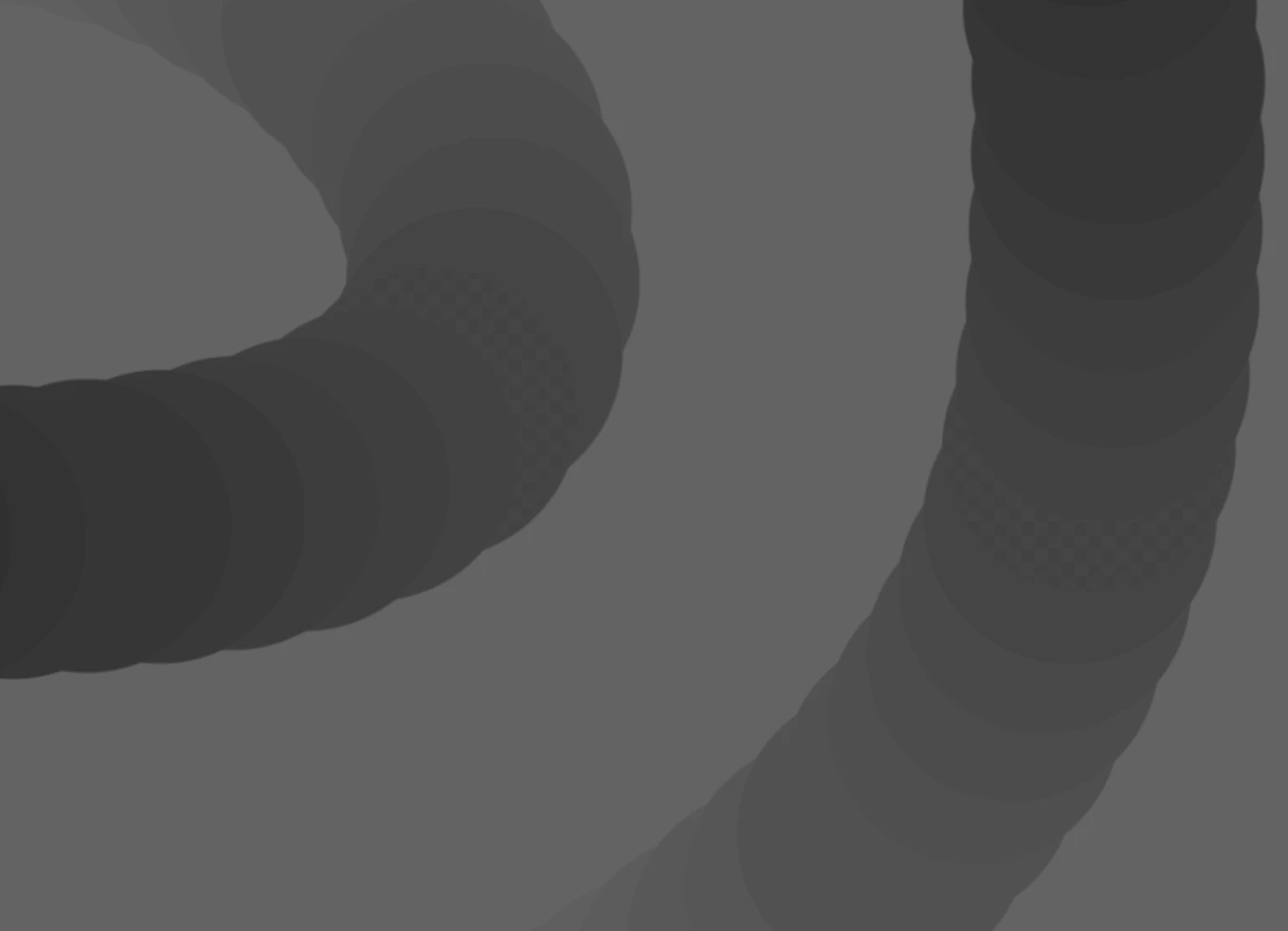
The checkered transparency grid appears in chunks of my brush strokes when using the basic round with opacity pressure enabled. I thought it might be my GPU, I wiped it clean and reinstalled drivers–nothing. I’ve re-installed Photoshop, and even downgraded to the 2021 versions, still nothing. It can’t be my monitor because I am able to screenshot the checkers, and others are able to see it. When exporting what’s on screen as an image, the checkers disappear. I’ve tried other basic things such as a new canvas, copy pasting the background color on a layer above, and so on. It seems to be something with the viewer itself and it or some aspect of Photoshop’s relation with my GPU.
There are two workarounds I have found but neither seem to solve the actual problem. The first and most digestible solution is disabling the grid altogether. It’s not ideal but in my limited use of the toggle, I can paint without the visual disruption. As further proof of it truly being the grid, it scales with my zoom. The second “solution” is disabling GPU acceleration altogether or using old GPU mode. This is not workable as the whole reason I’m using Photoshop for digital painting is because of the performance that feature enables.
That said, it’s a strange clue that I don’t know what to make of. I am extremely confident that my drivers are fine, and again, Photoshop is cleanly installed. I’m running out of ideas as to what could be going on. Hopefully someone has a better idea than I. I will attach screenshots. If they’re not visible try opening them for a closer look. The issue has been visible when sent elsewhere. Thanks.
(Quick edit: Crucially, it seems tied to s a specific value, as shown in the third screenshot.)




 AdChoices