

2Charlie
Inspiring
October 21, 2022
Question

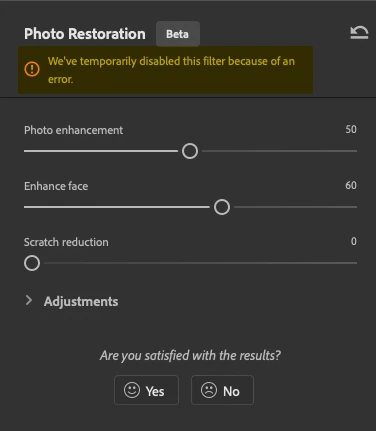
We've temporary disabled this filter because of an error.

  • October 21, 2022
  • 12 replies
  • 17701 views

Anyone getting this error on the lattest Photoshp release 24.0.0? I'm constantly getting this issue.

 

12 replies

Participant
November 16, 2025

Hey 2Charlie,

You are definitely not alone. This is a known issue and unfortunately it's not a problem on your end it's on Adobe's.

The message, "We've temporary disabled this filter because of an error," means that Adobe has taken the Photo Restoration Neural Filter offline from their servers due to a bug or technical issue they are currently fixing. Since these filters rely on cloud processing (Adobe's servers do the complex AI work) if the server is down or the filter is bugged, it won't work for anyone.

  • What you should do: Nothing, Just wait. Adobe usually resolves these server-side issues fairly quickly, especially for popular Beta features.

  • Workaround: Make sure you are using the very latest Photoshop version (24.0.0.7 or later, as of today) as sometimes the fix is released in a minor update. Check the Creative Cloud desktop app for any pending updates.

Keep an eye on the official Adobe status page or wait for a community announcement. Hope it's back up for you soon.

Participant
November 3, 2025

Argh - I have had this problem for the last two weeks as well! 

My neural filters just say 'We've temporaroly disabled'  blah blah blah.  I have a HUGE batch of Xmas photos to edit and I am getting very panicked.

I have Re-installed Photoshop, Updated all my drivers, and everything looks ok...So frustratiing.  Can anyone help me please?

Attached the System info here.

Known Participant
November 3, 2025

Hi fergusf41695852

Have you tried this solution posted by 'Manniac' 2 years ago. I had the same problem for a long time. I waited through several updates which made no difference, then this solution worked for me. Good Luck


1. Close Photoshop

2. Delete or rename the folder C:\Users\[username]\AppData\Roaming\Adobe\UXP\

3. Open Photoshop and download the neural filters again.


Participant
November 4, 2025

Thanks GrahamfromBurnley; I have done this and still no luck 😞  I also tried deleting the 

I have tried to cancel my adobe subscription and they want to charge  me over £150 for the privilidge.  I moved away from Premiere to Davinci because of the constant bugs; now they cant even keep Photoshop working 😞


Participating Frequently
October 7, 2025

Error goes if i turn my VPN off

riedi
Participating Frequently
October 10, 2025

I don't use a VPN. I'm using a iMac 26.0.1 Tahoe.  "Apple does not recommend the use of a VPN.  Apple does not have a VPN of its own."


Participant
January 19, 2025

19/01/2025 
After so many years, the problem has not been solved

riedi
Participating Frequently
February 10, 2025

I'm wondering if this is a memory problem. I'm using a 2023 iMac with 16GB

Participant
February 16, 2025

Got the problem with panoramic aspect ratio. Extended image (added white space using crop tool) to have lower aspect ratio and the filters worked. 

Participant
December 14, 2023

Same message for me as well.

Participant
March 15, 2024

Same here - on a brand new Macbook Air M3, and I get the same error in Beta and 2024 25.5.1. Deleted the UXP folder; no joy.

dimitrisk53343768
Participant
July 10, 2023

Hello.

I have the same problem.. anyone can help me please?

Known Participant
July 10, 2023

Sorry I can't. I never got it working. There has been several updates since this started happening and no improvement. It did work about a year ago on an earlier version.

Participant
June 19, 2023

Hi, I got it working!

Downloaded all of the filters with this solution: 

0) First, adobe suggests this:

"If you have defined environment variables TEMP and TMP to have a path on a disk other than the primary disk, change these to a path on the primary disk (or delete the variables) temporarily for the download. Quit and restart Photoshop to pick up the variable change."


SO, I DID:

1) Open photoshop.

2) Import any image with a human face.

3) Open the neural filters (filters -> neural filters)

4) In windows' search bar, type "variables" and click on the first option;

5) Click on "environment variables"

6) Delete TEMP and TMP

7) With Adobe Photoshop still open, download the filters you need.

😎 DONE!


Known Participant
June 25, 2023

Hi Zangardo28342265d77g 

Glad your solution worked for you. Unfortunately my TEMP and TMP files are already on the primary disc, so it is still not working on my system. Thanks for your input though.

Participant
June 5, 2023

Doesn't work anymore.


Participant
February 22, 2023

I, too, am having this same issue/message.  Photo Restoration and JPEG Artifact Removal both have the message at the top, but seem to be working.  Colorize and Color Transfer have the message and are greyed out option and won't allow me to use them in any way.  This has only happened since the latest update

Known Participant
March 22, 2023

Several updates later ... No improvement. The same 'temporarily disabled' message comes up when trying to colorize automatically.

Participating Frequently
March 28, 2023

I'm still reasonably convinced (but could be wrong) that it isn't an error with the code (of Photshop) per se but is an issue with the model they are using, and if that's the case, then no Photoshop updates will solve it, only retraining (or updating) the model in some way will fix it. I am working on the basis that each of these tools are provided by a machine learning model.

It may not help you with your particular issue, but I found to get round ome of its limitations that cutting my image up into smaller pieces, then running each through the (neural) filter, and then stitching them together again allowed me to use it on some images that it had refused to do i.e. the temporarily disabled message, when the image was the whole one. It's a pretty sad way to have to use allegedly premier image manipulation software, but I guess most of us just want to get the job done, even if we have to use the tool we were sold as a saw, as a hammer instead. Hope you get some resolution to your problem Graham - let me know if cutting them up (if that's even feasible for whatever you're trying to achieve) works for you on images it didn't when they were whole... it may help somebody else down the line... god knows, Adobe don't overly worried about solving customer's issues. Good luck.

Participating Frequently
February 16, 2023

Yes, have the same issue. Have tried every fix I could find... am now on 24.1.1 and it's still happening. What I did discover though is that it isn't (for me anyway) a permanent error state. I found that it only occurs on some photos - and what I noticed about the photos that it gave me the error on was that they were a bit blurry, and had multiple faces. Other photos with multiple faces that weren't blurry (or as blurry) seem to be processed without the error occurring. So I have to assume that it is something to do with the model, not the software per se (though I could be wrong). Have you tried it with difeerent photos after having received the error on one? I'd be interested to know if I'm the only one who has noticed this correlation (assuming it is correlated). I'm running an AMD 5600 GT graphics card - plenty of RAM and a high spec Ryzen processor, with the latest graphic drivers etc (and as I say, the very latest - at time of writing - version of PS).In summary, the problem only occurs for me on certain photos, so far blurry ones. Good luck with discovering a solution to your issue.

Known Participant
February 16, 2023

Hi Wez,

I have tried colorizing several black and white images, three of which I have colorized before in a previous version of Photoshop, but to no avail. With a picture open I just select Filter>Neural Filter, and click on the button in the Colorize tab. My image opens in the preview window with the message, 'We've temporarily disabled this filter because of an error', displayed at the top. Sorry I can't be more helpful.

PECourtejoie
Community Expert
Community Expert
February 16, 2023