Participating Frequently
October 31, 2018
Question

Elements 18 not rendering High Quality images

  • October 31, 2018
  • 14 replies
  • 738 views

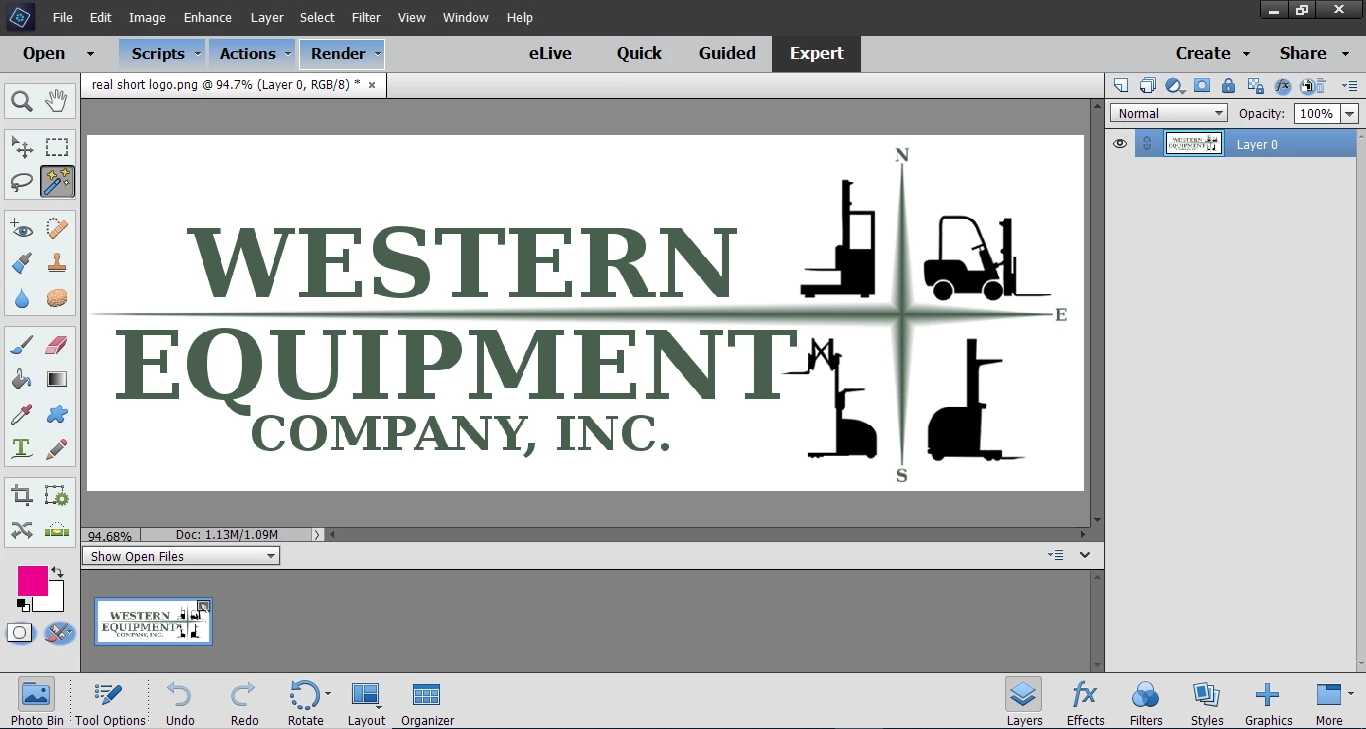
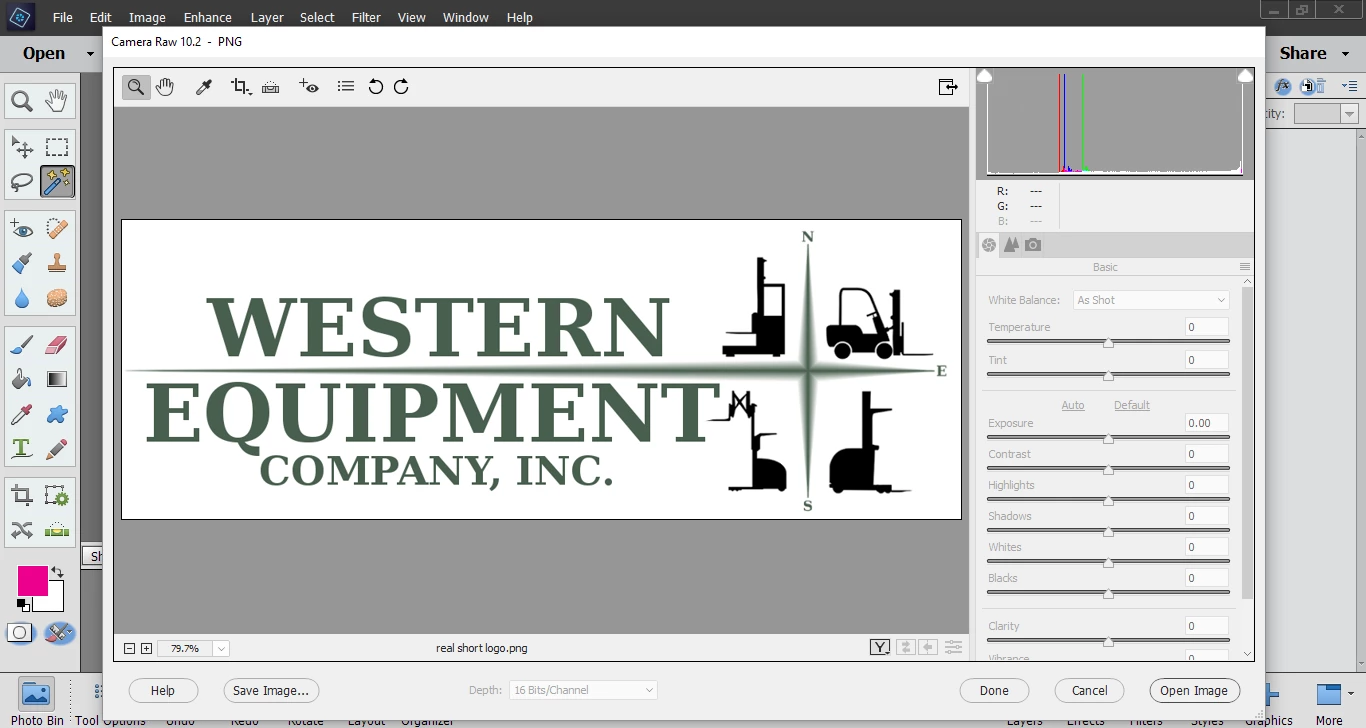
I am having troubles with Elements 18... Whenever I open a high quality image, it appears to have jagged (edgy) pixels... When opened in "Camera Raw" it looks flawless but after opening to Elements 18 the image looks rough again... Any help?

The files always save perfectly with no errors, but when uploaded they look terrible.

I have included some images as examples for my lack of words... This happens with every high quality photo, not only simple logos.
This topic is closed to new replies. Start a new post to keep the conversation going.

14 replies

Participating Frequently
November 1, 2018

Even at 100 it has an edgyness... I believe the problem is that Elements 18 cannot support 16-bit color

MichelBParis
Legend
November 1, 2018

  wrote

Even at 100 it has an edgyness... I believe the problem is that Elements 18 cannot support 16-bit color

MichelBParis
Legend
November 1, 2018

MichelBParis  wrote

flounderpumpkin   wrote

Even at 100 it has an edgyness... I believe the problem is that Elements 18 cannot support 16-bit color

1 - Your image is already slightly pixelated, but only in the diagonal edges where the background has been masked; any software will display it as such in any display at 100%. Could you show the original with the background?

2 - Elements (all versions) does support 16 bits, but not on layers and with a number of tools.

3 - pixelization has nothing to do with bit depth. What is important is the number of pixels. Not the number of colors a pixel is able to display.

Participating Frequently
November 1, 2018

This photo was taken with an image opened just from my files / without "camera raw"

MichelBParis
Legend
November 1, 2018

This image has been reduced to 10.4% and it's about a quarter of your screen width (1366 pixels).That means about 3400 pixels for the original image, so it's a high quality image and it should look very fine at 100% pixel view or even at 50%, 25% or 12,5%.

Tip: to see the image at 100% pixel view, double click on the magnifier tool in the tool palette.

Your display resolution of 1366 pixel is ok, but with a good eyesight, you might be able to distinguich individual pixels.

Jeff Arola
Community Expert
Community Expert
October 31, 2018

After you open the image from camera raw view it at 100% view (actual pixels) by double clicking on the Zoom Tool in the toolbox and see if they look any better.

or the menu View>Actual Pixels.

Participating Frequently
October 31, 2018

I've used the magnifying glass tool a few times, but my alt+scroll surely does not make any changes...

Jeff Arola
Community Expert
Community Expert
October 31, 2018

How does the text look at 100% view?