


Inspiring
March 15, 2019
Answered

Help me get this specific tint

  • March 15, 2019
  • 1 reply
  • 1000 views

This is for an ebook cover. Someone else did this tint:
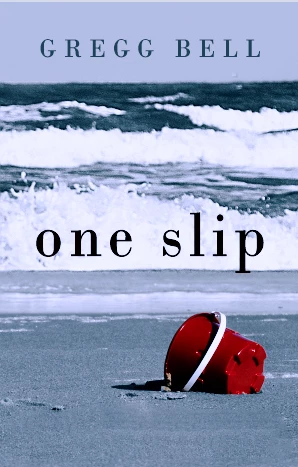
and I really like it.

I tried to recreate the same tint and gerrymandered around trying a lot of things including levels, midtones, brightness etc etc. In the process I lost some of the sharpness of the waves and the the waves were too white (I lose the overall tint) and my sand is lighter than his. Here's what I did.
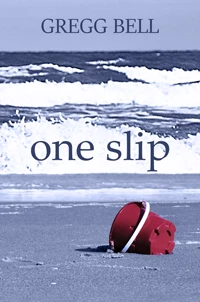
I have lately been experimenting (I have PE2019) with Layers>NewAdjustmentLayer>PhotoFilter>Ok>"Color" radial button>clicking on color square

and then clicking on the color palette to try to find the guy's tint. I have been unable to even come close.

Here's the color in the original image.
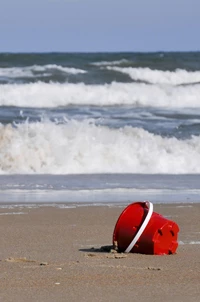
If anybody can find the right tint and give me a Hex code to enter I would be very appreciative. (Or if you have another way of getting there.) Thanks.
    This topic has been closed for replies.
    Correct answer hatstead

    In order to colorize specific objects vs global colorization, make a selection of the object using one of the tools, e.g. lasso, magnetic lasso, selection brush, and place the object on a new layer (CTRL+J). Then, open a Hue/Saturation adjustment layer above this and link the two layers (CTRL+G).

    In the H/S adj. layer dialog, check the "colorize" box, and work the 3 sliders to best advantage.

    If necessary, you can sharpen selectively.

    You can also change  the blending mode of a given layer, e.g. darken, multiply, color burn, etc. and adjust the layer opacity as well.

    The color picker dialog provides a read-out and reflects the sample which you have captured with the eye-dropper.

    1 reply

    hatstead
    Inspiring
    March 16, 2019

    BadStar  wrote

    This is for an ebook cover. Someone else did this tint:

    and I really like it.

    I tried to recreate the same tint and gerrymandered around trying a lot of things including levels, midtones, brightness etc etc. In the process I lost some of the sharpness of the waves and the the waves were too white (I lose the overall tint) and my sand is lighter than his. Here's what I did.

    I have lately been experimenting (I have PE2019) with Layers>NewAdjustmentLayer>PhotoFilter>Ok>"Color" radial button>clicking on color square

    and then clicking on the color palette to try to find the guy's tint. I have been unable to even come close.

    Here's the color in the original image.

    If anybody can find the right tint and give me a Hex code to enter I would be very appreciative. (Or if you have another way of getting there.) Thanks.

    1. Open the image
    2. Activate the Eye dropper tool and sample the "tint" on the image. This will  change the foreground color chip from default color to the sample color.
    3. Now, left click on the foreground color chip and you can read the hex value in the color picker dialog.
    BadStarAuthor
    Inspiring
    March 17, 2019

    Thanks a lot, hatstead, but I already tried that. For instance, where do you place the color picker? I tried all over and wherever I pick, the tint just seems faint, and it doesn't get the sand darker. What I think I'm missing in mine is the blue tint on the waves. Maybe I'll select the waves and try to tint them, because really, looking at mine, besides that, it's pretty close to the guy's. Appreciate you responding.

    hatstead
    hatsteadCorrect answer
    Inspiring
    March 17, 2019

    In order to colorize specific objects vs global colorization, make a selection of the object using one of the tools, e.g. lasso, magnetic lasso, selection brush, and place the object on a new layer (CTRL+J). Then, open a Hue/Saturation adjustment layer above this and link the two layers (CTRL+G).

    In the H/S adj. layer dialog, check the "colorize" box, and work the 3 sliders to best advantage.

    If necessary, you can sharpen selectively.

    You can also change  the blending mode of a given layer, e.g. darken, multiply, color burn, etc. and adjust the layer opacity as well.

    The color picker dialog provides a read-out and reflects the sample which you have captured with the eye-dropper.