
Participant
October 5, 2022
Answered

How do you disable the homescreen on a mac?

  • October 5, 2022
  • 2 replies
  • 353 views

I'm working with Adobe PS Elements on a Mac laptop.

I just want to edit my own files without a kindergarten teacher taking my pics and telling me that I can add a pain effect and a lens flare to them... I already know this and have my own brain to be creative with.

When I start my PS Elements, I get that annoying homescreen asking what I want to do. How can I kill that homescreen?

Unfortunately, the answer seems to be in a general menu that everyone seems to have access to with a little checkbox to click to not show the screen on startup. But this isn't the case on mac. This menu doesn't exist.

Plase help!


Thank you (Also, this solution to my problem seems to be obsolete and the posted information is not linking to anything https://community.adobe.com/t5/photoshop-elements-discussions/how-to-disable-photoshop-elements-2021-home-screen-macos-big-sur/m-p/12358192#M72865)
This topic has been closed for replies.
Correct answer Jeff Arola
  • Navigate to Applications/Adobe Photoshop Elements [Version]/Support Files.
  • Double-click Adobe Photoshop Elements Editor.app to launch the Editor.
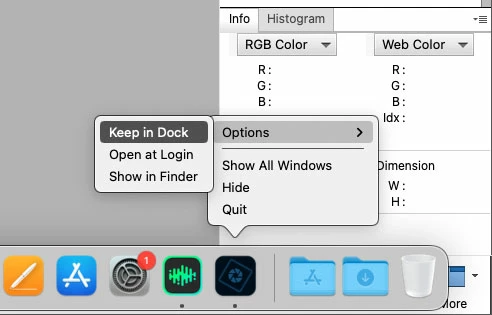
  • Right-click the Adobe Photoshop Elements Editor icon that appears on the dock. If your mouse does not have right-click capabilities, click and hold the icon until the menu appears.
  • Choose Options > Keep In Dock.


Now when you click the Adobe Photoshop Elements Editor icon in the dock the pse editor will start without the Welcome Screen.


2 replies

Jeff Arola
Community Expert
Jeff ArolaCommunity ExpertCorrect answer
Community Expert
October 5, 2022
  • Navigate to Applications/Adobe Photoshop Elements [Version]/Support Files.
  • Double-click Adobe Photoshop Elements Editor.app to launch the Editor.
  • Right-click the Adobe Photoshop Elements Editor icon that appears on the dock. If your mouse does not have right-click capabilities, click and hold the icon until the menu appears.
  • Choose Options > Keep In Dock.


Now when you click the Adobe Photoshop Elements Editor icon in the dock the pse editor will start without the Welcome Screen.


Participant
October 5, 2022

Oh.

My.

God!

Thank you! That worked - this was driving me nuts. Thank you so much!!!

Ged_Traynor
Community Expert
Community Expert
October 5, 2022

Moving to the Photoshop Elements forum