


Participant
March 3, 2017
Answered

Audio out of sync when exporting H.264

  • March 3, 2017
  • 24 replies
  • 160585 views

I just discovered the following:

Whenever I export a H.264 in MP4 container, the audio in the resulting file goes about 10 ms out of sync. (575 audio samples to be exact.)

Screenshot:
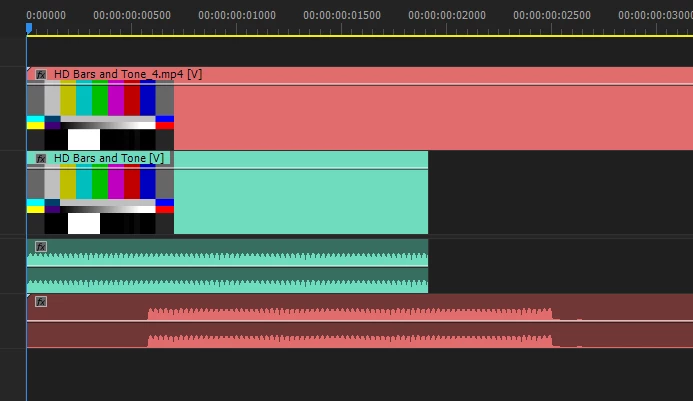
Green is the original clip, red is the resulting file from export.

I used 25fps in export settings.

To test this I used:

  • HD bars and tone that lasts exactly 1 frame @ 25 FPS
  • Cleared / reset the cache
  • Disabled the h.264 acceleration in settings and restarted premiere
  • Rendered the timeline to green
  • Tried to render with Adobe media encoder

The result was always the same, audio is not in sync with the original timeline.

To see if it's just a display issue, I copied the empty space in the start of audio, pasted it 100 times and it was silent. I also brought the video file to cubase and the desync was clearly there as well.

I tried other codecs and they all worked fine and are 100% in sync, including H.264 in .MOV container.

The video is exactly the same in the resulting file and lasts for 1 frame as it's supposed to, the audio starts 10ms late.

I tried to export audio only as MP3, that made the audio go even further out of sync.

I've gotten similiar files from my coworkers using adobe premiere, which is telling me that this is not a problem with my system only.

What is the cause of this and can it be fixed?

    Correct answer roberth63696283

    It was driving me crazy, but I found that VLC played it perfectly.


    24 replies

    varjak
    Participant
    March 2, 2026

    In my case, the audio was fine but I noticed the video to be misaligned with it after export, in comparison to how it played in playback (inside premiere). I eventually found why: I had cut a still image video chunk, and stretched it, to make the still image last longer. I used Clip>Video Options > Add Frame Hold. Aparently, the stretch worked fine at playback, but after export, the video part after the still image was playing instead of the still image. So the video was advancing and not holding for the stretch time. Which made it miss the audio cue I had for the start of the next video part.
    To solve it, instead of cutting a chunk, I used “Export Frame” (camera icon a bit to the right of play), checked “Import to Project”, and put it in the time line. It was a true still image, I strecthed it as I wanted it without it advancing to the next part, and after export it behaved the same!

    Participant
    September 7, 2023

    Trying changing Hardware Encoding to Software Encoding. Not sure if that will work for you, but it was an easy fix for me! 

    Participant
    February 15, 2022

    Yes - VLC worked fine for these files for me when Quicktime did not, but I also found that other MP4 files that I had not exported myself, worked fine in Quicktime – no issues with it being out of sync. I worked with Apple to help me but they eventually disappeared and I never re-opened the case.


    Even with Monterey update and a new computer, Quicktime was still giving me sync trouble with those same exported files.


    Haven't edited in a while and there have been a couple of Adobe updates, so I exported a new version of that same session with all of the same export settings and now it plays fine of Quicktime! It seems that Adobe must have fixed the issue! 🙂 Are others having the same experience?

    Participant
    February 15, 2022

    Just noticed that the newly exported file is much smaller, but it seems like all of the settings are the same and I used the same preset, so I can't explain that part... Attaching an image of the "Get Info" of the two files...

    Kevin-Monahan
    Community Manager
    Community Manager
    January 26, 2022

    Hi Community,

    I found a variety of bug reports on the same topic you can upvote. Please let the Premiere Pro team know that you want this bug fixed ASAP by upvoting. I'll add more if I find them along the way.


    Thanks,
    Kevin

    Kevin Monahan - Sr. Community and Engagement Strategist – Adobe Pro Video and Audio
    Participant
    September 9, 2021

    I initially thought QuickTime was starting to act on me, as all videos from this project were going mute half way or sometimes going mute from the start. Each time I played a file, the audio problem changed.

    Reading these posts i tried changing Bitrate settings but rendering time was ridiculous.

    Then I tried to open the troubled file on QuickTime and then export it as 4k - Voilá! Problem solved.

    It tells me there is something off with the audio encoder within Premiere, which QuickTime fixed during export.

    Still amazed that we have to find ways around to make Premiere work. Such a great software but bugs like these really suck the love out of my soul...


    Recapping > Export your file using QuickTime player (4K)...

    Kevin-Monahan
    Community Manager
    Community Manager
    September 15, 2021

    MagnoB,

    You are actually losing a generation by encoding any file once more in QuickTime Player, more than likely. Does it seem to be doing so? Feel free to file a bug here: Premiere Pro User Voice


    I'll let the team know in the meantime. 


    Please file your bug, and I will advocate for a fix or some kind of solution to the problem other than, "avoid QT Player." As you say, files should not be playing out of sync on the Camera Roll. That point got my attention as a customer advocate.


    Edit: After a bit more research, I found out that this is a bug that has already been reported by customers and has been filed by my associates. I added this post to the bug that is being worked on right now. I hope we can get the fix into an upcoming version as soon as possible. So sorry for the inconvenience and workaround. In the interim, please use VLC to evaluate your video until we can resolve this issue.


    Thank You,
    Kevin

    Kevin Monahan - Sr. Community and Engagement Strategist – Adobe Pro Video and Audio
    roberth63696283Correct answer
    Inspiring
    June 23, 2021

    It was driving me crazy, but I found that VLC played it perfectly.


    Participant
    January 9, 2022

    I just exported a video that plays perfectly in VLC player but when I upload it to my google drive and download it to my iphone, the audio isn't sync'd.  Not sure what to do.  I want to upload it to social media but the only place that it plays really well is in VLC player.

    marcog44506272
    Participant
    August 2, 2023

    Hi there, I know this is a year ago, however did they ever find a solution to this problem as I have exactly the same issue. Through my windows player it plays fine, when I upload it on vimeo or google drive on my computer it plays fine, however, when I open the file on anyone elses computer or iphone (including my own) from google drive/vimeo/youtube it plays out of sync

    Participant
    June 23, 2021

    Dear Inrot, 


    The issue for me was that the source video had a different frame rate from the sequence (60fps in the video vs 25fps sequence). You can check the fps of the source file by right-clicking on the video and selecting properties. If the frame rate is off, you can use media encoder to change the fps of the source file. Use the new 25fps file in your premiere sequence with, now, matching frame rates, export it and it should be good. The same goes for audio. It took me 3 days to fix this issue and finding out the solution. Hopefully, this helps!

    MLeonard
    Participant
    May 7, 2021

    Ok, I have one thing to add. This worked for me.

    When I was having problems, I had the renderer set to Mercury Playback Engine GPU Acceleration (OpenCL).

    I changed the renderer to Mercury Playback Engine GPE (Metal) - Recommended

    With that change, the video and audio were synced after export.

    sarahf50308390
    Participant
    June 14, 2021

    I recently had the same issue with my h.264 audio going out of sync. The audio is also muted in certain places too. I do have mixed media including gifs and screen recordings. But this is the FIRST project I've ever had this audio sync issue with. I've contacted Adobe support and they suggested using Premiere Pro 15.0 instead of the latest version but that didn't help at all. What to do? Thanks.

    Participant
    April 18, 2021

    Solved this in my case in a few ways. I had some footage that was falling out of sync after export, but it only seemed to be a problem when it was playing it through quicktime. You can play any local video off your device through Google Chrome, just open a new tab and literally drag the video there, you'll see a green + sign appear by the cursor. When I tried playing those same exported video files that had laggy audio in quicktime, they played perfectly fine and in sync in Chrome. So the problem there was with our quicktime was reading the file opposed to how the file itself was encoded. This was really confusing because I used media encoder to confirm that the source video had a constant frame rate (frequently the culprit for these audio sync issues) and the footage was in sync when I tried playing it in the premiere timeline.


    I had some other footage that had a variable frame rate and that footage didn't even import into premiere in with audio in sync. Quicktime would play that same footage in sync, but when loaded into premiere, the video and audio instantly fell out of sync, even in the premiere timeline. I used handbrake to reencode that footage to a constant frame rate and had the audio sync issue solved. 

    Participating Frequently
    April 18, 2021

    Oh wow!! You're right! It plays perfectly fine in chrome. It seems like its a quicktime problem and not premiere. Sorry adobe! Now I gotta go over to the apple forums, ha!

    Participating Frequently
    April 18, 2021

    Hi! Adobe, I just wanted to add to this thread. I started having this issue after the 2021 update. Nothing has changed in my workflow and all of a sudden when I export h.264, my audio is out of sync and drifts further and further as the video goes on. Other codecs don't seem to have the problem but I need H.264 for the platform I upload to. I'm not using VFR although I do have a couple 30fps clips on a 24fps timeline but I've also expereinced the same problem just having a single 24fps clip that I was adding a fade in/out to. Please help! What used to be a simple export has me trying all these different work arounds that just shouldn't be neccessary. Thank you!


    Tech Specs:

    MacBook Pro (16-inch, 2019)

    2.3 GHz 8-Core Intel Core i9

    32 GB 2667 MHz DDR4

    AMD Radeon Pro 5500M 8 GB


    Adobe Premiere Pro 15.1.0

    Participating Frequently
    April 18, 2021

    I forgot to mention this started happening when I was on Mac OS Catalina but I just recently updated to Mac OS Big Sur and the problem persists. Thanks in advance 🙂