
Inspiring
March 16, 2023
Question

BUG: Use Previews....Doesn't Use Previews.

  • March 16, 2023
  • 98 replies
  • 16272 views

This workflow has been broken for a long time and I would really love to fix this one. I know this used to be on uservoice but I can't find the old bug. 


Steps:


1. Set sequence preview file to "Apple ProRes 422HQ" or whatever your favorite is. 

2. Render Sequence to full green.

3. Go to Export, Select an H.264 preset, check "use previews"

4. Watch as PrPro doesn't acess a single preview on disk and instead renders the whole timeline from scratch. 


From my current example I have a .png sequence from blender than I've rendered to green in the timeline.


Export->H.264, use previews checked...


Look at windows resource monitor, why is premiere chewing up PNGs when it should just be referencing the preview files I JUST RENDERED. 
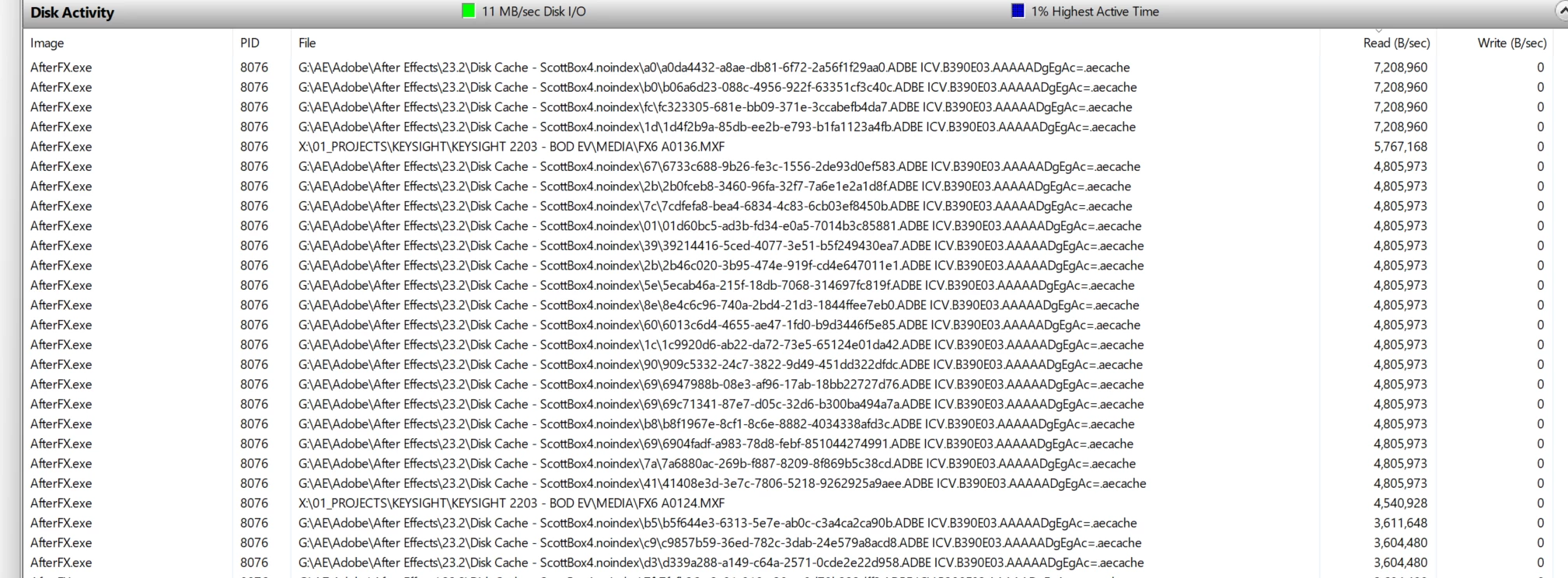
.aecache files being acessed for no reason. 
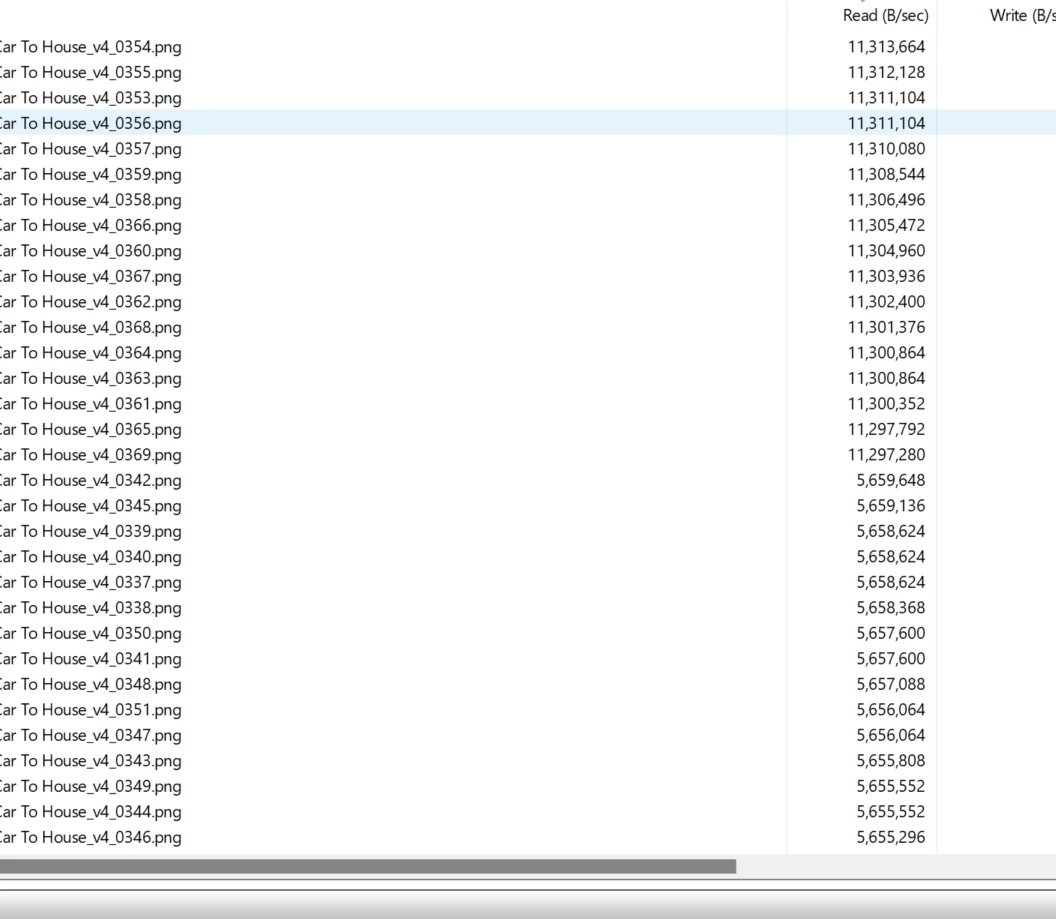
.png sequence being read. WHY. 


98 replies

R Neil Haugen
Legend
March 30, 2023

Terminology can vary by program. And therefore use.


"General" previews in Premiere ... since I started using it back with CS6 in 2013 ... have been used as a quickie playback tool. Never intended for export use.


The entire "use previews" process in Premiere's export process, as spelled out in their "Smart Preview" documentation for Smart Previews, has been consitent all these years. To use the previews in export, the previews must be both using an interframe codec and that codec must the the precise one to be used in the export.


What FCP did or didn't do is nifty to know. And suggesting alternative practices in Premiere is always a great thing to do.


I'm just noting that what happens now is always a Premiere has worked. And ... that I can't see how setting any preview to a codec different in any respect to the final one is supposed to be useful in the export.


Neil

Everyone's mileage always varies ...
Ryan Fritzsche
Inspiring
March 30, 2023

Previews are neither lower nor higher quality by defintion: they are the quality and resolution and codec which you choose for them to be in the Sequence settings panel.  And I am in fact pretty well-versed with various codecs, bit depth and resolution settings, inter-frame vs intra-frame compresion, etc. But if I do choose a lower quality, resolution, compressed or lossy codec, etc in my previews, then that's my decision to make, and I'd like Premiere to use those previews, whatever they are, on export, if I have checked "use previews".  If I want it to re-render everything from scratch directly into the export codec, which I freely concede is the most lossless and highest fidelty way to export a final master, then I'll uncheck "use previews".  Right now, "use previews" is a meaningless button, b/c it doesn't force the export dialogue to actually use the previews.  This is not a problem I had back in the Final Cut Pro 7 days, and I could be mistaken but I think it didn't used to be a problem with Premiere either.

R Neil Haugen
Legend
March 30, 2023

I'm not a codec expert by far, but from what I do know, I can't see how, in reality, your wants from previews could work. Due to the way the different format/codecs are "composed" among other things.


A "preview" has been something to get a low-quality quickly produced file for timeline playback ... that's why they can be produced quicker, because they aren't to the full specs of the sequence.


If you've needed full specs, with all the effects baked in, that's always been the render & replace option. And that, from what you've said, is what you need in the end.


Because, if you're using the preview file in an export, it must be to the full framesize and bit and color depth of the needed export. So if your export is going to be 10 bit UHD, the preview must also be 10 bit UHD.


And the file specs or construction format, must also be of the expected export. You can't just say a ProRes file becomes an H.264 by "abra-kaZAM!" ProRes is not by structure Cineform which is not DNx which is not H.264 ... they are all completely different "physical" entities.


And once that preview is made, it is a physical entity on disc. It's not just a bit of processed data. So to change from one codec to another ... requires re-rendering to that codec.


Ergo  ... an eventual deliverable in ProRes422, you set your R&R to ProRes422. When you've got your effects work done, do an R&R. Now ... when you export to that ProRes422, it simply cuts together those sections of P-R422 into your export.


Fast & furious, so to speak.


But if your preview is a low-res ProRes for good playback, and your export is say H.264 ... well, they aren't the same file material in any way, shape, or form, are they? You can't simply copy a low-res ProRes and say it's now H.264.


And unless that preview is at full bit and color depth and framesize, you can't take any part of it anyway. You'd have to start from the original.


So I'm just puzzled as to how you would expect this to work. I can't see we could expect a low-res preview file of one codec suddenly becoming a full res export file of a different codec.


Neil

Everyone's mileage always varies ...
Ryan Fritzsche
Inspiring
March 30, 2023

I understand what you're saying, Neil, but I'm with Scrozier.  This is a bug, not a feature.  "Use Previews" should use the previews, period.  When I render an FX-intensive timeline in ProRes, then export to an H.264 or any other format, and select "use previews", it should use the ProRes previews as its source, and NOT re-render everything from scratch.  In my work, I frequently build complex, render-intensive sequences and then send lo-res .mp4 exports for iterative reviews throughout the process.  The best workaround I have is to export a full-res interstitial "using sequence settings", then take that back in AME or Premiere and export it to H.264, which is cumbersome and unnecessary when all the needed ProRes previews are readily available for a direct conversion without having to do the interstitial.  Adobe, please fix this, it's a huge pain.

Scott.C.Author
Inspiring
March 17, 2023

Its been broken for awhile now. Again, I can't find the old uservocie requests becuase that got nuked and the search function on here is less than stellar but I want to say its been borked since maybe 2018. 

R Neil Haugen
Legend
March 17, 2023

I don't recall it being faster to create say an H.264 export if I had previews in ProRes, which I normally do. But then, my memory could be off of course.


Perhaps @mattchristensen could give us the actual hard info?


Neil

Everyone's mileage always varies ...
Scott.C.Author
Inspiring
March 17, 2023

@R Neil Haugen What you are describing is the "Smart Render" function which is great and useful. Thats not what "use previews" was orignally used for. 


It used to "use previews" no matter the export destination or format. Yes you are "re-encoding it" but what I am hoping premiere does is use the preview files that I have spend the time rendering as the source material instead of going back down to timeline original media. In many cases this should be MUCH faster for anything with heavy effects or AE involved. Yes render and replace exists but this should also work and is much faster as you can just mash enter to get all your pro-res renders in one keystroke. 


Currently my workflow is something like :

1. Export with match sequence settings to get a smart render (this actually works usually these days). We are going ProRes to ProRes.

2. Drop that file into media encoder or ffmpeg (it launches way faster) to render it out to an H.264. 


I'm trying to eliminate step two as it is redundant. I should be able to use the previews within premiere to export out an H.264. That's what use previews SHOULD do (and used to do for the record) and not only be limited to smart renders. 

R Neil Haugen
Legend
March 17, 2023

If you've read any of the information, "Use previews" requires that the preview and export codecs be indentical. Then it simply puts those in the file without re-encoding.


ProRes, an interframe codec, and H.264 use entirely different encoding processes. There isn't any way not to have to re-encode that process you are doing.


Neil

Everyone's mileage always varies ...