
dashbarkhuss
Participant
October 2, 2019
Answered

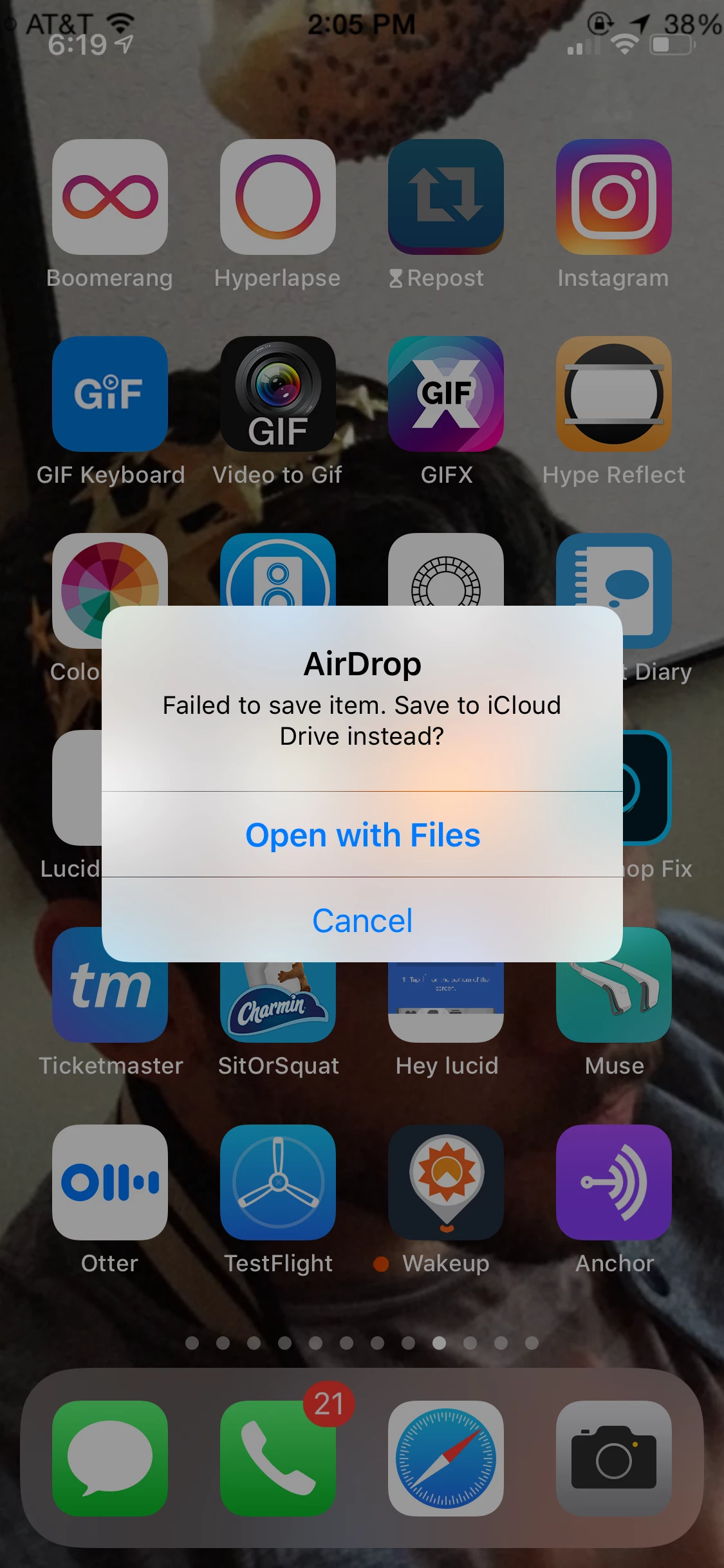
Can't Airdrop premiere Project exported as mp4: "Failed to save item. Save to iCloud Drive Instead?"

  • October 2, 2019
  • 30 replies
  • 72980 views

I'm exported a video from Premier Pro 19 as an mp4 file. When I try to Air Drop the mp4 to my iPhone, I get this message on my phone: "Failed to save item. Save to iCloud Drive Instead?" Why wouldn't I be able to AirDrop this to my photos in a normal manner? Is anyone able to airdrop their Premier Pro exported projects to their iOS device?
People have posted this question, but I found no clear answer:

Can't airdrop premeire pro 18 projects to iphone help

Premier Pro Video Failing airdrop


UPDATE:

I was able to airdrop it when I followed these sequence settings and export settings.

Correct answer Joseph376496454bnn

I have been trying to airdrop from an external HD and have been getting the failed error. I just dropped the file on my desktop and tried again, AND IT WORKED! not sure why. But maybe that can help someone else. 

30 replies

Participant
December 12, 2021

Thank you!

Magnar_ce
Participant
December 11, 2021

December 2021 and still not working.  I tried all suggestions in the comments and the only one that fixes the problem is to open in quicktime and export as a new file.  Sucks since this also reduces the quality of the video.  There must be a better way to ensure I can move files from Mac to iOS without loss of quality.  I'm spending way too much time on this problem instead of where I should be spending time - editing videos.

Participant
October 20, 2021

Same problem here. iPhone and MacBook Air m1. What an actual f... Adobe?  If you think I'll switch to another machine then nope I wouldn't. Would I switch to resolve, I guess yes. Just solve it. 

Known Participant
September 11, 2021

So it's September 2021 and the problem isn't fixed. None of the suggested workarrounds (unbelievable that I have to try to work arround while I pay for the Master Collection!) work. Exporting via quicktime does not work. I have to use imovie now. That must actually be a funny joke???

Legend
September 11, 2021

it's possible at least some of the problem lies in apple's bailiwick...   

MeganKPhoto
Participant
August 18, 2021

I almost threw my iPhone and Mac through the window with this one!! But I found something that worked for me. 


These are the setting I tried that worked. 


Format: H.264

Preset: Match Source - High Bitrate


Under Video settings:

Basic video settings: Match Source

BUT! Untick frame rate and set to 24. 


Hope this helps!

AXXXXXXXXX
Inspiring
June 18, 2021

I think I found it! — I was having the SAME problem. I switched this ONE thing and suddenly it worked! 


Change your field order to Progressive


Hope this Helps!  


Participant
November 17, 2021

This actually worked! Good find! Thank you for posting this, this actually worked for me!

Participant
June 5, 2021

Hey People! Same issue here. Totally Random.

This just WORKED after an hour banging, restarting, rebootin:

Using HEVC (H.265).


Participating Frequently
March 5, 2022

This did it for me in version 22.1.2 (Build 1).

Thanks!

Participant
March 16, 2021

Try saving the original video in Premier Pro as a H.264 format in the export settings. 

File > Export > Media > Format > H.264 > Export


Participant
March 6, 2021

I had the same problem and now I already fix it
I follow her instruction 
https://www.youtube.com/watch?v=E7g2t2WIUFg

Participant
March 1, 2021

Hello! It's me from the future, and this is still an issue. I was able to resolve it with the following sequence and export settings. Obviously the video dimensions may vary, but the important settings are:


(Sequence Settings)

Pixel Aspect Ratio: Square Pixels

Fields: No Fields (Progressive Scan)

Display Format: 29.97 fps Drop-Frame Timecode


(Export Settings) 

Format: H.264

Preset: Match Source - High Bitrate


Ensuring these settings are the same in every sequence guarantees my videos are able to airdrop to and play on iOS.


Best of luck!


Nate.


Participant
June 15, 2022

I chatted with Adobe Support: make sure in your sequence settings that your aspect ratio is one that is accepted by Apple. Weird aspect ratios (2353:234111) are not compatible. Clean aspect ratios (4:5) are compatible.