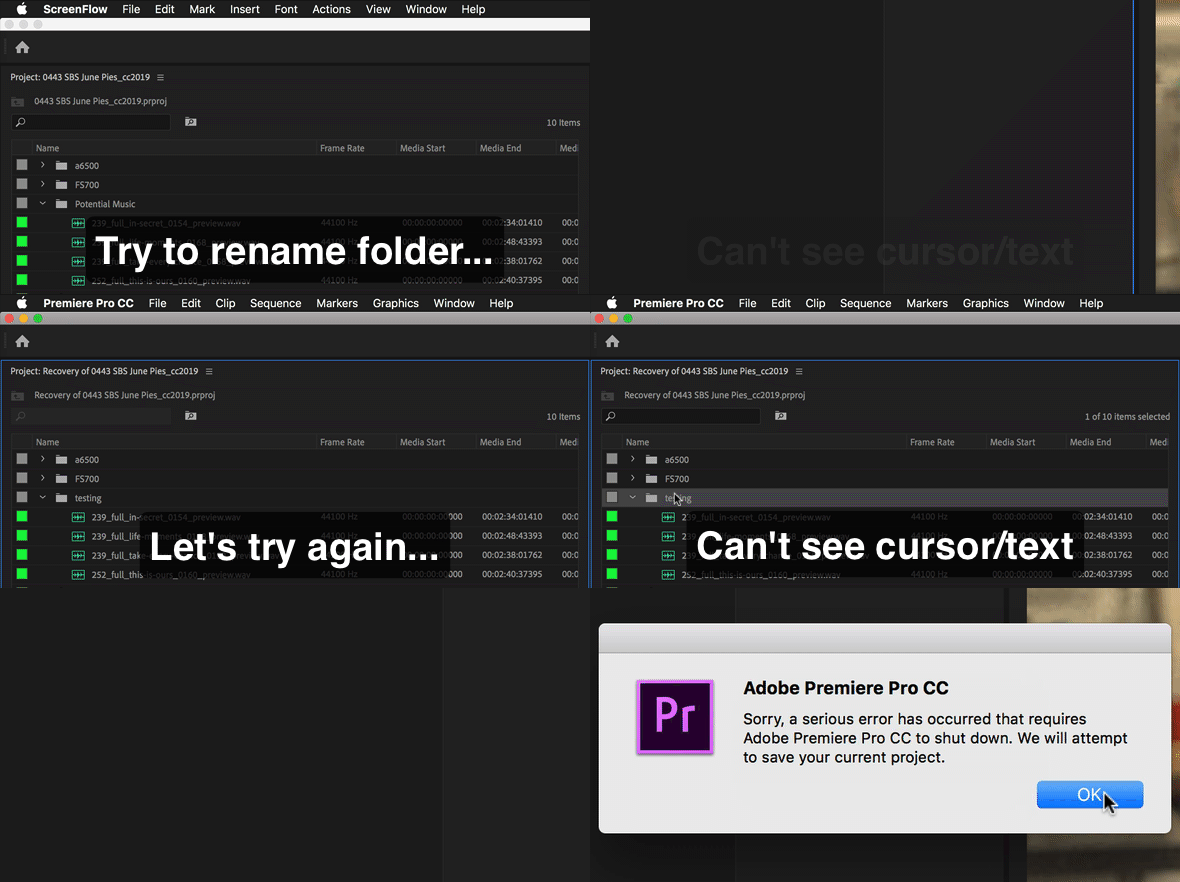
Correct answer danisdevine

Hey folks, here is another possible solution to what seems to be a 10-year old+ issue:

Try resetting your workspace layout. Through the top menu it would be Window > Workspaces > Reset to Saved Layout

This worked for me when none of the other solutions did. Perhaps try setting to different workspaces as well if still stuck.

12 replies

Participant
March 24, 2025

Hello! Im from the future, 2025 and this problem still persists, please take care of the water and mind who you vote to. Jokes aside, Premiere is the most buggy program I ever encounter to the date to edit video. 

Participant
October 30, 2021

Quick fix is to just rename it in list view rather than icon view or freeform view

Participant
November 19, 2019

Just found another possible solution that worked for me. Select the bin or file and then go the the Metadata window and rename it in there. Everything was fixed across all projects after this.

Hebah
Participant
October 3, 2021

Hey 

what did u mean about  go to the metadata?

Participating Frequently
October 5, 2021

Right click on the NAME header title in any bin.  "Metadata Display..."  will appear as the dropdown menu choice.   A window will pop up that allows you to customize the column info that appears in that bin.  Much like the colums in Finder or Explorer desktop windows.  There are hundreds of choices of info columns that can be shown for clips in the bins and you can save presets.  This is very useful for projects with lots of elements.

danisdevineCorrect answer
Participant
February 21, 2019

Hey folks, here is another possible solution to what seems to be a 10-year old+ issue:

Try resetting your workspace layout. Through the top menu it would be Window > Workspaces > Reset to Saved Layout

This worked for me when none of the other solutions did. Perhaps try setting to different workspaces as well if still stuck.

Participant
April 15, 2019

danisdevine fixed the problem! Thank you! I was on the verge of insanity.

Participant
February 14, 2019

Ha, the renaming bug happened to me last night. Widening the column didn't fix the issue - was able to solve by going to Preferences > General and changing the Bin Preference: Double-Click to "Open In Place." If anyone out there is having trouble, maybe try toggling those options around.

Participating Frequently
February 9, 2019

Yes, Donnies suggested reimport works for me as well. Thanks for that!

jordanh43851240
Participant
January 7, 2019

2019 and this is still happening...

Participating Frequently
January 8, 2019

Strange. Its not happening tonight to me.

Known Participant
January 8, 2019

It looks like it might be related to version of PremierePro the project was created under. It it only happening to me in projects created before the last update.  I can get around it by creating a new project and importing the old project into it.

Donnie Rogers

[personal info deleted, forum policy]

Known Participant
December 17, 2018

It's happen to me on multiple machines! Happened when trying to rename any bin or item in a bin.It doesn't crash the app, but I can't see what I'm typing.

Very frustrating! If I type blindly it will accept the text entered, but a solution to this would be appreciated!

Participating Frequently
December 17, 2018

Try my trick above your message.

I did try the other suggestions above first, but all my preferences were deleted. (not that I have many)

Thanks

Bobby

Participating Frequently
December 4, 2018

ok, so....

Hope this easy fix helps the next person.

I opened the project up and still could not rename the bin.

Then I tried to highlight this bin again.

Then went to Menu / clip / rename.

Now it works across the board.

I can right click and I can rename by pressing enter.

So I guess the programming had a little bug in it.

Bobby

Participating Frequently
November 2, 2024

This did not work for me

Participating Frequently
December 4, 2018

I just started experiencing this problem.

I cannot rename bins. This is bad.

Tried the above reset, but this did not help.

Some other instructions online were to delete the Adobe folders from the ~/Library/Application Support and the /Library/Application Support..

Any suggestions?

Thanks

Bobby

Participating Frequently
December 4, 2018

I don't crash the app like you guys, and I am running the latest version.

The Mac is 6 months old, So its not the machine.