
Participating Frequently
January 20, 2022
Question

Color issues with 22.1.2 Premiere Pro update.

  • January 20, 2022
  • 3 replies
  • 1651 views


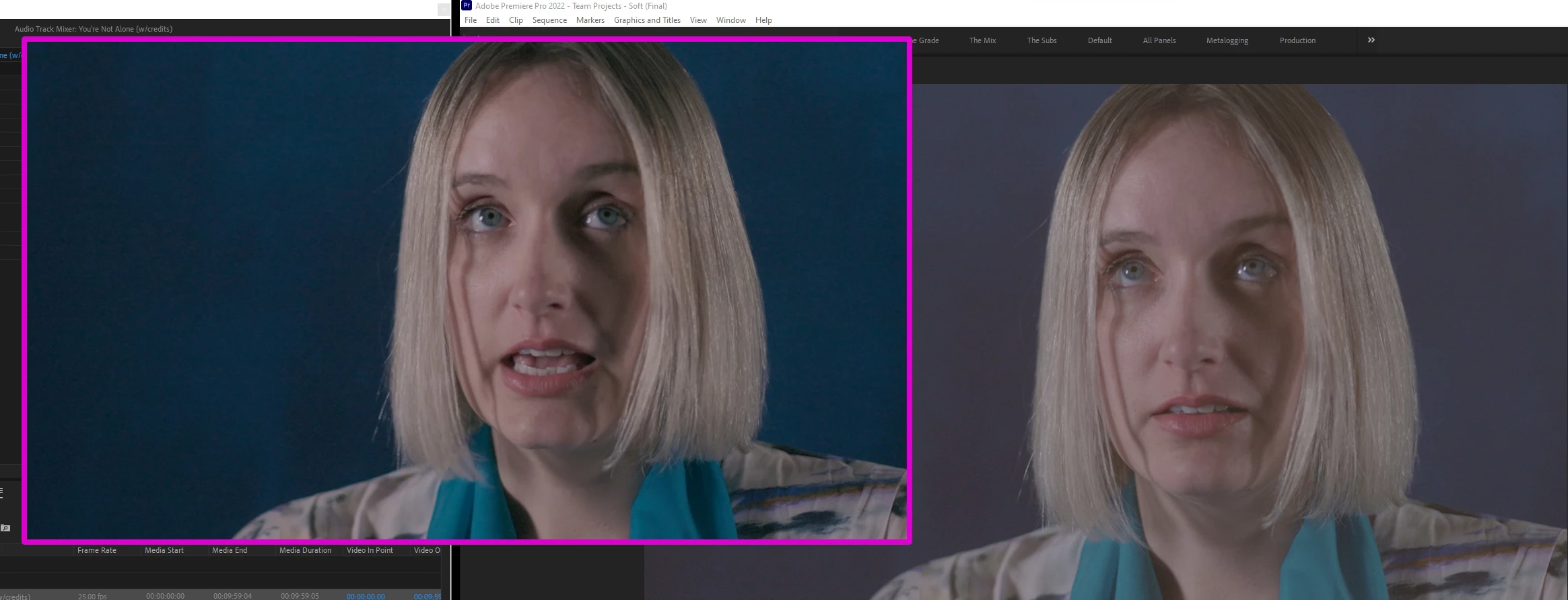
I when to add some changes to an old edit and found the colours washed out. At first, I thought lumetri colour was turned off but it wasn’t. When toggling the fx on and off I could see a little change to the colours but still washed out. So I spent a day re-grading the films (5x 20mins films!) and re-exported them to find the new exports were over contrasted and muddy. I had no idea what was going on (and still don’t) but I had an idea. I went back to my original edit (that was displaying a washed-out image) and exported it as it was (washed-out) - BAM in the export version the colours were all back. Great in one sense as this edit is done but I can't grade anything new because the colour in the edit and the final export don't match. I've uninstalled 22.1.2 and gone back to 22.0 and that has fixed the issues for now but I like my apps to be up to date. I've updated all my drivers and even (today) upgraded to Windows 11 but when I update Premiere Pro I still get the same issues.


The image below: The purple highlighted square shows the colour of the video when exported and the image on the right is how it is displaying in Premiere Pro. Any help would be greatly appreciated.
 

This topic has been closed for replies.

3 replies

R Neil Haugen
Legend
January 20, 2022

How are you checking the clip outside of Premiere? And no, QuickTime Player is not a wise choice, especially on a Mac.


Next ... what is your OS? Mac or PC?


Do you have the preferences option "Display color management" checked/on, especially if on a Mac?


Are the clips HLG, from an iPhone/cell phone, or log-encoded?


Neil

Everyone's mileage always varies ...
WKF cicAuthor
Participating Frequently
January 21, 2022

I'm working on a Windows PC and I've used both vlc and window media player to view the footage but the issues is definetly in Premiere Pro and I know this because the colour changes only when updating to 22.1.2. The export is the right colour, is how I graded it to look before the update . This footage is MXF but it is doing it to other file types.


Thanks for helping.

R Neil Haugen
Legend
January 21, 2022

What is the file's color space?


Neil

Everyone's mileage always varies ...
WKF cicAuthor
Participating Frequently
January 22, 2022

These links are great but don't address the problem.

How do you colour grade if the export is vastly different?

When I first saw this problem, I assume that the 22.1.2 update had just messed up my colour grade. So, I re-graded it to look the way I had before but when I exported it the image was massively over saturated and over contrasted. That’s when I realized my grade was still there, the timeline just wasn’t displaying the colour correctly.

I've heard of people say that on export their image was a little washed out (which I know is a compression issue) but I'm having the opposite happen.

I'm sure colour space has something to do with it but what?  I just need to get my timeline colour to match my export colour.

All help is massively appreciated.

R Neil Haugen
Legend
January 22, 2022

They completely rebuilt the underlying color system of Pr2022. It was totally Rec.709, with "the ability to use over-range values" to sort of work with HDR, the wider dynamic range and color depth/gamut.


It now seems totally color space agnostic, working simply with either SDR/Rec.709/sRGB media, or the various forms of HDR, with wide dynamic range, vastly greater color depth/volume, and log-encoded values.


However, the default behaviors it has aren't working in all ways as the engineer's expected, and of course, most users don't have a clue about the changes. Including controls for working with HDR or SDR media in the clip properties in the Project panel and the Sequence settings panel.


And that is what is tripping you up.


First, understand that essentially all HDR media is encoded in log form. "HLG" of course is hybrid log/gamma, and the log part is the full HDR, the gamma part is adopting a gamma curve for the shadows. And therein lies part of the issues users are having.


Premiere now sees all HLG media as HDR ... and will plop it on any timeline displayed as HDR no matter the sequence settings. This includeds most phone media, and also from several cameras/DLSRs and mirrorless rigs.


To work that in an SDR timeline, you need to select the clips in the bin, right-click/Modify/Interpret Footage, go to the bottom of that dialog, and select Override to Rec.709. Then go to the Sequence settings, and make sure they are set to Rec.709.


Now you can grade as you will, and it will export normally.


However, if you have media displayed as HDR on an SDR timeline, and try to simply grade it down within SDR, on export the color correction will be ignored and it will be blown out as you are getting.


To work in HDR, you need to make sure your media is HLG or PQ, then your sequence settings to match, and use the export presets that are matching, with either HLG or PQ in the preset name.


Here's a couple FAQs explaining the changes and how to work within the system, including the broken bits.


Neil


FAQ:PremierePro 2022 Color Management for Log/RAW Media


How to Set Monitors for HDR work in Premiere Pro 2022?

Everyone's mileage always varies ...
Participant
January 20, 2022

Hello there,

I have also faced the same problem with my slots free chips project  but I have solved it by making the foowing changes. Open Premiere, and drag your clip into your timeline. In your Effects tab, go to the Video Effects tab, Adjust, then drag over Lighting Effects onto your clip.

WKF cicAuthor
Participating Frequently
January 21, 2022

Thanks but it seems we are not having the same problem.