Known Participant
February 2, 2024
Question

Colours of HDR exports from Premiere Pro and After Effects never match

  • February 2, 2024
  • 21 replies
  • 1882 views

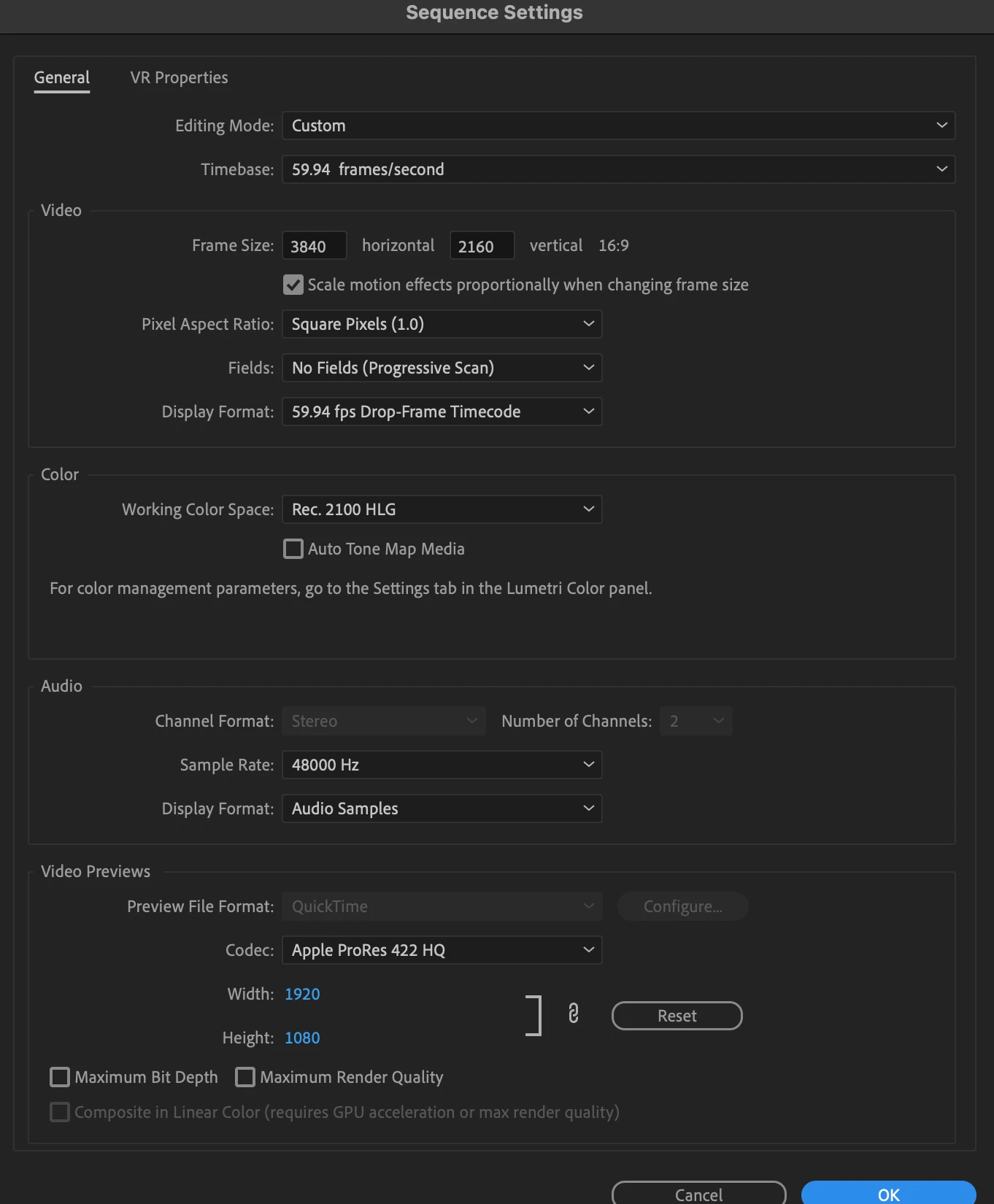
I use an Intel Mac running the latest versions of the Adobe software and have HDR footage from an iPhone 15 Pro or DJI Pocket 3 which I edit in Premiere Pro as Rec. 2100 HLG, I export as HEVC (H.265) and all is fine.


However, I want to add effects to parts of the videos and need to track the camera using After Effects. I have tried both dynamic linking and also exporting a clip from Premiere Pro and importing into After Effects and then exporting.


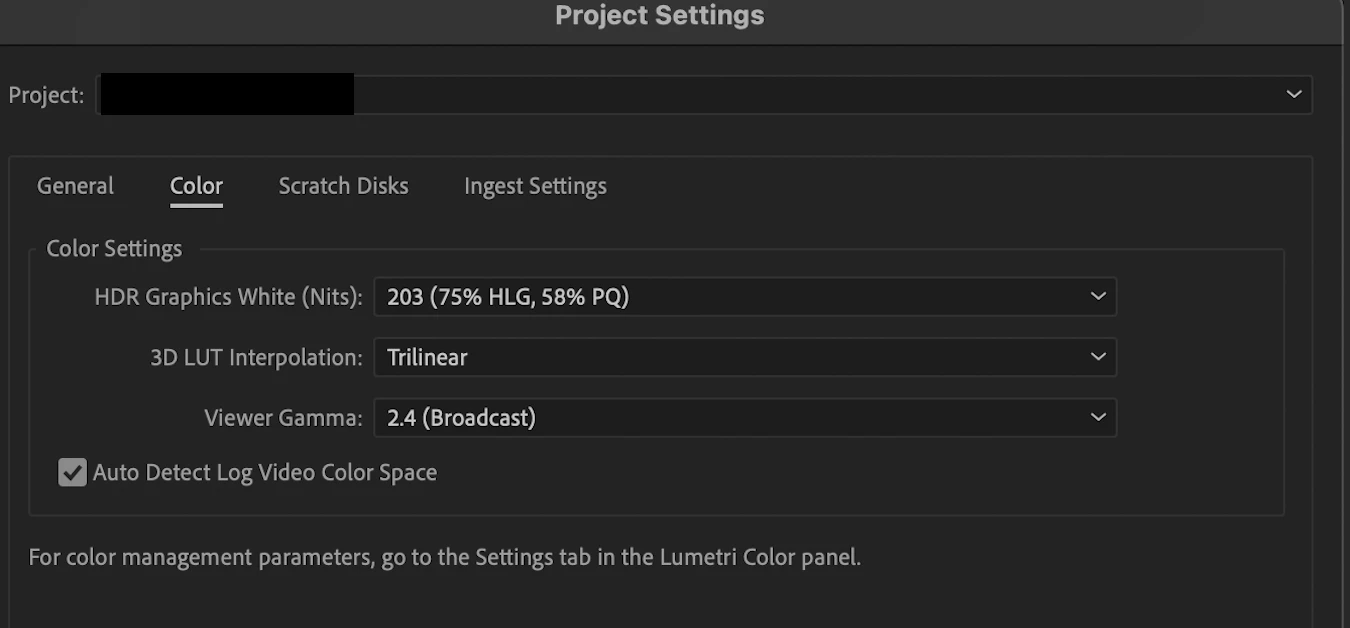
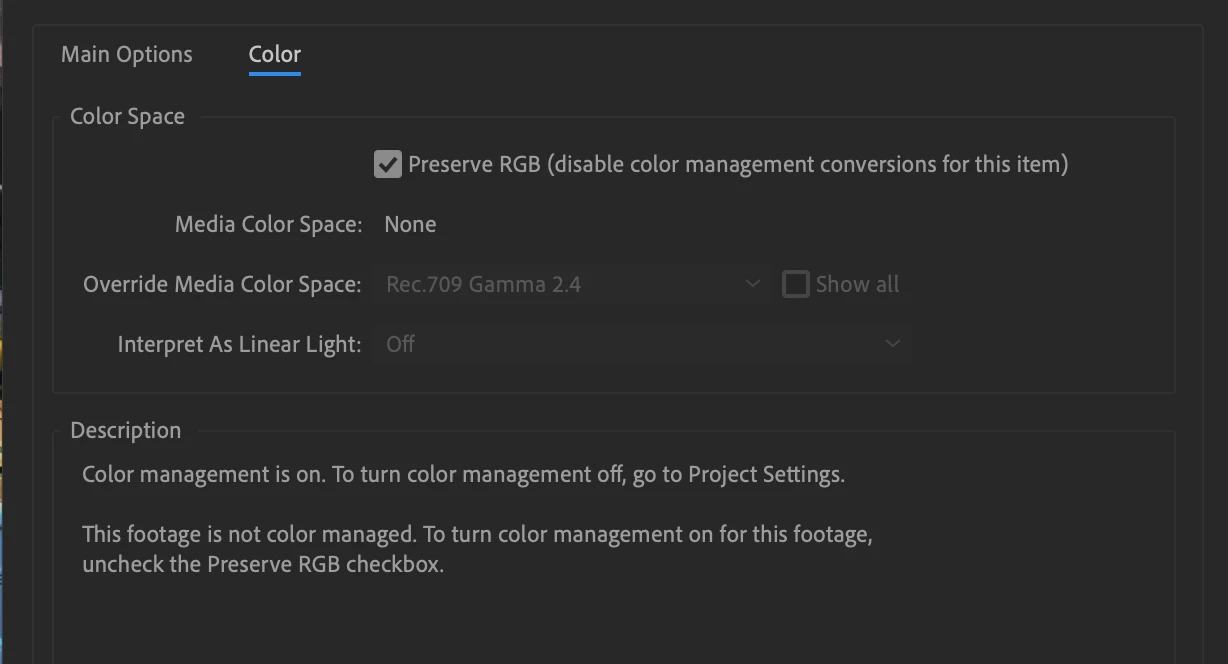
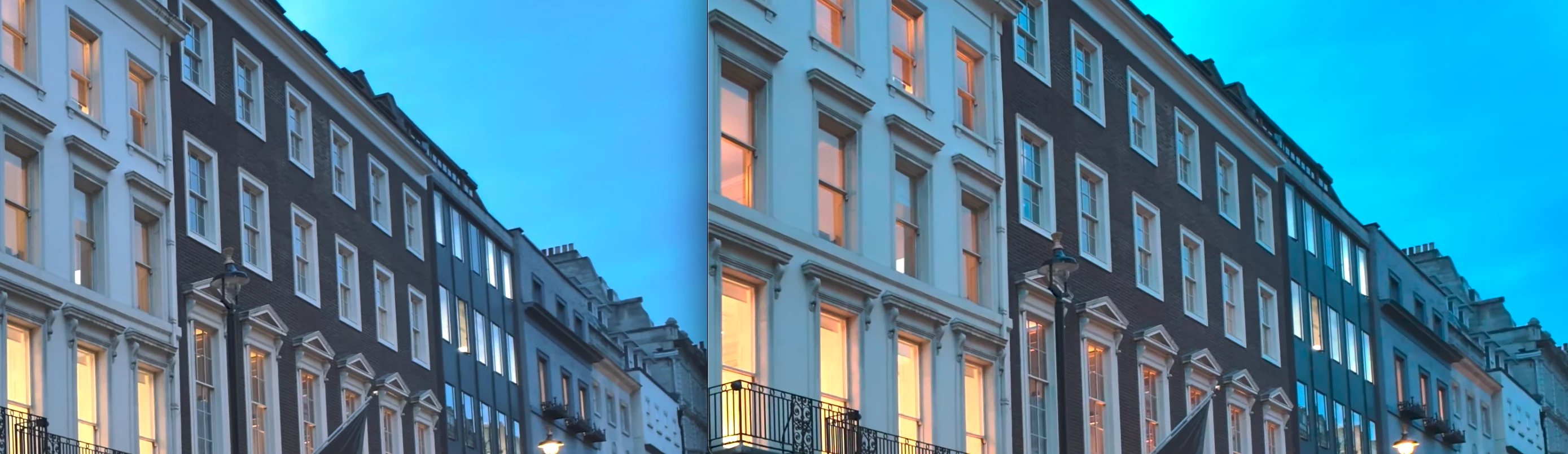
I use the preserve RGB in interpret footage (and have tried all other options I could think of including overriding media colour space), but the footage from After Effects never matches that from Premiere Pro when exported (or in the timeline), the footage looks more saturated (even without applying any effects).


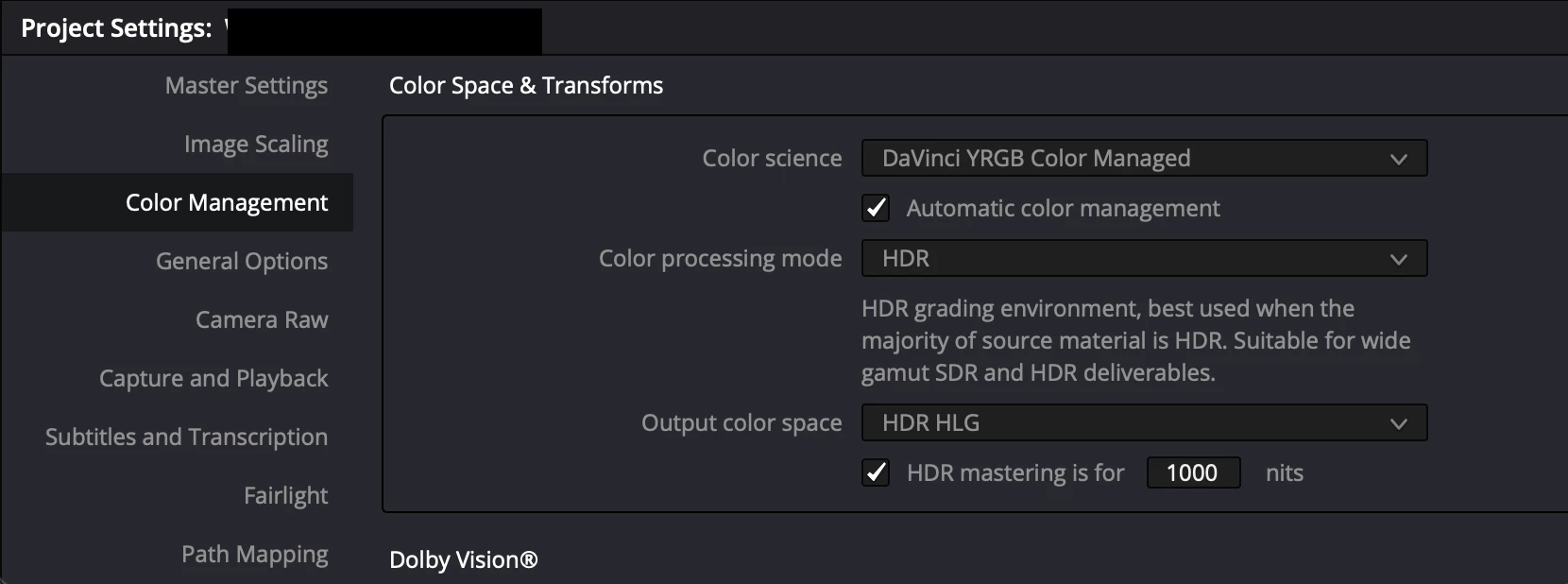
Just to add, this works fine when the footage is Rec. 709. I can also export Rec. 2100 HLG footage from Premiere Pro and import into DaVinci Resolve and then export from there and the exported footage still matches that from Premiere Pro. 


Am I doing something wrong or is this purely an Adobe issue that they are choosing not to fix? It's been a few years now that this has been the case and posts have been made on here about it but nothing seems to have changed.


Premiere Pro:
 

After Effects:
 

DaVinci Resolve:
 

Premiere Pro (left) vs After Effects (right)
This topic has been closed for replies.

21 replies

PG73Author
Known Participant
February 4, 2024

Thank you Eric, I had not heard of the OCIO color engine before. I tried the settings you suggested as well as using 'scene_linear: ACEScg' for the override media color space. The issue was not fixed and the footage no longer looked HDR in the timeline or when exported. I was really hoping that would work!


Interpret footage settings:


Project settings as suggested:

eric escobar
Community Manager
Community Manager
February 3, 2024

Hello PG73, 
Premiere and After Effects color management can definitely be a little tricky, especially when it comes to working in the wild ends of HDR. Have you had a chance to try out our OCIO color engine in After Effects?

It was built specifically to make hand offs between After Effects and other post-production appa easier and more accurate. (*edit, however OCIO is not currently supported in Premiere Pro)

Try the following settings in After Effects and see if it solves the color shift issue?

Please let me know if it works or not.


Eric


---


Eric Escobar, Pro Video Workflows, Product Manager

R Neil Haugen
Legend
February 3, 2024

Ooops, my bad! I was traveling yesterday, popping in on my phone, and I missed the post with the Settings tab.


I'm curious what happens if you turn auto tonemapping on ... that is interactive with auto log detect, and although some of the interactive nature has been explained, I'm not sure what it might do in this case.


And @David Arbor (experienced Ae wiz) or @eric escobar might be able to help.

Everyone's mileage always varies ...
PG73Author
Known Participant
February 3, 2024

Sorry, I don't see any other Lumetri Settings tab than what I provided above.

R Neil Haugen
Legend
February 3, 2024

Color Workspace, Lumetri panel. Settings tab.

Everyone's mileage always varies ...
PG73Author
Known Participant
February 2, 2024

Thanks, I managed to find the Lumetri Settings tab, I don't ever remember seeing this before, at least not since having this issue. I have Lumetri Color set up as an fx within the Effects Controls panel and that only shows the 'Edit' and not the 'Settings'.


R Neil Haugen
Legend
February 2, 2024

I don't know how to be more clear ... I'm not interested in any color manipulation you're doing to the image.


I'm ONLY interested in the color management settings, which are all in the Lumetri Settings tab. Clearly you've not looked at that tab.


This discussion is entirely about color management, not manipulation.


I work for/with/teach pro colorists mostly based in Resolve or Baselight. I teach how to accomplish most of what they do in those apps in Premiere. And have for some years now.


Your problem is simply non-matching color management settings.


And with the heavy use in professional needs by several million users daily, yes, many people do match CM between Premiere and Ae.

Everyone's mileage always varies ...
PG73Author
Known Participant
February 2, 2024

Thanks for your response, though I'm not convinced the "IF you use appropriate matching settings, it will work. If you don't, it won't", I suspect AE is doing something different to PP and so they will not match, but I could of course be wrong. I would love to know if anyone has got it to work.


When you say a screenshot of "the entire Lumetri Settings color managment tab in Premier", I may not have made it clear, but I have not applied any colour edits. The issue can be seen by purely bringing in footage and then exporting.


I am comparing the footage before doing any edits, so even with dynamic linking, as soon as the footage goes from PP to AE and I apply the below override the footage goes from being Rec. 709 (default) to Rec. 2100 HLG, and if I save and go back to PP the footage will not match in the timeline or more importantly when exported. 


AE override media colour space:


R Neil Haugen
Legend
February 2, 2024

Well ... let's start again. Note that the dialog for Ae above specifically states the media is not color managed? Not ... workable if trying to match something else.


So ... screen grabs of the entire Lumetri Settings color managment tab in Premiere, so we can see everything ...


And a screen grab of your color management panel in Ae. Do not use preserve RGB.


IF you use appropriate matching settings, it will work. If you don't, it won't. 

Everyone's mileage always varies ...
PG73Author
Known Participant
February 2, 2024

Yes, I have tried all of the 'override media colour space' options that I think might be suitable, and choosing 'Rec. 2100 HLG W203' is what I think should be the right option, but this gives exactly the same result as ticking that 'reserve RGB' box.