


Participating Frequently
September 30, 2021
Question

Consolidate duplicates does not work

  • September 30, 2021
  • 14 replies
  • 10518 views

I have big project with some dupes in it. So when I try to use "Edit > Consolidate Duplicates" it does nothing.


So I ended up cleaning all project to three clips that are linked to exact same raw footage, no proxies attached and I nothing else in project panel, just those three clips:
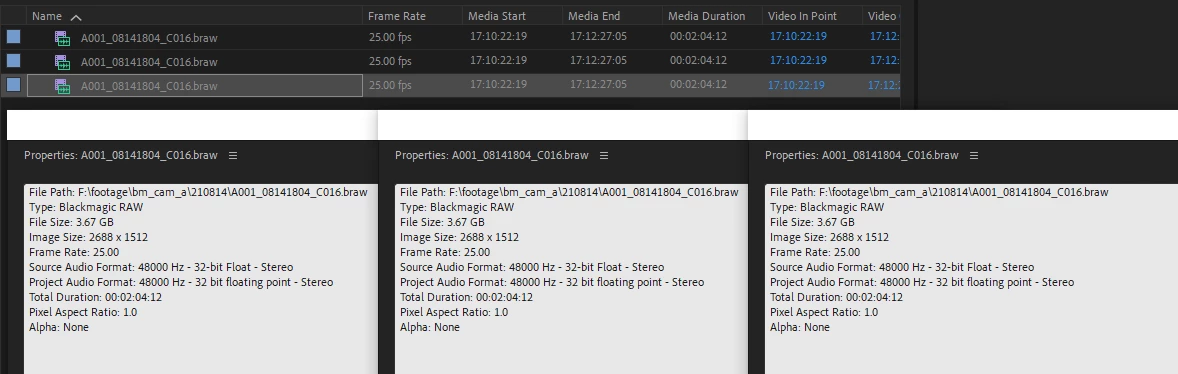
Still "Consolidate Duplicates" does nothing. Maybe I should look for some other places where Premiere thinks that those are different clips? Any ideas?

14 replies

Inspiring
February 19, 2026

I spend a couple of hours today to figure a solution that work in my case.

I needed to consolidate my clips because an imported XML created/duplicated each clip in two parts : one with video (the original clip) and one with audio only (the new one).


Impossible to consolidate my clip because of the “hidden” file name stored by Premiere Pro, so here is what I done :

  1. Unlink all your duplicate clip (original and the new one) with “Make offline”
  2. Right click on each of them (a little bit fastidious) and click “Edit offline”
  3. Here you have the ability to change the name of your clip, make sure it is absolutely the same, it’s case sensitive. In my case new clip had the extension “.r3d” and the orignal had “.R3D” …
  4. Select all clip and change audio mapping to the same settings. Check frame rate also.
  5. Relink all your media.
  6. Edit > Consolidate duplicates
  7. Et voilà !

Hope that will help someone :)

Participant
August 24, 2025

4 years later and this problem is still present. Premiere definitely associates a new ID to a clip each and everytime a file is drag-dropped in the timeline from Windows explorer. I now have some files duplicated more than 50 times, some of them used once, others multiple times.

All of that only because we do not import clips in the timeline the way Premiere would prefer to, but hey it's not my fault if multiple Windows explorer windows offers a better view of my hundreds of clips than an embedded frame in Premiere.

And I've tried all proposed workarounds to merge all those dupplicate into a single clip, none of them works obviously. This is messy...

Participant
August 24, 2024

Check the path of the duplicate files. Prpro do this weird thing with the paths after importing. Unlink and relink all the duplicates. Need to close project and reopen in order for CD to work! 

Participant
December 17, 2023

Here's what worked for me:

I needed to consolidate a variety of videos, audio, and images, and "Consolidate Duplicates" wasn't working. So, I created three search bins:

  • Searchbin 1: Metadata - Media Type | Find: "Movie" OR Metadata - Media Type | Find: "Audio" (to gather all videos and audio in one search bin)
  • Searchbin 2: Metadata - Media Type | Find: "still image" (to gather all images)
  • Searchbin 3: Metadata - Media Type | Find: "offline" (to gather all the offline files I was about to make)

These search bins captured everything, including duplicates. Then, I selected all the files in "Searchbin 1" and made them offline. I did the same for "Searchbin 2"

All the files then appeared in "Searchbin 3" as offline files. I selected everything and used the "Link Media" option. After linking, the "Consolidate Duplicates" feature worked perfectly and consolidated everything. Finally, I deleted the search bins.

It's worth mentioning that in the Link Media panel, I had "Relink others automatically" enabled, so I only had to link one, and the others linked instantly.

Path 88 Productions
Known Participant
December 17, 2023

Brillinat.  In the world of "work around" solutons for Premiere, that's a fix that's like traversing the globe --but as long as it works!


So it seems like if even one simple quantum of meta data is different between a media clips Premiere refuses to see it as the "same" and won't consolidate.  You process is basically nuking the meta data and giving Premiere a fresh look at the files.


Good job.

_Spliced
Participating Frequently
October 13, 2023

I wanted to echo what maiathesun says here. I banged my head against the wall trying to get this working again and his 'Modify' tip worked.  My example is I already had footage imported in Premiere. I wanted to import an XML from Resolve that had some edits. I import the XML, it creates duplicate clips. I run Consolidate Duplicates, it doesn't work....


First I tried modify > Audio channels on the newly imported clips from the Resolve XML.  This didn't work either. Then I noticed the Resolve clips had Mono 2 channel selected.  But the clips I had already imported had Stereo 2 channel selected.  I ran Modify > Audio Channels on my original imported footage, changed the audio channels to match new resolve clips. Ran Consolidate Duplicates again, and it worked!  It removed all of the newly imported clips, keeping my originals intact and the edits in the new sequence using the single reference of the clip. Hope this helps someone. 

R Neil Haugen
Legend
October 13, 2023

Thanks for the detailed post!

Everyone's mileage always varies ...
Known Participant
June 5, 2023

It's not working on my mac running 23.4.0

but its working on my team running 23.1.0


tried both new projects and projects with XML imported.

Participating Frequently
May 5, 2023

Hello ALL!


I believe I've found the solution!!


It's a workaround but it has worked from my testing, let me know if it works for you.

Take your project and export out an XML of the entire project.

The open up a new project and import the XML

For some reason it brings all the timelines in but only ONE instance of the media!!


Hope this worked for everyone else!

shakespitAuthor
Participating Frequently
May 5, 2023

What a cool hack!

dparsons85
Legend
March 16, 2023

This is so dumb but I found a very cumbersome workaround. 


The Audio Channels and Interpret Footage of the assets has to be the same for each clip. To check this r-click on each file, go to Modify > Audio Channels... and Modify > Interpret Footage... 


Make sure you click OK on both the Audio Channel and Interpret Footage windows, do not click CANCEL. Even if you never changed the Audio Channels or Interpret Footage settings you might have to do this to get the files to consolidate. Run Consolidate Duplicates again and it should get rid of one of the files.


This happened to me when I imported an old project into a newer version, many of the files would not consolidate despite having the same settings. Adobe, please fix this.

Eyu4
Inspiring
October 2, 2022

I'm having the same issue. Instead of actually working I'm going from one problem to another, wasting my time. It just feels like Adobe don't truly care about the product and users. Maybe I should've chosen Final Cut instead.

Wouldn't be surprised if people are still having this problem in 2 years from now. (*cough* adobe...).


UPDATE: the workaround I found for now is to close and reopen the project again and again, click consolidate duplicates again, until all are removed. Sometimes media offline > relinking media also works. THIS FEATURE IS TOTALLY BROKEN AND UNEXPECTED.

arcadiadb
Participating Frequently
October 13, 2022

I second this.  Consolidate Duplicates does seem to still be broken.  Closing and re-opening the project does not work as a work around on my end.  Help!  

Eyu4
Inspiring
October 13, 2022

The feature is broken, adobe should fix it, but I'm not hopeful anytime soon, if at all.

But anyway for now, are your dups being linked to the same source files exactly? Try opening a new project and just bring different files multiple times and test it, to understand if the problem is with your first files or not 

Participant
May 21, 2022


This may be tedious if you have  alot of footage but..

You can consolidate duplicates one by one if you replace your duplicate clip with the same file. Then you can hit "consolidate duplicates" again and it just works.