
Emmalulu
Known Participant
December 20, 2018
Answered

Converting AVCHD File for Editing with Premiere

  • December 20, 2018
  • 4 replies
  • 9631 views

Hello!

I recently shot a bunch of footage on Cannon XA-10 cameras and have AVCHD files. I understand Premiere does not like this type of file? When I open the AVCHD clips in Quicktime my settings are: H.264, 1920X1080 29.97FPS, 24Mbit/s.

In the Cannon XA-10 cameras my settings for recording were: (PF30 framerate) & (MXP High Quality 24Mbps).

...wondering...

If Premiere does not like AVCHD files, what can I convert my AVCHD files to to maintain Highest Quality? I plan to "create Proxies" upon importing that I can edit with, so would like to maintain the Highest Quality from my AVCHD files for relinking once finished editing.

I have the "Edit Ready" program for converting the AVCHD clips, but am unsure what option to choose after importing the AVCHD file. My Options include:

"Rewrap" (What does this mean??) "Custom" ?

"H.264", "Pro Res 422", or "Pro Res 422 (HQ)"

I've heard Pro Res is higher quality than H.264, but if my AVCHD file says H.264 when I open it in Quicktime does this mean it cannot be "upgraded" to Pro Res? Is there a reason the camera recorded in H.264 and not a higher quality? In the XA-10 camera I only have the option to control the Mbps and frame rate ~ curious if anyone has any tips on ensuring I'm recording in the highest quality for this camera?

Thank you so much!

~Emma
This topic has been closed for replies.
Correct answer Meg The Dog

Emmalulu  wrote:

I recently shot a bunch of footage on Cannon XA-10 cameras and have AVCHD files. I understand Premiere does not like this type of file?

That is not the case. If you have a fairly modern and fairly robust computer, you should be able to edit these files natively without conversion or problems.

The best practice way of doing so would be to copy the complete contents of your media card to an (fast) external drive, maintaining all files and all file structures. Once you have done that . . .

open Premiere and using the Media Browser, navigate to the top level of the folders you just copied and choose import. Premiere will go through the folders and import all the video files. When this is done, you may (likely will) see a dialog box saying some files could not be imported - with a list- just click OK. In the folders you copied from your camera media, the AVCHD standard creates a lot of sidecar files that may or may not be used by a particular edit system. Premiere is just letting you know it didn't import (use) every file in the directory.

Emmalulu  wrote

I plan to "create Proxies" upon importing that I can edit with, so would like to maintain the Highest Quality from my AVCHD files for relinking once finished editing.

You may or may not need proxies for your source material, again based on the horsepower and speed of your computer. If you have EditReady, I assume you are Mac based? What computer and how is it configured?

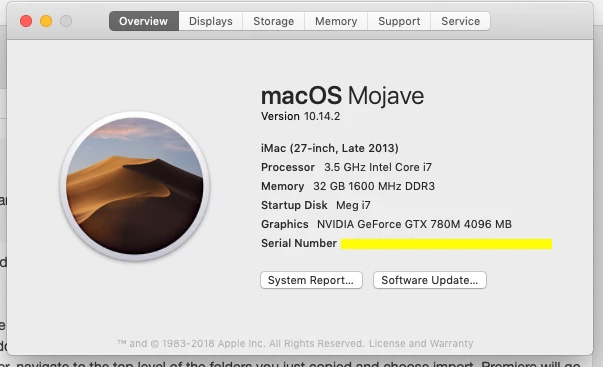
You can post a screen shot of About this Mac for you Mac, like this (be sure to mask your serial number):

Emmalulu  wrote

I've heard Pro Res is higher quality than H.264, but if my AVCHD file says H.264 when I open it in Quicktime does this mean it cannot be "upgraded" to Pro Res?

You can always convert your files to ProRes. In your case, since the AVCHD files are fairly compressed to begin with, converting them to ProRes will not degrade (or enhance) your footage in any way. ProRes is an easier format for a computer to work with, as all frames are stored individually in the file as opposed the H.264 where frames are grouped in groups of 8 and fit together like a jig saw puzzle. This is why H.264 files are usually about 1/10 the file size of ProRes files.

Emmalulu  wrote

Is there a reason the camera recorded in H.264 and not a higher quality?

Canon was trying to give its users the best quality with the smallest file size for a reasonable price - at the time the camera was made.

MtD

4 replies

Legend
December 21, 2018

My recommendation is to create Cineform proxies.

Work offline using proxy media |

Your editing experience will be buttery smooth, and the originals will automatically be used for export to get the best quality.

Emmalulu
EmmaluluAuthor
Known Participant
December 31, 2018

Yes, creating the Proxies in Cineform now... it is a very very slow process ~ taking roughly 6 hours to ingest and create proxies for every 13GB of footage ~ Does this seem normal? I have been using the "Copy and Create Proxies" option with the "Cineform" setting. A bit confused with the difference between "Copy and Create Proxies" vs. just "Create Proxies"? Is one recommended over the other? Thanks in advance!!! ~Emma

Ann Bens
Community Expert
Community Expert
December 31, 2018

Copy and create proxies: it does what it says it creates a copy of the source file and a proxy file.

'Create proxies' is all you need.

Yes and you need proxies as Premiere will choke on 12 avchd camera's in multicam.

Kevin-Monahan
Community Manager
Community Manager
December 21, 2018

Emma,

Please follow MtD's instructions. Let us know how that goes.

Thanks,
Kevin

Kevin Monahan - Sr. Community & Engagement Strategist – Pro Video and Audio
Meg The DogCorrect answer
Inspiring
December 21, 2018

Emmalulu  wrote:

I recently shot a bunch of footage on Cannon XA-10 cameras and have AVCHD files. I understand Premiere does not like this type of file?

That is not the case. If you have a fairly modern and fairly robust computer, you should be able to edit these files natively without conversion or problems.

The best practice way of doing so would be to copy the complete contents of your media card to an (fast) external drive, maintaining all files and all file structures. Once you have done that . . .

open Premiere and using the Media Browser, navigate to the top level of the folders you just copied and choose import. Premiere will go through the folders and import all the video files. When this is done, you may (likely will) see a dialog box saying some files could not be imported - with a list- just click OK. In the folders you copied from your camera media, the AVCHD standard creates a lot of sidecar files that may or may not be used by a particular edit system. Premiere is just letting you know it didn't import (use) every file in the directory.

Emmalulu  wrote

I plan to "create Proxies" upon importing that I can edit with, so would like to maintain the Highest Quality from my AVCHD files for relinking once finished editing.

You may or may not need proxies for your source material, again based on the horsepower and speed of your computer. If you have EditReady, I assume you are Mac based? What computer and how is it configured?

You can post a screen shot of About this Mac for you Mac, like this (be sure to mask your serial number):

Emmalulu  wrote

I've heard Pro Res is higher quality than H.264, but if my AVCHD file says H.264 when I open it in Quicktime does this mean it cannot be "upgraded" to Pro Res?

You can always convert your files to ProRes. In your case, since the AVCHD files are fairly compressed to begin with, converting them to ProRes will not degrade (or enhance) your footage in any way. ProRes is an easier format for a computer to work with, as all frames are stored individually in the file as opposed the H.264 where frames are grouped in groups of 8 and fit together like a jig saw puzzle. This is why H.264 files are usually about 1/10 the file size of ProRes files.

Emmalulu  wrote

Is there a reason the camera recorded in H.264 and not a higher quality?

Canon was trying to give its users the best quality with the smallest file size for a reasonable price - at the time the camera was made.

MtD

Kevin-Monahan
Community Manager
Community Manager
December 21, 2018

Great post MtD.

KM

Kevin Monahan - Sr. Community & Engagement Strategist – Pro Video and Audio
MyerPj
Community Expert
Community Expert
December 20, 2018

Did you try your files in Premiere Pro. Adding one in and taking a look at it would take a couple minutes or less, you should give that a try first.