hmdigiart.com
Participating Frequently
April 16, 2019
Answered

Error retrieving frame **** at time **

  • April 16, 2019
  • 58 replies
  • 267126 views

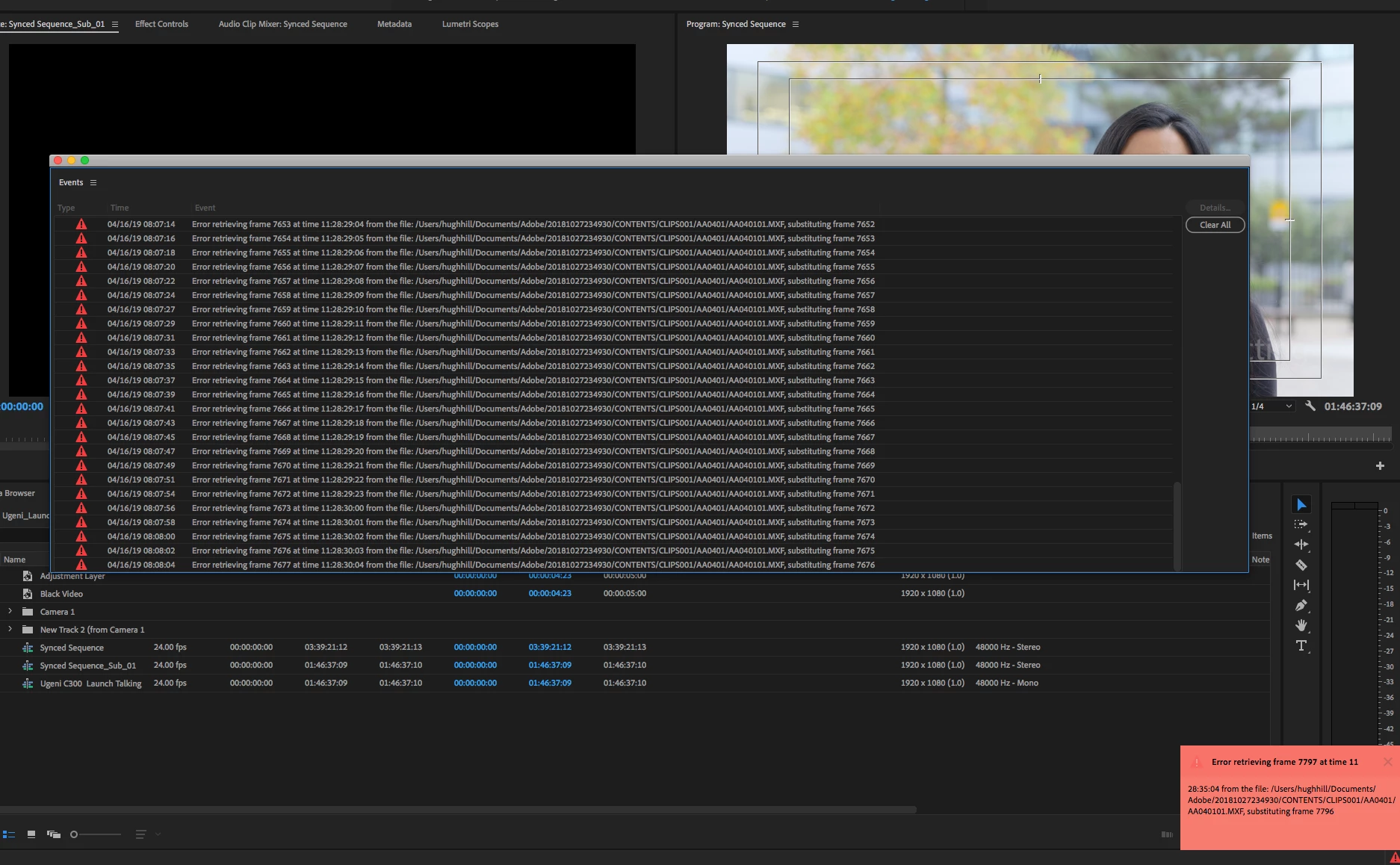
I am trying to footage taken at a recent event that I shot with one camera, I imported it into premiere pro cc 2019 and then exported it only to get this error message every few seconds.


"Error retrieving frame **** at time **:**:**:** from the file"


The footage was shot on a C300 at 24 fps, in full HD, the sequence is 24 fps 1920x1080 which is a match./

it's only when I try to export it out that I start getting the error.


Please help.


Thanks


H&M


included is a screen capture (hope it helps)


Correct answer Jens Trimmer

Here's an updated article with some troubleshooting steps to try if you are experiencing the error: https://videowithjens.com/premiere-pro-error-retrieving-frame/


If you prefer watching a video, I've made that too: 

58 replies

New Participant
September 23, 2020

Hi, Downloaded 400 HDV tapes (took a while). Did not think it would be a problem since other HDV footage from the same camera works fine. This time, however, for saving time, tapes where downloaded with a download app called Lifeflix. Sadly, the downloaded material will not play back in premiere due to the ERM. I works well in quicktime and in FCP X, and doing any of solutions above will not work (not even creating proxies works) . Looks to me like it could be the codec is not supported in some way. What has happend and might it be solved ?

New Participant
August 13, 2020

Hi! had the same problem, though mine was shot using phone. I was able to solve this by downloading handbrake and uploading the files there. That would work.

Kevin-Monahan
Community Manager
Community Manager
August 20, 2020

Hey Jill,

Couldn't the files be imported into Media Encoder? Did you attempt to create a proxy file? Let me know.


Thanks,
Kevin

Kevin Monahan - Sr. Community & Engagement Strategist – Pro Video and Audio
thxapproved2
Inspiring
October 4, 2020

I am finding this problem has been happening for quite some time?  This only began happening to me with the upgrade from 2018 to cc2020 (had to wait until I purchased a brand new machine to do so). Now, whenever I open up recently edited projects that use HDV (MPEG2 from a CF card camera-not tape capture) video I am receiving this error. I have NEVER had this with previous versions (well, 2018 and before). I've seen bogus "solutions," that recommend going to "Software Only" rendering. Well, then what's the point of having GPU accelleration? That's not a fix.  I have had mild success with deleting all the .MPGINDEX files and having cc2020 re-scan and rebuild them. But it does not always work.  I have tried changing video card drivers going all the way back until PPRO tells me my video driver is not compatible.

This is a brand new machine with an i9-10940x with 32GB of RAM and a RTX 2080Super running 456.38 Studio Driver.

The only files it seems to have problems with are the M2T files from my Sony HVR-Z7u CF-Card. It doesn't matter whether the project is 10-years old or shot last week. I am having issues on this computer as well as another one at work running the same PPRO version, but with an older CPU and GTX1080. So, it doesn't seem to be machine specific.

With problems such as this (which seem to have been going on forever) these forums really do feel like talking in the middle of the woods to no one. I am hoping this can get resolved.
If there is any more I can do to help or expedite fixing this issue, I would be happy to do so.


Thanks!

New Participant
July 12, 2020

Hi! I am having this error too, tried changing the project setting to Software only, but  I am still facing the error

crabspanner
Known Participant
September 11, 2020

I can't believe we're still dealing with this. Our entire facility is stuck on 2018 because of thise. We have extremely fast 10gbe storage and cannot use either 2019 or 2020 due to constant errors retrieving frames.


For the love of god please add a tick box to disable this awful mess of a feature!

New Participant
September 29, 2020

I agree. Turn off CUDA is the answer? WOW! I went out of my way to make sure I have CUDA. How about fix the software Adobe!!!

New Participant
July 6, 2020

I am currently having the same issue. I am a young content creator and trying to use PP for editing, this started to happen about 3 weeks ago. I thought updating my graphics card would work but today the same message pops up. I don't know what else to do.

New Participant
June 17, 2020

I just had this same issue and it took me about a half hour of trouble shooting before I finally closed and reopened premiere. Oddly enough, this simple action completely fixed whatever issue I was having. It's possible that I got the error because I reorganized a few files I was working with into a folder while I was editing, but this wasn't entirely the case because one of the video clips that was having the issue was newly imported from my desktop. Also, premiere will normally pop up with a "Media Offline" screen in the playback and prompt you to locate the lost clips when this is the case. Instead it came up with a black screen in the playback and no audio aside from a scratching sound at the end of the clip. Very strange, I've never had this happen while working in premiere before. I suppose the takeaway is to just quit and reopen premiere when this happens, and avoid moving files while you're in the middle of editing. Hope this helps someone. 

New Participant
March 21, 2020

I've just resave the project to other file and no any issue like this.

Participating Frequently
February 28, 2020

EASY SOLUTION

I didn't understand the "Solved" comment, but here's what worked for me:


Click the little red exclamation point icon in the bottom right (where it's telling you there's an error), and it will bring up a window with all of the errors. Then click "Clear All".


If that doesn't work, delete the bad clip, go find that source clip on your computer and move it to a different folder, then add it back into the timeline from that folder. When the errors pop up, clear them again, and it should work.

New Participant
January 2, 2020

Just wanted to say I've been getting this issue when using Speed/Duration to accelerate parts of my videos.

Fixed it by going to File->Project Settings->General


And then under General->Video Rendering and Playback:

Change the Renderer to "Mercury Playback Engine Software Only"


Which SUCKS, because I have a GTX 1080 and shouldn't have to sacrifice performance for something that is clearly a bug on Adobe/Nvidia's end.

Inspiring
January 9, 2020

This isn't working for me, now when i try to play it is playing a few seconds then stops. Adobe SUCKS

New Participant
December 4, 2019

I updated my built-in video card driver and this error disappeared. Previously, this error appeared for no reason. Try it, it might work in your case, good luck!

New Participant
December 26, 2019

I was having both the Missing Frame 0 error and others.  RED Error Triangles everywhere!  All I did to resolve all the errors was uncheck the "Enable Hardware Accelerated Decoder"(requires restart)."  You get to the setting by EDIT>PREFERENCES>MEDIA


I have Premier 2020 - ASUS Zenbook  with I9 8th gen with GEFORCE GTX.  


I hope this works for everyone. 

New Participant
April 4, 2020

This worked fine for me.....

evans4268280
New Participant
December 3, 2019

I've been able to resolve the problem relating to an error at frame 0 when adding clips to timeline. I'm not sure if this has been mentioned, but I'm getting the error no matter where the footage is located on any drive. For me, it seems to have issue with proxy folders. If I remove the proxy folder from where the clips are, can import them and dragged to the timeline without the error. Then, I can move the proxy folder back to the clips folder, toggle proxies, and everything works like normal! Try it! Hope this helps