


Participant
January 24, 2025
Answered

graphic layer anchor Point doesn't update when changing size of object

  • January 24, 2025
  • 2 replies
  • 602 views

I'm trying to create a .mogrt from within Premiere Pro, using the Properties panel.


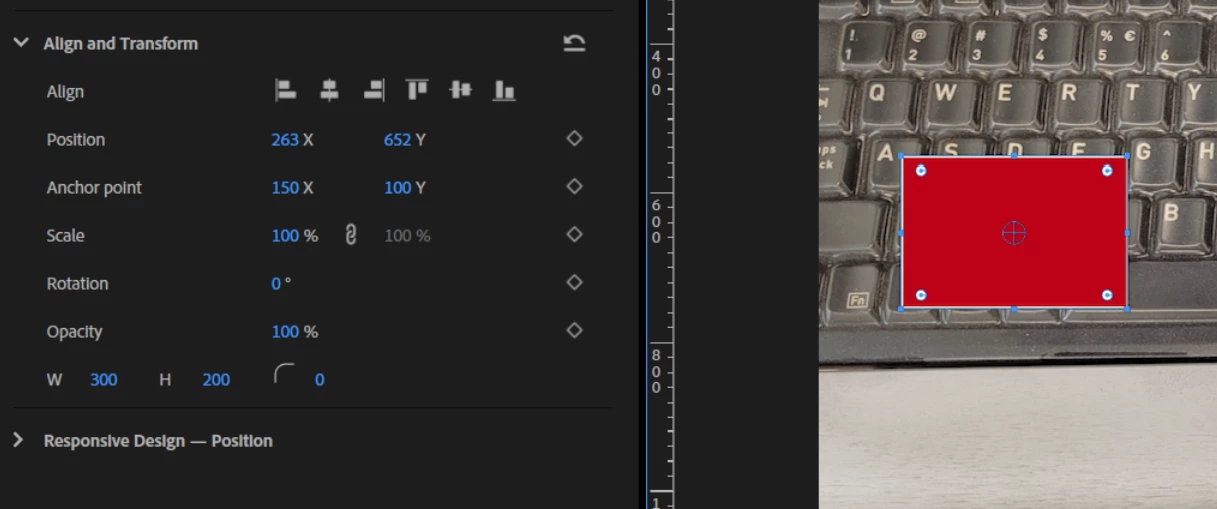
When I add a new rectangle layer to the graphic, it appears at 300x200 with the anchor at the center, 150x100.
 

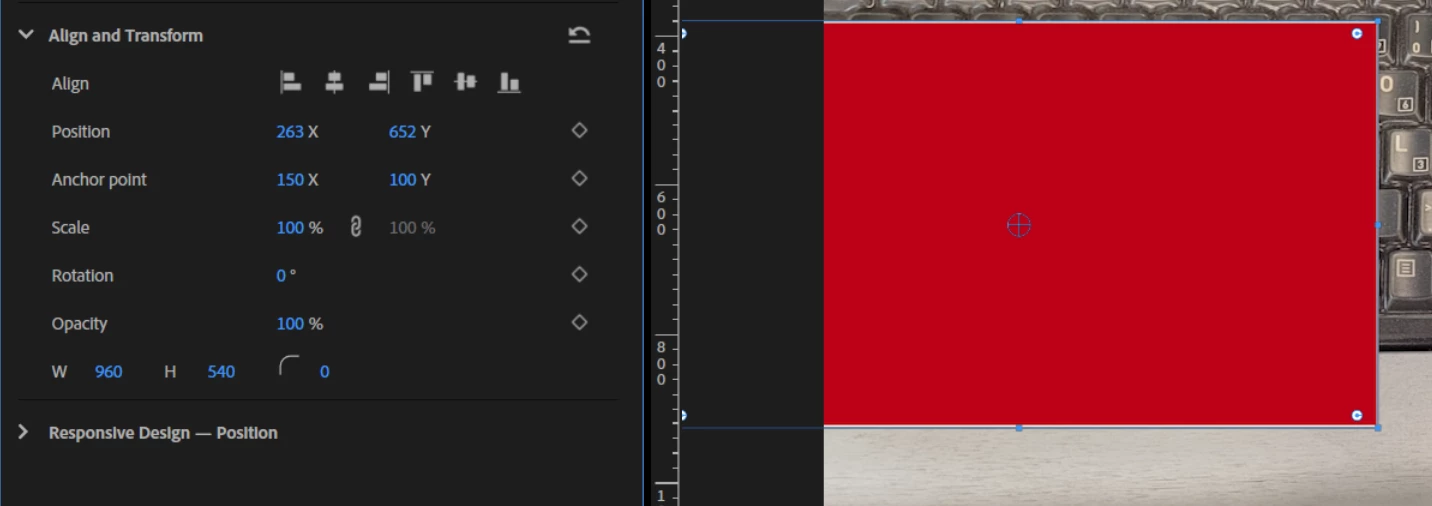
When I change the size of the rectangle to 960x540, the object scales around the center, but the anchor point numbers in the interface don't change.
 

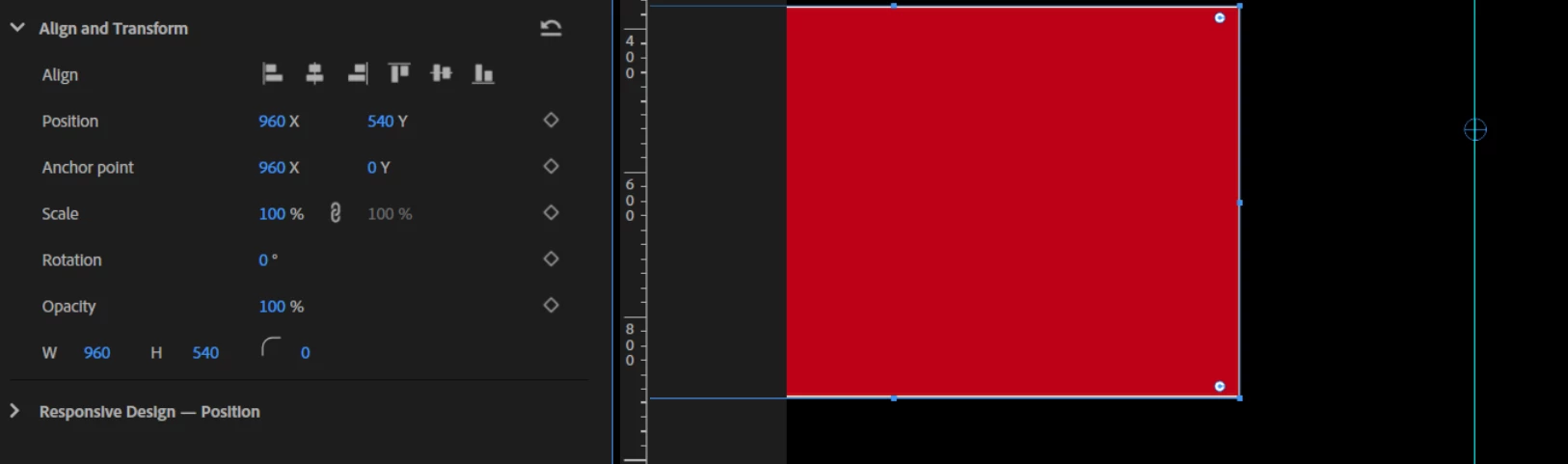
When I then try to set the anchor so that it scales from the top right, and that point is centered in the composition (the rectangle takes up the lower left corner), the anchor moves to a very different point on the object (the guide is centered).
 

Premiere Pro 25.0.0 build 61

Windows 11 Pro 23H2 build 22631.4602

Lenovo T16

Correct answer Mike-Berry

Hi Andrew -

Primarily because of the needs of animation, both AE and Pr take a different approach to the coordinate system than Ai does. Every shape path has an individual frame of reference oriented around the anchor. This enables you to, for example, independently animate the path of a shape deforming and the position of the shape. If the coordinate system were to reset when the path changes, then you would have to redo each of your motion keyframes any time you edited a vertex. This has the side effect that you are seeing though. It looks like it is tied to the size at creation time, but really what it is tied to is the position of the anchor, and that is intentional.

Mike

2 replies

Adobe Employee
January 24, 2025

Hi Andrew. The issue here is that your positions are not zero-based once you edited the size of the rectangle. The left edge of the rectangle, for example, is not 0 after the edits you have made - it is actually 263 - (960/2 - 150) or -67 (I think my math is right here but I'm not sure without having your example in front of me). Conceptually, editing the dimensions of the rectangle edits the path without moving the position or anchor, meaning the expansion is even on all sides and will go negative.
You could do the math to enter these by hand. But there is an easier way to move the anchor to the upper right. If you turn on snapping in the program monitor, then you can drag the anchor until it snaps to the upper right corner, and Pr will do the math for you.

Mike

Participant
January 24, 2025

Thanks! I understood that the new relationship between the numbers and the visuals was probably based on the difference between the original size and the new one.


I have a hard time not seeing "the value-based controls are permanently tied to the arbitrary location and size of the rectangle at the time of its creation" as a bug.


It's also inconsistent with how positions and anchor points work for clips and color mattes elsewhere.


I'm also coming from Illustrator, where whether something snaps/appears to be correctly aligned tends to not actually reflect the real alignment, with the result that 5 points look like one and my vinyl cutter digs a hole in the material. I usually trust the number over the snapping.


@IanB_360 

Premiere Pro 25.0.0 build 61

Windows 11 Pro 23H2 build 22631.4602

Lenovo T16

Intel i7-1270P

32.0 GB RAM DDR4 3200

Intel Iris Xe graphics, integrated, driver 32.0.101.6078

Internal 1TB SSD

No multicam, the clip in question has no video in it, just graphics and pngs.

Mike-BerryCorrect answer
Adobe Employee
January 24, 2025

Hi Andrew -

Primarily because of the needs of animation, both AE and Pr take a different approach to the coordinate system than Ai does. Every shape path has an individual frame of reference oriented around the anchor. This enables you to, for example, independently animate the path of a shape deforming and the position of the shape. If the coordinate system were to reset when the path changes, then you would have to redo each of your motion keyframes any time you edited a vertex. This has the side effect that you are seeing though. It looks like it is tied to the size at creation time, but really what it is tied to is the position of the anchor, and that is intentional.

Mike

IanB_360
Community Manager
Community Manager
January 24, 2025

Hi @Andrew_Krahn and welcome to the Premiere Pro Forum community.  Thank you for taking your time to file a bug report. If you could just jump to the link here  How do I write a bug report and follow the steps to providing more information about your bug, we can get it logged and see why this is occurring.

Ian