


Participant
September 10, 2012
Answered

H.264 gamma shift/washed out colours on export

  • September 10, 2012
  • 14 replies
  • 181982 views

I know this has been discussed before but I've been researching this topic for the past two hours and still can't find a solution.

I have .mov source files from a Canon 7D. Exporting them from PP CS5.5 (Mac OS X - Lion, 10.7.4) in h.264 or by 'matching sequence settings' results in a gamma shift/desaturated colours. Playing the resulting h.264 file in QuickTime Player, VLC, Elmedia all result in the same colour shift so this is not an issue with QT simply interpreting the gamma incorrectly.

Uploading to Vimeo and Youtube results in the same gamma shift. The monitor I'm using is not calibrated but when puling up a VLC window of the exported file next to the Program Monitor (on the same monitor) shows that there is a definite difference. Below is a screenshot.

Is there any way to produce an exported file for Vimeo use that reproduces the gamma as I see it in the Program Monitor?

Any help would be massively appreciated.

Thanks.
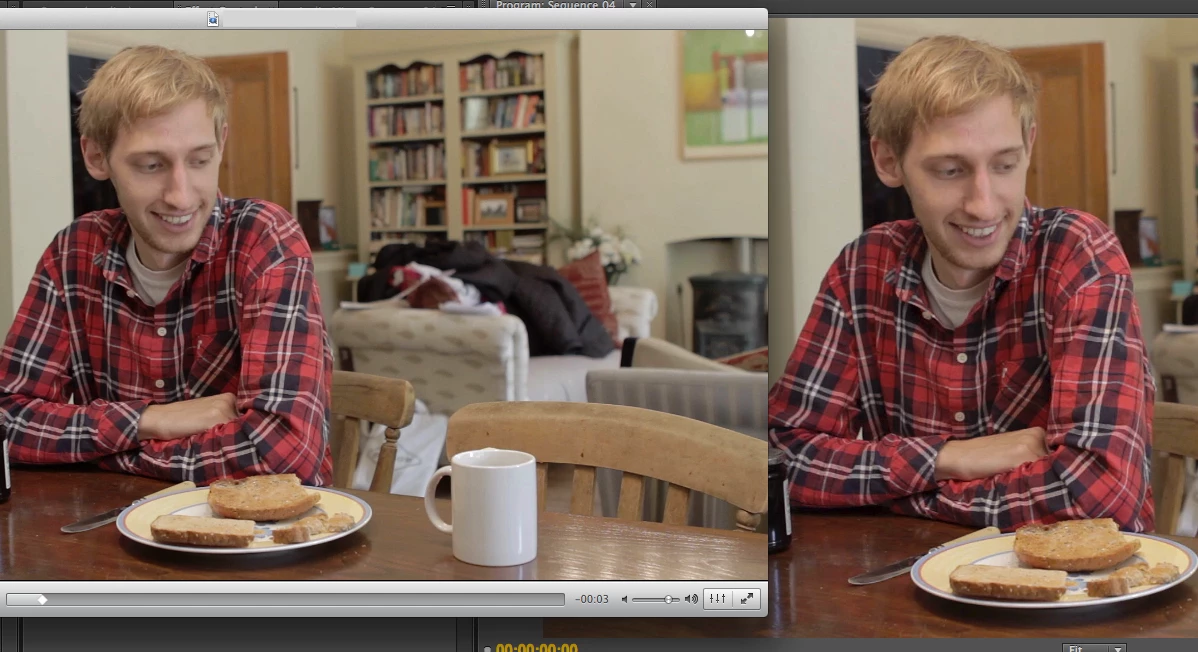

This topic has been closed for replies.
Correct answer digabyte

I do indeed have an NVIDIA card - NVIDIA GeForce GT 330M 256 MB - running on OS X 10.7.4. Your theory sounds quite close to what the problem actually could be.

Here's a test clip (mp4) - https://www.dropbox.com/s/12h1htyacchr8dk/Gamma%20test%206.mp4

Here's an MPEG2 for comparison as well - https://www.dropbox.com/s/tprd7k7blprpztl/Gamma%20test%207.mpg

Both look identical in both VLC and QT, ie. washed out compared to what I'm seeing in PP.


The fix may be within your Nvidia Control Panel settings.  I was having this issue when exporting from Premiere CS6 and uploading to Vimeo (the video once posted to Vimeo was washed out and/or hazy).

From this link: http://danbeahm.blogspot.com/2011/01/fix-windows-media-center-andor-vlc.html

The fix I found was to use the NVIDIA control panel to control your video playback instead of the video player’s settings. 

  1. Open your NVIDIA Control Panel (type NVIDIA in your start menu search field and select NVIDIA Control Panel).
  2. Go down to Video and select “Adjust video color settings.”
  3. Under #2 (How do you make color adjustments), select “With the NVIDIA settings.”
  4. Under the Advanced tab change the Dynamic Range with the drop down to “Full (0-255)” (not “Limited (16-235)”).
  5. For my display to look as it should, I had to uncheck “Dynamic contrast enhancement.”

My video now appears as it should (not washed out).

14 replies

Participant
March 4, 2016

I have a problem that seems very similar that all that have been described. I am on Windows 10 with Premiere with an AMD Radeon graphic card.

When exporting from Premiere CS5.5, the colors are washed out like described but besides, it is also a little bit pixelated. This makes the quality of the final video really bad... I'm trying to export in 1920x1080 in format H.264, with a 50 frames frequency, a 5.1 level and VBR 1 pass.


I tried every possibility of settings in Premiere with H.264, nothing changed... I tried the solution proposed by digabyte (but with my AMD card, it wasn't exactly the same) and it didn't changed a bit. I'm desperate, can anyone figure out what I'm facing and maybe help me ? :-) Would be so great !

Thank you so much !

Guillaume

Those are 3 screenschots of the original footage played on VLC:

And those are 3 screenschots of the project exported from Premiere, alos played on VLC (you can see the pixels on the jacket in the second image and the washed out colors of the trees and the gun):

Participant
November 18, 2015

I also have the same issue. I have no problem playing it on VLC, but QT is just a pain.

I am running on a new imac 5k with AMD Radeon R9 M395X. I don't think I could change the dynamic range setting like in Nvidia. Any solution to mac users?

Participating Frequently
November 18, 2015

Fixing the Nvidia settings they suggested in the forum fixed mine thank goddd

Sent from my iPhone

hop.out
Participant
July 10, 2015

I do have a similar problem, but it is only when exporting through AME. If I export directly from Premiere, it is fine, but not by the Media encoder. Do you have a clue what could be the cause?

R Neil Haugen
Legend
July 10, 2015

Again, more info is needed. What's your footage ... camera, frame-rate (f-r) & frame-size (f-s), codec, and sequence settings in PrPro ... and then screen grabs of the export boxes for both PrPro & AME would be best.

Next, is this evaluated by looking at within PrPro, or through some other video player ... and if so, which?

Neil

Everyone's mileage always varies ...
hop.out
Participant
July 11, 2015

Thanks for reply. I guess it is not about footage, it is about hardware. Two other computers with totally equal setting in same project are OK but this one is not. (It is Prores HQ/422 - 1080p/2160p)

Exports checked in Premiere. Looks different. (H264 from AME is brighter then should be, export out of PrPro is OK)

Intel Xeon Hexa Core 3,2GHz, 24 GB RAM, nVidia Quadro 4000.

Thanks!

the_wine_snob
Inspiring
September 10, 2012

Before I went about adjusting things, I would try in another player, besides QT. It is known to have Gamma issues, and also color issues, though I know of those mainly from QT on the PC, but perhaps it's the same, or similar on the Mac?

Good luck,

Hunt

Participant
September 10, 2012

I am aware of the issues that QT has and so I have tried it in other media players but they all look the same as each other. This is the same for Vimeo and Youtube also. The only place it looks different is in Premiere Pro.

the_wine_snob
Inspiring
September 10, 2012

OK, and thanks for that clarification. I did not want you joisting with windmills, when it was but a player issue.

Now, I have not encountered what you showed, and am also a PC-only guy, so not sure how much help I can be. However, there are some great folk here, and they will be by soon, with some useful ideas.

Good luck,

Hunt