
Participating Frequently
March 3, 2023
Question

HDR iPhone 14 footage washed out, exhausted all solutions

  • March 3, 2023
  • 5 replies
  • 8098 views

Hi, I've recently been grappling with the fact that HDR footage is not very compatible with Premiere, but it is too late for me to change my original footage.


I am running the latest version of Premiere and the latest Nvidia graphics drivers. I've tried every color space override, downloading HDR fix LUTs, and manually correcting with lumetri color in every available color space. The best I could get from my efforts was a less washed out, slightly magenta tinted sequence that still looked off (see below).
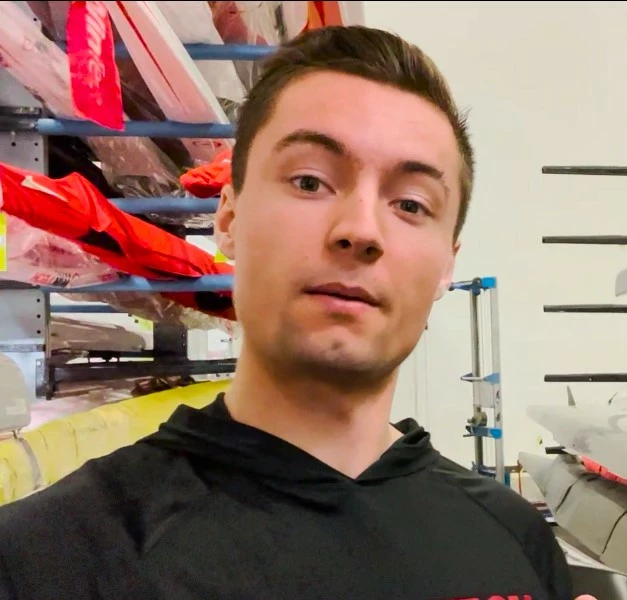
 

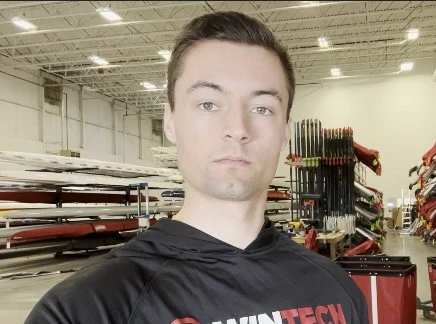
Below I've attached a comparison of what the raw HDR clip is supposed looks like (top) vs. what it looks like in Premiere with no corrections (bottom). I really don't want to settle for the shoddy color corrections I did in the above example, so any help is greatly appreciated.



This topic has been closed for replies.

5 replies

Participant
May 12, 2023

I came across this thread looking for solutions within Premiere for HDR iPhone footage but I've tried all the same suggestions with no luck. The best solutions I've found are not in Premiere. The absolute best is going into *gulp* iMovie and turning off HDR as explained here:


https://www.youtube.com/watch?v=DGaU9CZE7_Q&ab_channel=Technolobe


I also found if I export out of iMovie on my desktop to ProRes it looks as intended as well. In both instances the footage looks exactly the same to me as it does on the iPhone. However, I don't see a way to batch clips with this method so it is very tedious. There is also a Resolve workflow, but that still requires some manual color adjustments and does not look exactly the same.


https://www.youtube.com/watch?v=mv5sF7hR2Bk&ab_channel=JohnW.


Hopefully Adobe fixes this issue soon because I've been getting more and more jobs that involve working with HDR iPhone footage.


Participant
May 13, 2023

UPDATE: I ended up trying Apple Compressor ($50) and this is by far the best solution I've found. I can convert to ProRes and set the color space to rec. 709 and batch all my clips. Then when I bring the footage into Premiere the color is nearly identical to the original HDR footage and ready to edit. These are the settings I used, it did give me a warning message when I went to export but worked fine regardless.  I kept my file names the same and saved to a "converted" folder so I was able to relink my media directly to these new converted ProRes files and not need to re-edit anything.

Legend
May 14, 2023

unfortunately, compressor is Mac only but does have a full feature set that allows batch processing and customizable presets.  ...  If anyone has a comparable windows solution, please post it...   

R Neil Haugen
Legend
March 7, 2023

Have you tried with the Auto-tonemapping off, does that make a difference?


It looks to me like primarily a saturation problem. Which is certainly an easy and quick thing to set in Lumetri.


Neil

Everyone's mileage always varies ...
R Neil Haugen
Legend
March 3, 2023

Premiere actually does work with HDR footage in HLG and PQ rather decently, IF you know how to setup all the controls and the monitor.


I work with/for/teach pro colorists. Most of whom have yet to deliver a single paid HDR gig for b-cast or streaming. It's very much the Wild Wild West out there at this time. Most screens still cannot handle it at all, and those that do are all over the place with capabilities and dumb things the manufacturer's set it up to do to "enhance the viewing experience". So understand that first.


Next ... do you want to work in HDR, in that HLG space? Or go to SDR/Rec.709, where you've got a lot better idea what others will see?


Neil

Everyone's mileage always varies ...
wpmac5Author
Participating Frequently
March 3, 2023

Ideally HDR so the footage can look like it did originally. I've tried converting to SDR/Rec.709 but it only darkens the footage and makes it appear even flatter. If there is another method you know of to make the footage appear as it does with HDR on, please let me know.

R Neil Haugen
Legend
March 3, 2023

Properly converted media, from HDR to SDR, is normally quite usable ... it's broadcast and streamed every day. And you would never know it unless you saw the two side by side.


All HDR broadcast and streamed shows are also encoded in an SDR version, as most screens still do not show HDR at all. For example, a friend was a lead editor for a European TV team covering the World Cup. All of their footage was captured in HDR, was cut as HDR in Premiere, and then was exported both in HDR and SDR versions. The broadcast use "back home" was apparently nearly all the SDR version.


So yes, it looks a bit different. But unless you see them side-by-side, you will probably not know you are seeing something different, if both are handled well. I'll give the HDR workflow for you.


HDR Worfklow in Premiere Pro 3 March 2023

I'm giving the date there as their CM system is still in transition. We'll get more and different controls or behaviors over time. So this is the most current setup and operating behavior.


  • Check the clip Properties in the Project panel. Use only HDR clips, either HLG or PQ, although some log-encoded clips are also usable. Look at the color space of the clip. A log-encoded clip with Rec.709 color space may or may not work well in an HDR/HLG workflow.
  • For log-encoded clips, you should normally select the log format in the Project panel's Modify/Interpret Footage dialog, Override-To option, and if the "Use Color Space from file:", shows Rec.709, uncheck it.
  • Your sequence setting must be set to the appropriate HDR format, as of this date limited to HLG or PQ. PQ is more used in a pass-through process to another editor or grading situation. HLG is more typically a delivery format.
  • Your OS and monitor must be set to the appropriate HDR color space. Again, either HLG or PQ. And the monitor should be capable of a high percentage of the P3 color space at the least. And as much Rec.2100/HLG/PQ as possible by specs.
  • Premiere's Preferences settings should include Display Color Management in the Preferences, and perhaps "Auto Detect Log Color Space" and perhaps also "Extended  Dynamic Range monitoring when available" ... test those two on and off.
  • Scopes should be showing the correct color space in  the lower left corner, if not, right-click in the Scopes panel, set color space to the appropriate option.
  • When exporting, ONLY use presets that have the appropriate color space in the preset name, such as HLG or PQ.


If you follow those, you should be able to work in HDR without problems in Premiere.


Neil

Everyone's mileage always varies ...
Ann Bens
Community Expert
Community Expert
March 3, 2023
wpmac5Author
Participating Frequently
March 3, 2023

Unfortunately, I've already seen that video and tried the tips he suggested, no luck.

wpmac5Author
Participating Frequently
March 3, 2023

Just read through it, seems like a dead end? Correct me if I'm wrong, but my takeaway was that HDR footage is essenitally not yet compatible with Premiere, and you cannot get it to look like the original clip no matter what you do.