
christopherB10720062
Participant
July 10, 2015
Answered

Heads up on Premiere with El Capitan

  • July 10, 2015
  • 22 replies
  • 47651 views

I know it's probably a dumb thing to do, but I'm a rather technical dude -- and I do have my system backed up. But anyway, I installed Mac OS 10.11 El Capitan Public Beta 1 on my MacBook Pro.

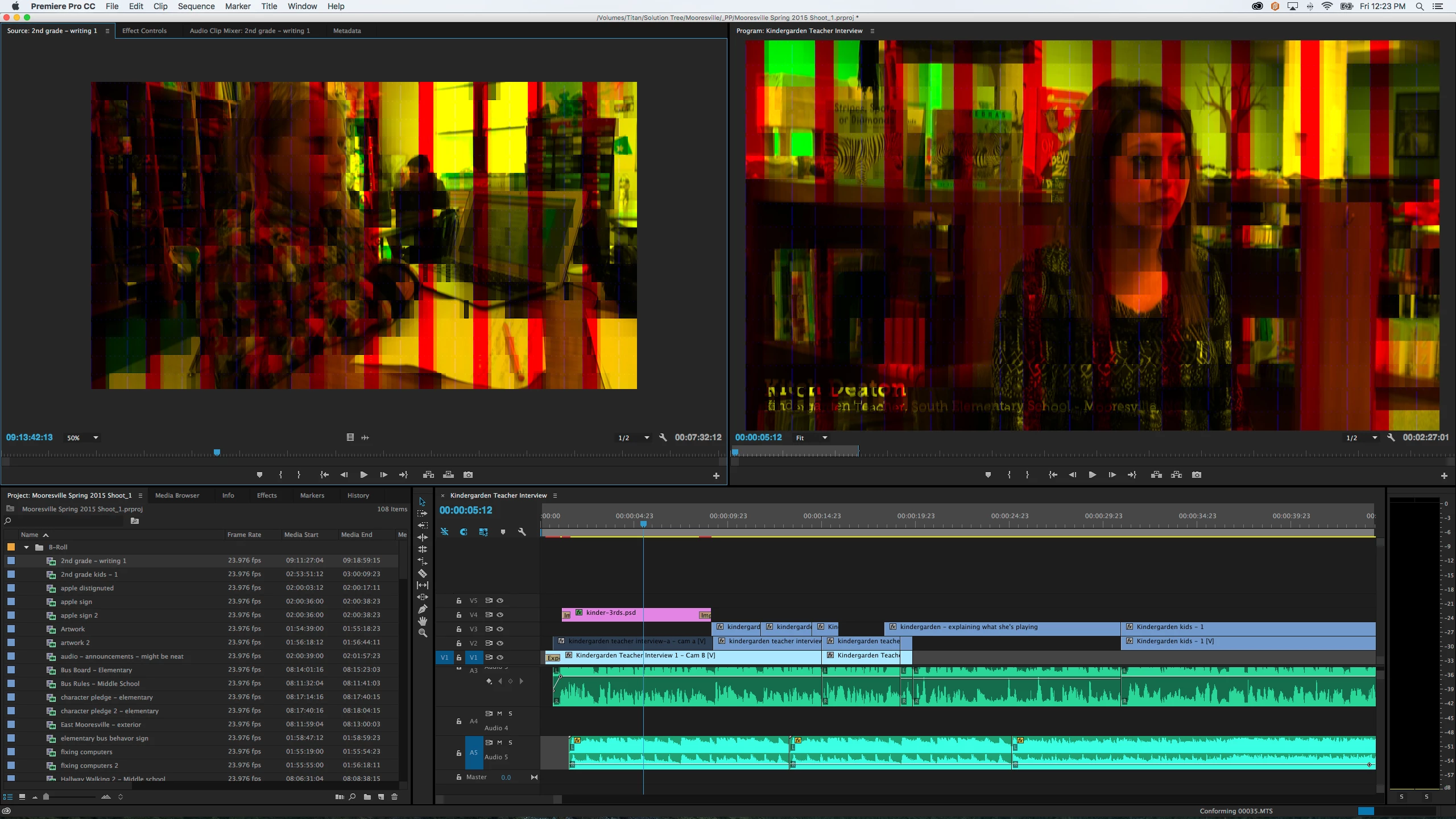
Everything seems to be working fine, except for Premiere. When video is STOPPED it has horrible video glitching. Now, when the video is playing, it looks just fine... and it also renders out OK. It's just when it's sitting on the timeline.

I wanted to give everyone a heads up in case they're thinking about installing the beta. Remember, you have been warned.

Any way - here's a screen shot of what it looks like. Maybe someone knows a fix?
    This topic has been closed for replies.
    Correct answer Kevin J. Monahan Jr.

    The solution for this issue is to update to OS X 10.11.1

    Thanks,
    Kevin

    22 replies

    March 12, 2016

    Is this still an issue for people? I'm getting failed exports on Adobe Premier Pro CC 9.2.0 (41) Build.

    I do not have a Nvidia card but a: Intel Iris Graphics 6100 1536 MB

    I have a Macbook Pro 3.1 Inter Core i7, 16GB RAM and upgraded to OS X El Capitan version 10.11.3


    The export works when I set the project to "Mercury Playback Engine Software Only" but it is painfully slow. This is a huge issue given I'm trying to start daily vlogging


    The unusual issue it that I've actually rendered off my first video on the same OS, same settings using the GPU acceleration (OpenCL) and have since not changed a thing, the export gives me the memory error.


    My exports via software are taking over an hour to export (800mb)


    Can anyone shed light on this? I'm willing to pay for an upgrade to my mac (if it's needed) to get this fixed.

    Adobe Employee
    March 12, 2016

    Hi Olliesblog,

    Please share following details :

    Are you able to export in other formats like QT Pro Res, MPEG 2 with GPU acceleration?

    Details about the effects used in project?

    Are you able to export on Desktop?

    Regards

    Abhishek

    March 12, 2016

    I've not tried exporting in other formats, I'm just exporting for YouTube in .mp4, whatever is default

    No special effects are used. Only default effects available from the Premier Pro package.

    I am exporting to my desktop, I'm not sure what you mean by this. I use a Macbook pro, I export the files via this. I don't have another computer available to me.

    Participant
    January 11, 2016

    I don't know if this is a driver issue with my Nvidea card or Premiere or El Capitan but I find that where my cursor is is out of sync to what's on the screen.

    For example, when I apply an effect to a clip it applies it to the clip below even though I have that clip selected and highlighted in the left panel . I have to move the cursor above to the next clip for it to drop onto the correct one.

    Also the snap and generally moving clips about is way off and sometimes it can take me ages just to move a clip to where I want it as it keeps jumping to completely the wrong place.

    My setup is a Geforce Ttian X with the driver 346.03.04f02 and Premiere 9.1.0 (174) Build. OSX El Capitan 10.11.2.

    Is anyone else having this issue?

    Many thanks in advance.

    Peter

    Participant
    January 6, 2016

    Just a heads up in case other's are experiencing the same problem as me.  I have been having problems with exporting multi-camera edits on 10.11.2 with the newest update for Premiere CC.  I have the Mac Pro with AMD D500's.  Found a problem through troubleshooting with Adobe Support with the GPU Drivers and they are working with Apple to get it resolved.  Problems with memory not turning over quick enough for an export.  I had problems with the export at different points in the timeline, so no consistent error to find.  For now, the workaround is using Software Rendering.  Seems like this problem is across multiple Macs with multiple GPUs. 

    Participating Frequently
    January 6, 2016

    Hey Langs1,

         Did you try Nvidia Cuda instead of OpenCL? The reason I ask is I have Nvidia, and OpenCL worked for me for the time being. I believe AMD cards are for OpenCL, so you could try installing the Cuda drivers online. Let me know if you need any help on this or anything else. And yes, software only seems to be the main solution for the time being.

    - Paul Harwood

    Participant
    January 6, 2016

    I am also still experiencing major problems with premiere pro and El Capitan.

    It has become impossible to edit anything. Clips won't select, the whole screen is a mess, everything is s-o-o-o s-l-o-w. Rendering ends in an error with the helpful description: Unknown error. I tried an older version of premiere pro, same problem.

    I haven't been able to upgrade or re-install or whatever my NVIDIA GeForce GT 650M 512 MB, although it clearly seems to be something with the GPU.

    The NVIDIA site doesn't seem to know that this card is in a Mac, because it only allows you to select when you're OS is windows.

    The Cuda software says I don't need an upgrade, although the message is rather cryptic. It seems the cuda driver is up to date, but is the GPU driver??? Pressing the button underneath it doesn't do anything. It's the way software companies communicate nowadays: On need to know basis. Only problem is they decide what you need to know.

    I have only two questions:

    1. When is this going to be solved?

    2. Is there a workaround?

    Participating Frequently
    January 6, 2016

    Hey Henrickus,

         Try going to this page: NVIDIA Releases Alternate Graphics Drivers for OS X 10.11.2 (346.03.04)

    - Paul Harwood

    Participant
    January 6, 2016

    Hi Paul,

    Thanks for the tip, alas no result for me.

    - Rick

    Participant
    January 5, 2016

    The issues with Premiere/El Capitan are by no means solved for me.

    Every project I try to open I just get blank white and sometimes black boxes on my screen.

    I cannot mess with changing the rendering engine because I can't click into the toolbar menu nor can I quit premiere unless I forcequit which I must do every time.

    Adobe, can you please advise me what to do so I can continue working?

    Participating Frequently
    January 6, 2016
    Hello andrewrobertfitts,

        First, try logging out of your Creative Cloud desktop application, and then log back in. Sometimes this will then show a new update, and refreshes things. Then, if no avail, I would make a backup of all your files with Premiere Pro and any other Adobe programs, a Clone with Super Duper (a free program) or Time Machine. Once you've done that, I would uninstall all programs, and uninstall the Creative Cloud desktop application. But before reinstalling, I would do a clean install of El Capitan. You will need to make a bootable backup of your internal hard drive first. There are instructions on Youtube and online on how to do this. Make sure to follow every step. Then, I would uninstall your GPU driver (I'm guessing Nvidia Cuda) and reinstall it. But I would try installing Nvidia Driver Manager, which will choose installs from the web versus Mac deciding the updates. Have both of these in your system preferences, but have the Nvidia Web Driver checked versus OS X Default Driver in the Nvidia Web Driver settings. Then I would reinstall the Creative Cloud desktop application, and reinstall your programs. First try the Mercury Playback Engine (Software Only). Then try OpenCL. Then try Cuda. I am no Adobe expert, but these steps have worked for me, and some of this I have learned from being on the phone with their technical support. Nvidia Cuda will be releasing an updated driver version soon, which will fix preview problems. I currently am using OpenCL because Cuda won't show my keyframed dissolves in video. I hope this helps, and please let me know if you are unsure of anything or need some more assistance. Please post on the forum of any fixes, and what you did to fix your issue. Hope all is well!

    - Paul Harwood

    Participating Frequently
    January 1, 2016

    Hello everyone,

          I have had great difficulties getting Mercury Playback Engine GPU Acceleration (CUDA) to show keyframe fades (and cross dissolve in the effects tab) on Premiere Pro CC 2015 (2015.1 Release - most recent version as of January 1st, 2016). But when I switch to Mercury Playback Engine GPU Acceleration (OpenCL), I am able to see the fades. My concern is I have a Nvidia GeForce GT 750M Graphics card on my Macbook Pro running the most recent version of OS X El Captitan (10.11.2) and to my understanding, CUDA is what I should be using in Premiere Pro CC 2015 (2015.1 Release). So my question is will OpenCL still utilize my graphics card to it's best capabilities? And is there any way I can get my Macbook Pro to show fades with CUDA. Another workaround is to swit to Mercury Playback Engine (Software Only). This has worked, but I find it a bit of a hassle. Also, would rendering make a difference with composite in linear color unchecked in the sequence settings? Here are specs on what I am currently using and what I have tried:

    OS X El Capitan 10.11.2 (most recent update as of January 1st, 2016)

    Macbook Pro 15 inch Late 2013

    Adobe Creative Cloud 2015 (Version 3.4.3.189 - most recent update as of January 1st, 2016)

    Premiere Pro CC 2015 (2015.1 Release - most recent update as of January 1st, 2016)

    Nvidia Driver Manager in System Preferences (Preference Pane) with Web Nvidia Driver turned on (versus OS X Default Graphics Driver - (Nvidia Web Driver version 346.03.04f02 - most recent update as of January 1st, 2016)

    Still have OS X Nvidia Cuda Preference Pane in System Preferences - Cuda Driver Version 7.5.22 (Most recent update as of January 1st, 2016)

    Footage used: Canon 7D DSLR H.264 8 bit, converted to ProRes 422 (HQ) 10 bit with 5D to RGB Batch software

    Things I have tried:

    Fresh Install of OS X El Capitan

    Uninstalling Cuda Driver on OS X and reinstalling

    Installing previous OS X Nvidia Cuda Driver versions (in System Preferences - Preference Pane) that were released before El Capitan - 7.0.64 and 7.5.20

    Uninstalling Premiere Pro, then Creative Cloud Desktop Manager, then reinstalling both

    Called Adobe, they told me how to uninstall and reinstall Cuda Driver (Preference Pane) and told me to try previous versions - I did all of this, no luck

    Called Apple, they told me to uninstall and reinstall Premiere Pro - I did this, no luck

    I talked to a friend, and he said (based on forums online) Apple has abandoned Cuda support in the new OS X El Capitan. Apple would not confirm this over Apple Care Phone Support when I asked.

    I also tried unchecking Automatic Graphics Switching in Energy Saver in System Preferences. This wouldn't be good for battery life, and also didn't work.

    I'm posting to this forum, simply because I would like to know if OpenCL is okay to use versus CUDA, and if not, if anybody knows how to use CUDA on the Macbook Pro, current OS X, and current Premiere Pro 2015.1 release.

    Thanks.

    - Paul Harwood

    Participant
    December 1, 2015

    New update just appeared. Looks like everthing is fixed and Premiere is ready for El Capitan.

    leventa35130894
    Participant
    December 4, 2015

    i upgraded now but i have same problem again. in project right click doesnt work. so i cant change speed for example. or when i push "c" button mouse symbol desnt change to razor symbol. sorry for bad english

    Participant
    December 9, 2015

    Any answers from Adobe yet?  Or have they shared an all clear to update to Premier Pro?

    Kevin J. Monahan Jr.
    Community Manager
    Kevin J. Monahan Jr.Community ManagerCorrect answer
    Community Manager
    November 12, 2015

    The solution for this issue is to update to OS X 10.11.1

    Thanks,
    Kevin

    Kevin Monahan - Sr. Community and Engagement Strategist – Adobe Pro Video and Audio
    Inspiring
    November 12, 2015

    Is it now considered safe by Adobe to upgrade production workstations to El Cap?

    MtD

    Kevin J. Monahan Jr.
    Community Manager
    Community Manager
    November 12, 2015

    No, we haven't said that yet, MtD. I haven't updated yet either.

    It does fix it for those that have updated already.

    And everyone having the issue, did just that.

    Cheers,
    Kevin

    Kevin Monahan - Sr. Community and Engagement Strategist – Adobe Pro Video and Audio
    Participant
    November 12, 2015

    Having same issues running el capitan. How does one get the NVIDIA Driver Manager to update drivers? I can't find it on my system.

    Participant
    November 12, 2015

    You have to go to the NVIDIA website and download it. I've been running it for about 2 weeks now and I'm back to the same problem... Now I'm running it with 'software only' again until they really fix it.

    Inspiring
    October 29, 2015

    This seems fixed now with new El Cap update?

    Participant
    November 1, 2015

    I've been running with the el cap update and an updated nvidia driver (I think the nvidia driver was the trick) and it's been running smoothly for a few days now.

    Participant
    November 2, 2015

    I agree,

    I installed the NVIDIA drivers and its running just as well as before

    Thanks for the help everyone.