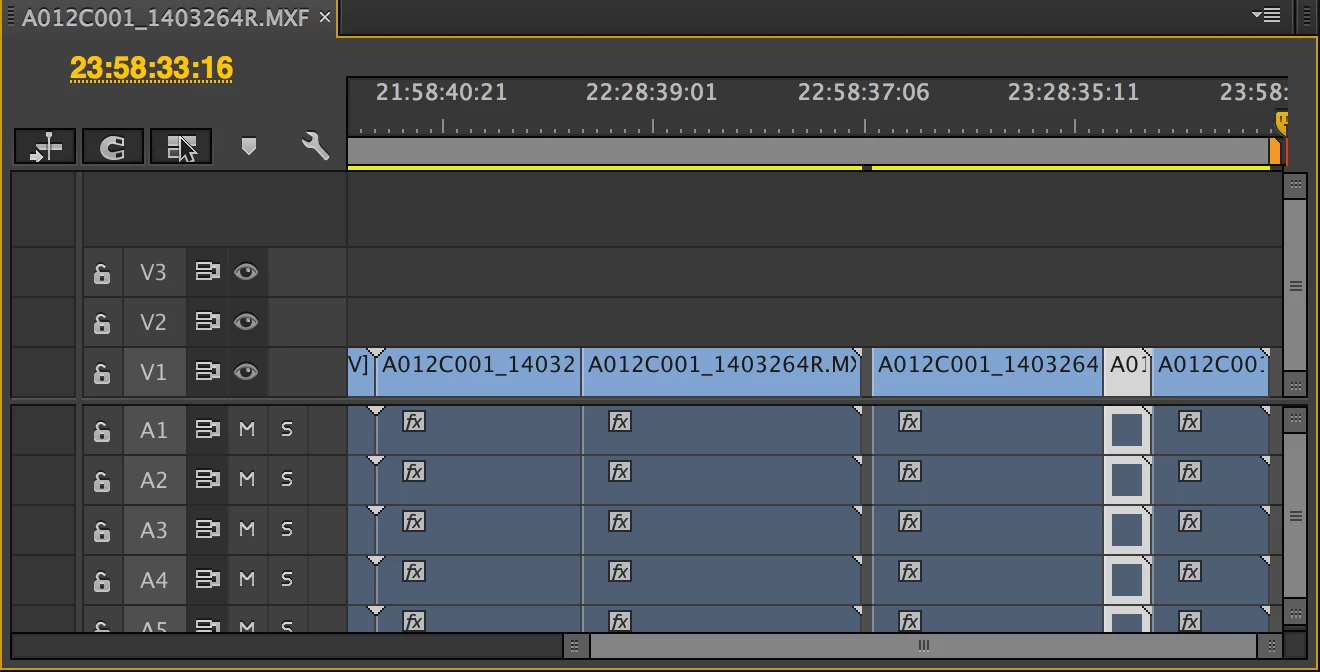
You have an older version of PrPro which I am not using so I can't try it and tell you for sure what to expect. (that screenshot with the yellow highlights and bumpy scrollbars does not look like 2017.n to me)
First of all, unless you really have 24 hours of meaningful frames to show, the right way to do this is to edit your actual content as needed and then use a loop setting for continuous playback. But if you really need one continuous, 24-hour-and-zero-frame video, then...
1. Make sure your sequence is set to use a non-drop-frame timecode like 24.00 or 30.00 frames per sec (as opposed to 29.97, which will shorten the real duration over time)
2. If final playback is to be done from within PrPro, then edit the content out past the 24-hour mark and then trim or cut the last clip in to end at the right frame.
3. If playback is to be done outside of PrPro, then again edit the content past the 24-hour mark and then choose an out point of 24.00.00.00 for the exported file.
That said, you may have bigger problems getting this done. It looks like Pr's timeline will stop showing frames after about 23:55... and you cannot zoom out or scrub the playhead, our even scroll over past that point. This is the part I can't verify for you because we're not using the same version. A bug could maybe be logged against it if you see the same problem on a current version, but it's unlikely to get much attention since 24-hour-long videos are not a very common workflow. How would you even export or publish something like that? If it were a regular many-hours-long production (like a tv or webcast series) it would just be a bunch of shorter sequences, edited and published separately, which Pr can handle quite well.
It's an interesting problem though, maybe this will help: https://www.fastcocreate.com/3022066/how-pharrell-and-a-cast-of-hundreds-got-happy-for-a-24-hour-interactive-video

 AdChoices