Participating Frequently
November 15, 2017
Answered

"MME device internal error"

  • November 15, 2017
  • 17 replies
  • 247155 views

Hello

I was going about my own business and editing a video when a dialog box saying "MME device internal error" popped up. My audio was no longer playing during video previews, and when I went to the Audio Devices tab in Preferences to try to change the output device, I received the same error message.
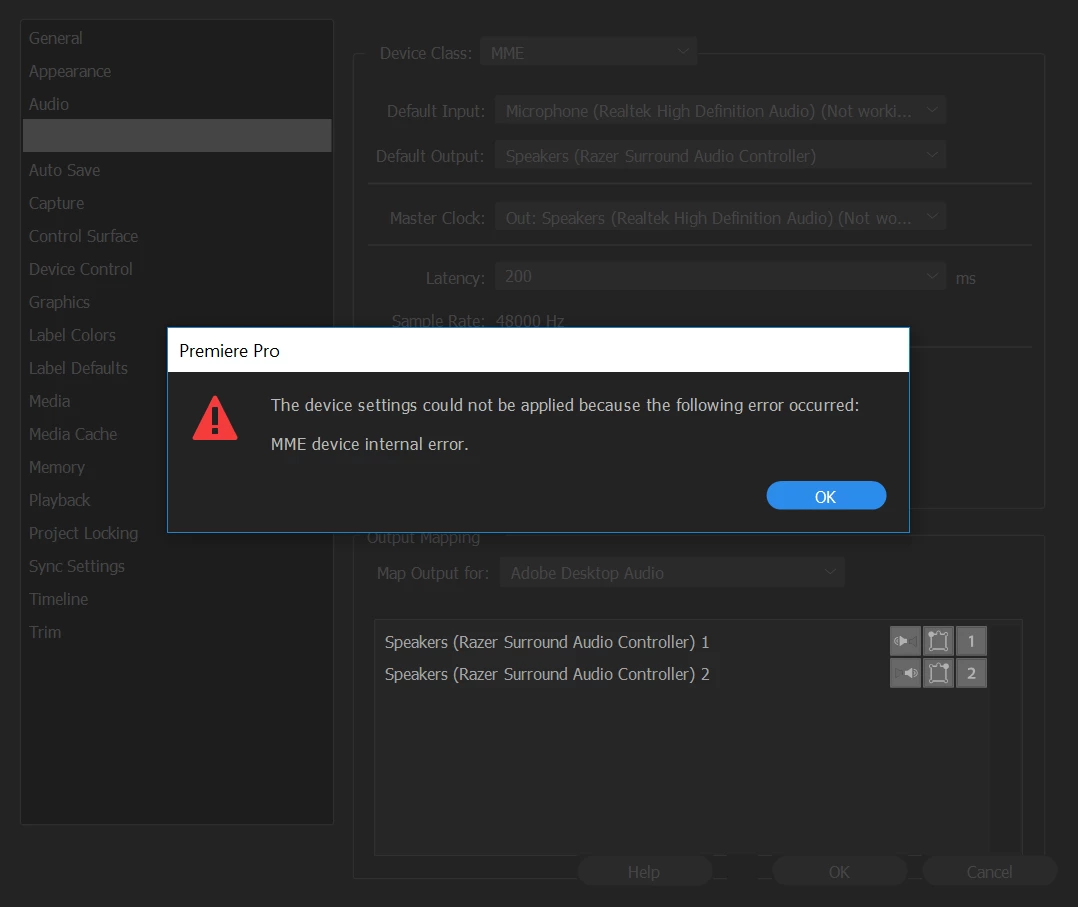
If anyone could tell me the fix ASAP, it would be much appreciated.

Thank you!

Correct answer Ann Bens

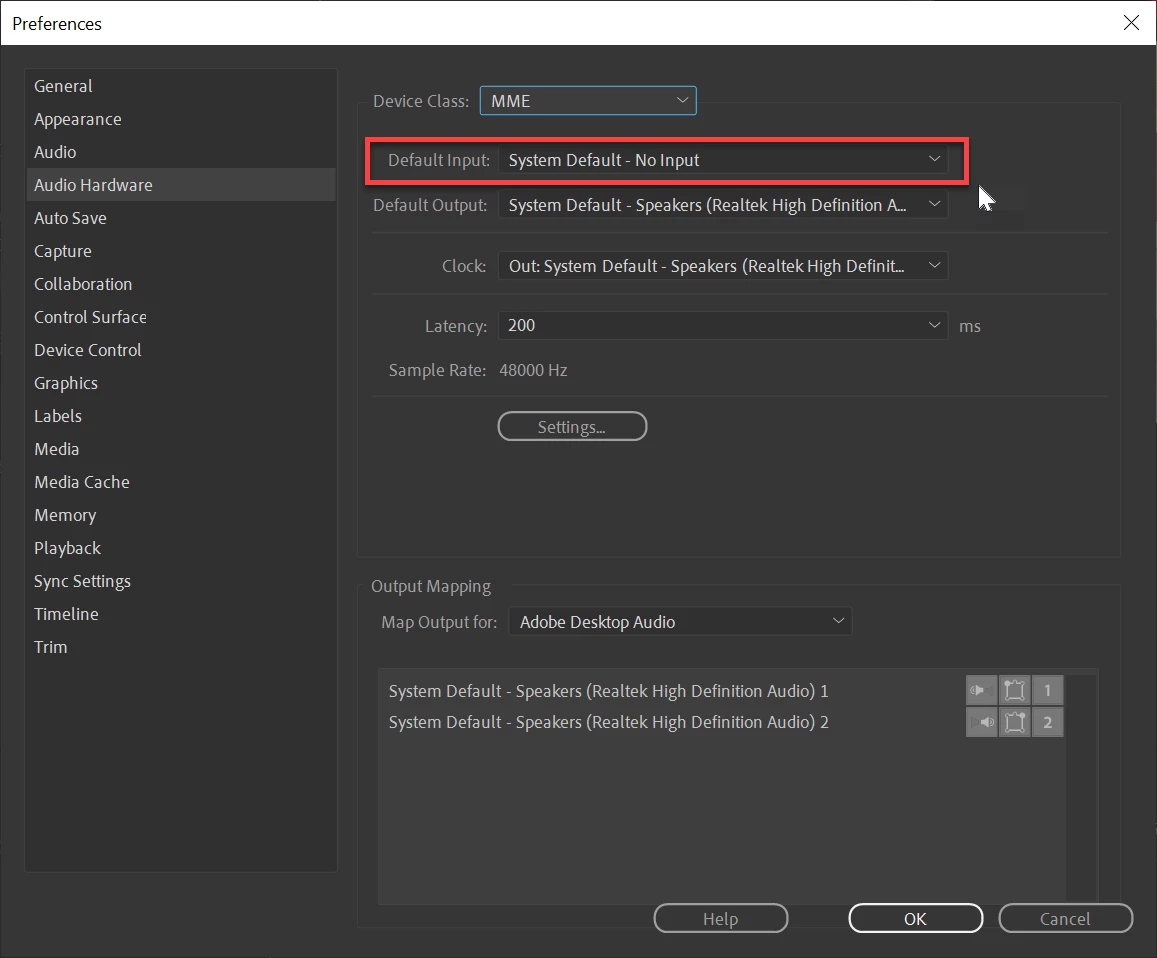
Set input to none: that might do the trick.

Edit: screenshot added.


17 replies

Participant
June 18, 2025

You are a LEGEND

Participant
May 3, 2025

Open access to the microphone and everything will work.
Privacy and security - microphone. In the system settings section.

Participant
June 13, 2024

Still happening in 2024. I hate this company with a passion. 

Participant
December 2, 2023

INSTANT FIX

Participant
April 15, 2023

you won't believe it.

I restarted my computer and everything was fine.

shooternz
Legend
May 3, 2022

I have been reading the various solutions and fixes to the MME Internal Device issue. ( which I am currently experiencing)


My question....

Does this issue also create  an irritating loud audible "bing bong" sound thru the speakers.

It sounds like a notification sound.


It is not coming from an online source.


SOLVED.

1. Turned off INPUT in Hardware Device Options

2. Bing Bong sound is System Sounds for Connect / Disconnect ie plugs in the sound card.  I set Systems Sound for these to NONE

Participant
October 19, 2020
Thank
Participant
May 17, 2020

The error does appear but when i click on it nothing happens and I don't know where to put none

MatthewTropp
Participant
March 14, 2020

This worked for me... Thank You!

frankv7270091
Participant
February 25, 2020

The solve for this is not right if you intend to use an audio input. Others have mentioned it here, but to reiterate, this is a Windows 10 permissions issue. To solve it head to Start > Settings > Privacy > App permissions (left column) > Microphone > Allow apps to access your microphone = On

This setting effects ALL audio inputs, line-in, stereo-mix, mic etc.