


Participant
September 19, 2017
Answered

Multicam outputs only black

  • September 19, 2017
  • 20 replies
  • 46674 views

I have a 6-camera multicam sequence which is behaving in a very unpredictable way. Random segments of the video of outputting only total blackness. Looking at the multi-cam view, I see all 6 cameras on the left, and can see footage being output on the camera that I've chosen to be currently active. But the output preview on the right is totally black. Switching to composite video view still only gives a black screen, and doing a preview render still gives the same result. I can switch the segment of the multicam sequence to a different clip, and then it'll be fine, but then I switch back to the camera I want, and it's black again. I've tinkered around in the underlying sequence to make sure there's no effects or other settings there that would cause the video not to display but can't find anything that should effect it.

This is specifically affecting two out of my six camera angles on this project. At the time when I was initially editing this multicam sequence, it all worked fine, and I can't think of anything that I changed that would have caused it to suddenly stop working. I have noticed that if I hit play, and then click again on the already chosen clip (creating a split in the multicam sequence on the timeline, but not changing camera angles), it'll suddenly start giving me output on the preview monitor again as expected. But then if I hit pause and play again, then we're still right back to the same problem again - just black output. Which, to me, seems to indicate that this is a bug of some sort.

I'm using Adobe Premiere Pro CC 2017 on a MacBook Pro running macOS 10.12.6.

Here's some screenshots:

You can see the black thumbnails anywhere that MC4 or MC6 is chosen:
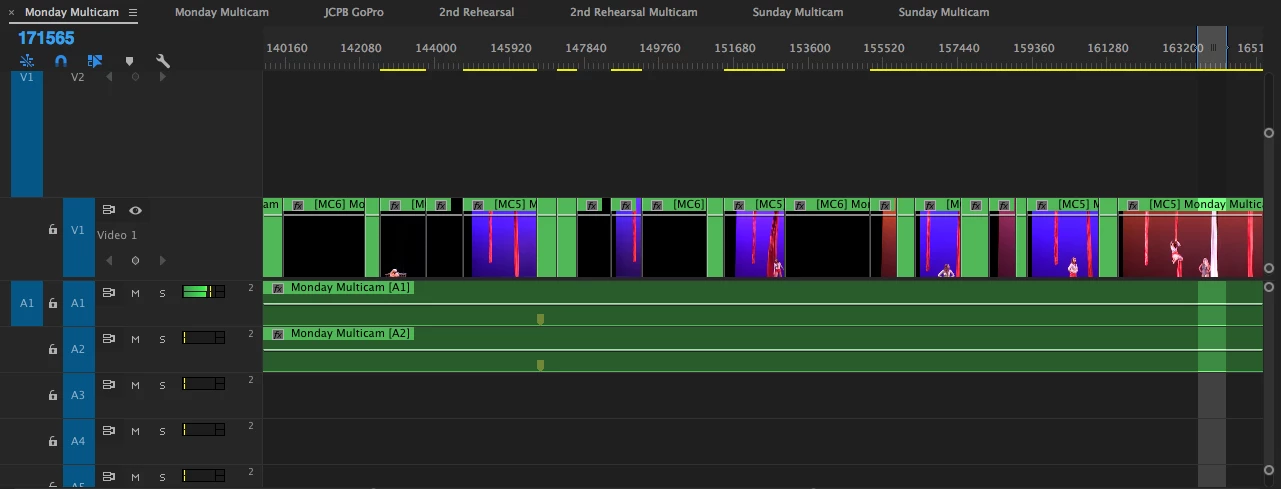
Here we are on MC4 with black output on the right:

Any suggestions?

Correct answer nicolasf73587131

Hey man I had the same problem I found a fast way all you have to do is select all your clips and hit shift E .To disable the clips and than Shift E again to enable them again and you should see them again.

20 replies

Participant
July 31, 2025

Tried everything in this post to-date which didn't work. But my fix was to make a small in and out point prior to the affected multicam edit that's black, and a couple of seconds over it. I went to export it and it was still black. When I clicked export it then refreshed both the export live window and in Premiere Pro program and source panels – all good now.

Participant
July 31, 2025

I should add, I did have to use the ctrl+z method mentioned in this thread to make it re-sync.

Participant
March 1, 2024

Weird bug. My fix was:


1. Right click and turn off multi-cam enable to it turns to a nest again.

2. Open nest.

3. Highlight all clips, shift+e to disable, shift+e to enable again.

4. Re-enable multicam.


Hope this helps someone.

Participant
November 16, 2023

I found that turning off the proxy button from the Program monitor AND Source monitor solved it. 


danielj32872717
Participant
October 10, 2023

OK so I had a similar situation and it was an easy fix.


When selecting all clips, nesting them and enabling muti-cam, everything went black. 

Problem: V1 was empty


Fix: select all clips and drag down to the bottom, so that V1 in the timeline isn't empty


I hope that helps someone! 

Jorge Jaramillo Hdz
Known Participant
December 26, 2022

I come from the future. The version is 2023 and they haven't fix this bug. I did the workaround suggested here and worked. But gosh, it's really anoying how old bugs (like the infinit playing timeline in multicam that is more than 11 years old) and new bugs every version, I'm sick of this failed "updates" and old bugs accumulating in every "update".

griccardi
Participating Frequently
July 6, 2022

Hey I know this is an old thread, but FYI if anyone else is having this problem... I did just now, which is why I'm on the thread... I just created a new project and imported the entire project with which I was having the black problem, double clicked on the sequence to open it, and everything was showing properly. Fastest fix!

Participant
April 14, 2022

This still occurs from time-to-time in Premiere Pro 22.2.0!

I'm on a maxed-out iMac (2019) with Intel chip, so maybe this will change as users migrate to newer Mac hardware.


In my case, the Correct answer did not work, BUT after clearing the cache all is good again. 

Participating Frequently
October 19, 2021

This sounds silly but I had the same issue after coloring a source file for a multi-cam project and just I saved, closed the project, and re-opened it and it was visible again. Who knows why.

Participant
May 29, 2021

So I just came across this same bug in 2021, and what fixed it for me was disabling all the clips in the multi-cam sync'd sequence-- and then re-enabling them. After doing that it not only fixed the issue in my current saved project file-- but also all the backup project files I had that had the same problem. I have no idea what the deal is with that bug but I hope it gets fixed-- because that was terrifying.

Inspiring
February 1, 2021

This solved my problem also. Thank you. What a silly bug. Glad it's an easy fix.