Participant
October 26, 2021
Answered

Premiere crashes after a few seconds of editing - version 15.4.1

  • October 26, 2021
  • 2 replies
  • 504 views

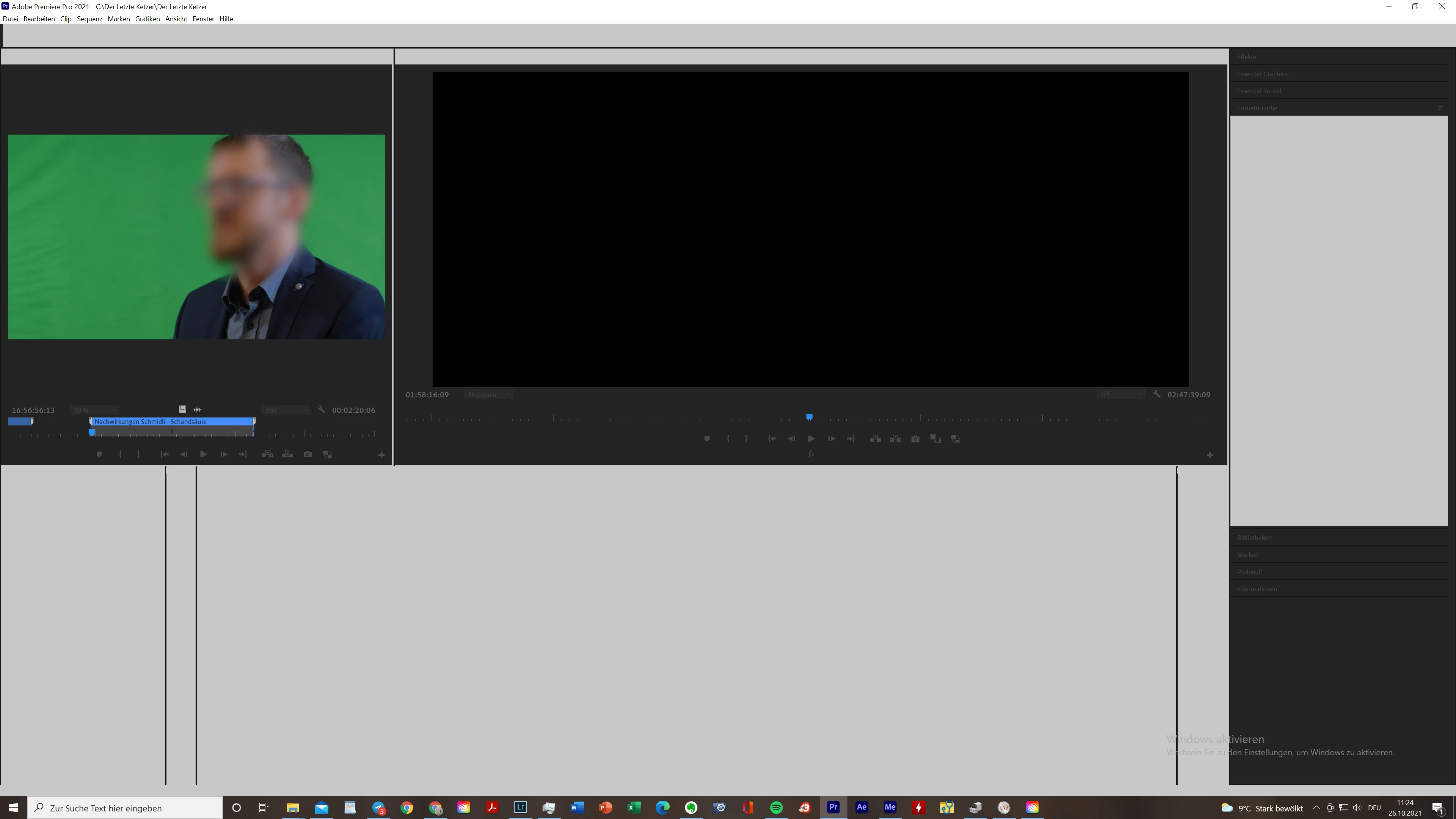
My Premiere Pro is crashing after editing for only a few seconds. The sound continues playing in the background, but I can not click anything anymore. I even tried editing without image (I turned off all the video layers) but it does not help at all. Reinstalling premiere also did not help. I have not tried installing an older version because I can not afford loosing all my work. 

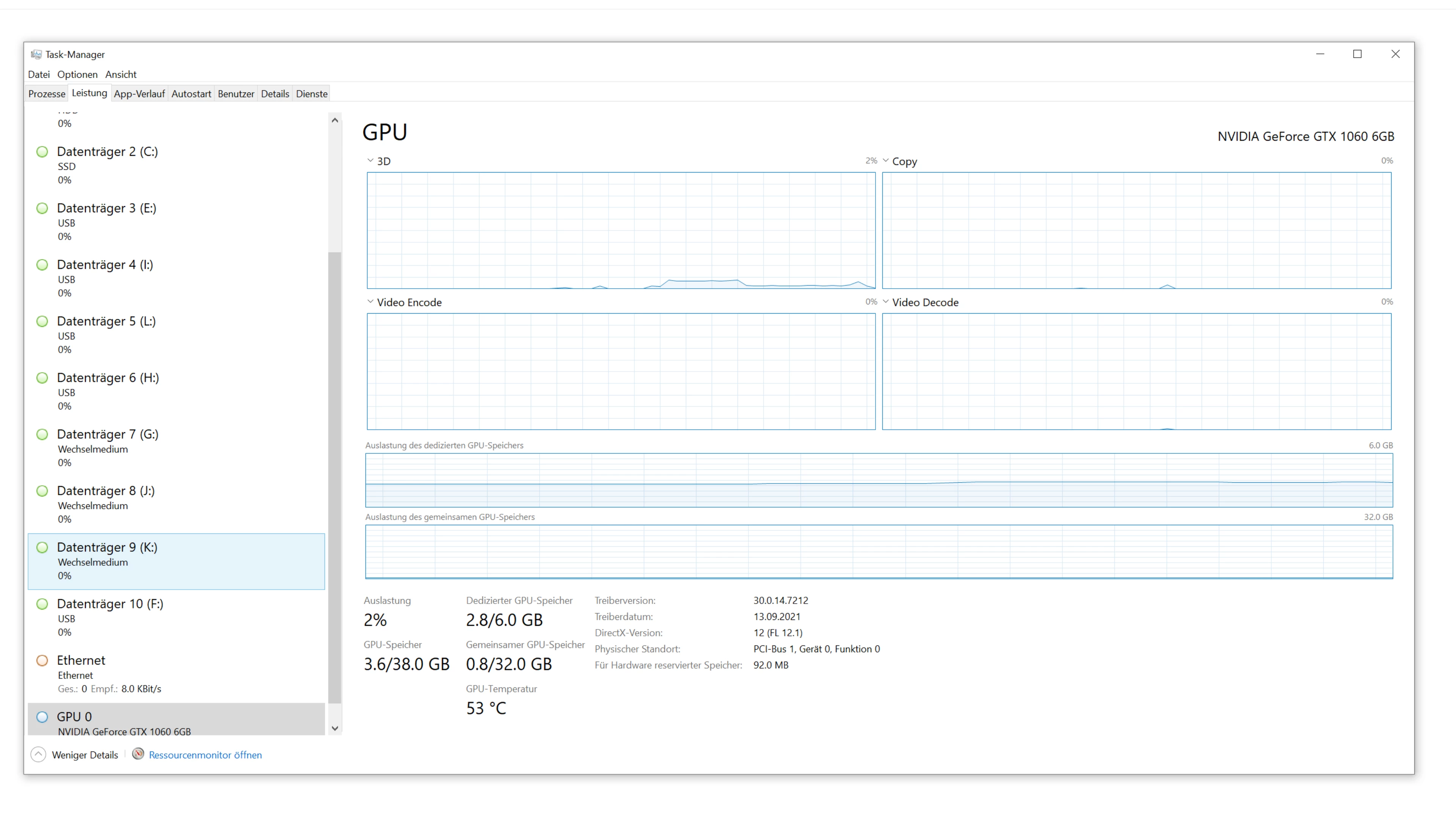
It sounds like a GPU problem but the problem occur when I work with or without CUDA. There is also nothing conspicuous when I look inside the task manager... (screenshot during crash). 
This is how the crashes mostly look:


The problems only occur in Premiere. After Effects an Media Encoder are working perfectly. 

I am working on two pretty big projects and would be extremly thankful for some thoughts and answers! 


System:

Windows 10, 64-bit

CPU: Intel(R) Core(TM) i7-8700K CPU @ 3.70GHz 3.70 GHz

GPU: Nvidia GeForce GTX 1060 6GB

RAM: 64 GB

This topic has been closed for replies.
Correct answer Peru Bob

Try resetting the preferences:
https://community.adobe.com/t5/premiere-pro/faq-how-to-reset-trash-preferences-in-premiere-pro/td-p/8236158?page=1

If that doesn't work, try resetting the Workspaces:
Reset a workspace
Reset the current workspace to return to its original, saved layout of panels.
1. Do one of the following:
• Click the Workspace menu icon and select Reset to Saved Layout.
• Choose Window > Workspace > Reset to Saved Layout.
from here:
https://helpx.adobe.com/premiere-pro/using/workspaces.html

If that doesn't work, try Preferences > Audio Hardware and set Input to None.

If that doesn’t work, do a clean install of the latest Studio Driver (NOT the Game Driver)

If that doesn't work, try creating a new project and import the old one into it.


2 replies

Peru Bob
Community Expert
Peru BobCommunity ExpertCorrect answer
Community Expert
October 26, 2021

Try resetting the preferences:
https://community.adobe.com/t5/premiere-pro/faq-how-to-reset-trash-preferences-in-premiere-pro/td-p/8236158?page=1

If that doesn't work, try resetting the Workspaces:
Reset a workspace
Reset the current workspace to return to its original, saved layout of panels.
1. Do one of the following:
• Click the Workspace menu icon and select Reset to Saved Layout.
• Choose Window > Workspace > Reset to Saved Layout.
from here:
https://helpx.adobe.com/premiere-pro/using/workspaces.html

If that doesn't work, try Preferences > Audio Hardware and set Input to None.

If that doesn’t work, do a clean install of the latest Studio Driver (NOT the Game Driver)

If that doesn't work, try creating a new project and import the old one into it.


leJeanAuthor
Participant
October 26, 2021

THANK YOU!!

The resetting the preferences already solved it. I can not believe it! 

thank you very much!


Peru Bob
Community Expert
Community Expert
October 26, 2021

You're welcome. 

Kartika Rawat
Community Manager
Community Manager
October 26, 2021

Hi leJean!

Sorry for the trouble. Have you tried cleaning cache files? Also, what's the source of the media files?

Could you check if there's an update available for your GPU driver?


Let us know.

Thanks,

Kartika

leJeanAuthor
Participant
October 26, 2021

Thank you for your fast reply. 

Yes, I tried deleting all the cache files and my GPU driver is up to date. 

Do you mean source as in where they are stored? Most of the files are stored on my internal ssd, some other files are on a server. 

I mostly cut with mov-files (ProRes 422 Proxy) on my windows computer. 


Do you think that this might be a hardware issue (GPU)? How could I know for shure?