

nomad360
Participating Frequently
April 7, 2019
Question

Premiere pro AEVideofilter 11 error/warp stabiliser issues

  • April 7, 2019
  • 6 replies
  • 9615 views

Hi Premiere pro community,

After updating to the most recent version of PP a few days back I have run into some issues with the warp stabiliser plugin.


Details:
Latest version of premiere pro on IMac pro 2017 (a side note - never buy this computer - the colour issues between premiere and exported footage are ridiculous - P3 vs Rec709):

3.2GHz Xeon W

128gb DDR4 2666MHz

Radeon Pro Vega 64

When exporting footage from a sequence that had been rendered with warp stabiliser, the position of the stabilised clips is drastically different between what is seen on the program monitor, and interestingly - you can see the difference on the export screen. I had completed two days of editing before I noticed this issue, but decided to try rolling back to a previous version (13.0.3) and still had the same issue. I have also ensured the IMac pro is fully updated and all drivers are up to date. I then started getting AEVideoFilter 11 low level exceptions. I have gone back to a previous version of the project to fix that issue, but I am still getting the differences between export and the program monitor. Copying the clips to a new project resulted in the same issue, and I would like to avoid that if possible, as I have multiple weeks worth of work in sequences within this project.

Program monitor:

Export:
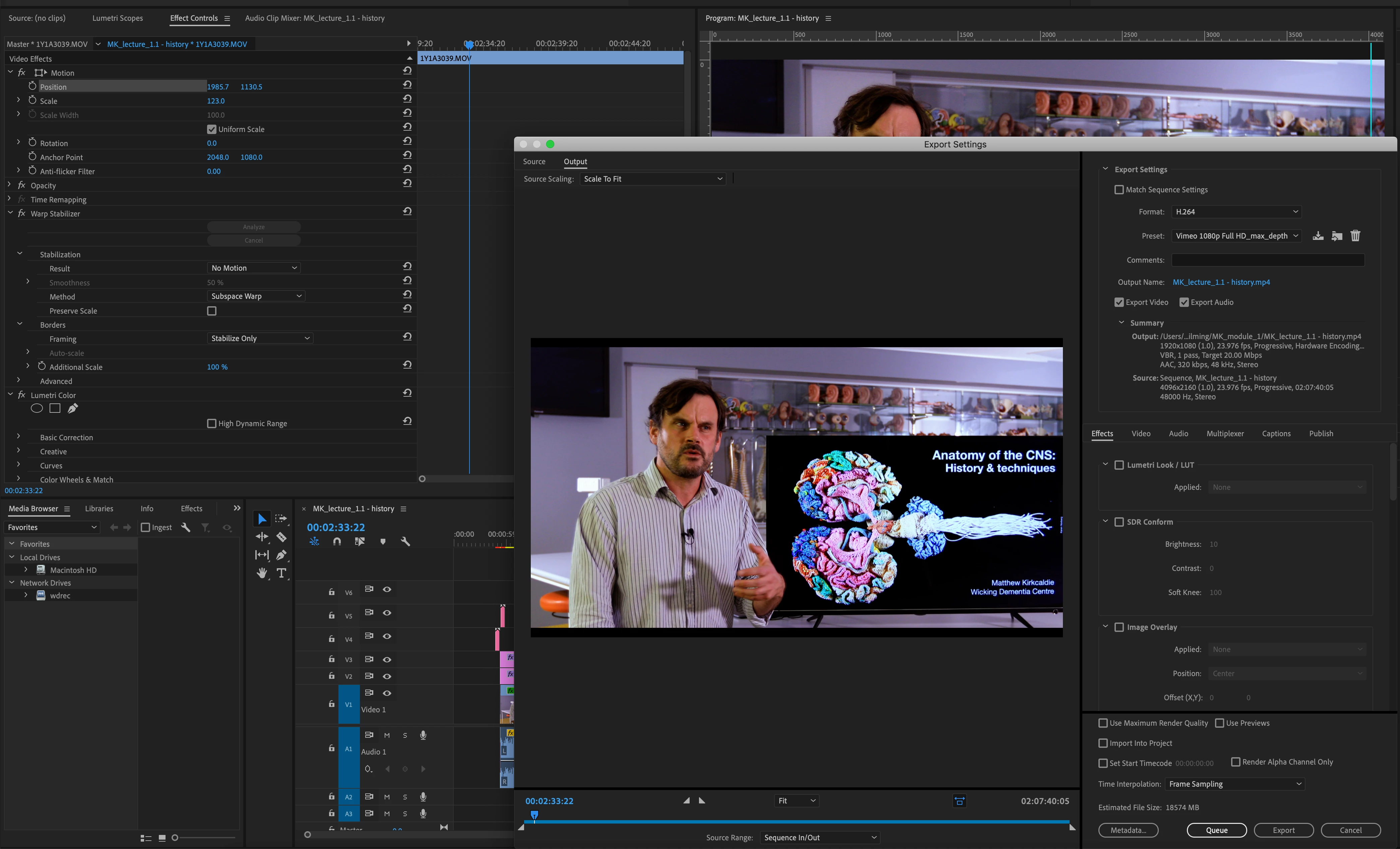
I have also tried re-analysing the clips and re-applying the filter. My temporary solution has been a guessing game of move > check on render menu > repeat.

Any suggestions would be greatly appreciated.

Kind regards,
Andrew

    This topic has been closed for replies.

    6 replies

    nomad360
    nomad360Author
    Participating Frequently
    April 18, 2019

    Just an update - I have sent this forum post to Adobe customer support and they are looking into the issue. I have been using warp stabiliser in AE as suggested, which is a pain but at least works for now.

    Participant
    April 18, 2019

    Hey Nomad, although I do prefer using AE for Warp Stabilizer for complex shots, another work around I stumbled upon is to install the previous version of Premiere and use this Premiere Downgrader online tool to quickly convert your PP files that you are working on, to a legacy format. You can then welcome back Warp Stabilizer workflow within Premiere with welcoming arms

    Participant
    April 9, 2019

    I second this issue. Has only been occurring since the new update. My work around is to send to After Effects and use Warp Stabilizer there, obviously not ideal but works.

    Community Expert
    April 8, 2019

    concerning the off position issue on export, did you try switching the Lumetri and Warp Stabilizer in the project panel,

    putting one above the other or the reverse? or if you have any other effects, try offsetting their order in the project panel,

    sometimes the order in which effects are applied creates a huge difference.

    Concerning the low level exception, this was a bug that was assumed fixed in later builds,

    but lets wait for Adobe staff to confirm this bug.

    Meanwhile, you can clean your media cache and delete the render files if you are dealing with older projects in the new version

    nomad360
    nomad360Author
    Participating Frequently
    April 8, 2019

    Hi Carlos,

    Thanks for replying! I have just tried swapping the order of the effects to no avail unfortunately. I did fix the low level exception by rolling back to an autosave from the previous couple of days - did lose a bit of work, but it is now working again without the low level errors. I have just offset the clip roughly to match the previous frames. This will teach me for bumping a tripod while filming (and for using cheap tripods in the first place).

    @Mike, that is a good suggestion too - did try that yesterday, however there was still the same issue with the low level error and the other settings, but taking the clip from raw footage and going from scratch was okay. It makes me think the issue is either linked to the edited clip or the sequence itself?

    Thanks everyone for the suggestions - I am impressed with the community here and really appreciate everyones suggestions!

    Andrew

    Community Expert
    April 9, 2019

    maybe if you tried cleaning the media cache and render files, also manually deleting

    media cache residues, that would have solved the issue without rolling back to previous auto saves.

    Still waiting for someone from Adobe staff to confirm an unfixed bug related to warp stabilizer?

    Mike Dziennik
    Community Expert
    Community Expert
    April 8, 2019

    Do you get any errors if you pull one of the clips into a new project and apply a fresh warp stabilise?

    Participating Frequently
    April 8, 2019

    yes thank you Mike. I tried creating a new project on advice of Adobe support, dropped a clip and got the same errors. I edited my post above with the latest update. there is no solution but to roll back to 13.0.3.

    cheers,

    Anthony

    Participating Frequently
    April 8, 2019

    Same issues here after the update to 13.1. I was hoping the update would solve the crash issues that I frequently have, but now I'm pulling my hair out for clicking the update button... Clips that were perfect a couple of days ago are now shifted in position and I get the same error in the sequences. It's a strange thing, since not all my stabilized sequences seem to have this issue.

    MacBook pro late 2013 (NVidia!)

    PPro 13.1

    HD AVCHD 1080p square pixel sequences 60fps

    Warp settings No Motion, Subspace warp and Stabilze Only

    fixed position 960 x 500, scale 115 and tilt 10

    Mike Dziennik​ I don't think I can use the stabilize, crop and auto scale option, I need the same settings everywhere because of the position and scale needed.

    I hope that Adobe will come up with an answer and solution soon, my project was in the finishing stage...

    * update while in contact with Adobe support chat for more than 2 hours now: advice to create a new project and copy the sequences to the new project. Change the renderer (if it's Metal go to OpenCL or vice versa. I was on metal after the update, before I was using OpenCL this action had no effect. I also took the initiative to re-analyze the warped clips in my 'old' project but the errors reappeared. Now the support lady ended her shift so I'm waiting for a new colleague to appear. Come on Adobe.!

    ** update 2, after 4,5 hours in Adobe support chat, several options were tried, even with remote desktop to reset all kinds of preferences. All failed there really is no explanation other than I have an outdated NVidia graphics card and that this is probably causing the issue. A last resort was used: downgrade to the previous version of PPro. Had to manually downgrade my projectfile since I worked on that for the last few days, ignoring the warp issues. (see thread Saving premiere cc 2019 project as cc 2018? ) But the shifts in position of my clips seem to persist, so it's probably a better idea to restore to the last backup made when using the previous version, and start all over again.

    I really really hate this happened and that it will cost me a couple of days in extra work. Bravo Adobe.

    Regards, Anthony

    Mike Dziennik
    Community Expert
    Community Expert
    April 8, 2019

    Hi Andrew,

    I assume you're working in HD? Is there a reason you are getting a letterbox on your export preview - it implies your export resolution is 'taller' than HD.

    I see you are trying to do a 'stabilise only' and then reframing using the intrinsic clip scaling - does it work if you use the default auto-crop option in the warp stabiliser?

    ^There could be an issue between these two things.^

    nomad360
    nomad360Author
    Participating Frequently
    April 8, 2019

    Hi Mike,

    Thanks for replying! I will have a try tomorrow and see what the results are. I am shooting DCI 4K but exporting at 1080p with the vimeo preset bar the following changes: max bit depth, and VBR1 with a target of 20.

    I haven't done much video work in a number of years, so am very rusty!

    I will report back when I have tried it!

    Thanks a heap,
    Andrew