
Participant
February 28, 2023
Question

Premiere Pro is not exporting long Video properly

  • February 28, 2023
  • 1 reply
  • 5539 views

GPU: 1650 SUPER
RAM: 24 GB
CPU: RYZEN 7 2700X
MOBO: MSI B450 TOMAHAWK MAX

this is my input and output video format 
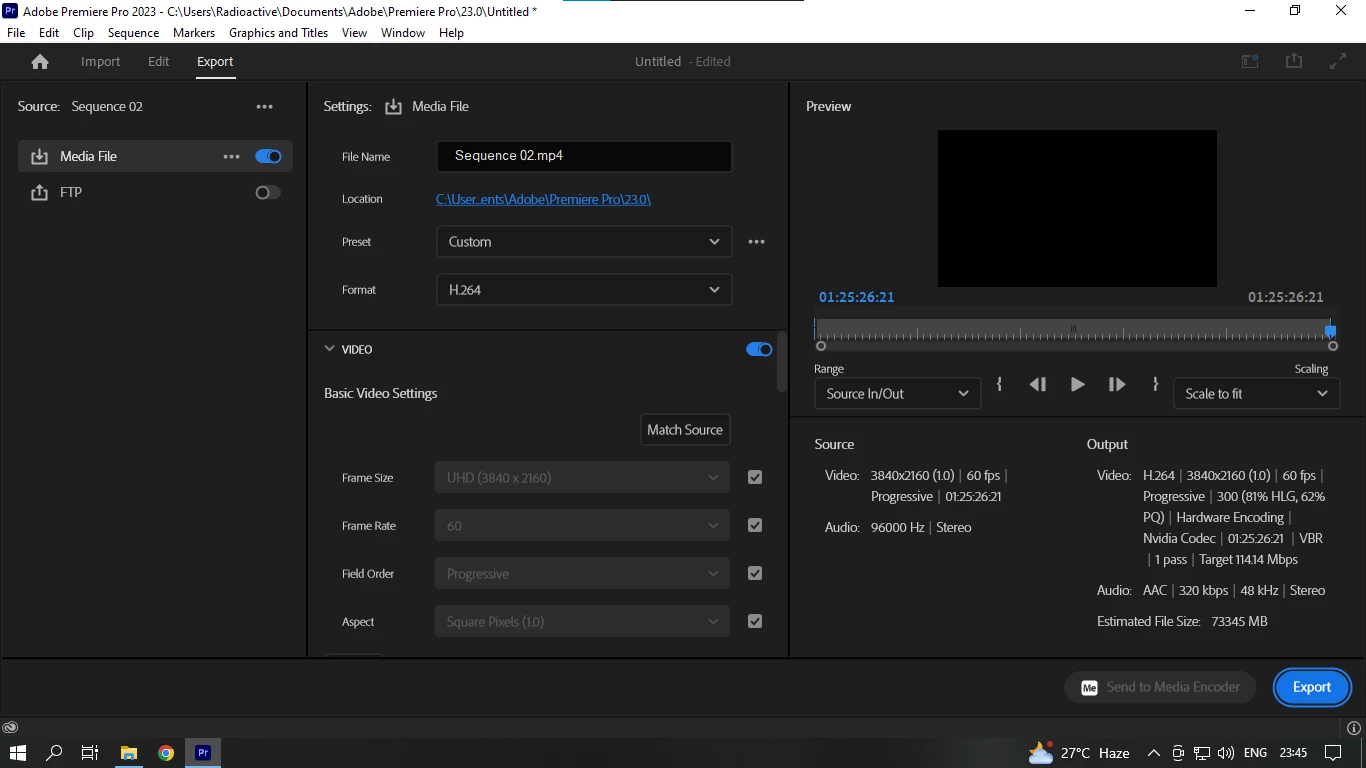

After completing the export of a 1 hour 25 minutes video, the exported video only runs for a few minutes (but it is showing a duration of 1hour 25munites in the video player indeed, and yes i have chosen the "entire sequence" option) then it automatically closes, no audio no video.

I have been making videos for my YouTube channel using premiere pro 2023 for more than a month but never faced such issues, maybe because i have never exported such long videos.

my screen resolution is 1366*786 and yes i have rendered 53 minutes long video to 4k before and it worked perfectly.

I have tried to do this multiple times, first with the VBR 2 Pass with pass one and two bitrate is 100 and rhe entire video only runs for 50 mins, then i tried the recent setting VBR 1 pass 100 bitrate and that played for 12mins. In the first attempt i used unsharp mask effect on my video and that is why it rendered for 3 hours, but in the last attempt i only used lumetri color and some razor cuts and that reduced the time to 1hour 30 minutes.

GPU acceleration is enabled 


 I am exporting my video into a same drive where i recorded my gameplay, its not like i saved my gameplay to a m.2 then i am trying to upscale and export it into a different hard drive. and my hardrive got 150 gb free space which is enough for the process.

What can possibly go wrong?

This topic has been closed for replies.

1 reply

Kevin-Monahan
Community Manager
Community Manager
February 28, 2023

Hi Tridibesh,

Sorry for the issue. Thanks for the info! I imagine the export issue is related to a combination of:

  • Source footage: H.264 variable frame rate footage at 4K.
    • H.264 is the most diffcult footage to with even at a constant frame rate.
    • Footage from game streams carry a variable frame rate that Premiere Pro which adds a layer of complexity to an already complex codec; H.264.
    • Longer duration of a timeline with non-performant media, H.264.
  • GPU:
    • Using GPU-accelerated effects and/or Mercury Playback Engine processes (scaling, frame rate conversions, etc.) to your GPU, which is already maxed out handling variable frame rates and H.264.
    • A GPU containing only 4GB VRAM, which does not exceed the minimal system requirements given for 4K workflow.
    • Possible outdated or faulty GPU drivers (the last two months, these drivers have had troubles, see the NVIDIA website).
  • CPU:
    • H.264 source with a CPU that does not have an iGPU, which is useful for handling H.264. Most Intel CPUs have one.
    • No iGPU strains the CPU because the GPU is being overly taxed by variable frame rates, decoding/encoding, and GPU-accelerated effects processing.
  • Hardware Encoding:
    • Attempt to use hardware encoding, with a lower-powered GPU that handles both encoding and decoding of H.264 at export.

Potential Remedies: Avoid editing with H.264

  • Use Software Encoding; 
    • Slower than hardware.
    • The GPU is not used for simultaneous decoding/encoding of H.264.
  • Change Mercury Engine to Software Only in project settings. 
    • Effects processes are CPU-bound, so they won't use your already taxed GPU. 
    • Note: it is also is a much slower export.
  • Try both of these things.


Consider the following workflows before you begin your next edit.

  • Transcode game-play footage to a constant frame rate using Shutter Encoder, an FFMPEG-based "free" app (Media Encoder is equally intolerant of VBR footage). Shutter Encoder can do the job (it has open source encoders). 
    • Transcode to a non-H.264 format. I recommend ProRes LT for non-commercial work and YouTube uploads. Caution: these files take up 20x the space that the compressed H.264 files. Delete them after your edit is complete, you won't need them.
      • Taxes your system less by avoiding simultaneous decoding and encoding of H.264.
      • In this case, the GPU is only working on processing GPU-accelerated effects.
      • Frees up the CPU so that it can focus solely on encoding processing and non-GPU accelerated effects.
      • Allows you to export with the smart rendering process ideal for underpowered systems.
    • Transcode back to H.264:
      • If space is a concern, you can try a test by transcoding back to H.264 at a constant frame rate in Shutter Encoder, as that option is available.
      • You are still stressing the CPU/GPU, so while exporting H.264 might be not ideal, simply doing away with variable frame rate issues might work for you.
    • Transcode using the export frame size. Avoid scaling 4K footage to HD or a non-standard frame size.
      • Scaling stresses the GPU as it is uses the Mercury Playback Engine. 
        • If your footage is at the target frame size there is no scaling.
    • Hardware: 
      • Consider installing a more powerful CPU that features an integrated graphics card.
      • Consider upgrading your GPU.
      • Consider recording your game streams to a hardware recorder that records at a constant frame rate.
        • Though OBS is convenient and free, it introduces variable frame rates to your workflow. Recording the stream with a hardware device avoids the issue. 
        • Allows you to create finished videos faster, because you begin with footage that you can edit with from the start.


I hope the advice and info helps you. Come back with any questions.


Best,
Kevin

Kevin Monahan - Sr. Community & Engagement Strategist – Pro Video and Audio
Participant
February 28, 2023

Buying a 6750xt card can solve this? Because the render time is extremely high, like 6-7 hours for only a 1 hour vid. I can't even think of  Rendering 2-3 hours of gameplay.

Kevin-Monahan
Community Manager
Community Manager
March 2, 2023

Hi, Tridibesh,

I'm sorry I can't answer easily. Performance is often unrelated to hardware. It's better to try optimizing the game play footage first. Transcode game-play footage to a constant frame rate using Shutter Encoder and let us know how the test goes. 


Thanks,
Kevin

Kevin Monahan - Sr. Community & Engagement Strategist – Pro Video and Audio