



Premiere Pro Playback Stuttering with Vivo X300 Ultra Footage (Mac mini M4) – DaVinci Resolve Works Correctly
Premiere Pro Playback Stuttering with Vivo X300 Ultra Footage (Mac mini M4) – DaVinci Resolve Works Correctly
Hello Adobe Team,
I would like to report what appears to be a compatibility issue between Adobe Premiere Pro and video files recorded on a Vivo X300 Ultra.
System:
- Mac mini M4
- Latest macOS version
- Latest Premiere Pro version (2026)
- Vivo X300 Ultra
Issue:
Video playback in Premiere Pro is noticeably stuttery and unsuitable for editing. The same files play perfectly in DaVinci Resolve, QuickTime Player, and other macOS video players.
I have spent considerable time testing different configurations and the issue remains consistent.
What I tested:
- Standard Video mode
- Pro Video mode
- H.264 / AVC
- H.265 / HEVC
- Hardware Accelerated Decoding ON
- Hardware Accelerated Decoding OFF
- Different recording settings and resolutions
The issue occurs in every tested configuration.
MediaInfo reports the following characteristics for all affected files:
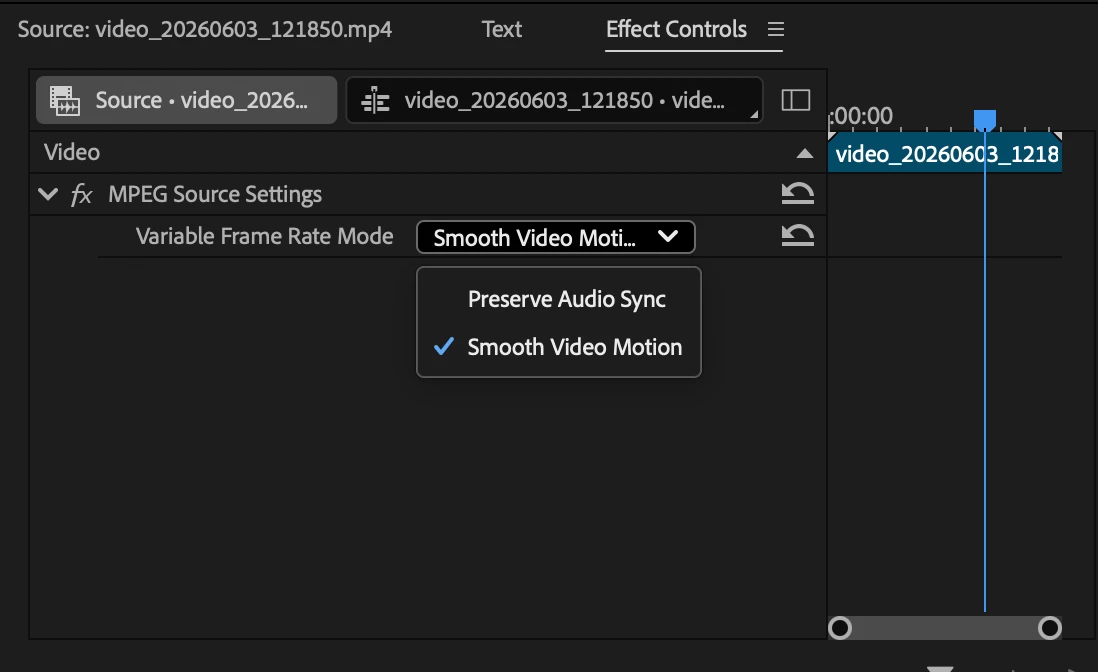
Frame rate mode: Variable
Frame rate: 30.000 FPS
Minimum frame rate: approximately 7.5 FPS
Maximum frame rate: 10000 FPS
Example file characteristics:
- 4K UHD (3840x2160)
- 30 FPS
- BT.709
- 8-bit
- AVC or HEVC
Important observation:
The exact same files:
- play correctly in DaVinci Resolve,
- play correctly in QuickTime Player,
- play correctly in other video players,
but stutter significantly in Premiere Pro.
Because the footage works correctly in DaVinci Resolve on the same machine, this suggests the files themselves are valid and the issue may be related to how Premiere Pro interprets or decodes the Variable Frame Rate timestamps generated by the Vivo X300 Ultra.
I can provide:
- original sample files,
- complete MediaInfo reports,
- screen recordings demonstrating the issue.
Please let me know where I can upload sample footage for analysis.
Thank you for your assistance.
Sample video - https://drive.google.com/file/d/10DqpHFyJ9balD0XlkDXFAJosBWXsSrlI/view?usp=sharing

 AdChoices