
Participant
June 11, 2020
Question

Problems Exporting on My Brand New 13 Inch MacBook

  • June 11, 2020
  • 5 replies
  • 622 views

Hey

I Just bought a 8gb macbook pro and I must say this is biggest mistake of my life I have a client who needs to release his video and for like the 5th time after rendering for hours either GPU acclerator error comes along the video or render error  and  the error show below comes on my screen .
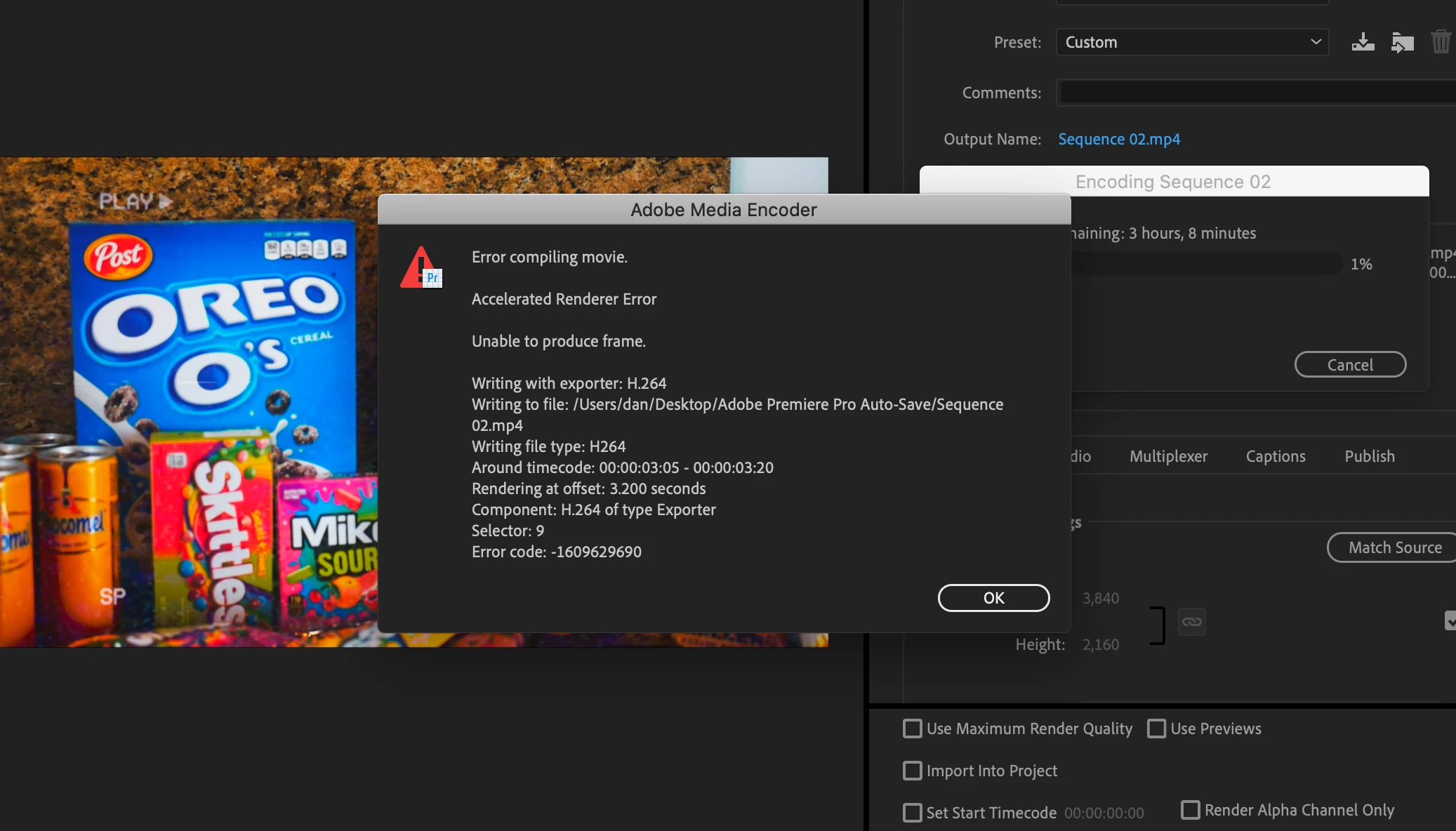
 

I Am not going I am not impressed what the hell is wrong with adobe why is it such a complex software and  This bloody mac book pro man its probably becuase its 8gb ram but bloody hell man it should be able to render what kind of mockery is this ?! cant belive this and I have a client neededing thier video. 


I have read every soloution tried every soloution and it bloody doesnt work I have tried encoder and I just get gpu accelator accross the screen I just want to render !! this is killing me


ADOBE FIX YOUR SOFTWARE AND STOP MAKING IT IMPOSSIBLE FOR PEOPLE WHO CANT AFFORD A MEGA SYSTEM WORTH £5K


Sorry if this comes accross like a rant but i am super frustrated and stress and I am looking like a unprofessinal mess to my clinet!

This topic has been closed for replies.

5 replies

Legend
June 13, 2020

Here's the problem with all 13" MacBook Pros:


  • None of them have a discrete GPU at all. All of them rely solely on the integrated Intel UHD or Iris Graphics. And Premiere Pro treats that integrated Intel GPU as stealing more than 6 GB of that RAM, leaving you with much less than 2 GB of system RAM available for everything else, including Premiere Pro. So, with less than 2 GB of total available system RAM, it's no wonder why your system choked on exports. The only way to fix that would be to manually and completely disable MPE GPU acceleration (by setting the renderer to "Mercury Playback Engine Software Only") in the Project settings every time you open a new project, therefore forcing software-only rendering.


And because all integrated on-CPU graphics steal a large portion of the total system RAM to itself (and leaving it completely unavailable for programs and OS), you will need 32 GB or more installed RAM just to run at a respectable clip with any integrated graphics - and then, it still would not perform anywhere near as well as with a good discrete GPU that has its own VRAM.


And it actually is not a MacBook issue per se, nor it is entirely an Adobe issue. It is an OS issue, specifically Catalina. Despite attempts at Catalina compatibility, Adobe is still clinging on to old code (so to not anger existing customers with somewhat older Windows hardware). Yet Catalina still broke software compatibility by completely cutting off support of not just 32-bit programs, but all 64-bit programs that have even a modicum of 32-bit code. Had Adobe chose to make its software work properly in Catalina, it would have had to cut off all compatibility to users of all legacy hardware in Windows 10. And that would have made even more people angry. Adobe has still been making much of its software a half-baked cross-platform compatible when the only fix would have been to develop two completely separate versions of the same software - one for Windows, one for Mac - neither of which is compatible at all with the other. Unfortunately, that would have significantly increased the cost of a monthly Creative Cloud subscription at a time when real take-home income has plummeted.

D. Houdy
Participating Frequently
June 13, 2020

Check out Adobe's issue with exporting videos with PP 2020. Everyone is experiencing export issues and it's an Adobe issue, not a MacBook issue. I have a brand new iMac Pro and a brand new maxed out MacBook Pro and both are experiencing several issues. Adobe has made the acceleration better for those with intel and it has messed everything up. I have never experienced a single issue from Adobe over my lifespan of working with the software until the past 3 weeks. It is awful

Inspiring
June 13, 2020

The error you are seeing is *potentially* telling you where the problem lies. You see it notes 'around timecode 3:05 -3:20'. It may be you have an issue with that clip in your timeline ...

nevertheless try this - preview render your sequence before exporting. Then when you go to export click the check box 'use previews' down near the bottom right of the export window. This may solve your issue. 


Another thing to try is switch to 'software only' renderer in > file menu > project settings > general > Renderer.


Peru Bob
Community Expert
Community Expert
June 12, 2020

What are the complete computer specs, including hard drives (how many, what kind, what is on each, and how full)?

Community Manager
June 12, 2020

Hi there, 


We're sorry about the poor experience. We can get this checked. Please let us know the exact version of Premiere Pro that you are using. In case you are using one of the beta builds, have you tried using the stable versions and checked if it's working properly? Also, let us know the other system specifications (OS, CPU & GPU). Have you tried switching the Renderer to Mercury Playback Engine Software Only and checked if it's exporting properly? Let us know, we're here to help.


Thanks,

Sumeet