
carlan63046297
Participating Frequently
April 17, 2018
Answered

"Software Only" stuck on encode settings panel.... Premiere Pro CC 2018 latest update

  • April 17, 2018
  • 22 replies
  • 51281 views

Hi

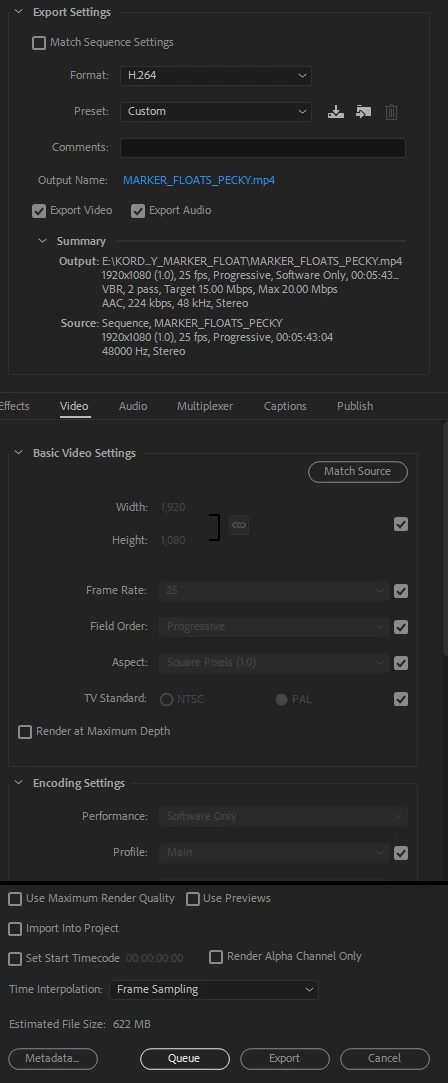
I am currently experiencing another strange bug since running the update to the latest version of PPCC2018. When I go to encode within Premiere I get "Software only" displayed in the summary area and the encoding settings within this panel are greyed out, as can be seen in the attached image. The encode was taking forever so I stopped it and went and checked and CUDA GPU acceleration had been changed to software only in the Project Settings, which I didn't do myself. I changed this back Mercury GPU Playback and the encode went a lot faster, as fast as I would expect when using GPU.

Now my problem is, whatever project I open I get "Software only" displayed in the summary, even though CUDA is enabled in both PP as well as Media Encoder. The project encodes SEEM to be going at GPU speeds but whatever I do the software only message remains. I have noticed that if I change the codec from H264 to MPEG2 for example, the software only message disappears. I am not now 100% sure if my CUDA acceleration is working correctly as the software only message is on every project I open and go to encode within Premiere. If I select to Queue the encode and use Media Encoder, the drop down menu at the bottom of the encode list says CUDA.

Has anyone else been experiencing this?

I have so far:

1. Re-installed PP CC 2018 latest update

2. Installed latest graphics cards drivers as a clean install

3. Tried opening a new project, saving that as CUDA enabled

But nothing has fixed this...

My setup:

Windows 7 Professional x64

Nvidia Quadro K5200

PP CC 2018 fully up to date

Any advice greatly appreciated!
This topic has been closed for replies.
Correct answer R Neil Haugen

To explain again. It's very simple.

The newest Intel CPU chips have a built-in (therefore "hardware") encoder for H.264.

If you see "hardware" or "software only" in the Export summary box, that is ALL that this refers to. Whether or not the CPU has the new, faster H.264 encoder inside.

It has absolutely nothing to do with the GPU or the use of the GPU as normal in PrPro exports. PERIOD.

Your GPU will still be used for exactly what it is used for, which are those things on the GPU Accelerated list. And nothing else,  as it has been.

There is nothing whatsoever for Adobe to fix.

Neil

22 replies

Inspiring
June 26, 2018

Same problem here. i7 8700k, 32GB, 2 x Samsung 960 Pro 512GB, GTX 1080 ti.

R Neil Haugen
Legend
June 26, 2018

"Same problem" ... how about specifying?

Are you talking about the "software only" in the export summary section, which refers to whether or not your CPU has QuikSync *hardware* or not?

Neil

Everyone's mileage always varies ...
Inspiring
June 6, 2018

Same problem here.  Windows 10.

Participant
May 30, 2018

I have been dealing with the same issue regarding "software only" renders when exporting h.264 after the last update.  I spent some time on chat and screen share with adobe support and wanted to share these excerpts to provide some insight.

Upon looking at my device manager---- Agent (who was great) responded

Appears already optimized to use Single GPU, issue cropped up where both Intel and Dedicated cards active, and unlike MAC, we need to disable basic card to push Dedicated GPU usage ...As Latest Nvidia and Adobe Premiere Pro version are facing compatibility glitchees

...Both Nvidia and Adobe are working on it, and it is expected to be fixed next month - June 2018

I should note that I did roll back to an NVIDIA Driver from Dec 2017 which did not resolve the issue.

Here is my GPU / CPU

Windows 10 64 bit

Im still confused but hopefully this can provide some insight.

Participant
May 24, 2018

I've been having the exact same issues on two PC's since upgrading to the latest version and the latest windows build 1709 (16299.431)

R Neil Haugen
Legend
May 24, 2018

Have you read through the thread for the explanations of QuickSync and what's actually happening here?

Neil

Everyone's mileage always varies ...
carlan63046297
Participating Frequently
May 24, 2018

Quicksync isn't the reason it's happening to me. It's directly related to the big 2018 update, as soon as that got installed I have had this problem and others.

Kevin J. Monahan Jr.
Legend
May 22, 2018

Hi CarlaN,

Is hardware acceleration enabled for H.264? That might explain why the GPU is disabled for encoding.

Thanks,
Kevin

Kevin Monahan - Sr. Community and Engagement Strategist – Adobe Pro Video and Audio
danm58881498
Known Participant
May 22, 2018

Is there a specific way to enable it for different codecs? I thought it was either enabled or disabled across the program as a whole.

danm58881498
Known Participant
May 5, 2018

So no resolution for this one yet? THat's pretty average.

Community Expert
April 17, 2018

Same on my Macbook Pro :

Mac OS High Sierra 10.13.4

2.7 Ghz Intel Core i7

16 GB DDR3

Radeon Pro455 2048 MB

Intel HD Graphics 530 1536MB

Premiere Pro 2018 12.1.0 build 186

In the project settings everything works fine, the problem is in the H.264 export, in the 'Encoding Settings' when I choose

'Hardware Acceleration' I get the attached message ... VBR Pass 1 Hardware Acceleration works... VBR Pass 2 same message

Vinay Dwivedi
Adobe Employee
Adobe Employee
April 17, 2018

Hi Carlos,

This performance management option is still not incorporated with VBR pass 2. So, you can say it is a limitation for now.

//Vinay

Community Expert
April 17, 2018

Tx Vinay, yeah for Constant Bitrate CBR as well, so our only option to export H.264 for now is on Variable Bitrate Pass 1 ?

I tried match sequence  its okay no problems

Inspiring
April 17, 2018

OK, just read the OP and seen you flagged this already. Sorry.

Inspiring
April 17, 2018

Not sure if this is helpful, but when exporting to some other formats the output info does not show "Software Only" - DNxHD, for example.

Inspiring
May 24, 2018

This afternoon I've been outputting a multi-camera job from AVCHD footage (.MTS files). For this project I haven't used any Lumetri effects at all. Outputting to H.264 mp4 I'm seeing 'software only' in the summary and according to my hardware monitor my GPU is NOT being used. It has taken 15 minutes to output a 50-minute sequence with three separate video tracks.

R Neil Haugen
Legend
May 24, 2018

I just tried exporting three ways ... H.264, Quicktime using DHxHD codec, and straight DNxHD/OP1a mxf.

Yea, it said "software only" in the H.264 export.

Watched the GPU usage during all three exports, of a clip with a fair amount of Lumetri involved. Identical readings.

So ... my GPU was most definitely used during the H.264 export. As it was the other times also.

Now, as to your comment about exporting with any Lumetri ... unless you are using GPU-accelerated effects, doing significant re-sizing, or one or two other 'exceptions', there won't be any use of your GPU for basic exporting. That's a CPU process within PrPro. So ... basic export of .mts without GPU effects, no GPU involved.

I included the link to the GPU accelerated effects list.

Neil

GPU Accelerated Effects: https://helpx.adobe.com/premiere-pro/using/effects.html

Everyone's mileage always varies ...
Vinay Dwivedi
Adobe Employee
Adobe Employee
April 17, 2018

Hi Carla,

Please try to download the CUDA toolkit with all the 3 patches and restart the machine to check if it helps.

CUDA Toolkit | NVIDIA Developer

//Vinay

Inspiring
April 17, 2018

I don't like how the CUDA tool replaces the existing video driver. What's all that about?

carlan63046297
Participating Frequently
April 17, 2018

I'm installing just the CUDA toolkit, my driver is more up to date than what's in the package. Using the custom install option