Participant
June 29, 2023
Question

Strange vertical lines

  • June 29, 2023
  • 15 replies
  • 10730 views

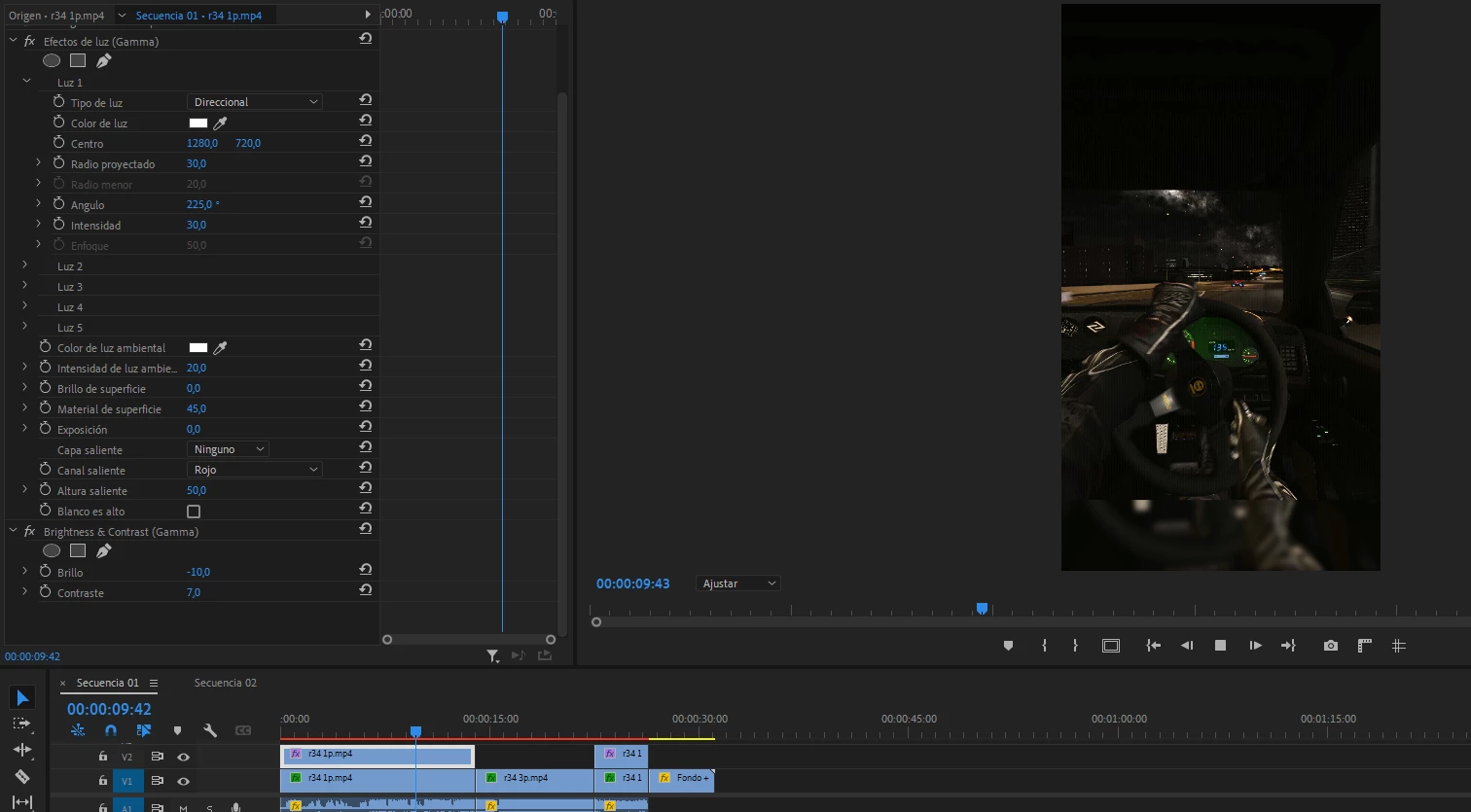
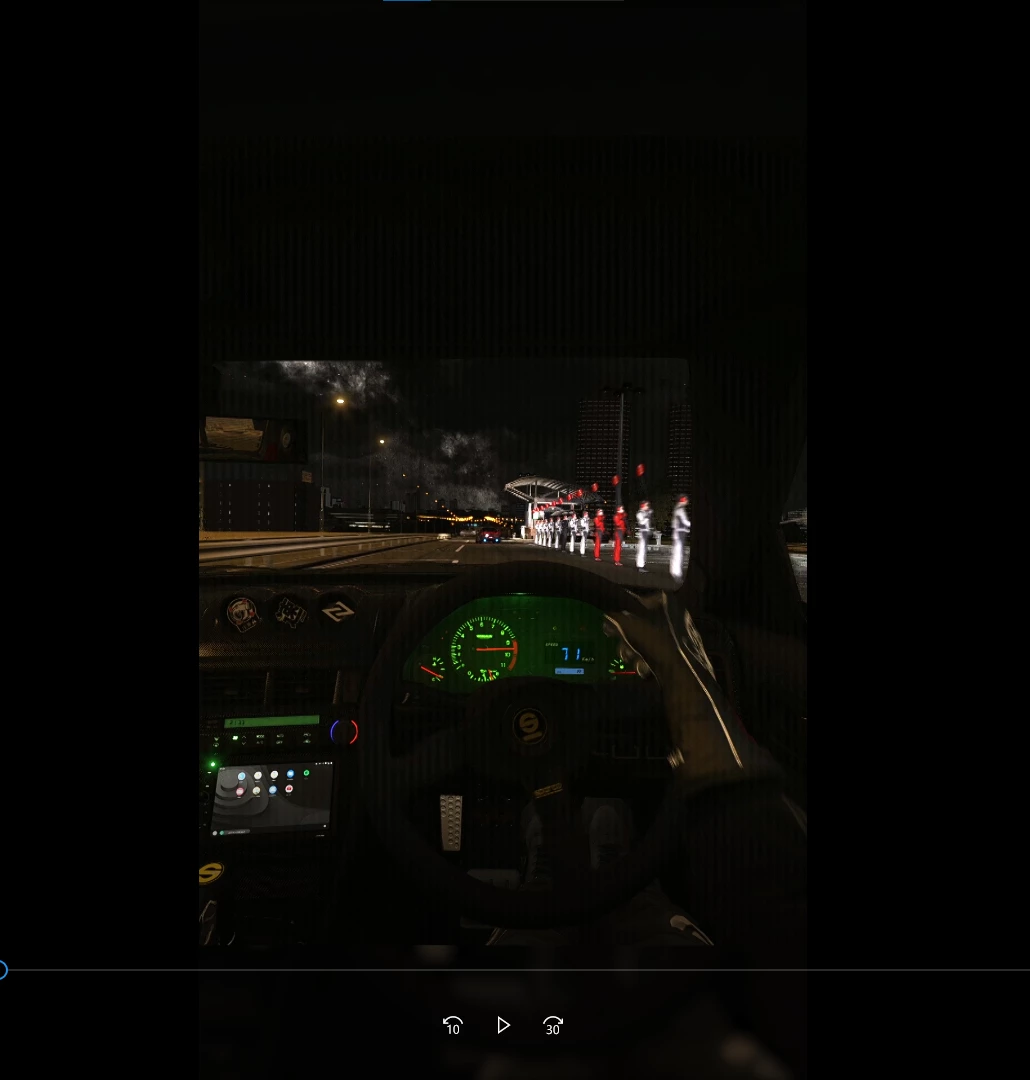
Vertical lines appear while playing the video in premiere and when I export the video the lines increase. But when it is paused you don't see those lines. The recording is fine.
  

15 replies

Participating Frequently
July 11, 2024

Encountered this issue today as well. Vertical lines appearing randomly across all footage in the preview window, which never were there before. Running latest version of Premiere Pro 2023 and the latest video card drivers (RTX 4090 video card). The lines go away if I switch from CUDA to OpenCL... but then the performance abysmal by comparison. I would also like a fix for this issue...

Known Participant
July 11, 2024

@MajesticWolf  install Studio Drivers 552.22

Participant
July 11, 2024

have you tried this out


Kevin-Monahan
Community Manager
Community Manager
June 10, 2024

Hi, @Pitbull30797198fogd,

I hope you're well. I didn't hear back from you about whether you are still experiencing this issue. I'll move this post to the discussions forum while I await your response.


Thanks,
Kevin

Kevin Monahan - Sr. Community and Engagement Strategist – Adobe Pro Video and Audio
Participant
June 10, 2024
Thanks. Switching to openCL from CUDAs fixed it, but was a new and weird
artifact.

Online have not been able to find out if there are disadvant;ages.
UH
ED
Participant
June 9, 2024

go back to mercury playback engine > software only. 
files - project settings - general. 
it fix it for me.. 


Mod note: Edited for content.

Participant
July 4, 2024

This is what saved me. Just means playback is super slow but hey ho.  Was on a job where the edit had to be submitted 2 hrs after shooting and this happened, thanks for that Adobe, nearly seriously did me there. 

Participant
June 4, 2024

I had the same problem - after months of editing without any problems my Proxies are suddenly plagued by being grayed out with distinct vertical lines -- The original footage is fine. I 've redone the proxies several times, even tried a lower setting ( changed from the Quicktime / Prores Mid 1280x720 size choice ).  Went through all my NVIDIA driver settings and followed suggestions for best Premiere Pro settings in NVIDIA Control Panel. Nothing changed.  I see quite a few people developed this problem the same time I did. I am on the last version of 2023, as 2024 completely crashed on me and the Adobe tech told me to go back to 2023.  I have powerful new windows 11 PC and a RTX 4070 with lots of RAM memory.  Help if you can please.  

Participant
June 2, 2024

hii i am too getting the same problem can u plz help

Participant
May 30, 2024

I'm facing the same issue did you find any solution?? Share if you got any.


Kevin-Monahan
Community Manager
Community Manager
May 28, 2024

Hi @Pitbull30797198fogd,

Are you still experiencing this issue? Please let the team know. I hope we can help you.


All The Best,

Kevin

Kevin Monahan - Sr. Community and Engagement Strategist – Adobe Pro Video and Audio
Participating Frequently
June 27, 2024

Hi Kevin, I've faced this issue with multiple projects with multiple camera footage types, and have found commonalities to help you guys locate the issue:

  • Only happens with Premiere 2023, I also have 2024 installed and not getting the issue there if I version-up (can't do this due to CC 2023 compatibility required by client)
  • Only happens with proxies for me, not the full-res media. Used the ProRes proxy presets, so nothing custom.
  • Lines are vertical, not horizontal, so it's not a interlaced/progressive issue.
  • When paused, regardless of full/half/quarter paused resolution the lines appear, lower res just blurs them together but getting half the luma... but during playback, regardless of playback resolution, the lines aren't appearing for me. They also don't show up in the render in my case, just a proxy issue.
  • Also getting inconsistent issues where sometimes the lines show when paused in the Program monitor but not the Source monitor, and sometimes it's vice versa and lines show during playback and go away when paused in the Source monitor. Same footage source format, same proxy format, just sometimes closing the project/re-opening moves the bug from one monitor to the other, or on both. And sometimes in the Source monitor I get the lines both during playback and paused, wheras the Program montitor for the same clip on a timeline might only show lines when paused instead of playback.
  • I tried Cineform proxy preset, which removes the lines issue when paused, but then during playback everything is tinted red, as though a tint effect was applied and the blacks were tinted red and the whites were left as white.

The ONLY workaround I've found so far is setting the Renderer to Software Only in Project Settings, but this is not a fix, as I'm bypassing my GPU.

So my conclusion is something is bugged with Adobe 2023 that was fixed for 2024 (I can't use 2024 with this client since I need to match their version) regarding GPU Acceleration/CUDA displaying proxies when paused. It's not a system issue as I saw others using Macs, and I'm on a brand new custom-built PC with 192GB RAM, a new GeForce RTX 3090 GPU, new i9 processor, etc., and working off an M2 SSD so there's no hardware issues. Had the same problem on my last rig with lower specs.

Hope this info helps find the bug to patch the 2023 version, as I'm sure others also have to use last year's version for clients that require projects to be CC 2023 compatible.

Participant
May 27, 2024

Had the same problem pop up after an update. In my case, it was a CUDA issue. I changed from CUDA to OpenCL in Project Settings and it cleared right up.

Participant
June 14, 2024

Just ran into this issues as well. This cleared up mine too! Thank you!!

Participant
May 27, 2024

It isn't from the camera. At the start of my edit it was fine, but half way, the lines appeared for me. SOS Pls help.

Warren Heaton
Community Expert
Community Expert
May 27, 2024

That looks like it might have been introduced by the camera used to record the footage.


What does the picture look like when viewed outside of Premiere Pro?
