

digitlman
Inspiring
September 16, 2025
Answered

Ultra Keyer not working properly with HDR

  • September 16, 2025
  • 13 replies
  • 623 views

The Ultra Keyer is not working for us on any of our editing machines.

We are running Win11 with 5080 gpu's, latest premiere and latest nvidia studio driver.

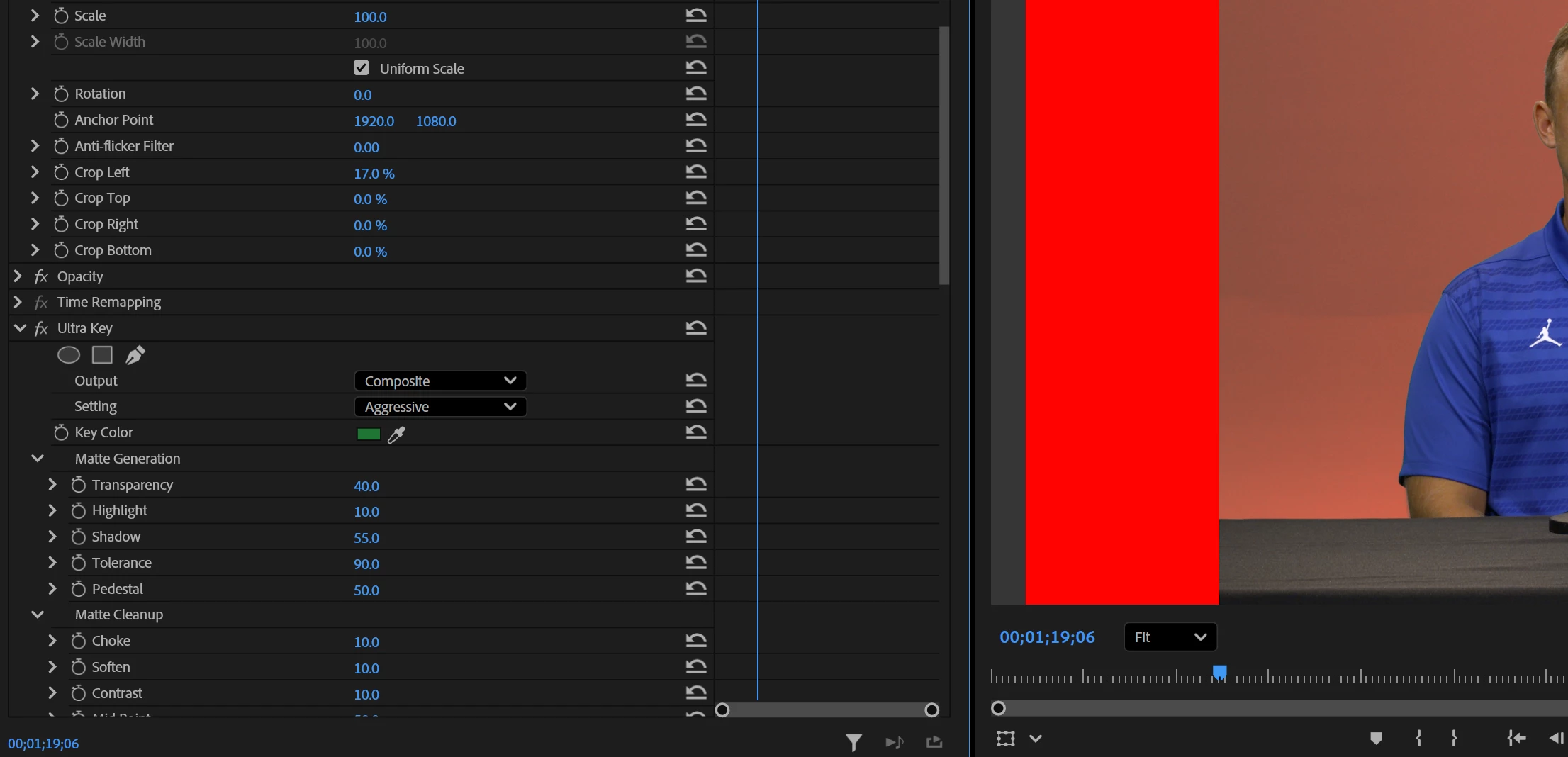
I drop the Ultra Key on the video and pick the green, click aggressive and normally you would get a near perfect key. It is only removing about 50% of the background, looks like it's half overlayed. 

If you move the tolerance slider nothing happens like it is not working at all.


I put a clip over a solid red matte and cropped the left side over for this example pic:


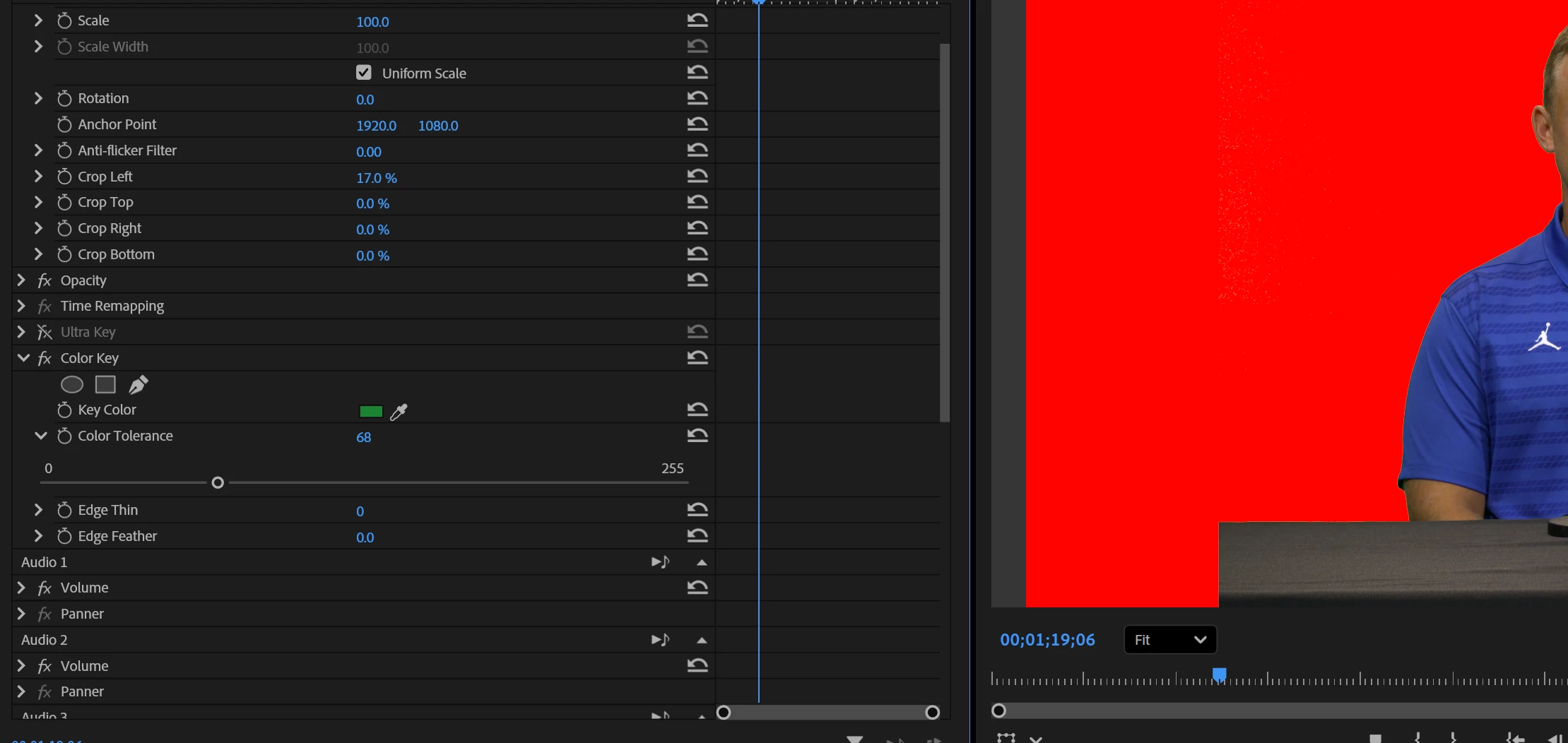
For testing i tried using the old plain color keyer effect and just picked green and slid the tolerance bar over a bit and it keyed perfectly:


Thanks,


Chuck - WEFS TV


Correct answer digitlman

Well it turns out resetting the preferences does solve the problem, with a slight caveat. I know you had already asked me to reset them and I apologize for not doing it sooner but it was something I was really dreading doing. As a functioning TV station with many edit suites we have a lot of preferences we are using. We have custom Bella keyboards, 4k HDR workflow, Log video, multichannel audio, Blackmagic video I/O hardware, etc. so just wiping everything out was not desireable. However it does seem to be the only solution. I did it on 2 different machines and now they are working properly. The strange part is that it is not only the preferences, there is something carried over inside the project file that is a problem also. After resetting the preferences i loaded in my keytest project i made last week and it is still not working. I created a new sequence and did the key again from scratch and it works. When i look at the sequence that i loaded in that doesnt work i can disable and enable the key, and nothing changes. I can change the preset from relaxed to aggressive and back and nothing changes. But then if i re-sample the key color then that instantly fixes the problem. So there is something held over in the preferences and also in old project files that is causing it to not key properly.

Thank you for your time and we will go ahead and wipe the preferences in all of our edit suites. (fyi: I just built these machines from scratch a few months ago so the preferences are not from a very old version)

13 replies

digitlman
digitlmanAuthorCorrect answer
Inspiring
October 8, 2025

Well it turns out resetting the preferences does solve the problem, with a slight caveat. I know you had already asked me to reset them and I apologize for not doing it sooner but it was something I was really dreading doing. As a functioning TV station with many edit suites we have a lot of preferences we are using. We have custom Bella keyboards, 4k HDR workflow, Log video, multichannel audio, Blackmagic video I/O hardware, etc. so just wiping everything out was not desireable. However it does seem to be the only solution. I did it on 2 different machines and now they are working properly. The strange part is that it is not only the preferences, there is something carried over inside the project file that is a problem also. After resetting the preferences i loaded in my keytest project i made last week and it is still not working. I created a new sequence and did the key again from scratch and it works. When i look at the sequence that i loaded in that doesnt work i can disable and enable the key, and nothing changes. I can change the preset from relaxed to aggressive and back and nothing changes. But then if i re-sample the key color then that instantly fixes the problem. So there is something held over in the preferences and also in old project files that is causing it to not key properly.

Thank you for your time and we will go ahead and wipe the preferences in all of our edit suites. (fyi: I just built these machines from scratch a few months ago so the preferences are not from a very old version)

Thoddywolf
Participant
October 7, 2025

Thanks, that helped. In the next step, I have to light my screencurtain a little bit better. Too much shadows.

jamieclarke
Community Manager
Community Manager
October 7, 2025

Hi @digitlman - Sorry for the delay.  Thank you for the reference image.  I have added it to Premiere Pro 25.5 and used the ultra key with your settings and I do see it keying out correctly. 


Can you try and hold down "SHIFT" while launching Premiere and check the boxes
"Reset app preferences" (Backup Preferences first)
"Clear media cache files"
"Reset plugin loading cache"


Can you try and use either driver version 573.22 or 572.83.  


Below is a reference image. 

digitlman
digitlmanAuthor
Inspiring
October 8, 2025

Jamie,


Well unfortunately this is still an issue. wiping the prefs fixes it but trying to turn HDR back on messes it up again.

this was after resetting, and then i turn HDR back on and i get this:


Something interesting i noticed during troubleshooting, these 2 pictures are 2 sequences in the same project at the same time showing different results. When you look at the green color sample box they appear vastly different. However they should look nearly identical as they are both sampled near the same area of the same image.

It appears this is some sort of issue with HDR/SDR and the color sampling done in the keyer.


I feel like I am probably not the only person having this problem. The keyer is essentially working and people are just having to put a lot of effort into getting a good key by making a lot of adjustments.  Even my coworker who has been doing this for countless years didn't realize there was a problem until he started complaining how much he was struggling and it didnt make sense to him. I have so much experience using the Ultra Keyer and i know how great it is so when i looked at his key i immediately thought to myself that looks terrible and i can normally make a better key with ultra in like 3 seconds. That is when i started testing and realized something is wrong.


this machine im currently testing on is using the old nvidia gpu drivers you told me to try.


Are there any windows 11 settings that need to be configured to properly manage HDR content that we might be missing?  We have been using HDR for quite sometime and it has all appeared to be working and looking proper to me until we ran into this key issue. So i have assumed i have had everything configured correctly so far.


Thanks

jamieclarke
Community Manager
Community Manager
October 9, 2025

I see I didn’t realize you were working with HDR media. Could you check the Lumetri panel under Settings and see if enabling Preserve RGB helps? Also, please send your project to jamiec@adobe.com so I can take a closer look.

digitlman
digitlmanAuthor
Inspiring
September 30, 2025

I apologize for the delay in responding as we have been very busy with projects and i haven't been able to put together more info for you.

The footage type is irrelevant as i have tried several different files as well is pictures. I even downloaded green screen pics from the internet to test with.

This test did show a flaw in the test and could explain the desparity between our results. I realized the image i downloaded and was able to key out was a "fake" green screen image that was "perfect" and not a real world green background which has flaws and color shifts and compression artifacting in it. I looked at it in photoshop and every single green pixel had the exact same RGB value so of course it keyed perfectly in the test. 

Here is the screen grab for the very imperfect test clip i am using so you can replicate this test:

unfortunately I dont have any "recent" older versions of premiere i can test with. But i have a laptop with a much older version and i put this clip in it and it had the expected results that are not happening in the current version. I drop it in the timeline with a red matte behind it. I simply select green from anywhere on the screen and then click aggressive preset and it keyed out the background just fine:


you can try putting this image in the current version and see if you get the same result that we do on all our machines here.


Thanks


Chuck

digitlman
digitlmanAuthor
Inspiring
September 30, 2025

I tried going back to 572.83 and it did not appear to have any effect.

digitlman
digitlmanAuthor
Inspiring
September 30, 2025

I tried this and it had no effect

Thoddywolf
Participant
September 19, 2025

I have a Clip with Greenscreen. After using Ultra Key, the green area became lightpink or gray but not transparent. I use a Mac M1 imac with Tahoe 26. Adobe says, i should update my Grphic driver, but tht works only for Intel, not M1. Same problem with the betaversion of PremierePro.

Any idea?

jamieclarke
Community Manager
Community Manager
September 16, 2025

Additionally the 50 series GPUs have had some issues.  It's best to use either driver version 573.22 or 572.83.  

To isolate if it is a GPU issue can you navigate to Device Manager > Displays and then disable your integrated (iGPU) or dedicated GPU (dGPU) one at a time 

jamieclarke
Community Manager
Community Manager
September 16, 2025

Hi @digitlman - I have tested on mac and windows and I don't see this issue.  What type of footage are you using?  Can you post a screenshot from mediainfo "text" view of the media file properties. 

digitlman
digitlmanAuthor
Inspiring
September 16, 2025

Premiere is version 25.5 and Nvidia is 581.29


I cropped the left side of the video so you can see the bright red background, The pink area should all be the same bright red, but it stays pink because the tolerance slider isn't having any effect.


I have tested this in 5 different edit suites. I just tested again on one that hasnt been updated and is still on premiere 25.3 and uses an older 2080 gpu and drivers are older and not updated and it has the same issue. the tolerance slider simply does not function and has no effect.


This is a very simple test, did you try it? simply drop in a green screen pic or video, create a color matte and then pick your green key color and then you can move the tolerance slider and it should not have any effect. 


you can change the presets with default, relaxed, aggressive, and it makes a slight color shift but trying to manually move the tolerance slider has no effect.


Thanks


Chuck