

digitlman
Inspiring
September 16, 2025
Answered

Ultra Keyer not working properly with HDR

  • September 16, 2025
  • 13 replies
  • 623 views

The Ultra Keyer is not working for us on any of our editing machines.

We are running Win11 with 5080 gpu's, latest premiere and latest nvidia studio driver.

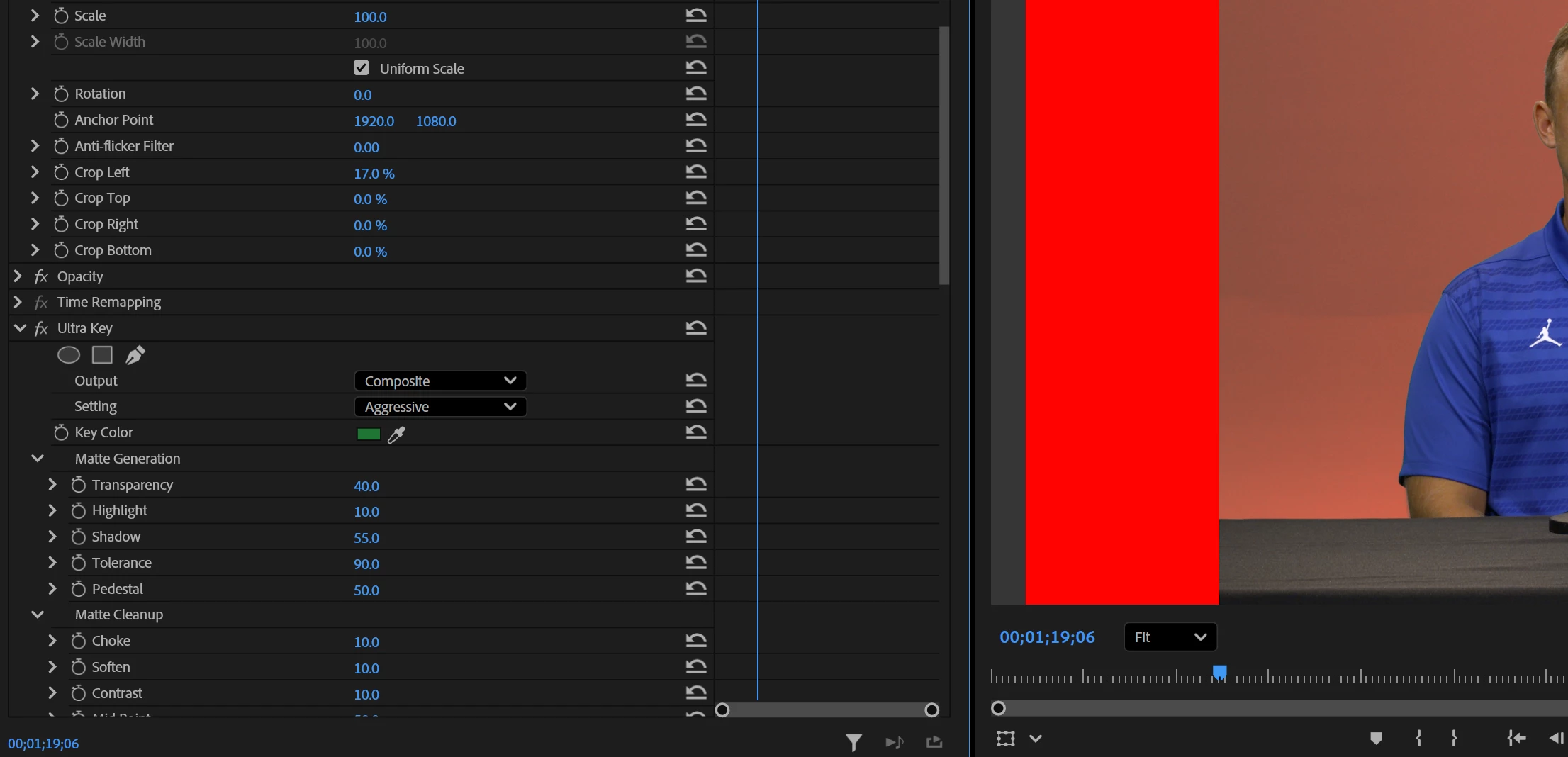
I drop the Ultra Key on the video and pick the green, click aggressive and normally you would get a near perfect key. It is only removing about 50% of the background, looks like it's half overlayed. 

If you move the tolerance slider nothing happens like it is not working at all.


I put a clip over a solid red matte and cropped the left side over for this example pic:


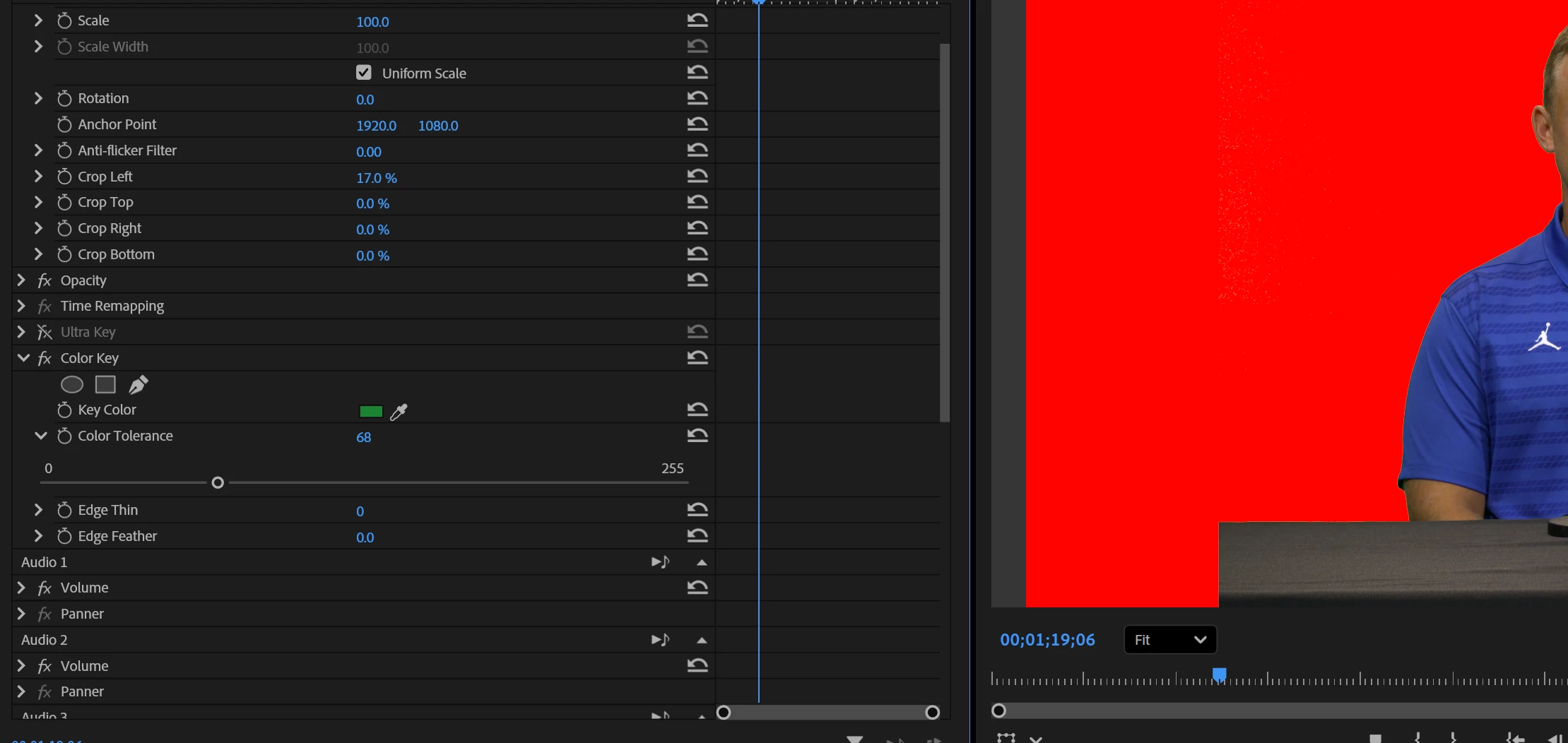
For testing i tried using the old plain color keyer effect and just picked green and slid the tolerance bar over a bit and it keyed perfectly:


Thanks,


Chuck - WEFS TV


Correct answer digitlman

Well it turns out resetting the preferences does solve the problem, with a slight caveat. I know you had already asked me to reset them and I apologize for not doing it sooner but it was something I was really dreading doing. As a functioning TV station with many edit suites we have a lot of preferences we are using. We have custom Bella keyboards, 4k HDR workflow, Log video, multichannel audio, Blackmagic video I/O hardware, etc. so just wiping everything out was not desireable. However it does seem to be the only solution. I did it on 2 different machines and now they are working properly. The strange part is that it is not only the preferences, there is something carried over inside the project file that is a problem also. After resetting the preferences i loaded in my keytest project i made last week and it is still not working. I created a new sequence and did the key again from scratch and it works. When i look at the sequence that i loaded in that doesnt work i can disable and enable the key, and nothing changes. I can change the preset from relaxed to aggressive and back and nothing changes. But then if i re-sample the key color then that instantly fixes the problem. So there is something held over in the preferences and also in old project files that is causing it to not key properly.

Thank you for your time and we will go ahead and wipe the preferences in all of our edit suites. (fyi: I just built these machines from scratch a few months ago so the preferences are not from a very old version)

13 replies

jamieclarke
Community Manager
Community Manager
September 16, 2025

Hi @digitlman - We need specific version numbers to be able to help.  It's hard to tell from your images, are you saying the pink in your first image is not correctly keyed out?


Can you try and hold down "SHIFT" while launching Premiere and check the boxes
"Reset app preferences" (Backup Preferences first)
"Clear media cache files"
"Reset plugin loading cache"

digitlman
digitlmanAuthor
Inspiring
September 16, 2025

I'm sorry i thought i left enough info with win11, 5080 gpu, latest premiere, latest studio nvidia driver. 

What else do you need to know? its core 9 285 cpu. 


Also i tested on an older machine that only has a 2080 gpu and it had the same issue.

I also did other testing, 4k/1080i, HDR/SDR, video/picture it didnt seem to matter. tested on multiple machines. the only common denominator is this current version of premiere.

jamieclarke
Community Manager
Community Manager
September 16, 2025

Hi @digitlman -   Thanks for submitting your bug report. We need a few more details to try to help with the issue.
Please see, How to Report a Problem.


What are your system specs and premiere pro version?


Sorry for the frustration.