Known Participant
May 4, 2020
Answered

Frameless output: Can I use different TOC Tile images for the Home page vs. those on secondary page?

  • May 4, 2020
  • 23 replies
  • 1991 views

I have customized images that I use as TOC Tile images on my Frameless skin. The generated homepage reflects these images appropriately. On the Home page in the generated output, when I click on a TOC Tile, it takes me to a secondary page with the same TOC Tiles as the home page, but with different content. On this secondary page, each TOC Tile image is associated with the 8-10 documents I have listed under the main folder. Is there a way to use different TOC Tile images for the secondary page? Also, is there a way to do away with the second 'home page' and get straight into topics?  Please advise. 

    This topic has been closed for replies.
    Correct answer Peter Grainge

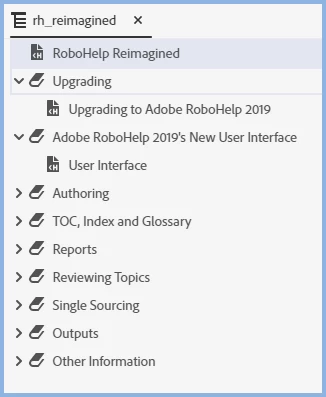
    What you are seeing is something that happens depending on how the TOC is set up. Here's the TOC in the project.


    The first tile in the output is for RoboHelp Reimagined. Above you can see it is a topic. Click that tile in the output and it will go straight to the topic, no second home page.


    Click the tile for Adobe RoboHelp 2019's New User Interface though and you will see a second home page.


    In the TOC above I went to the book Adobe RoboHelp 2019's New User Interface and linked that book to the User Interface topic. I then generated again and you go straight to the topic with no second home page.


    The sample project can be used with many outputs and has been set to work optimally with skins other than frameless or any tiled output. As above though, it can be changed.


    23 replies

    cindyh933912
    Participant
    March 8, 2021

    Yes, Peter, this is exactly what I was looking for! I was able to keep both the primary and secondary home pages and update the images on the secondardy home page. Worked like a charm. Very much appreciated!


    -- Cindy

    Peter Grainge
    Community Expert
    Community Expert
    March 6, 2021

    @cindyh933912 Looking back through this thread it is worth summarising for the benefit of anyone else coming here that:

    • Whether or not you have a home page is controlled by the whether you select the Use Home Page checkbox.
    • If you have a home page, then whether you have lower level home pages is controlled by the Drilldown checkbox.


    I'm not sure but I believe there was another thread along the lines of your question. To the best of my recollection the answer was that both will use the same home page. However, there is one setting that may help with having just different tiles. See Tile Image bottom right when you select a folder what you specify there becomes the tile image for Folder Two in this example.


    ________________________________________________________
    See www.grainge.org for free Authoring and RoboHelp Information


    Use the menu (bottom right) to mark the Best Answer or Highlight particularly useful replies. Found the answer elsewhere? Share it here.
    monicad83916058
    Participant
    August 13, 2020

    Thank you for explaining how to have/not have a 1st and 2nd home page.  This solution is really simple.  Works great!

    Peter Grainge
    Community Expert
    Community Expert
    May 8, 2020

    There is also a Drilldown option in the skin editor.


    Deselect that and you will not get a second home page.


    Use the menu (bottom right) to mark the Best Answer or Highlight particularly useful replies. Found the answer elsewhere? Share it here.
    Peter Grainge
    Community Expert
    Community Expert
    May 8, 2020

    I did some more poking around and found out what is happening.


    I applied a different image to a tile that was going to a second home page. What I see there is the first image on the original home page.


    Please check your project and verify that is what is happening.


    Use the menu (bottom right) to mark the Best Answer or Highlight particularly useful replies. Found the answer elsewhere? Share it here.
    Inspiring
    May 6, 2020

    I understand the principle, here. This should help me in my scenario.


    But how does one "link" a book to a topic?


    Thank you!

    Known Participant
    May 6, 2020

    Thank you so much. That worked! 

    Inspiring
    May 6, 2020

    Hi, Lotus Flower.


    Would you please explain how you did this ("linking" the book to the topic in the TOC)?


    Thanks so much.

    Known Participant
    May 6, 2020

    Here's how I did it:

    1. Open your RH project and open your Table of Contents.

    2. Rt-Click on a Book or click the 3 dots next to your book folder.

    3. Select Properties

    4. In the General > Source field, browse to the topic you wish to link to this Book/folder.

    5. Click Apply.

    6. Save your project and regenerate. 

    You will see the changes when you view the output. When you click on the 'book' tile on the home page, it will take you to the topic you linked. 

    Hope this helps. 

    Peter Grainge
    Community Expert
    Peter GraingeCommunity ExpertCorrect answer
    Community Expert
    May 6, 2020

    What you are seeing is something that happens depending on how the TOC is set up. Here's the TOC in the project.


    The first tile in the output is for RoboHelp Reimagined. Above you can see it is a topic. Click that tile in the output and it will go straight to the topic, no second home page.


    Click the tile for Adobe RoboHelp 2019's New User Interface though and you will see a second home page.


    In the TOC above I went to the book Adobe RoboHelp 2019's New User Interface and linked that book to the User Interface topic. I then generated again and you go straight to the topic with no second home page.


    The sample project can be used with many outputs and has been set to work optimally with skins other than frameless or any tiled output. As above though, it can be changed.


    Use the menu (bottom right) to mark the Best Answer or Highlight particularly useful replies. Found the answer elsewhere? Share it here.
    Known Participant
    May 6, 2020

    Peter, I have sent you the wetransfer link by email. 

    Inspiring
    May 6, 2020

    Can I ask you how you customized the images in the frameless output? I couldn't work out how to do it. Thank you.

    Known Participant
    May 6, 2020

    About changing the image on TOC tiles, here are the steps I followed:

    1. Create new images using a graphics editor/image editing software. 
    Tip: Copy one original tile image from the skin to your graphics program - then edit it or create another tile with similar dimensions. That's what I did. 

    2. In RoboHelp 2019, under Output tab, go to your (Frameless) Skin > Layout tab > Home Page 

    3. Click Add Image, select your customized 'tile image'. Rearrange your tiles as necessary by using the 'up & down direction' icon next to the trash icon.

    4. Save. Regenerate your output.
    Tip: Start with a couple of tiles first. When you are satisfied with how the tiles appear, delete the original tiles.  
    Hope this helps.

    Inspiring
    May 12, 2020

    Awesome, thank you so much!