Participating Frequently
December 23, 2022
Answered

Page size bug with non Cover or TOC Front matter page and Empty Page issues PDF output

  • December 23, 2022
  • 12 replies
  • 1363 views

We recently upgraded from Robohelp 2020 to 2022.0.346. This broke our previous outputs presets, so that was a bummer, but the new options seemed like enough of an upgrade to deal with rewriting the template for the new style.


I'm having several issues, the largest 2 being the following:


No layout applied to Front Matter page, making it the wrong size

I have a topic with a proprietary warning in it that is the 2nd page of my PDF and is meant to print on the back of the cover when doing dual side printing. I'm in the US, so I print things letter size. I have ensured that every page out in my template has the same size settings, but the proprietary warning page always come out at A4 size in the PDF. I assume this is happening because it is a Front Matter page, but not one of the formally designated special ones and perhaps the Common layout isn't pointing at it correctly. I added text identifying all my page layouts and ran an output and that page doesn't appear to use any of the templates. Is there a way to fix this? I tried making a Topic Layout and pasting the code from the Common layout into that file and applying it to the topic, but it didn't work. I also dug around in the .plt and .tpl files in the template folder and examined them in VS Code outside of Robohelp and tried guessing what the xml for the front matter might be, but was unsurprisingly not successful. 


Content inside the Empty_Page Template not visible in PDF

I prefer to start my chapters on Odd pages, so this often causes a blank Even page. It makes sense when looking at the PDF as a 2 page view or in the printed view, but I've gotten so many comments from reviewers using a single page view it is irritating. I was excited to have an empty page layout, but nothing I put in the Contents div on that page is shown, so I can't put "This page intentionally left blank.".


Things I don't like about the 2022

  • Covers now live in the template and not the TOC.
  • I have to duplicate my previous CSS file that held everything into multiple templates and if I make changes I have to do it to each one instead of simply pointing toward the CSS file in my assets. So far I've continued to use the topics CSS, but the help documentation indicates this may cause cascading style issues, of which I've seen a few already, so I'll have to go and check through everything.
  • The Template Page Layouts doesn't have a Preview tab.

This topic has been closed for replies.
Correct answer Peter Grainge

Adobe have come back to me with a fix.


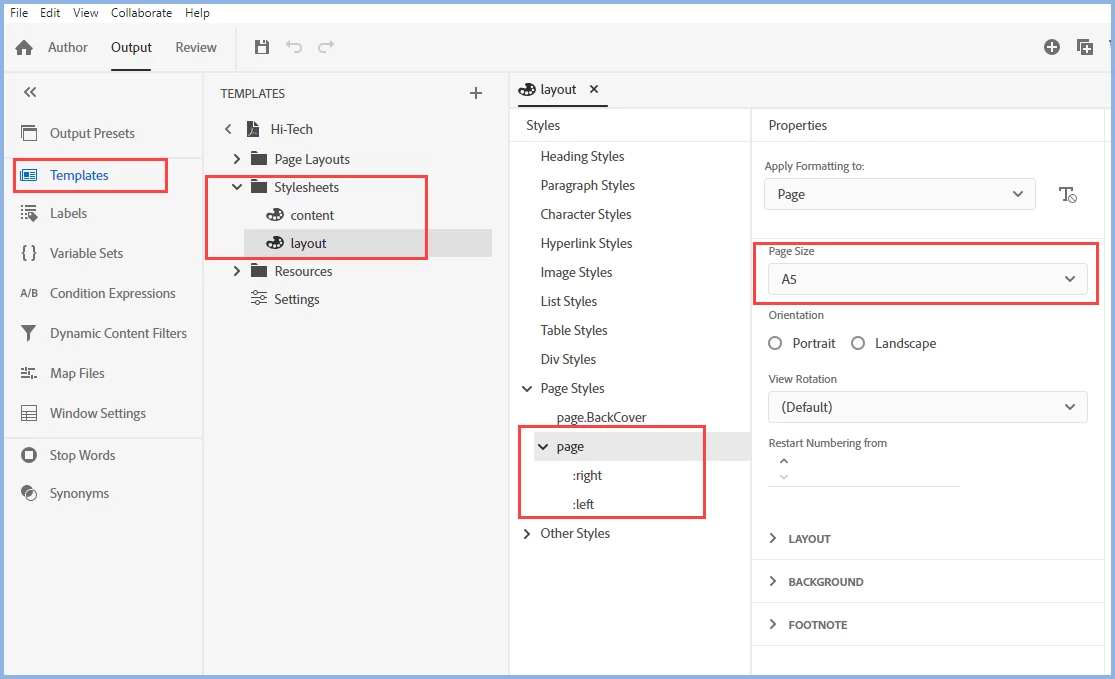
If you change the page size where shown, it will override all the settings for the page layouts. To be clear, in a project with all the page layouts set to A5, I changed the setting shown to A4 and generated. All pages were A4 in the PDF.


Set your layout.css to Letter and you should be OK. When you have changed "page" to Letter I think that right and left will default to blank, that's fine. Otherwise also change them to Letter.


Please mark this as the correct answer if it does fix it for you.


________________________________________________________

My site www.grainge.org includes many free Authoring and RoboHelp resources that may be of help.


12 replies

Peter Grainge
Community Expert
Peter GraingeCommunity ExpertCorrect answer
Community Expert
January 3, 2023

Adobe have come back to me with a fix.


If you change the page size where shown, it will override all the settings for the page layouts. To be clear, in a project with all the page layouts set to A5, I changed the setting shown to A4 and generated. All pages were A4 in the PDF.


Set your layout.css to Letter and you should be OK. When you have changed "page" to Letter I think that right and left will default to blank, that's fine. Otherwise also change them to Letter.


Please mark this as the correct answer if it does fix it for you.


________________________________________________________

My site www.grainge.org includes many free Authoring and RoboHelp resources that may be of help.


Use menu (bottom right) to mark as Best Answer or to Highlight particularly useful replies. Found the answer elsewhere? Share it here.
rgugsAuthor
Participating Frequently
January 3, 2023

That did the trick, thanks! I started with the Basic template for my working template and neither Basic or Prime had a page style at all, so rather than try to figure out how to recreate the :left and :right in the GUI, I just copied the source code from the Hi-Tech layout.css and pasted it into my template's layout.css source code.

@4025150 :right {
  @10944696-left-corner {
    content: element(topLeftCorner);
  }
  @bottom-right-corner {
    content: element(bottomRightCorner);
  }
}
@page :left {
  @10944696-right-corner {
    content: element(topRightCorner);
  }
  @bottom-left-corner {
    content: element(bottomLeftCorner);
  }
}
@page {
  size: Letter portrait;
  margin-top: 0.5in;
  margin-right: 0.5in;
  margin-bottom: 0.5in;
  margin-left: 0.5in;
}


Peter Grainge
Community Expert
Community Expert
January 2, 2023

I raised this with Adobe and they have acknowledged it as a bug that will be fixed in Update 1. I don't have a date but my guess is weeks rather than months.


Pending the fix the only solution I can see is to put the disclaimer in as the first topic. Not ideal but if you have a deadline it will at least get the disclaimer in.

________________________________________________________

My site www.grainge.org includes many free Authoring and RoboHelp resources that may be of help.


Use menu (bottom right) to mark as Best Answer or to Highlight particularly useful replies. Found the answer elsewhere? Share it here.
rgugsAuthor
Participating Frequently
January 3, 2023

Thank you, I appreciate it!

Peter Grainge
Community Expert
Community Expert
December 29, 2022

I also tried this which is what is added to page layouts to define the size.


<meta name="page-style" content="size:A5;" />


No luck.

________________________________________________________

My site www.grainge.org includes many free Authoring and RoboHelp resources that may be of help.


Use menu (bottom right) to mark as Best Answer or to Highlight particularly useful replies. Found the answer elsewhere? Share it here.
Peter Grainge
Community Expert
Community Expert
December 29, 2022

I added this to a topic.


@media print {
p {
color: red;
}
}

@media screen {
p {
color: blue;
}
}

@4025150 {
size: landscape;
}


When I generate a frameless output, the browser shows the text in blue. When I print the page from the browser the text is red and prints landscape.


However when I generate a PDF the above is ignored and the page is A4 with black for the P tag and in portrait mode. All other topics and parts of the PDF are as defined in the template.


Had the inline CSS worked I would have changed landscape to A5 (in my project) and you could have tried Letter. However, it seems that the code to generate a PDF is ignoring this so right now I can't see a workaround.


As before, I have raised this with Adobe and I will post their reply.

________________________________________________________

My site www.grainge.org includes many free Authoring and RoboHelp resources that may be of help.


Use menu (bottom right) to mark as Best Answer or to Highlight particularly useful replies. Found the answer elsewhere? Share it here.
Peter Grainge
Community Expert
Community Expert
December 26, 2022

@rgugs Are you still following this thread please?

________________________________________________________

My site www.grainge.org includes many free Authoring and RoboHelp resources that may be of help.


Use menu (bottom right) to mark as Best Answer or to Highlight particularly useful replies. Found the answer elsewhere? Share it here.
rgugsAuthor
Participating Frequently
December 26, 2022
I am on vacation until January.
Peter Grainge
Community Expert
Community Expert
December 25, 2022

I have recreated the problem by simply setting all my page layouts to A5 and then adding a topic. I also tried putting the topic after the TOC in the vain hope the first page would dictate the size of the section, no joy.


This rules out it being anything in your page and has established there is a bug. 🙂


Google tells me you can force page size through the CSS. I can't try it right now but my idea is that maybe that would fix the problem. 

What might throw that is the conversion to PDF. The sizing could be in your general CSS or a copy for the legal warning. Alternatively, a DIV tag might work. I haven't tried that before for print but it could be worth a shot.


When the Adobe engineers are back in the new year. I can take this up with them but maybe between us we can fix this with a workaround for a quicker solution.

________________________________________________________

My site www.grainge.org includes many free Authoring and RoboHelp resources that may be of help.


Use menu (bottom right) to mark as Best Answer or to Highlight particularly useful replies. Found the answer elsewhere? Share it here.
Peter Grainge
Community Expert
Community Expert
December 25, 2022

Hey, let's keep it friendly. I was trying to help you at 10pm on Christmas Eve.


After I posted and turned off my computer, I realised there is still a possibility there is a bug. My thinking is the extra page you are adding is behind the problem. Either the problem is that page and it can be fixed or it is affecting the output in a way that Adobe need to fix.


I haven't read right the way through the thread this morning but have you tried inserting your page into the About RoboHelp sample project? If the error occurs there then maybe that is overriding the front matter size. In Classic versions of RoboHelp you could apply a page size to topics through the UI but that doesn't seem to be an option in the new UI. I have only looked quickly this morning but I'm pretty sure I looked more thoroughly before. Perhaps that can be applied through the meta tags, to be tested.


Please test your page in the About RoboHelp sample project and let me know if the issue still occurs. If it does please send me the page that is behind this issue. See the Contact page on my site and attach your page in a zip file to an email. No need to use We Transfer. You can remove the content and just add some garbage text if the content is confidential but leave the meta tags as they are.


If I can replicate the fault but not fix it, then I can take it up with Adobe when they reopen in the New Year.


****************************************


A blank page layout is not included in the Basic template.

That's why I suggested using Prime


I am unsure how you would edit this outside the HTML since you can't edit meta tags from the main editor page.

After that your comments seem to indicate you are aware of editing in Source View. 


BTW. Did you solve your autonumbering issues? 2022 has changed how that works.

________________________________________________________

My site www.grainge.org includes many free Authoring and RoboHelp resources that may be of help.


Use menu (bottom right) to mark as Best Answer or to Highlight particularly useful replies. Found the answer elsewhere? Share it here.
Peter Grainge
Community Expert
Community Expert
December 24, 2022

No but it establishes it's not a RoboHelp application problem and is related to the the topic you added. That's when it goes wrong. Look some more at that. See my earlier answer. 

________________________________________________________
My site www.grainge.org includes many free Authoring and RoboHelp resources that may be of help.


Use menu (bottom right) to mark as Best Answer or to Highlight particularly useful replies. Found the answer elsewhere? Share it here.
rgugsAuthor
Participating Frequently
December 25, 2022

I don't understand your answer in context to what I replied showing I can recreate the issue in the Adobe sample project per your request. I have found a work around despite the lack belief on your part this is a Robohelp bug, with my testing and steps listed below.

quote

No but it establishes it's not a RoboHelp application problem and is related to the the topic you added. That's when it goes wrong. Look some more at that. See my earlier answer. 

________________________________________________________
My site www.grainge.org includes many free Authoring and RoboHelp resources that may be of help.


By @Peter Grainge


I added the topics using the Front Matter> Other Page option in Robohelp. This is a continuation of the Front Matter> New Page option from the 2020 version. It is not a new feature. What IS a new feature is moving the page layouts from Master Pages into Templates.


My hypothesis is some of the channels between Master Pages and Page Layouts were not successfully migrated over to the new format and that is why no page layouts are being applied to topics inside Front or Back Matter. Once you change it into a Section, it is considered a chapter and uses that page layout. This is very much an issue with Robohelp, as it has to do with how it reads how page layouts are applied to topics, and not an issue with an individual topic. The issue can be reproduced with multiple different topics in different projects on different computers.


To Test:

  • I installed the 2022 version on a computer that had never had Robohelp installed to prevent any possibility of issues from previous installations and recreated the issue using the Fintec News Adobe sample project.
  • For the next test, I set the topic inside the Front Matter as a Section instead of a regular topic, and now a page layout is applied to this page.
  • The topic is now considered a chapter and gets that page layout applied. The topic that is still a topic in the Back Matter sections still shows the same issue.
  • Since I have my chapters start from an Odd page, it inserts a blank page ahead of the topic so instead of it being the 2nd page of the document and showing up on the left, it is now on the right side of a dual layout and inserting blank pages where they are not wanted.
  • The work around for that is changing chapters to start on new pages instead of odd pages, so there are no blank pages inserted at all.


You can see the direct area where the issue lies when comparing the 2020 and 2022.

In the 2020 version, you can apply master pages to each section and Chapters and Topics are different than Front and Back Matter. This image courtesy of your 2020 outputs documentation page.

This image is with the Front and Back Matter topics expanded.

This is the current Settings page in a Template>Settings>Page Layout. This one is Prime, with everthing filled in.


There is nothing that specifically points a layout towards Front or Back Matter topic if they don't fit one of the pre defined options like a TOC or LOF. You would think it would just use the default layout specified at the top of the page if that is the case, however multiple reproducible testing on different projects, topics, and computers is showing that is not the case.


We obviously aren't getting anywhere near a solution with this conversation, so I will follow up with this outside the forums.


Happy Holidays


Peter Grainge
Community Expert
Community Expert
December 24, 2022

You have tried something different but not what I suggested and have not answered my questions. The About RoboHelp sample project is a known quantity. Anything you create is not, no offence meant.

________________________________________________________

My site www.grainge.org includes many free Authoring and RoboHelp resources that may be of help.


Use menu (bottom right) to mark as Best Answer or to Highlight particularly useful replies. Found the answer elsewhere? Share it here.
rgugsAuthor
Participating Frequently
December 24, 2022

When I change all the page sizes to A5 and run the output in the Fintec News sample project, yes, they are all the same size. But that doesn't test for the bug because that project don't have any other topic pages inside the Front or Back Matter.


I inserted the Fintec Terminology topic into the Front and Back Matter and had the same behavior as seen in my old project and the new project I made.


Examples where a person would need this are a proprietary warning, a dedication page, a forward of a book, inside title pages, authors usually have a "Praise for" page, etc, so it isn't an obscure use.


Peter Grainge
Community Expert
Community Expert
December 24, 2022

I just tried with the About RoboHelp sample project. Click Open Project on the Starter Screen to open File Explorer. Browse to Documents and then My RoboHelp Projects.


I changed every page layout to A5 instead of the default A4. The page sizes for every page were A5. If you find the same, that suggests the issue is your project rather than RoboHelp.


The next test would be add a new template to your project and I suggest Prime for this. Set that to Letter and see if it works. I think it will so then we are down to what is it in your project. Please try the above and post back.


I also noticed I got the "This page is left blank" rather than what you are seeing.


Finally your Front Matter has a topic in it. What is the page size set for that?

________________________________________________________

My site www.grainge.org includes many free Authoring and RoboHelp resources that may be of help.


Use menu (bottom right) to mark as Best Answer or to Highlight particularly useful replies. Found the answer elsewhere? Share it here.
rgugsAuthor
Participating Frequently
December 24, 2022

Re: Front Matter page layout issue

I made a whole new project and wrote topics and TOC from scratch, used the Basic template and output using the supplied PDF output with only a few changes to mimic what I use for my outputs. I still got the same result. The topic in my front matter is the proprietary warning that needs to print on the back of the cover page. We haven't had an issue with it being the wrong size until we upgraded to Robohelp 2022. I inserted it using the Front Matter> Other Page option in the TOC editing menu. From all my testing, no Page Layout is being applied to Front Matter pages that aren't a TOC, and there is no other way to set page size that I can tell. I tried pasting

<meta name="page-style" content="size:Letter portrait;margin-top:0.5in;margin-right:0.5in;margin-bottom:0.5in;margin-left:0.5in;" />

into both the topic and a topic layout I applied to that topic, but so far nothing has worked. My assumption is that Common would be applied since I have that set for my default, but it isn't working. Here is a screeshot of the output. I'll attach the pdf too. I tried attacheding the zipped project file, but zipped files aren't supported. I tested doing the same with inserting a back matter page that isn't an index or glossary and saw the same behavior, so there is no page layout being applied to undefined front or back matter pages.


Re: Blank page issue

I looked into the sample project at the blank page and found out that the reason that is showing up is because it is an image placed as a background image into a meta tag in the HTML, not inside the Contents section of the page. I can work with this, but it is very much not obvious, especially since a blank page layout is not included in the Basic template. I haven't checked the others. I am unsure how you would edit this outside the HTML since you can't edit meta tags from the main editor page. I was able to recreate it by making my own image and pasting it into the assets/images folder, then inserted it as a background image, changed to the HTML view and copy and pasted it into the correct meta tag. I also had to add in the background-size tag and play around with it to get the size I wanted.

After doing that I was able to get the text on the blank page