


mariom93920726
Participating Frequently
January 16, 2018
Answered

Changing order of fixups in Custom Preflight Profiles

  • January 16, 2018
  • 2 replies
  • 2894 views

I have one question about changing the order of executing the fixups  in Custom Preflight Profiles...

Ive build a Custom Preflight Profile. It needs to be executed in right order in order to make changes in a way it should be done...

Its custom DTP problem of fixing the dimensions book in PDF format...

Ive made a Custom fixup. It consists of 5 Fixups and i need them to be executed in right order... i mark them from 1-5  http://
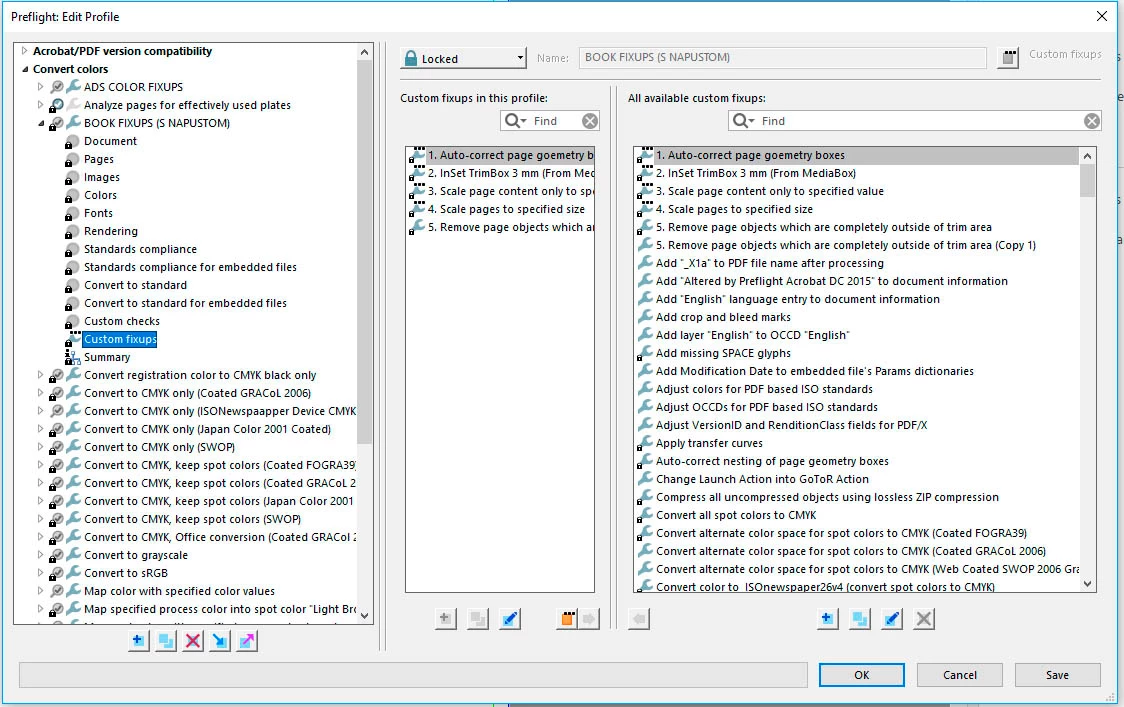
but when i run the fixup it changes the order of execution so it ends up like this...
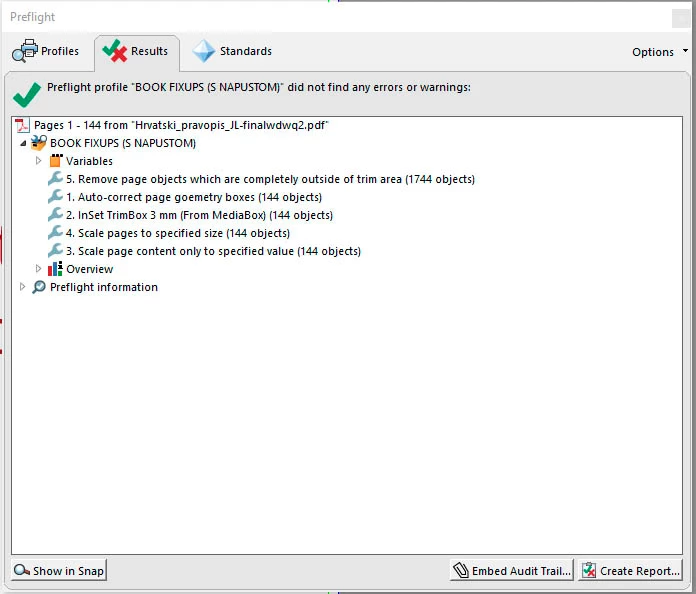
of course because of changed order fixup didnt fulfill its purpose...

is there some way to force order of executing the fixups?

i couldn't find the logic behind this one

thank you!

Correct answer Luke Jennings

I think you might have better luck saving individual preflight profiles and using the Action Wizard to create an action to run them in the desired order. Go to Tools> Action Wizard> New Action> Document Processing> Preflight> to add your profiles (settings). Uncheck the Prompt user checkbox or the action will pause and wait for input at each profile. Add Save & Export> Save.

2 replies

GabrieleLS
Inspiring
February 28, 2025

I am experiencing the same issue in 2025. I cannot find a way to execute custom fixups in the desired order, which renders the entire preflight tool unusable to me.

S_S
Community Manager
Community Manager
March 14, 2025

Hi @GabrieleLS,


Hope you are doing well. Sorry for the trouble.


In case you are still looking for a solution, here are my comments on it:

Since fixups execute in the order they were added, you need to recreate the Preflight profile and add the fixups in the correct sequence. Here's how:

Steps to Reorder Fixups in a Custom Preflight Profile

  1. Open Preflight Tool:

    • In Acrobat Pro, go to ToolsPrint ProductionPreflight.
  2. Duplicate the Existing Profile:

    • Expand "Profiles" and locate your custom profile.
    • Click the three-dot menu next to it and select "Duplicate" (or create a new profile from scratch).
  3. Remove the Existing Fixups (Temporarily):

    • Select the duplicated profile.
    • Under "Fixups", note the ones you want to reorder.
    • Remove them by selecting each and clicking "Delete" (they won't be deleted permanently, just from this profile).
  4. Re-add Fixups in the Correct Order:

    • Click "Add Fixup" and select the first fixup you want to run.
    • Repeat for each fixup in the desired sequence.
  5. Save and Test:

    • Click "OK" and save the updated profile.
    • Run the Preflight check on a sample PDF to confirm the order of execution.

Hope this helps.


Regards,
Souvik.

mariom93920726
Participating Frequently
January 23, 2018

Issue behind this was as follows...

i had received a file (pdf book) of 144 or so pages in wrong format (offset was some 10mm in width and some 8mm in height)

Also some instances in book was close to old book margins...

Margin, Crop, Art and Bleed Box was in a completely mess..

Book came with a printed crop and registration marks...

Because of that i needed to do this (in exact order):

1. Reset all media Boxes to Media Box  ( 1. Auto correct page geometry boxes)

2.Inset Trim Box 3 mm on every side

3. Scale page content only to specified value (i used some 98% decrease of page content to insure visibility of all page instances after page scaling )

4. Scale page to specified size ( i entered here real size of the book)

5. Remove page objects witch are completely outside of Trim Box  ( to remove old registration and crop marks )

But, executing this Custom fixup results in wrong order so in this case registration marks remained in place ...

I managed to get satisfactory results by defining every fixup as a variable  ( Giving custom name is a must otherwise it wont work ) then run Custom Fixup twice ( @First Run Fixups 1-4 and @ Second Run Fixup no 5)

Actually i often have this problem when i want to make some custom ordered fixups...

Many times order of executions of fixups It of essential impotance... 

Is it possible to make this as an feature request for future versions somehow?

Where this can be done?

thank you

Participant
July 11, 2018

Did you ever figure out how to do this? I am in a similar situation and want to just run 1 profile instead of having to manually run each check in the order I need to.

Luke Jennings
Luke JenningsCorrect answer
Inspiring
July 12, 2018

I think you might have better luck saving individual preflight profiles and using the Action Wizard to create an action to run them in the desired order. Go to Tools> Action Wizard> New Action> Document Processing> Preflight> to add your profiles (settings). Uncheck the Prompt user checkbox or the action will pause and wait for input at each profile. Add Save & Export> Save.