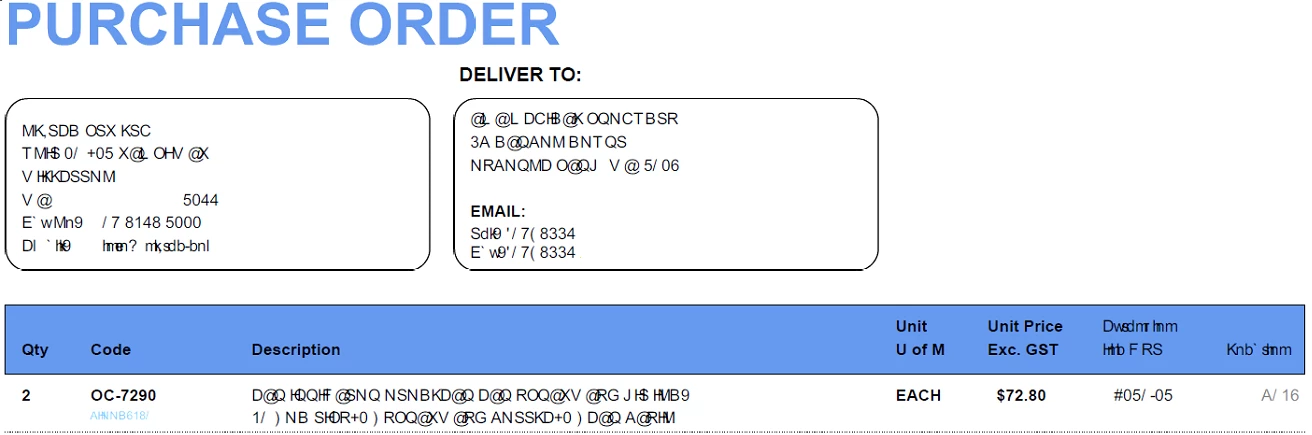
When you see scrambled text, dots, odd characters, or white blocks that look like tofu, it means that the PDF doesn't have the original fonts embedded.
Acrobat tries to substitute with a font on your computer system, but when it can't find a valid substitute, it shows "scrambled" text for some or all of the text
3 solutions, take your pick of which one will work for your situation:
- Install the missing fonts on the computer where you're viewing the PDF. Note, however, that this won't fix the PDF and it will still show the scrambled text on another computer.
- Return to the original source document and re-export it correctly with the fonts embedded into the new PDF. If you're in Word, use Adobe's PDF Maker (the Acrobat Ribbon/Tab) and drill down in the preferences until you find the option to embed all fonts.
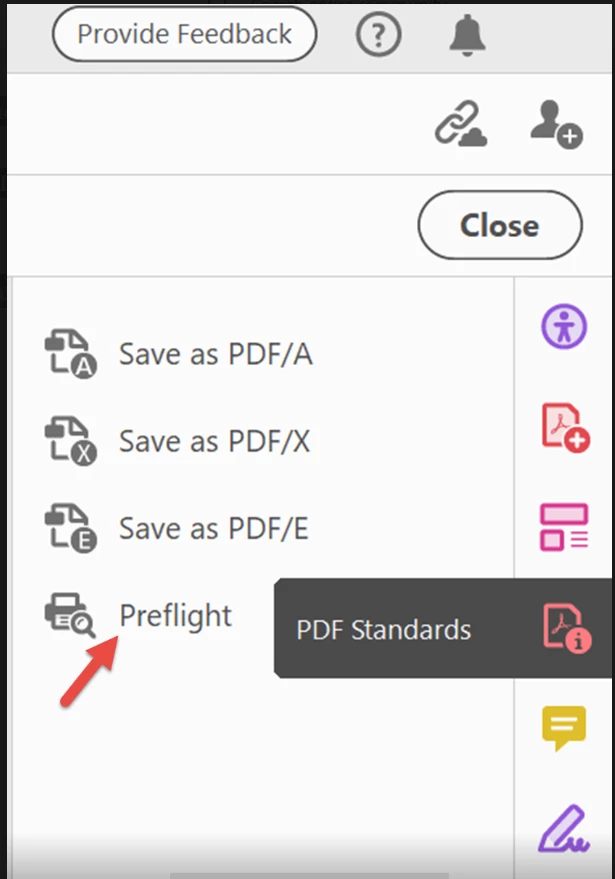
- You can attempt to embed the fonts into the existing PDF with Acrobat's Preflight Tool (but it's available only with the Pro version of Acrobat, not Standard or Reader).
Here are the steps:
- Open the PDF Standards tool panel (if it's not already in your right-side tool set, then open it via the Tools Tab in the upper left of the Acrobat window). Depending upon which version of Acrobat you have, you can also get to this tool via the Print Production / Preflight tools.
- Open the PDF/UA Standards section.
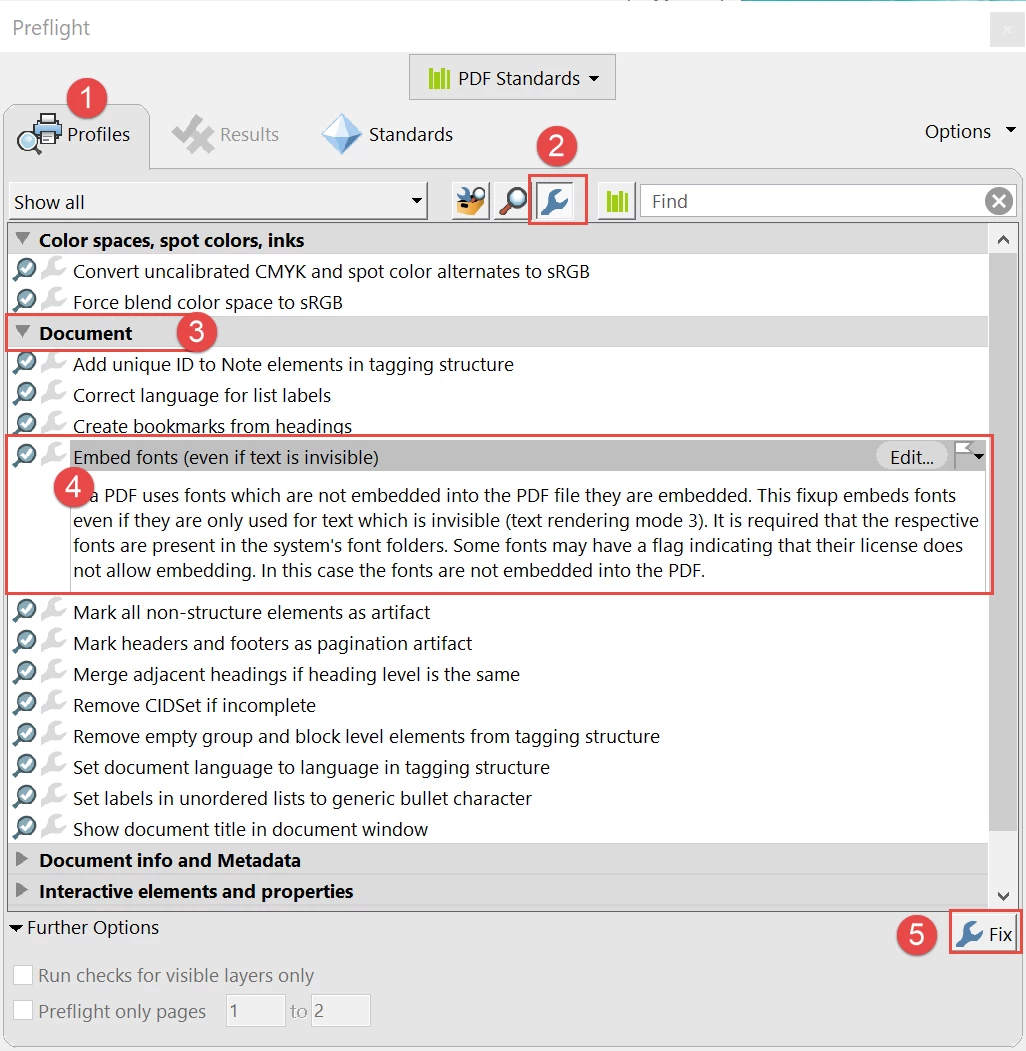
- From the Profiles tab, select the blue wrench in the upper menu bar.
- Expand the Document section.
- Select the Embed fonts utility, and then
- Click the FIX button in the lower right (has another blue wrench in the button).
Hope this helps.
One more suggestion: take a quick class in how to make PDFs to prevent errors like this, and how to correct errors in PDFs. Don't swear at our software companies; we all have the responsibility of learning how to use the tools. Flying by the seat of your pants doens't work and just gives you a royal PITA (pain in the "anatomy").
| Bevi Chagnon | Designer, Trainer, & Technologist for Accessible Documents || PubCom | Classes & Books for Accessible InDesign, PDFs & MS Office |




 AdChoices