This can be either very easy or very hard to do depending on your image. If the image is fairly straight forward you can do it this way
1) Below is an Adobe Stock image with a nicely isolated sign

2) Create a selection around the sign. I used the polygonal selection tool. It must me fairly loose not a tight fit.

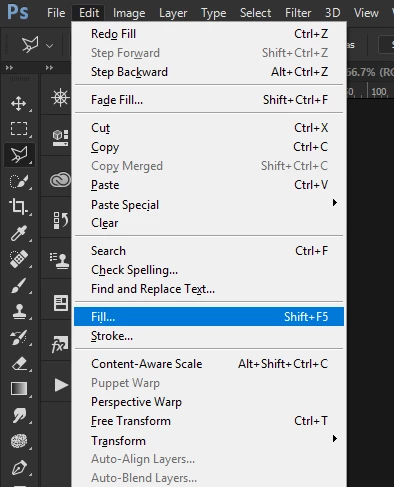
3) Select 'Fill' from the 'Edit' menu
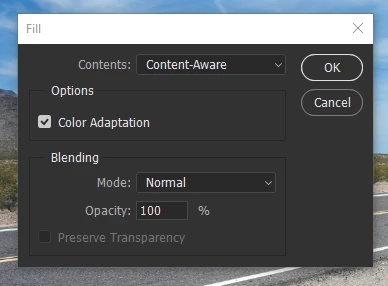
4) Choose 'Content Aware' and check the 'color adaptation ' box and press OK
5) Photoshop will assess the selection and attempt to remove the sign using information from outside the selection. It usually will not be perfect. I've marked the problem areas
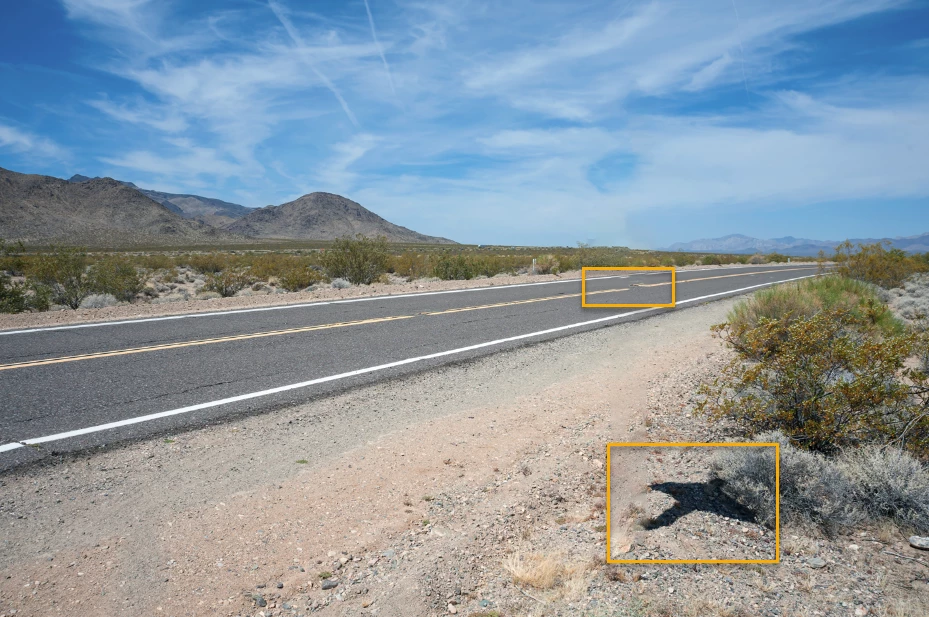
6) You then clean up the problem areas. I just used the 'patch' tool but the healing brush tools or the clone tool could be used just as easily. To be honest I only spent 5 minutes here and if you want a seamless result it takes longer, but maybe this gives some idea of what can be done.



 AdChoices