
KristianTalje
Inspiring
January 18, 2019
Answered

Premiere pro EXPORT Glitch

  • January 18, 2019
  • 13 replies
  • 67900 views

Hello,

I have never had problems with premiere pro export before. But now all of a sudden i started getting few frames like these. Only when exported, not in the project itself. Hardware accelerated is on and I've always used that. I use youtube 1080 preset and clikc in maximum render quality and render at maximum dephs.

Any help would be most appreciated. ❤️

Computer specc:
i9 9900k16 GB ram

Gtx 970
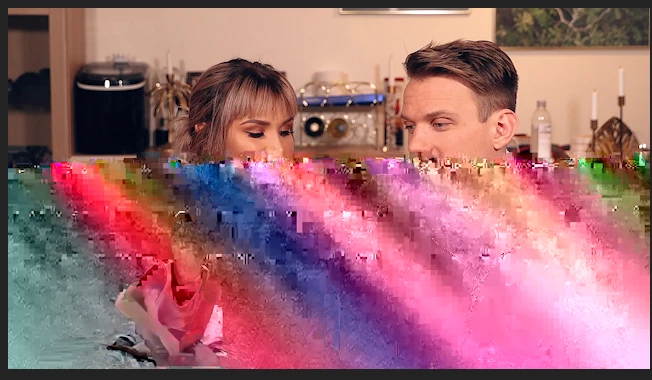
This topic has been closed for replies.
Correct answer KristianTalje

All wrong answers. disappeared

Spoke do Adobe support. turns out hardware encoding was the problem. Weird since I use the brand new i9900k. But they said it could be one of the files that I was using, not the processor itself. However, I switched to software encoding and the problem disappeared.

13 replies

Participant
April 11, 2022

If anyone still has this problem try this!!

go to preference and click media

then uncheck the " enable hardware accelerate decoding (reqiures restart) " 

Participant
March 25, 2022

Hi! My solution was to export as HEVC (H.265) and then 'match source - high bitrate'. Not sure why, but this worked for me.

Participant
February 22, 2021

Hi, how did you solve this problem please?

laurencet23100334
Participating Frequently
February 22, 2021

I never solved the problem.  I figured out that there are certain random formats Premiere Pro just doesn't like and subsequently chews them up and barfs them out if imported raw.  Instead I purchased a 3rd party encoder to pre-encode any footage before importing it to the fussy/unstable Premiere Pro.  

It adds an extra step and is minimal quality loss, but at least it is reliable and I don't have to waste time running my export projects multiple attempts to get a dependable final product out of Adobe.

But hey, at least now I get a useless notification window that tells me my project timeline succeeded its export (as if I couldn't tell by just looking at the project window anyway).

Participant
February 25, 2021

What 3rd party encoder did you buy? I am having this issue with the M1 mac and its so annoying.


laurencet23100334
Participating Frequently
August 3, 2020

I just started having the same issue, it began about two weeks ago after a recent update... before that everything was working fine and I've rendered hundreds of videos with no issues.  
There is a blocky mess in random places of my exports, and rendering wastes a lot of my time.  I'll run an export once and I'll get these glitchy sections in places.  Then I'll export the very same project again without changing anything and those glitchy sections will occur in other places, or maybe even the same place.  It's rare I can export anything perfectly now so I end up having to re-edit and find good parts of both exports and merge them into one that looks OK, and hope no more glitches show up anywhere else.  Here's an example of what's going on (I'll use a cartoon screengrab as an example):

Source file:

Export:

Like I said, nothing has changed in my projects that I was using before this started happening.  I checked my settings as mentioned in the earlier posts in this thread and I believe they are accurate.

I guess I'll have to call Adobe support- what bothers me is that none of this happened before, it just came out of the blue.

Participating Frequently
August 3, 2020

I still get this and at least 1 glitch made it all the way to delivery. Just horrible. The quality control of Premiere Pro is down the drain. For screenrecordings on the MacBook Pro 16" I get this issue consistently. Workaround for now is to re-transcode all screenrecordings with ffmpeg before importing them into Premiere Pro.


Works in every other program.


I'm at the end of patience with Premiere unfortunately. Never get any reply on any bug report.

Ann Bens
Community Expert
Community Expert
August 3, 2020

Never get any reply on any bug report.


Adobe does not reply on bugreports it does monitor the

Premiere Pro: Hot (1864 ideas) – Adobe video & audio apps


If you cannot find a solution here on the forum: Contact Customer Care 

Participant
October 14, 2019
I have the same glitch export and I haven't found a solution yet

Participating Frequently
February 22, 2020

I'm getting the same issues. Latest Macbook Pro 16", latest SW on everything. Never had it before. Occurs both on places where framerates doesn't match, and in places with nested sequences and adjustment layers. But if can't use those, I'll need to abandon Premiere Pro.


Did you guys ever solve it?

KristianTalje
Inspiring
April 2, 2019

Hi Guys,

I thought I'd shed some more light on this issue since I just found out something.

Before I didnt know, but I had an adjustment filter on the entire video and thats why the glitches appeared on different spots. Nowadays I removed the adjustmentfilter, and I just wanted to try hardware encoding again, and now THE ONLY place where the glitch occurs is on an adjustment/nested sequence that is "red" on the time line. I guess it means that its "heavy" on the computer right? Thought maybe someone with more knowledge could perhaps give a more specific answer to this problem since I found out it wasnt the video clips themselves that were the problem.

/Kristian

KristianTalje
Inspiring
March 6, 2019

Hi again Crhstian. Thx for answering all my question.


OK I didnt know that, I thought hardware encoding only used intel core. I will check that, thx alot.

Christian.Z
Community Expert
Community Expert
March 6, 2019

Sorry My bad, got mixed up between Renderer and Encoding settings.

In both cases it should not be doing that.

I apologize for the mistake once again, however, Adobe support are right. It is not only the Processor itself but it could be the original file or the output file. For me, I do not use hardware encoding since I rely on CUDA or OpenCL. But if for some reason you need it, try to export with a different codec or to a different location. Many factors are in play here besides the Processor.

KristianTalje
Inspiring
January 30, 2019

Yes same with Adobe Media Encoder. Actually now when I used adobe media encoder, file got 50 mb big and screen was completely black. Tried with adobe again and got this again:

I mean I have a good computer and has never had anything like this before. Anyone know if there are any weird settings I might have enabled or is it something with gfx or ram that is bad? It seems unlikely since i've exported videos on worse computers and this has never happened before... Its so weird, cant get it figured out.

Christian.Z
Community Expert
Community Expert
January 31, 2019

Your Card might be dying. Can you run a stress test on your card and see what happens?

KristianTalje
KristianTaljeAuthorCorrect answer
Inspiring
March 6, 2019

All wrong answers. disappeared

Spoke do Adobe support. turns out hardware encoding was the problem. Weird since I use the brand new i9900k. But they said it could be one of the files that I was using, not the processor itself. However, I switched to software encoding and the problem disappeared.

KristianTalje
Inspiring
January 27, 2019

So I have now exported some more videos and it seems the problem STILL appears. If i export the same video twice the glitches does NOT appear at the same frames.

also I have tested exporting other videos and for example an export can look like this:

Has anyone ever had this problem? As I've stated this had never happened to me before.

Peru Bob
Community Expert
Community Expert
January 27, 2019

Does it happen with both direct export and exporting with Adobe Media Encoder?

I had this happen on one project and changing for AME to direct export fixed it.

Participant
January 19, 2019

I am having similar issues on a brand new computer and brand new install of premiere cc 2019 and 2018.  It appears that any footage that I put on the timeline that doesn't have the SAME framerate as the sequence settings is rendering with color problems like you have above.  Strangely, when editing there are NO problems.  It is only when the timeline is exporting OR if you go to the SEQUENCE menu and "render In to Out" that you see the discolorations.  Any help would be greatly appreciated. I have an i7 processor with 32 GB RAM, Radeion RX 570 graphics card with 8 MB.

KristianTalje
Inspiring
January 19, 2019

Updated Nvidia drivers and also updated windows 10. I unchecked maximum render quality, but I left max bit on.

No glitch now what I can find. I will post if it happens again.


Weird tho that It never happened before. The tire parable is not really relevant here, but I see your point.