


Colin Flashman
Community Expert
Community Expert
April 25, 2019
Question

A way to make "Prepare Form" understand a Date field?

  • April 25, 2019
  • 1 reply
  • 2755 views

Hello all.

I've a situation where I've been asked to add form fields to PDFs that are being made out of a custom MIS. The author of the forms is following the best practices, so most fields are taken care of (https://acrobatusers.com/assets/collections/tutorials/legacy/id_2263/acro9_designforms.pdf )

There is an issue with the date portion of the form. For example:
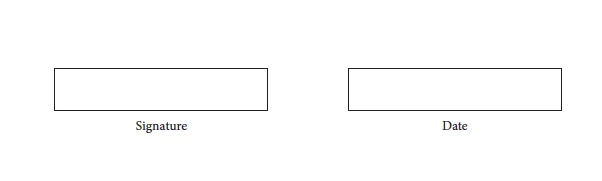
If the above is run through the Prepare Form feature of Adobe Acrobat DC Professional:
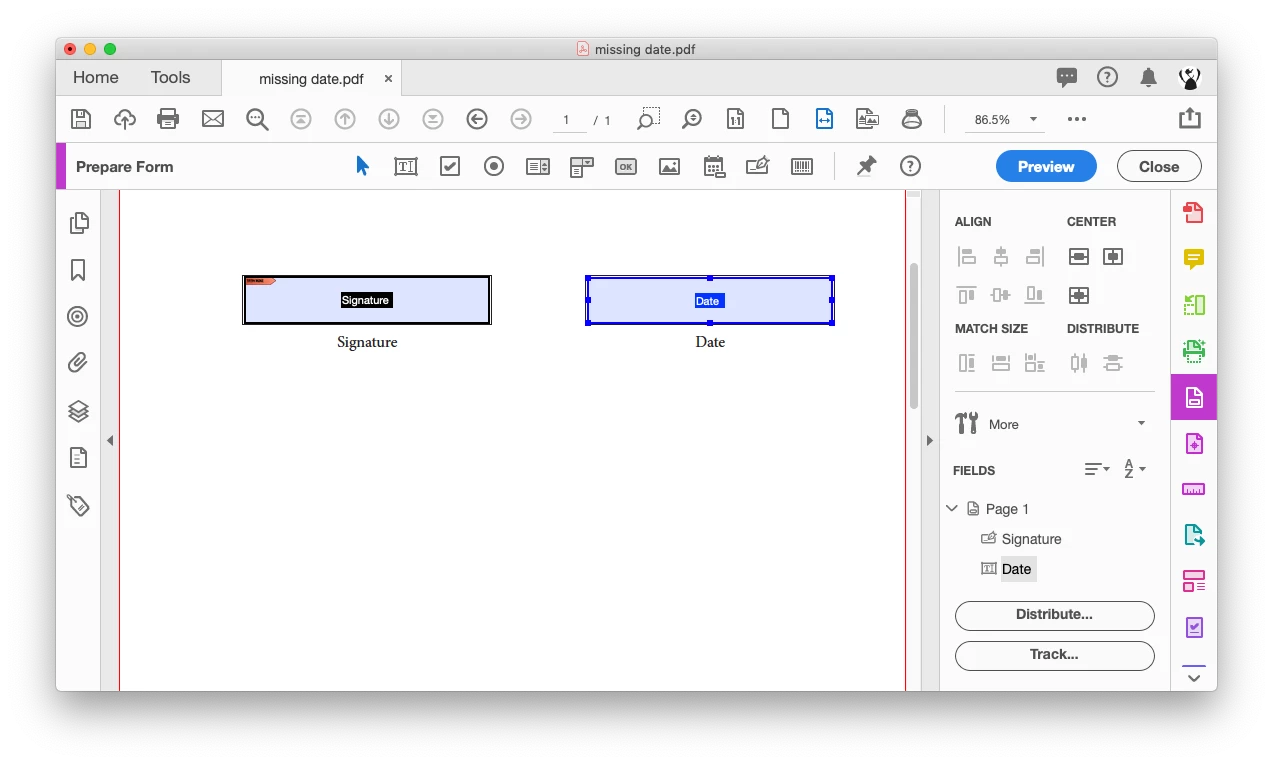
The signature is picked up OK, but the date field is just a text field:
I understand that I can change the name of the Date field to something like Date_af_date and this will change it to a date field;
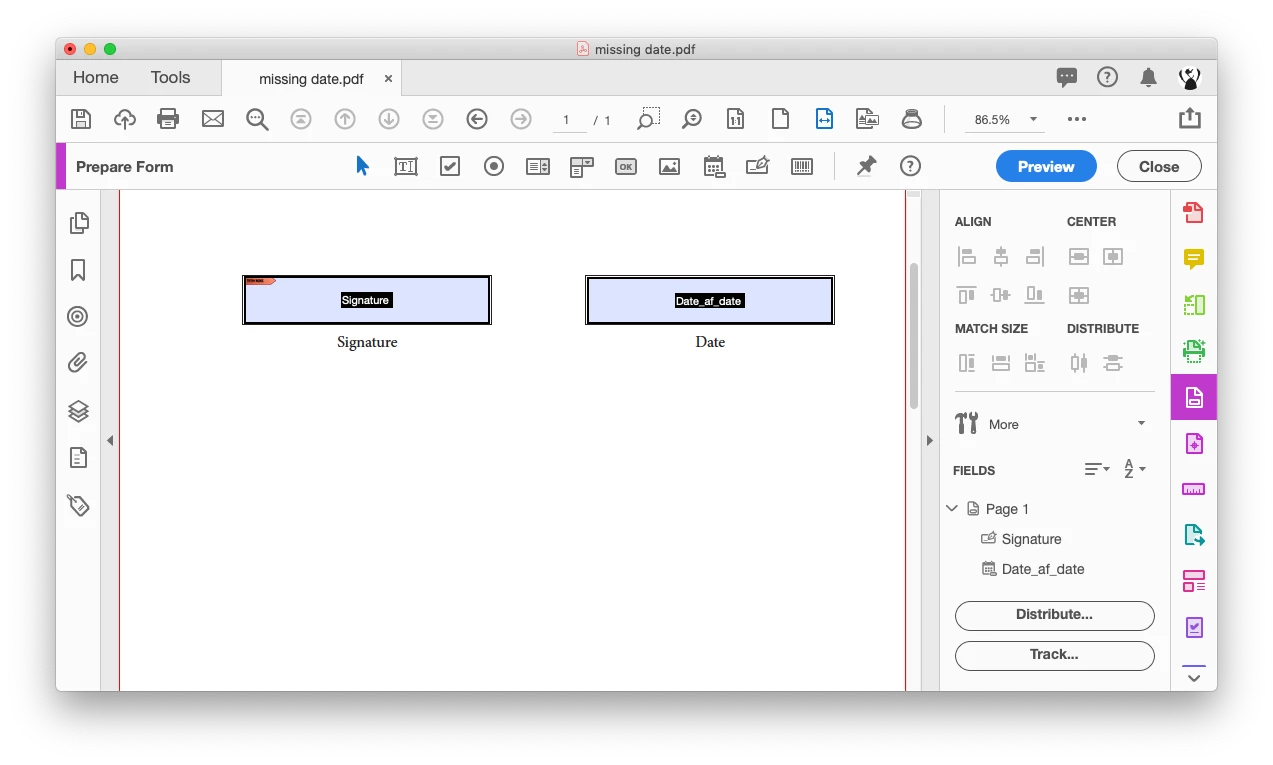
But it doesn't truly act like a date field. If I close out of preview mode and tab to the text field, it behaves like a regular text field.
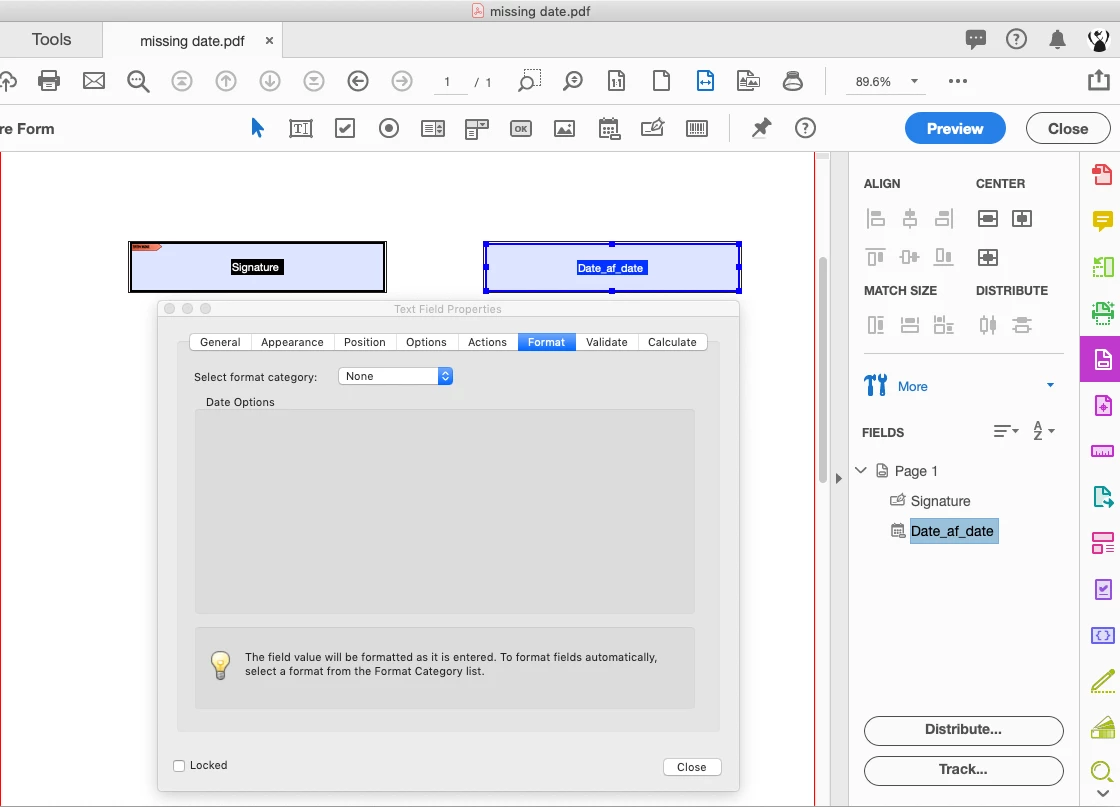
It isn't until the format category is changed to date that the field behaves like a date field with a date picker.
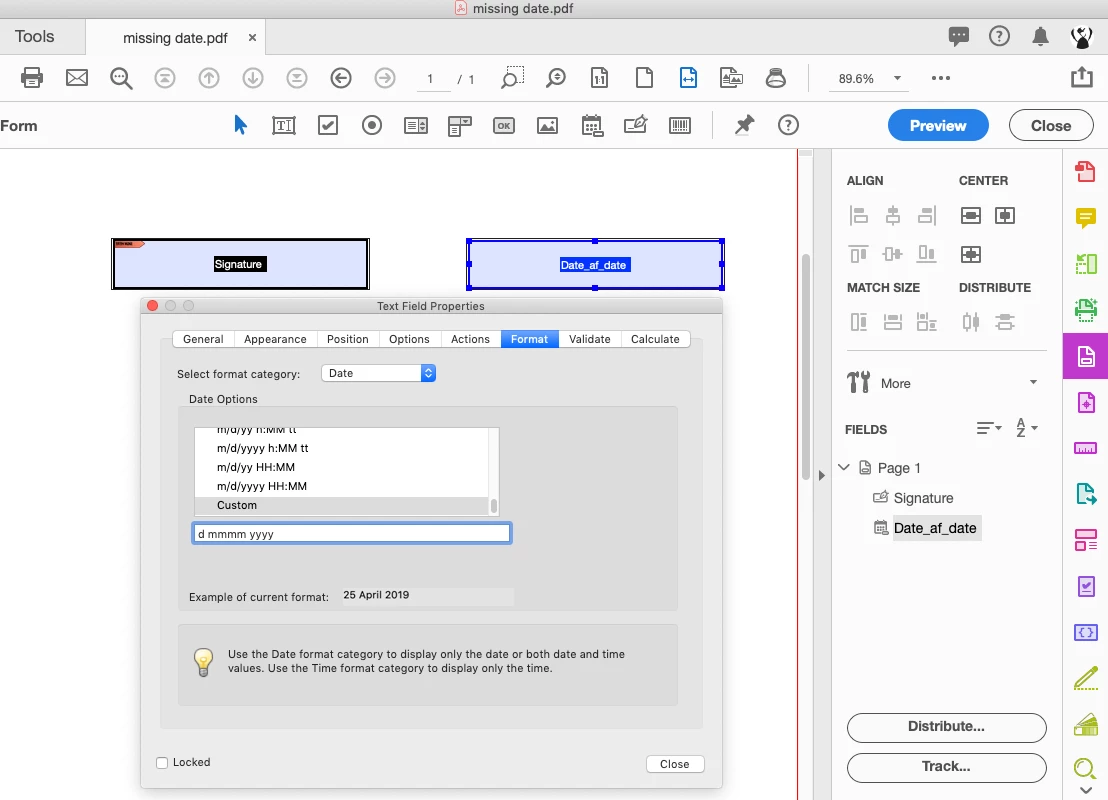
Is there a javascript I can run within an Acrobat action (first part of the action would be prepare form, second part of the action would be to run the javascript) that can convert a specifically named text field into a date field with not only the date picker functionality, but also have the date formatted to d mmmm yyyy?

I've come across lots of information that says uses util.printd or util.scand to apply a date format appearance to text already within a date field, but virtually no information about converting the format category of the text field to a date.

This topic has been closed for replies.

1 reply

try67
Community Expert
Community Expert
April 25, 2019

The naming scheme is only relevant if you use Adobe Sign. For normal use, it doesn't matter what name you give your field.

However, it is possible to apply a specific Format to a field, based on its name. It will require knowing the built-in JS command for doing so, though, as well as writing a script around it to identify those fields and applying the Format to them.

I've developed a very similar (paid-for) tool to what you describe, which you can find here: Custom-made Adobe Scripts: Acrobat -- Apply Format to Multiple Text Fields

It won't take much to adjust it to automatically process all fields that start with "Date", for example, as Date fields with a specific format.

Colin Flashman
Community Expert
Community Expert
April 26, 2019

Thank you for your fast response.

I've had a look at your script and it isn't the solution that I'm after.

I need to prepare an action that I can distribute to my prepress and design colleagues so that when we get a form prepared from our MIS, it will:

  • Have a prompt that will ask what proof number is required, and allow for notes (I know how to script this);
  • Run the action that will convert the MIS form using the "prepare form" feature (already in action lists, so no script required)
  • Will examine the auto-created form fields looking for "Date" in the name and convert it to a date format as its format category (the part I'm attempting to resolve at the moment)

The idea is that staff can grab a proof sheet relevant to the client/job and assign interactivity that the MIS can't do. The idea is meant to be a turnkey solution that they can use so they don't have to spend lots of time manipulating a form that a client may/may not even use. If I can't find this feature via my own research, I won't include it as it isn't make-or-break to the forms, but will aid people in selecting an appropriate date.

I should be able to find the appropriate syntax at the Acrobat SDK, right? Acrobat DC SDK Documentation

If the answer wasn't in my post, perhaps it might be on my blog at colecandoo!
Colin Flashman
Community Expert
Community Expert
April 26, 2019

Found it.

In my instance, I know the field will be called "Date", so the following script does the trick (when part of an appropriate action list):

var f = this.getField("Date") 

f.setAction({cTrigger: "Format", cScript: "AFDate_Format(5);"});

was referenced from: http://www.acrotex.net/blog/wp-content/uploads/2011/07/pdfblog_22.pdf

If the answer wasn't in my post, perhaps it might be on my blog at colecandoo!