


Participant
May 22, 2025
Question

Acrobat hangs when scanning

  • May 22, 2025
  • 6 replies
  • 1642 views

Running Adobe version 2025.001.20476 for Mac on iMac OS Sonoma 14.7.4 with Brother DCPL-2550DW Printer/Scanner


File > Create > PDF from Scanner

Custom Scan window opens; select Scanner; check optimize image; create new pdf; check recognize text (OCR)

Click Scan button

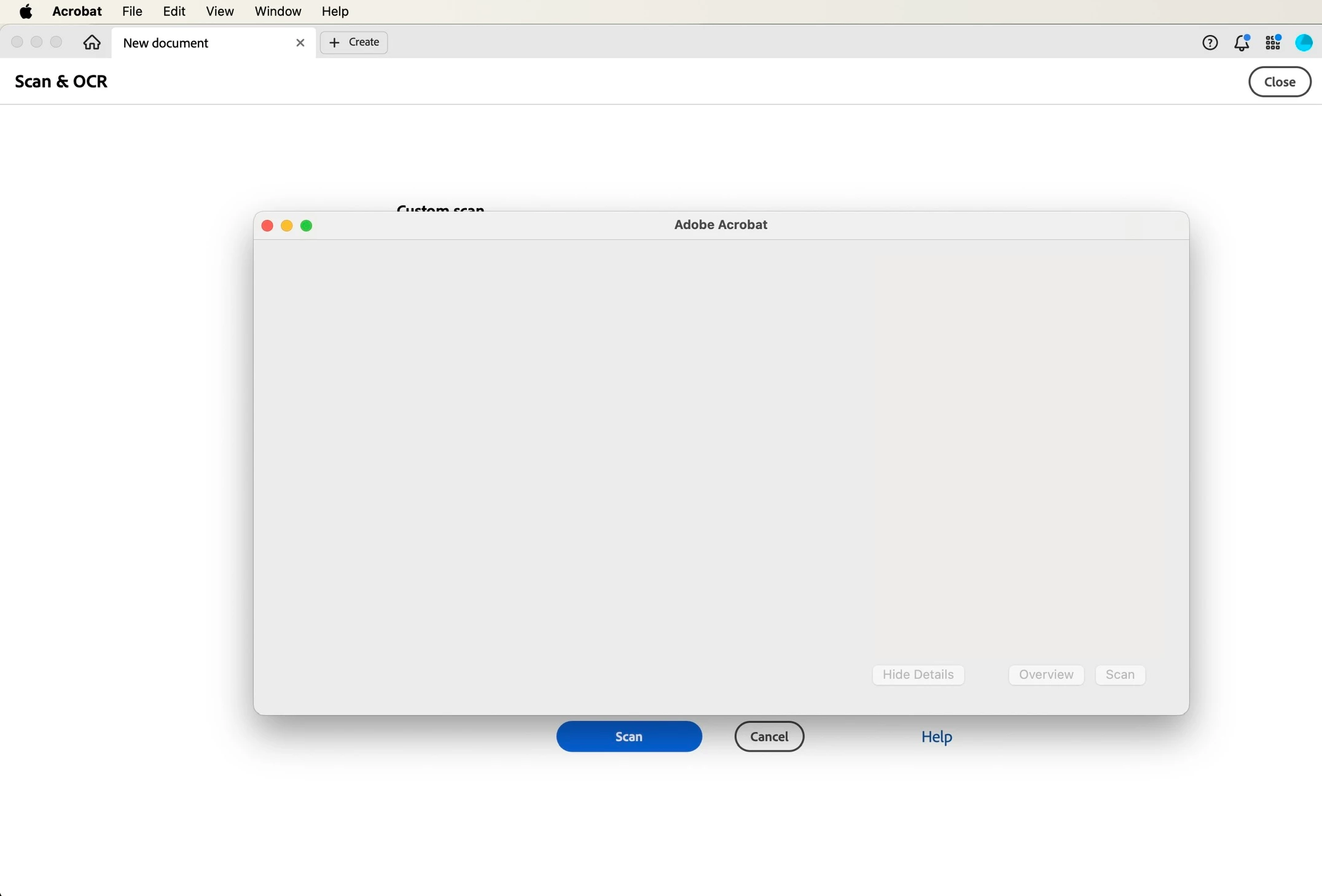
New window opens - nothing appears - see attached photo - program doesn't respond - have to force quit to exit program.

Printer drivers and utilities are up to date.

Uninstalled, rebooted and reinstalled Adobe. Uninstalled, have not reinstalled Adobe Reader and InDesign. Scanning issue persists. Originally presented itself following a three hour power outage.

At this point, I am out of ideas on how to fix the problem.  Does anyone have any ideas?

Thanks in advance.
 

6 replies

Known Participant
November 14, 2025

The new 20918 update didn't do anything, either.

AnandSri
Community Manager
Community Manager
November 14, 2025

Hello @leighr


The fix was not included with this build; the product team is still working on the root cause and the fix. We'll share the update here once it is available.


Thanks for your cooperation.

Regards,

Anand Sri.

tanzblume
Known Participant
November 20, 2025

Bad news. The new update doesn't fix it.


Processor: Apple M1

Build: 25.1.20937.0

AGM: 7.1.19

CoolType: 10.0.7

JP2K: 4.0.2.54782

tanzblume
Known Participant
October 25, 2025

2025-10-25 and the issue hits again:

MacBook Pro M4 & iMac M1

MacOS 15.7.1

MacOS 26.0.1

MacOS 26.1 Beta 4

hp Envy 7134


Adobe Acrobat Version 2025.001.20813


Scanner works with all other apps also Photoshop CC2023 to CC2025

AnandSri
Community Manager
Community Manager
November 5, 2025

Hello @tanzblume


I hope you are doing well. We apologize for the trouble and the delayed response.


Could you please install the latest build of Acrobat 25.001.2084x. Planned update: November 3, 2025. Check for any pending updates by navigating to Menu > Help> Check for Updates. Install the updates, restart the app and the machine, and try again.

If the issue continues, please provide the following information: the current version of the operating system on your device and the logs from the affected machine. To collect the logs, download and run the Log Collector tool. Ensure that you select all log options and attempt to reproduce the issue. After that, close the Log Collector tool; it will generate the logs along with a log ID. Please share this log ID with us for further investigation. 

Please collect the Crash logs as well and share them with us.


Thanks,

Anand Sri.

tanzblume
Known Participant
November 5, 2025

Hello @AnandSri 

unfortunately, the update did not resolve the issue.
I have downloaded the Diagnostic Tool, reproduced the error, and submitted the logs to Adobe using the tool.

Known Participant
October 24, 2025

Same issue, with:


MacBook Pro M1 Max

MacOS 15.7.1

Scanner Canon TS8820

Adobe Acrobat Version 2025.001.20813


Scanner works with all other apps.

Dave Creamer of IDEAS
Community Expert
Community Expert
June 13, 2025

I don't bother scanning in Acrobat. Too much trouble. 


If you can scan with the software that came with the scanner, virtually all save to PDF. Then you can edit as needed in Acrobat.


If you don't have the software for some reason, check out VueScan from https://www.hamrick.com/ 

It keeps old scanners that native software won't run on newer computers alive.


David Creamer: Community Expert (ACI and ACE 1995-2023)
gary_sc
Community Expert
Community Expert
May 22, 2025

One important question, @danw42365919, can you scan via your scanner's software?


Here's the deal, on the Mac, when scanning directly from Acrobat, you are shunted to Apple's Image Capture software.

Unfortunately, Image Capture is a major piece of **** scanning software. It is at the bottom of the barrel when it comes to scan quality and getting to a good quality image.


I encourage you to continue scanning with your scanner’s software, save your scans in the TIF format, and leave the files on your desktop (or wherever convenient). Then, you can drag the files onto the Acrobat icon in the Dock. If you save the files as TIF images, Acrobat will automatically OCR them; there's nothing else you have to do. If you drag more than one file onto the Acrobat icon, Acrobat will ask you if you want all of these files merged into one document or to remain separate.  (If you save in any other format (e.g., jpg), the auto OCR dynamic will not happen, and you'll need to add to your workload by adding an OCR step to your activities.)


Some extra tips and bits of information: A full-page, 300 ppi, 8-bit TIF file will be about 8 MB. (16-bit will be about 16 MB); once they are processed into a PDF, they will drop down to about 100-150 kb, so do not worry about the size. Assuming that you've done a pre-scan to set the Levels settings to get a clean image and you're doing a stack of pages from the same source, there's no need to do subsequent pre-scans. The first scan will be “document.tif.” The 2nd document will be “document (2).tif,” the third will be “document (3).tif.”, etc. When you process those in Acrobat, the first scanned page will end at the end of the PDF as the last page. You can either fix this in the "Organize Pages" or, before processing in Acrobat, change the name in the Finder for “document.tif” to “document (1).tif.*

 * There's no way around this because it is up to Finder or Explorer to name it, not the scanning software. FWIW, I use this latter approach.


As long as you'll be using better quality scanning software, here's a blog I wrote for Adobe with some tips on getting the best quality scan for OCR.


https://community.adobe.com/t5/adobe-community-professionals/scanning-clean-searchable-pdfs/m-p/4785435?page=1#M89


Good luck!

Participant
May 23, 2025

Thank you for your response.  I appreciate your sharing your blog post.


What puzzles me is that the Acrobat software, my iMac and my printer/scanner worked flawlessly together until last week, so I don't know what changed. Your suggested solution has been my work around this week, but it is frustratingly inefficient.

Once again, thanks.

Community Manager
May 23, 2025

Hi @danw42365919


Sorry for the troubled experience. It seems you have already tried almost all the troubleshooting I could have suggested. 

Let's try the following:

1. Try disabling protected mode at startup. This suggestion is for testing only: 

    To disable protected mode, you'll typically navigate to the application's settings, usually under "Options" or "Preferences," then find the " Protected View" or "Security (Enhanced)" section. Uncheck any options that enable protected mode and apply the changes. 

2. Try creating a new user profile on your machine and try again. 


If the issue persists, help us with the following: 

1.  https://adobe.ly/3Fmwja6 share log ID (Ensure to choose advanced logging).

2. Crash logs: https://adobe.ly/4jlj1J5. Upload logs to any cloud drive and share the link

3. Scanner driver ICA version installed.


Lastly, if possible, please capture a video of the workflow and share it with us


~Tariq

Participant
May 22, 2025

Forgot to mention - Scanner does scan to other apps.