New Participant
February 28, 2024
Answered

Acrobat PDF Comment Locks--unable to unlock

  • February 28, 2024
  • 3 replies
  • 19606 views

Hi all and happy Wednesday! 


Recently, a few files I have shared with staff come back to me with all comments locked, so I can't delete them unless I go through and unlock every single one of them. When there are 800 comments in one of 10 documents, that is not feasible! The staff don't know what they've done, but each one has been using the online function to add their comments, rather than the app, and then download the file to send to me. I assumed that all comments were auto-locked for some reason in this conversion, but some comments (maybe 3-4) were not locked, so I don't know what could be happening. Does anyone know how I can advise staff to avoid this? Or does anyone know if there is something I can turn off in the settings that would prohibit locking comments? Thanks a ton! 
Correct answer Karl Heinz Kremer

The easiest way to do this is to create a custom command:


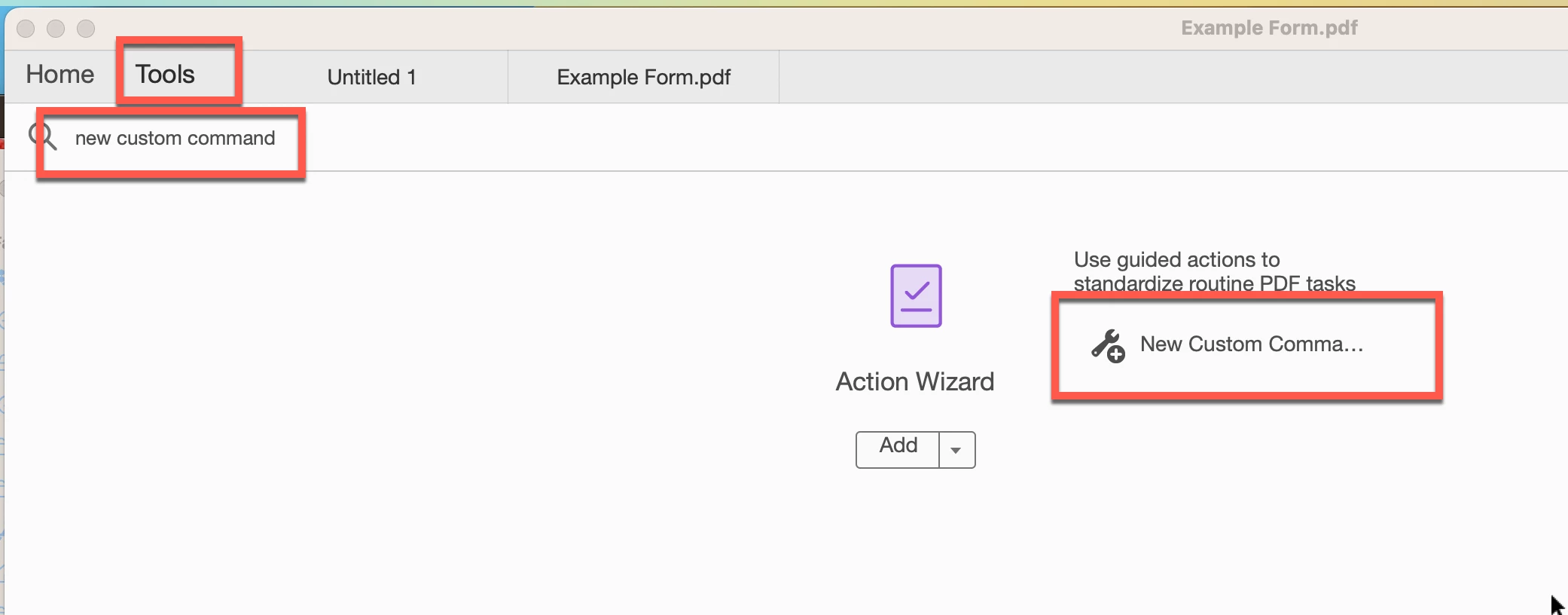
Bring up the "Tools" tab in Acrobat and then type "New Custom Command" into the search field:

Then click on the "New Custom Command" item highlighted in the screnshot. This will bring up a new dialog:


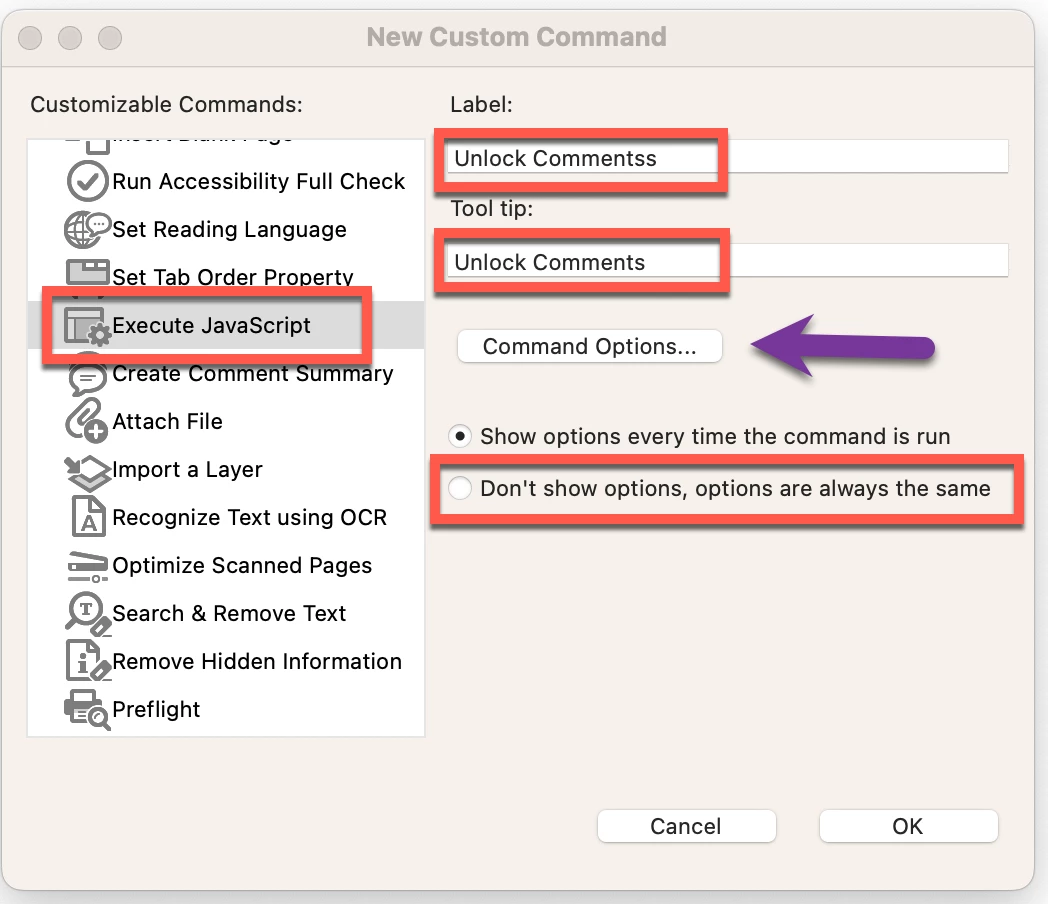
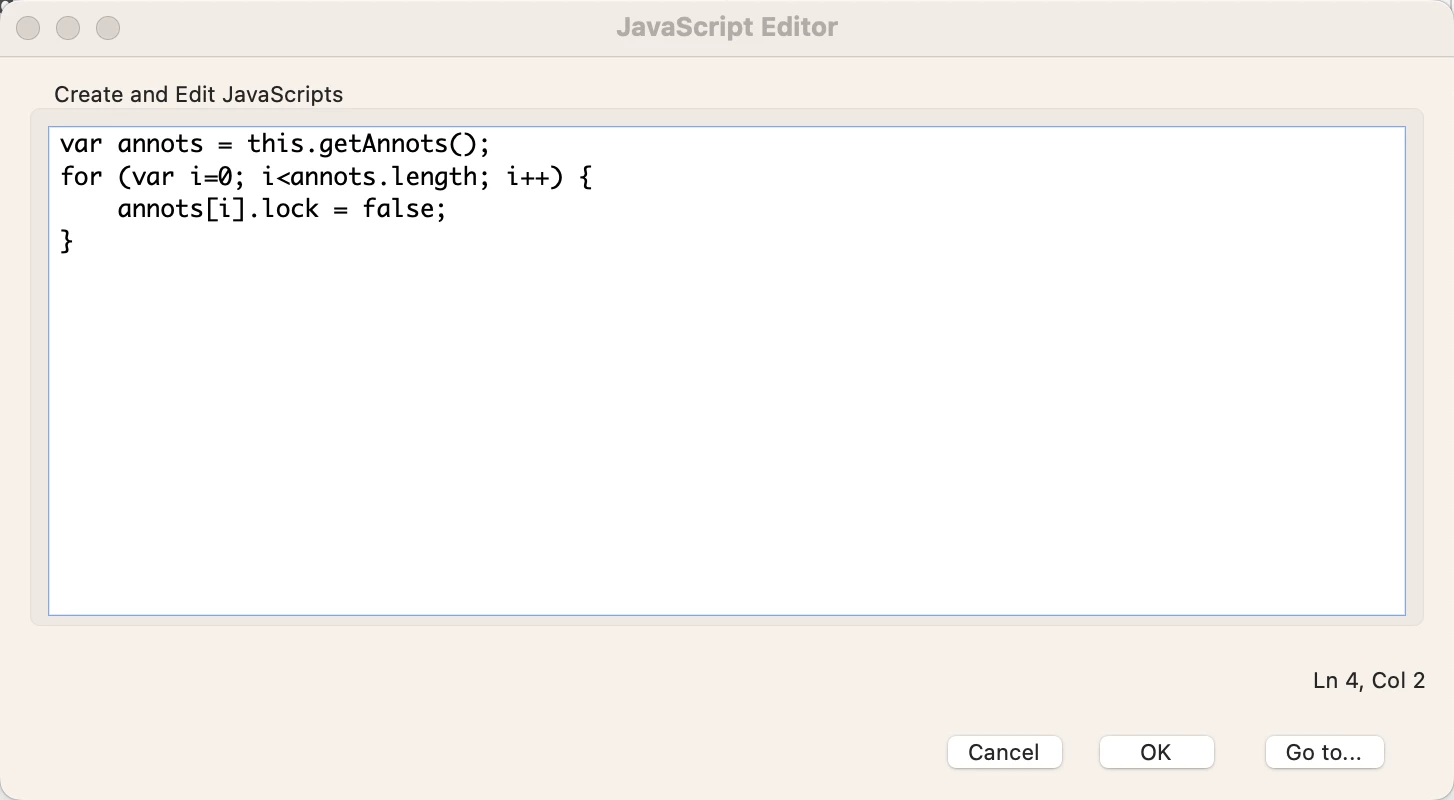
On this dialog, select to "Execute Javascript", then provide a label and a tool tip (I used "unlock Comments" for both), and select to "Don't show options". Then click on the "Command Options" button and enter the few lines of JavaScript from above. 

You can now execute the custom command from the bottom part of the list on the right side of your Action Wizard page (you will find this name in the upper left corner of the toolbar). 


Open your document, then go to this page (you can search for Action Wizard in the tools search bar), and click on the "Unlock Comments' item (or use whatever name you've selected). This should unlock all comments. 


3 replies

New Participant
March 3, 2025

Thank you so much for this, i cant believe it has to be done in this way. My own pdf file got its comments locked and my boss wanted the file without comments. Thank you

Karl Heinz  Kremer
Community Expert
Community Expert
March 3, 2025

At least Acrobat provides a way to make it easy to implement the workaround. 

New Participant
May 19, 2025

Not easy if you have to rewrite the script above (its an image so I cant copy the text and paste into the custom command)

tomburble
New Participant
June 14, 2024

I am also having this problem. It happened in a document without clear warning or reason. This is not OK. There should not be a need to run a custom command to fix this problem, which has been highly disruptive to my workflow. Not good enough!

Karl Heinz  Kremer
Community Expert
Community Expert
June 14, 2024

I am not working for Adobe, so all i can provide is a workaround. To get this to the correct place, please file a bug report: https://www.adobe.com/products/wishform.html

Karl Heinz  Kremer
Community Expert
Community Expert
February 28, 2024

You can run a script in a custom command to unlock all comments. The following script, when either executed in the JavaScript console, or wrapped into a custom command will do that for you: 


var annots = this.getAnnots();
for (var i=0; i<annots.length; i++) {
    annots[i].lock = false;
}
New Participant
February 29, 2024

Hi! Thanks for your suggestion. I typed that into the "JavaScript Editor" but nothing happened--was that the wrong spot? 

Karl Heinz  Kremer
Community Expert
Karl Heinz KremerCommunity ExpertCorrect answer
Community Expert
February 29, 2024

The easiest way to do this is to create a custom command:


Bring up the "Tools" tab in Acrobat and then type "New Custom Command" into the search field:

Then click on the "New Custom Command" item highlighted in the screnshot. This will bring up a new dialog:


On this dialog, select to "Execute Javascript", then provide a label and a tool tip (I used "unlock Comments" for both), and select to "Don't show options". Then click on the "Command Options" button and enter the few lines of JavaScript from above. 

You can now execute the custom command from the bottom part of the list on the right side of your Action Wizard page (you will find this name in the upper left corner of the toolbar). 


Open your document, then go to this page (you can search for Action Wizard in the tools search bar), and click on the "Unlock Comments' item (or use whatever name you've selected). This should unlock all comments.