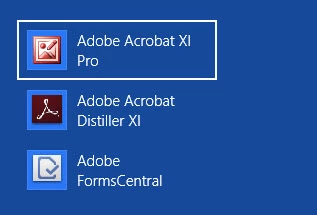
This topic has been closed for replies.
Correct answer Bill12

Sorry, but I do not remember that one showing up when I installed AAXI on Win8. In any case, you should be able to use the windows tools to change the icon that Acrobat uses.

6 replies

michaelt78592149
New Participant
September 19, 2018

This is still a frustrating issue in my corporate environment. Any update on this ?

Braniac
September 19, 2018

There will be no updates to Acrobat XI, ever.

New Participant
April 15, 2018

Hi,

I believe the underlying reason is the Adobe MSI installer breaks Microsoft's rules for creating a Windows installer package. Under the documentation, we read:

Icon files that are associated with shortcuts must be in the EXE binary format and must be named such that their extension matches the extension of the target.... For example, if a shortcut is to point to a resource having the key file Red.bar, then the icon file must also have the extension .bar.

(https://msdn.microsoft.com/en-us/library/windows/desktop/aa369210(v=vs.85).aspx)

In the MSI installer for Adobe Reader DC / 2015 / 2017 we see the 'Icon' table entries, all of which have the extension '.ico' by default:

xUol3.png

If this was resolved, it would be possible to fix the problem permanently, even when the software is repaired / reinstalled.

If you edit the MSI with Orca and do a find/replace to change '.ico' to '.exe' on every relevant table, and then repair / reinstall the MSI, the problem does not reoccur. It would be helpful for Adobe to fix this in the MSI directly for everyone in another release.

I've also posted about this problem on Superuser: Adobe Acrobat Pro DC Shows Wrong Icon - Super User

New Participant
October 27, 2016

This is how  you fix it in Windows 10:

  1. Remove, unpin or delete Adobe Acrobat icon from the Start Menu, the desktop and (if you have it there) from the taskbar.
  2. Go to C: > ProgramData > Microsoft > Windows > Start Menu > Programs and you'll find the "sinner" "Adobe Acrobat XI Pro" with the wrong icon. The that looks like a shortcut. Delete it!.. Close the window.
  3. Go to C: > Program Files (x86) > Adobe > Acrobat 11.0 > Reader... and find Acrobat.exe
  4. Right click on Acrobat.exe > Send to > Desktop
  5. Right click again on Acrobat.exe > Pin to Start Menu... and close the window
  6. Right click on Acrobat.exe - shortcut (that you just created on your desktop) > Copy
  7. Go back to: C: > ProgramData > Microsoft > Windows > Start Menu > Programs... and Paste the shortcut here (you need administrator privileges for that)
  8. Rename this shortcut from "Acrobat.exe - shortcut" to "Adobe Acrobat XI Pro"
  9. Close the window
  10. Now if you open any PDF document, the right icon will appear on the taskbar.
Inspiring
September 22, 2016

How I fixed this on latest version of Windows 10 - 22/09/2016. For Adobe Acrobat Pro DC, although this should work for any program with a similar wrong icon issue. For the good PC proficient people I bolded the main steps for ease of access.

Unpin program from taskbar. (if applicable)

Unpin program from start menu. (if applicable)

Go to

Start Menu>All Apps>Adobe Acrobat Pro DC

and right click

More>Open File location

this should take you to

ProgramData>Microsoft>Windows>Start menu>Programs

Find the the "Adobe Acrobat Pro DC" shortcut.

To make sure it is a shortcut make sure your view mode is "details" and then have "type" as a detail enabled and it should say shortcut under type.

Delete this shortcut.

Find the original file exe. You have to do this manually as you deleted the start menu shortcut.

Mine was under

Program Files (x86)>Adobe>Acrobat DC>Acrobat

File name was

"Acrobat.exe"

right click and create shortcut of this exe

it should prompt you that you can't create shortcut here and ask to place on desktop, click yes

Rename the shortcut to  "Adobe Acrobat Pro DC"

Cut the shortcut and paste it to the original shortcut location that you deleted

that was: ProgramData>Microsoft>Windows>Start menu>Programs

To get to this location quicker: go to

Start Menu>All Apps

and right click any application

More>Open File location

KevinUHS
New Participant
October 25, 2016

Thanks that fixed it in my Win 10 installation.

Ridiculous how Adobe can't even get their icon right

Participating Frequently
January 15, 2013

I had this same problem too with the Acrobat XI Pro icon, only mine showed the Photoshop "PS" icon instead, in both the Windows 8 Apps and taskbar. Usually I would easily fix an icon problem this by changing the icon using the "Change Icon" setting in the Acrobat's Programs shortcut properties, but for some reason the "Change Icon" button was disabled for the Acrobat XI Pro icon, so I deleted the shortcut with the wrong icon and just created a new shortcut in Start Menu/Programs. Now the correct icon appears in both the Windows 8 Apps and taskbar.

August 28, 2013

I signed in to tell you how I solved this problem.

I have Adobe Acrobat XI Pro and Windows 7 64 bit.

All PDF icons are correct except in the taskbar... in my case it's showing the Gimp icon in stead.

Here's my fix:

1) Remove, unpin or delete Adobe  Acrobat icon from the Start Menu, the desktop and (if you have it there) from the taskbar.

2) Go to C: > ProgramData > Microsoft > Windows > Start Menu > Programs  and you'll find the "sinner" "Adobe Acrobat XI Pro" with the wrong icon. The that looks like a shortcut. Delete it!.. Close the window.

3) Go to C: > Program Files (x86) > Adobe > Acrobat 11.0 > Acrobat... and find Acrobat.exe

4) Right click on Acrobat.exe > Send to > Desktop

5) Right click again on Acrobat.exe > Pin to Start Menu... and close the window

6) Right click on Acrobat.exe - shortcut (that you just created on your desktop) > Copy

7) Go back to: C: > ProgramData > Microsoft > Windows > Start Menu > Programs... and Paste the shortcut here (you need administrator privileges for that)

8) Rename this shortcut from "Acrobat.exe - shortcut" to "Adobe Acrobat XI Pro"

9) Close the window

10) Now if you open any PDF document, the right icon will appear on the taskbar.

Hope that helps.

Inspiring
November 8, 2013

Your fix works, but it's an old icon for Acrobat - not the nice red one that it should be. But, better than the Photoshop PS icon.

Bill12Correct answer
Inspiring
December 12, 2012

Sorry, but I do not remember that one showing up when I installed AAXI on Win8. In any case, you should be able to use the windows tools to change the icon that Acrobat uses.

December 18, 2012

Do you use as well Office 2010 with Microsoft Picture Manager?

Than please give me instructions how to change that. It is not so easy as you think.

thanks

Inspiring
December 18, 2012

I had installed OFFICE 2010 on a Win8 pre-release. Since installing Win8 I have not been successful with reinstalling OFFICE. SO I guess I can't answer that one.