Participant
October 12, 2023
Answered

add a link to one page but it will show on every page

  • October 12, 2023
  • 2 replies
  • 1701 views

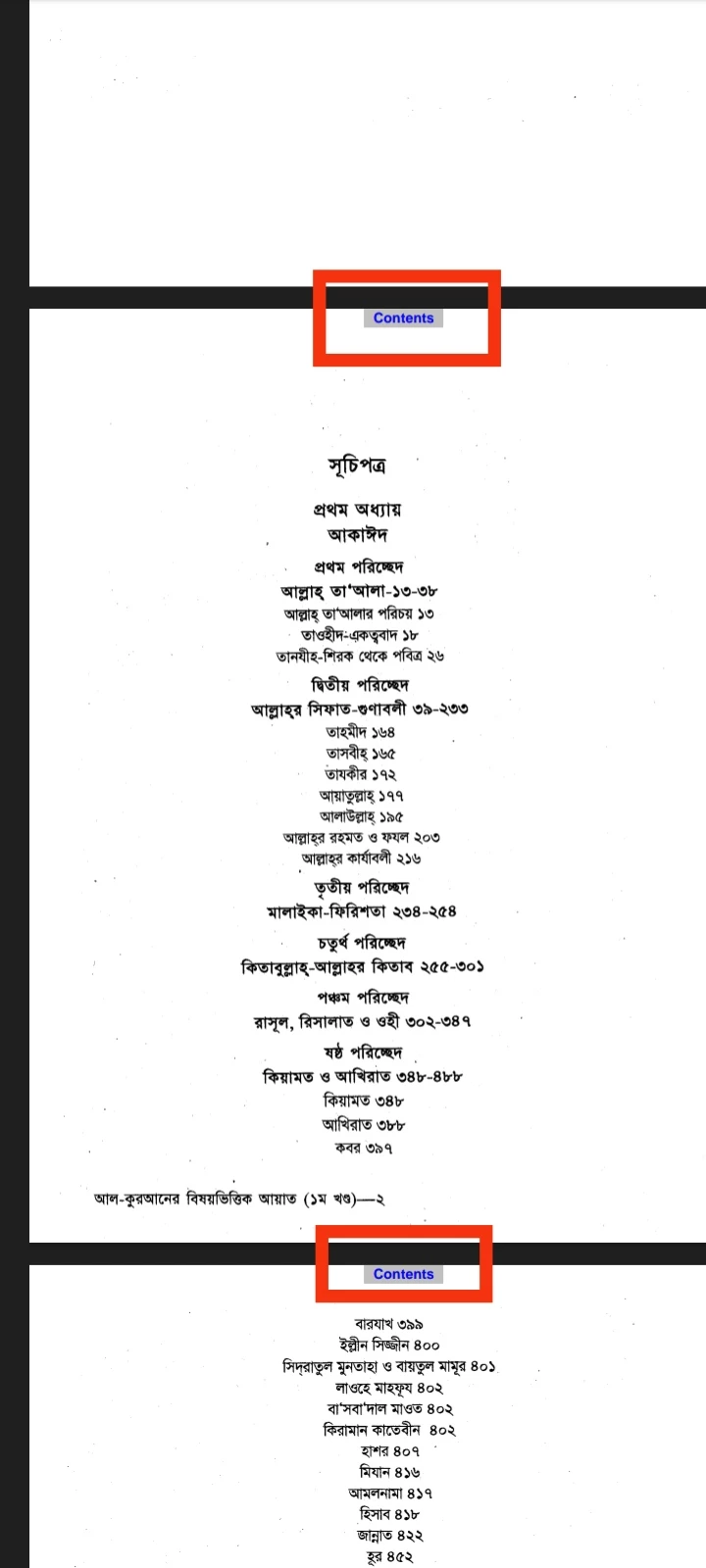
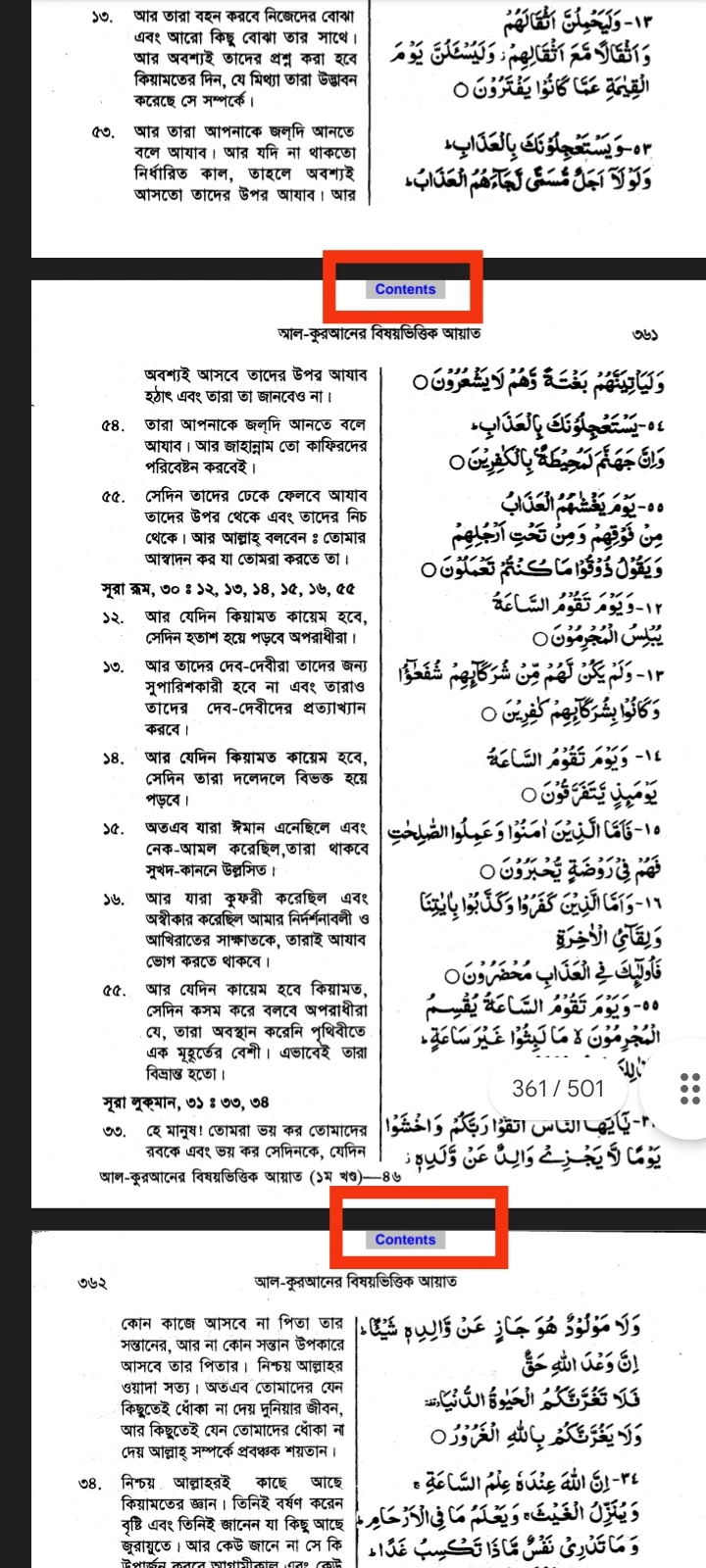
I want to add a link to one page but it will show on every page?

How do I do it like the picture I gave? Tell me the procedure please!


I want that link will jump you in the page of "Table of Contents"

It needs hours of time to add same link to all pages of the PDF.


To add "Table of Contents" to every page of a 700-800 page PDF file separately is quite impossible.


Again please!

❝I want to know how to add a link to one page but it will show on every page. How do I do it like the picture I gave?❞


Is it possible to do it in "Adobe Acrobat Pro DC"? I just want to know the procedure for doing it easily!


Correct answer Md.Mahfujur Rahman Nisad

Create a "Button Link" for where it says ‘Contents’ instead of a regular Text Link. 


Procedure:

1. Open up the PDF in Adobe Acrobat Pro DC.

2. Select "Tools".

3. Click on "Rich Media" in Create & Edit section.

4. Select "Add Button".

5. Drag & Make a Button Shape.

[Click on anywhere on the document on one of the pages to add it there.]

6. Give the button a name in "Field Name"

7. Press Enter.

8. Click on "All Properties".

Or, Click on "Add Object" & Double Click on the button.
Or, Click on "Add Object" & Click the Right Mouse.
A pop up button properties will appear.

9. Click on "Options".

10. Set the "Label only" for the button & Write in Label box "Content"

11. Click the "Actions" tab.

12. Specify which page you want to link the button to.
Select Action: Go to a page view.

13. Click on "Add..."
Scroll & Go the page of 'contents' & then click on "Set Link" pop up box.

14. Click on "Close".

[You can change the border color, Fill Color, Text Color & Font Size in "Appearence" Tab]


15. Right Click on the button, and click on "Duplicate Across Pages"
Click on "From"
Write the page number _ to _.
Then click on "OK"

16. Tab "Close" on the Tab.


[You can delete the button anytime using "Rich Media" → "Select Object" → Right Click on the Button & Then Click "Delete"]


I hope this helps! But The Button only Works in which app supports Interactive PDF. Use Adobe Softwares always. Google Drive may not work the Button.


2 replies

Md.Mahfujur Rahman NisadAuthorCorrect answer
Participant
October 15, 2023

Create a "Button Link" for where it says ‘Contents’ instead of a regular Text Link. 


Procedure:

1. Open up the PDF in Adobe Acrobat Pro DC.

2. Select "Tools".

3. Click on "Rich Media" in Create & Edit section.

4. Select "Add Button".

5. Drag & Make a Button Shape.

[Click on anywhere on the document on one of the pages to add it there.]

6. Give the button a name in "Field Name"

7. Press Enter.

8. Click on "All Properties".

Or, Click on "Add Object" & Double Click on the button.
Or, Click on "Add Object" & Click the Right Mouse.
A pop up button properties will appear.

9. Click on "Options".

10. Set the "Label only" for the button & Write in Label box "Content"

11. Click the "Actions" tab.

12. Specify which page you want to link the button to.
Select Action: Go to a page view.

13. Click on "Add..."
Scroll & Go the page of 'contents' & then click on "Set Link" pop up box.

14. Click on "Close".

[You can change the border color, Fill Color, Text Color & Font Size in "Appearence" Tab]


15. Right Click on the button, and click on "Duplicate Across Pages"
Click on "From"
Write the page number _ to _.
Then click on "OK"

16. Tab "Close" on the Tab.


[You can delete the button anytime using "Rich Media" → "Select Object" → Right Click on the Button & Then Click "Delete"]


I hope this helps! But The Button only Works in which app supports Interactive PDF. Use Adobe Softwares always. Google Drive may not work the Button.

Participant
February 21, 2025

Thank you for the complete help you provided (to someone else) 18 months ago!

try67
Community Expert
Community Expert
October 12, 2023

Use a button field and then you'll be able to duplicate it across all pages. In Edit Form mode right-click the field and you'll see a command with that name.

Participant
October 13, 2023

Can you tell me the details procedure?

I want to do same as the picture. A linked text which appears in all pages.

try67
Community Expert
Community Expert
October 13, 2023

Do you know how to add a field and set its properties?