


Inspiring
April 1, 2019
Answered

Adding Images to a Fillable PDF

  • April 1, 2019
  • 3 replies
  • 71558 views

Hi all,

I'm hoping someone can help me. I have (I think) exhausted my search for an answer on how to get an image into a fillable PDF document using Adobe Reader.

I am currently using Adobe Acrobat Pro DC.

So what I am doing is

- open my PDF document in Acrobat Pro DC

- Click on Prepare Form

- Add my text fields

- Add an 'image' field

- Save as other - Reader Extended - Enable more tools (includes form fill-ins & save)...

- Gave it a name.

Opened it in Adobe Reader XI

- clicked on image field and a dialogue box pops up
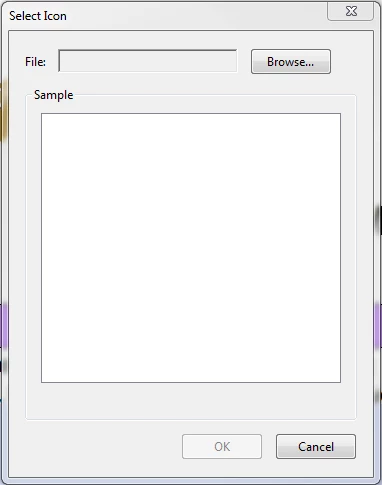
- I click 'Browse' and the only file type I can choose is PDF

Is there anyway to have the 'File Type' include more than PDF? Can it insert JPG files?

My client client base is the general public and not everyone is tech savvy. I need something simple and this image icon field should have been it but because of the limitation of PDF i'm afraid too many people won't know how to change their image into a PDF file.

There has got to be a way for someone to create a fillable PDF that allows someone to fill out the text fields and add a picture into an image field while using Acrobat Reader.

Any help would be muchly appreciated.

Thanks in advance.

Paul

Correct answer try67

There's nothing you can do about it. It depends wholly on the application being used to open the file.

If the end-user opens it in Reader DC they'll be able to import JPEG files, as well as other image formats.

If they use earlier versions they will only be able to select PDFs, or nothing at all.

3 replies

New Participant
July 30, 2024

Hello 123WorkingGuy;

It's been a while since you question, however; I have had a similar problem a while back, so I found that a pdf creator would make a pdf picture first, then open the picture pdf in the DC reader to fill in text around the picture. This would allow me to add more text from the a net pdf app. 

I hope this was helpful


New Participant
July 18, 2020

How do you add that image field?

Bernd Alheit
Community Expert
July 18, 2020

At Tools > Prepare Form use the image field.

try67
try67Correct answer
Community Expert
April 1, 2019

There's nothing you can do about it. It depends wholly on the application being used to open the file.

If the end-user opens it in Reader DC they'll be able to import JPEG files, as well as other image formats.

If they use earlier versions they will only be able to select PDFs, or nothing at all.

Inspiring
April 2, 2019

Good morning Try67,

Thank you for your reply and explanation. It's the first time that I have had it explained that it is wholly depended on the version of Reader.

Muchly appreciated.

New Participant
February 14, 2020

I have the exact same issue except slightly more heinous. I'd like my customers to be able to cut-and-paste from their monitor directly into the PDF document. So ideally they'd take a screenshot (copied to the clipboard) and dump it into the PDF. Turns out, it doesn't work. Rather than a cut-and-paste, it ends up being something called a "stamp" which can't be moved or resized within the PDF-- even when using DC Pro!

My only solution appears to be for the user to take a screen shot and then paste that to Paint or Photoshop, etc., and then save the image to disk. From there the user can place the image into the fillable PDF using an image field.

I continue to have great faith in technology and it continually lets me down.