New Participant
November 9, 2017
Answered

Adobe Acrobat Pro DC - Default Page Display settings not working

  • November 9, 2017
  • 5 replies
  • 20653 views

I'm using Adobe Acrobat Pro DC.  When I first started using it, documents opened at full screen, around 200% zoom.  I changed my preferences immediately to 100% using the below steps.  Up until month or so ago, documents opened up at my preferred default of 100% zoom.  Now all of a sudden everything opens at 200%+ full screen.

Under Edit - Preferences - Page Display, the Default Layout and Zoom is set to Single Page, Zoom 100%

Edit - Preferences - Full Screen - Full Screen Set Up - the box is UNCHECKED for "Fill Screen with one page".

The default Page Layout/Zoom are no longer working.  Every new document I open jumps out at me at 200%+ full screen.  I have to go into the actual document properties, change the zoom and save it (if I need to save the document).

It's driving me crazy!!!!  I open at least 50 documents a day and this 200% initial view is killing me! Why don't the default view settings work any more??  I read on the forums there was a patch in late August to fix this. When I click "Help", check for updates, it says no updates available.

I'm at my wits end and have spent hours searching for the solutions.  Further frustrating me is there no way to directly contact Adobe for help.  All roads lead to the Forums.  We'll see if I get an answer.  It's crap customer service to take money for software and then not provide help when features fail....

Adobe - if you can't fix the default settings to work properly, then please design the software to open docs at 100% not full screen (the most popular preference).
This topic has been closed for replies.
Correct answer PiolloUnderwhite

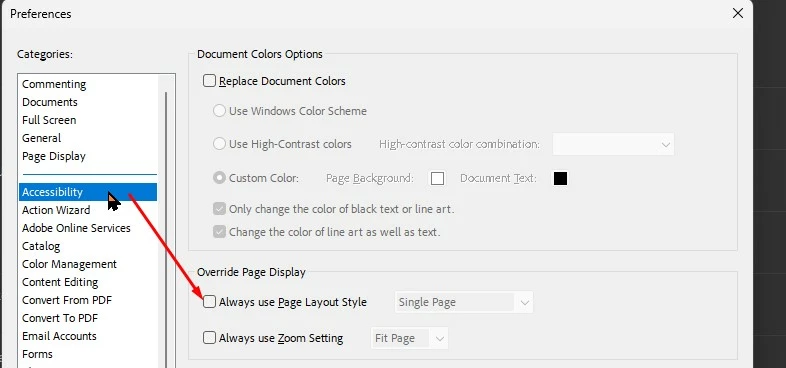
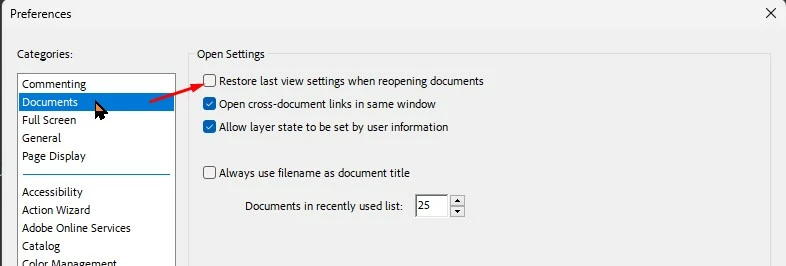
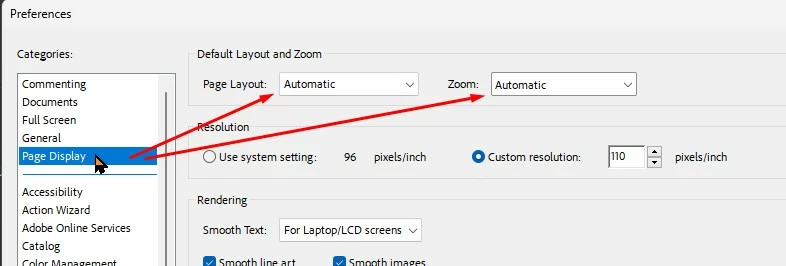
What I wrote was March 2022, and there have been many new versions of Adobe Acrobat since then. Recently, they have completely changed the interface, so these screenshots of mine have become obsolete. For a long time with me, the problem has not occurred and now the page/file display parameters are saved with the file. Like you, I was annoyed that Adobe did not fix the problem for many, many months in subsequent versions of the application. Check your Application Preferences in three places:
1. Documents > Restore last view.... > Uncheck


2. Page Display > Default Layout and Zoom > Automatic+Automatic


3. Accessibility > Override Page Display > Always use Page Layout Style > Uncheck

Good luck!
Piollo

5 replies

New Participant
September 30, 2023

Just an FYI for anyone else having this issue...I'm no power Adobe user but looked through a few of the settings in Preferences and found that you can "Override Page Display" settings under "Accessibility."  Under this Override option you can set different "Page Layout Style" and "Zoom Settings."  I was going a little crazy myself not being able to figure out how or why my PDFs kept opening as two up and at 88% until I found the override checked off under accessibility for these settings. I’m using Adobe Acrobat Pro on a Mac Mini M2.

New Participant
August 17, 2022

Glad in 2022 this issue is still present...

At least on the version I have to use (2022.001.20142).


The issue (I put it in italic as it is not a real issue, the way you think it is) is that you cannot force a display settings if a doc specify one...

But who can decide how I should read my PDF ???
The creator of the file ? Why should he have the right to tell me how to display a file ?
If I am confortable using "full page" (width + height) it is my business and I do not care about the feelings of the author of the file !


So it's not a technical issue, obviously, it is a logical issue from the designer of the program who think someone can decide for you how to work with document !

So there must be a setting to force, no matter what, the display of ANY/ALL documents.
End of the story.

PS : I don't encounter the issue of PiolloUnderwhite, sadly, the (protected) document I am opening override my preferences...

Participating Frequently
July 8, 2023

I have the eacct same issue with Adobe Acrobat Reader Version 2023.003.20215 (64-bit). All the settings are correct for the 200% zoom layout, which is the Page Width zoom setting, but new documents open at 100%.

New Participant
July 31, 2023

Experiencing the same issue in 2023.003.20215 (64-bit).

Edit>Preferences> Documents>"Restore last view setting" is checked; however, the following are not restored when opening new documents:

1) thumbnail view open displaying smallest thumbnails, 6 across on my display (instead thumbnail view is closed)

2) document view set to "Fit one full page" (instead it is set to "Actual Size")

New Participant
March 15, 2022

Replying to note this is still an issue ~5 years later. The posted answer from Adobe does not work.

Meenakshi Negi
Community Manager
Community Manager
March 15, 2022

Hi Matthew,


Thank you for reaching out, and sorry about the trouble.


Could you please share more details about the issue and what does not work?

Share the current application and OS version with us.

Check if the issue occurs with all the files. To test, try to create a new file and see if you experience the same behavior.

It would be helpful if you could share a video for a better understanding and a sample PDF on which the issue occurs.


Thanks,

Meenakshi


Participating Frequently
March 20, 2022

Hi Matthew,

I am enclosing a picture story to make it easier to understand what the problem is with Acrobat's default settings. I recommend that you follow the steps below in Adobe laboratories and change the default application preferences (it is about disabling those functions that can be seen in the last pictures).


New Participant
August 5, 2020

I experienced a similar default (page) view setting issue in early August 2020 while using Adobe Acrobat-that's part of my Adobe Creative Cloud subscription.  Going through the prescribed remedies mentioned in this Community Forum (using the Edit>Preference >to adjust and save Page Display and Document preferences) I wound-up nowhere. No improvement observed and my quest for a default Single Page upon opening a .pdf file continued.

Carl's remedy: uninstalled and reinstalled the same version of Adobe Acrobat (20.009.20067) and works as expected.  Who knows what corruption took place within Acrobat and being an end user, care little about the problematic issue. I’m pleased to see my application preferences took.

I’m posting this in hopes this post triggers comments from others and what they have done to control a badly behaving page view preference setting. Thanks.

New Participant
August 29, 2020

Thank you for your advice. I also tried to change the settings in Edit>Preference and had no luck. After re-installing Acrobat everything works as expected.

AkanchhaS8194121
Brainiac
January 4, 2018

Hi Kahlerh,

We sincerely apologize for the delay in response to your query.

1- Looking at the steps shared above, it seems that you have all the required settings enabled. However, you may also check the preferences setting shared below whether that has been enabled or not.

  • Open a document, specially the one which is causing more trouble and opening in 200% view.  Change its view to 100% manually.
  • Now go to preferences, Acrobat >Edit>Preferences(Ctrl+K)> Documents>Check "Restore last view settings when reopening documents" if its not checked>OK
  • Close the current document and the Acrobat application too.
  • Reopen Acrobat and check the file again.

This should now fix the problem for the current document and the further files viewed at 100%.

2- If you are unable to install the updates automatically, then you may refer to the released notes here- Release Notes | Adobe Acrobat, Reader

3- You have not been able to contact to the support people, that might be because your current account seems to be a free account. We do not see and Acrobat DC registered under it.

For any free account or free application, the support will only be available on forums-  Contact Customer Care

Let us know if you still experience the same problem.

Regards,

Akanchha

New Participant
November 25, 2023

This doesn't work.