


Participant
September 23, 2013
Question

Adobe PDF Printer not working as print driver; 9.5.5 (pro) with Windows 7, 64 bit

  • September 23, 2013
  • 2 replies
  • 138195 views

I have installed, repaired, uninstalled and re-installed Acrobat Pro 9.5.5 on a newly formatted SSD with Windows 7, 64 bit on my desktop machine. The program was installed from Acrobat Pro 9.0.0 and updated within the program. I have the program also installed on my laptop, and the Adobe PDF Printer driver is working properly on my laptop.

On my desktop with the newly formatted SSD, the Adobe PDF printer driver is not working. Note that I am using the printer driver, and not any pdf creation techniques within MS Office or other programs.

When I go to the Adobe PDF printing preferences on my desktop, I only get a generic, two tab window open. When I print a file to this printer on my desktop machine, I do not get a window opening that asks where to create the pdf or what to name it, and I never see any files created. In MS Word, the Create PDF option under the Acrobat tab works and opens a dialog to ask the name and location to save, and then opens a PDF Maker progress window and properly creates the file. I can also save a file as an .eps or .ps file and use Distiller to create the pdf. However I cannot get the Adobe PDF printer driver in my Devices and Printers to work properly, although it works just fine on my laptop with the same program (Pro 9.5.5) and same Windows version (7, 64 bit).

Repairing, uninstalling and re-installing does not solve the problem. Acrotray.exe *32 process is running. Any ideas on why this won't run properly on my desktop, but will run on a similarly configured laptop?
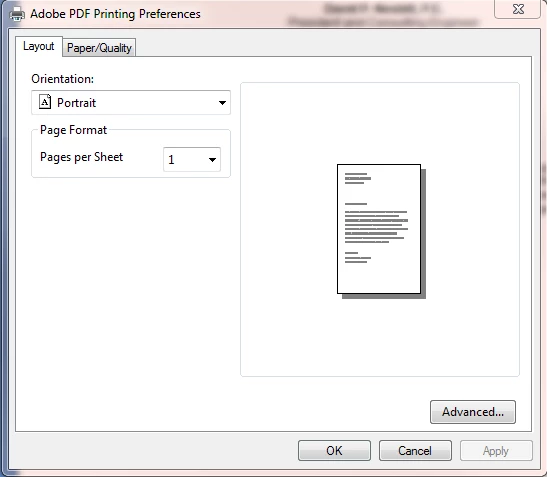
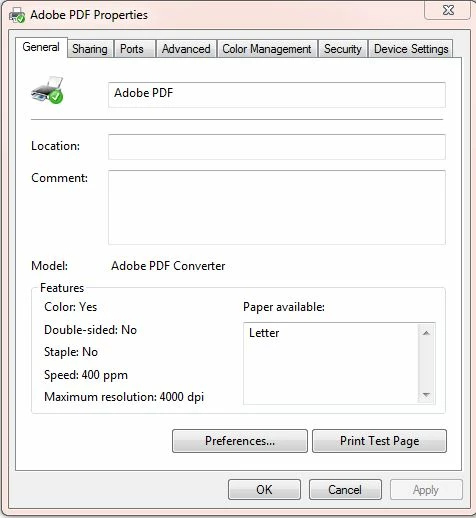
On my laptop, I get a full, (7) tabl menu with all the normal options:
This topic has been closed for replies.

2 replies

sgcarp
Participant
May 21, 2014

My adobe air failed and it stripped out my adobe pdf converter printer in the roll back.  I have managed to sort that out by reinstalling adobe air and the printer driver but now every time I create a pdf from AutoCAD the created file thinks it is still open in acrobat so I can't change or delete it.  I am using Window 8.1 - all these issues started with 8.1.

I dont know what to do - I have to have the right pdf file names for my planning application so i have to make new folders full of redundant files i cant delete to get the drawings as i need them.

Can anyone help?

Allta Media
Community Expert
Community Expert
September 23, 2013

Have you tried to manually install the Adobe PDF printer? These instruction are for version 10.

  1. Click Start >  Control Panel > Devices and Printers
  2. Select Add a printer
  3. Select Add a local printer
  4. Check Use an existing port and select Documents\*.pdf (Adobe PDF) from the drop down.  Click Next
  5. Click the Have Disk… button
  6. Click the Browse… button
  7. Navigate to C:\Program Files (x86)\Adobe\Acrobat 10.0\Acrobat\Xtras\AdobePDF
  8. Select AdobePDF.inf from the list if using Acrobat Pro, or AdobePDFstd.inf if using Acrobat Std, then click the OK button
  9. You will see many Adobe PDF Converters in the list, however count six down from the top and click Next (you may need to try this numerous times to find the correct Converter from the list that works with your version of Windows)
  10. Name your printer, e.g. Adobe PDF

http://blogs.adobe.com/dmcmahon/2012/06/04/acrobat-pdf-printer-missing-after-installation-on-windows-64-bit/

DNez2001aAuthor
Participant
September 23, 2013

I did try this. There are (10) converters in the list. #1-5 would not install. I now have printers named Adobe PDF Converter #6-#10, but none of them solve the problem - all show the 2 tab preference and never show a completed .pdf after printing. It is interesting to note that when this is done in MS Word, there is a MS word progress bar showing the document being scrolled to the printer, but nothing happens afterwards

Participant
February 6, 2014

I found this answer from Deepak Chauhan on another forum, and it solved this problem!

Try this to add Adobe PDF printer manually on Windows 7, and Windows Vista.

If windows 7 is Enterprise or better edition: (Admin rights required)

Start>search for printmanagement.msc and open the print management module

Expand the print server and expand the computer name to see availbale printers, drivers and printer ports.

- from printers ensure there's no Adobe PDF printer, if there is delete it

- go to ports and delete the PDF ports (the ones ending in *.pdf)

- go to drivers and delete the PDF converter.

Take note if any errors occur, but continue with the following steps regardless.

If on windows 7 home edition, just goto start>Devices and Printers and ensure PDF pritner is not listed.

Then open the registry (if any erors deleting these keys happen, see below)

1: go to HKEY_LOCAL_MACHINE\SOFTWARE\Microsoft\Windows NT\CurrentVersion\Print\Printers

delete any adobe PDF printer subkey present

2: go to: HKEY_LOCAL_MACHINE\SYSTEM\CurrentControlSet\Control\Print\Monitors

delee the PDF port monitor if present

3: go to: HKEY_LOCAL_MACHINE\SYSTEM\CurrentControlSet\Control\Print\Printers

again delete and pdf printer subkey

If any erros occur, you need to set the owner of the key to the currently logged in admin user, then ensure that user has full control.

Do this by right-click the key and selecting permissions, clicking on advanced, then the owner tab.

Once you've all that has been done, open a command line as administrator.

Copy and pate the following commands in order

1: net stop spooler

2: rundll32.exe setupapi.dll,InstallHinfSection AdobePDFPortMonitor 128 C:\Program Files (x86)\Adobe\Acrobat 9.0\Acrobat\Xtras\AdobePDF\AdobePDF.inf

3: net start spooler

4:rundll32.exe printui.dll,PrintUIEntry /if /b "Adobe PDF" /f "C:\Program Files (x86)\Adobe\Acrobat 9.0\Acrobat\Xtras\AdobePDF\AdobePDF.inf" /r "Documents\*.pdf" /m "Adobe PDF Converter"

That should set back the pdf printer.

This seemed to provide the link that provided the Adobe PDF Settings tab to the Adobe PDF Printing Preferences that was missing!


I tried that procedure (changing the figures 9.0 into 8.0) but the second command  in the end of that manual causes the message "installation failed", then I gave the next two commands, and the very last one replies that a rundll32.exe would not exist. Ichecked that, and it is true.I have been looking forward to this solution too early ...