


New Participant
July 11, 2021
Answered

Blurry Images in PDF when Converted from Word

  • July 11, 2021
  • 3 replies
  • 50246 views

Can someone please explain in simple terms if there is a fix to this.


When I take a screenshot and paste it into a Word doc, the image is perfectly clear.  When I save the Word doc to PDF the image is very blurry.  It has not always been like this, previously images in a Word doc converted to PDF were very clear, but for some reason they are now blurry 😕😕  I have not changed any settings.


See example attached.


Is this fixable?  If so what are the steps?
Correct answer Brad @ Roaring Mouse

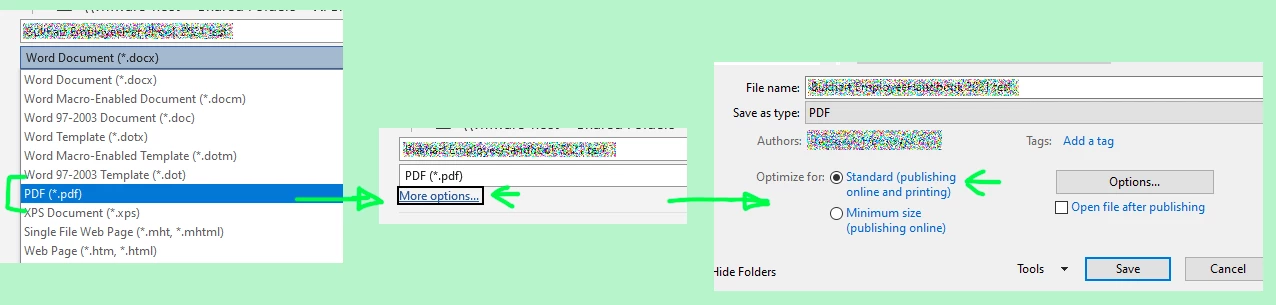
As for using "Save As"... there's the "More Options" button when selecting PDF as your format.

3 replies

New Participant
June 1, 2025

Remove a blurry and convert to pdf

New Participant
January 17, 2023

I'm not sure if anyone will find this useful, but none of the suggestions worked for me.

*DISCLAIMER - THIS SOLUTION REQUIRES ADOBE ACROBAT PRO (paid version)*

My solution that worked 100% of the time
(involves having access to the high res images which end up being blurry. I'm assuming you will have them):


Use Adobe Acrobat Pro:

1) Open PDF that has blurry images in Acobat Pro

2) Click "Edit PDF" on the menu to the right (pink button toward the top for me)

3) Right click the photos that are blurry (one at a time) and select "Replace Image", and select the appropriate "clear/quality/high def" image

4) Repeat as necessary for each blurred image

5) Save the file.


DONE.


I hope that helps someone! You will only be able to do this if you have ADOBE ACROBAT PRO!


Brad @ Roaring Mouse
Community Expert
July 12, 2021

Two places to check:

The obvious place is when you Save as PDF, you usually have the option for quality levels. You want the "Best for Printing" (Mac) or "Standard" (PC). If use are using the Save as Adobe PDF (Acrobat PDFMaker), you need to chcek the Preferences for that have not changed.

The OTHER place most people don't think about is that Word might be compressing the images internally. (Word > Options > Advanced > Image Size and Quality). You should either turn check "Do Not Compress Images", or set your Default Resolution to "High Fidelity"

New Participant
July 25, 2022

Thanks for that info! I was having the same problem, and changing it to "Standard" brought back the clarity of my images.