
New Participant
November 6, 2025
Answered

Certificate Signature is not working

  • November 6, 2025
  • 1 reply
  • 160 views

Hi,


I'm trying to sign a PDF with an official certificate from the FNMT (the official certificate issuer in Spain). I can import it into Windows 10, validate it, and use it to sign in other applications without any problems, but when I try to sign it in Adobe Acrobat Pro, the option to use a certificate doesn't appear.
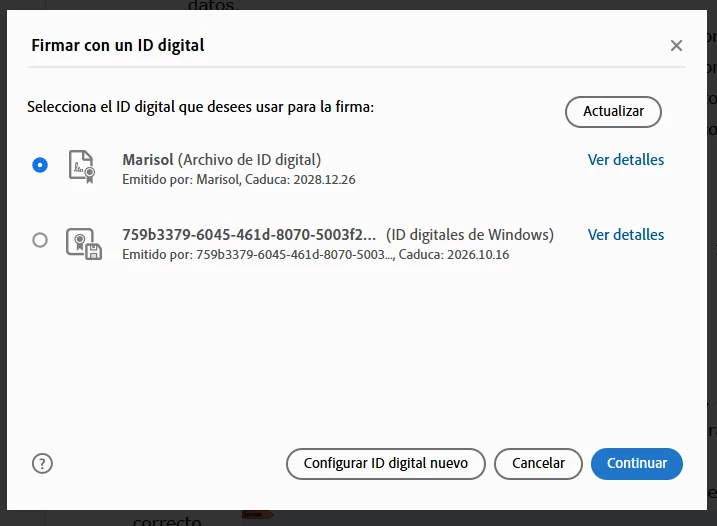
 

I can use the personal certificates he created, but the certificates from the Windows certificate store don't appear.


If I try to sign by setting up a new digital ID, I can select the certificate, enter the password, and add it.
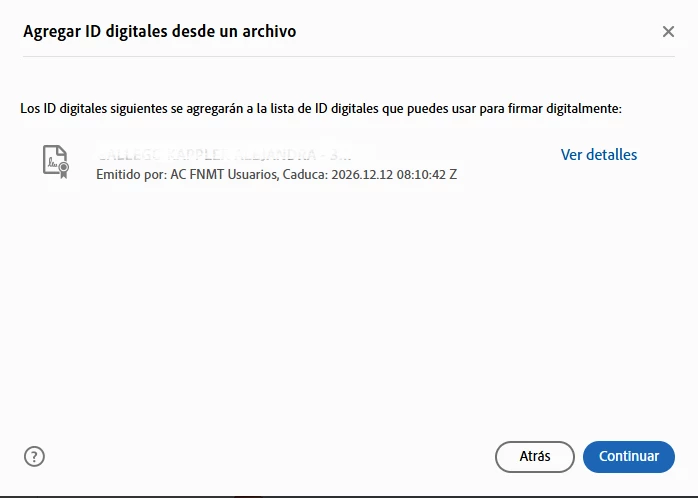


But when I click the Next button, the "Sign with a digital ID" option appears again with the same two digital IDs as before, and nothing happens.


I've tried all the solutions: disabling Protected View, reinstalling, unchecking revocation verification, switching from PKCS#7 to CAdES, etc., but nothing works. I've tried it in another version of Adobe Acrobat Pro and in Acrobat Reader with the same results, so I think it may be related to the certificate, but it works correctly in three other different applications.


Additionally, I discovered that if I click "More" on either of these two options, Adobe crashes.
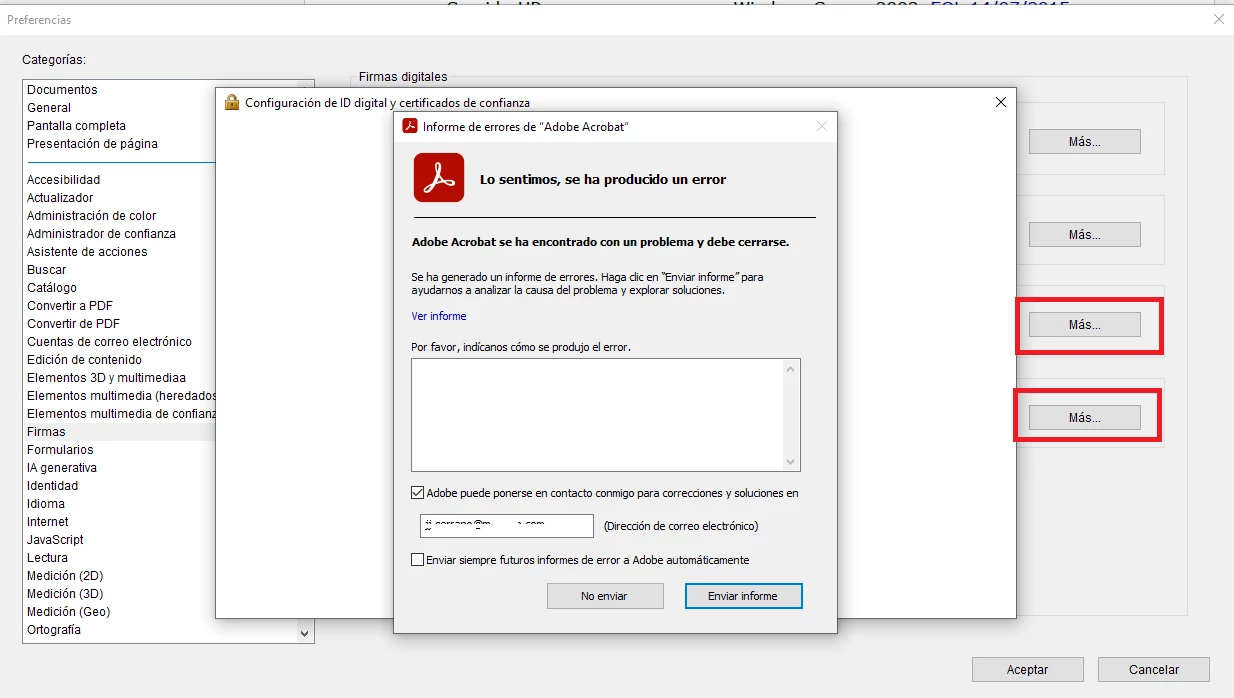


But I don't think it's related to the signature issue, since I can click them on another machine with Acrobat Pro installed.


Any ideas? Thanks.


Correct answer creative explorer

@it_2016 Adobe Acrobat rely on your operating system's (macOS/Windows) certificate store to access digital IDs. If the certificate doesn't appear when you try to sign, it's often a configuration or access issue. But before you do that, make sure you have the latest update to Acrobat. Help > Updates.

You can try to resolve the certificate accessibility issues, by attempting to re-import the certificate directly within Adobe Acrobat. Start by navigating to the application's preferences: go to Acrobat Pro > Preferences (or Edit > Preferences on Windows). Next, select the Signatures category. Under the "Identities & Trusted Certificates" section, click More... In the subsequent window, review the Digital IDs list to check if your certificate is present. If it is missing, locate the Add ID or Import option to explicitly import the certificate, either directly from the file or from your operating system's store, such as the macOS Keychain. Crucially, ensure that the certificate file is in an easily readable format for Acrobat, such as PKCS#12 (.pfx or .p12).

If by chance the Digital ID isn't set up correctly, you may need to use Acrobat's tool to create a new Digital ID and select the certificate from your system store. This links the system certificate to an Acrobat signing profile.

1 reply

creative explorer
creative explorerCorrect answer
Community Expert
November 8, 2025

@it_2016 Adobe Acrobat rely on your operating system's (macOS/Windows) certificate store to access digital IDs. If the certificate doesn't appear when you try to sign, it's often a configuration or access issue. But before you do that, make sure you have the latest update to Acrobat. Help > Updates.

You can try to resolve the certificate accessibility issues, by attempting to re-import the certificate directly within Adobe Acrobat. Start by navigating to the application's preferences: go to Acrobat Pro > Preferences (or Edit > Preferences on Windows). Next, select the Signatures category. Under the "Identities & Trusted Certificates" section, click More... In the subsequent window, review the Digital IDs list to check if your certificate is present. If it is missing, locate the Add ID or Import option to explicitly import the certificate, either directly from the file or from your operating system's store, such as the macOS Keychain. Crucially, ensure that the certificate file is in an easily readable format for Acrobat, such as PKCS#12 (.pfx or .p12).

If by chance the Digital ID isn't set up correctly, you may need to use Acrobat's tool to create a new Digital ID and select the certificate from your system store. This links the system certificate to an Acrobat signing profile.

m
it_2016Author
New Participant
November 14, 2025

I tested it on Windows 11 and Windows 10, on two different machines, one with Acrobat Pro and the other with Adobe CC with same results. Both are updated to the last build. I can sign with this certificate using other PDF editors and with EU official apps without any certificate access issues. In Edge and Chrome, I can see the certificate in the Certificate Store of both.

I can't acces to the "Identities & Trusted Certificates"  on the machine with Adobe CC due to the crash, but I can on the other machine, and every time I try to import a new digital identity (on both machines), the following happens (sorry, the screenshots are in Spanish):


I click on "Set up new digital ID"


Use a Digital ID from a File

Next


Next, and I return to the first window, without the new digital ID being displayed (none of the items have the new certificate; they are all signed with my user account).