Participant
October 18, 2018
Answered

Change default font color in new text box - Acrobat DC

  • October 18, 2018
  • 5 replies
  • 68099 views

I see that this question was supposedly addressed in an August 2016 update, but I have been unable to accomplish this. When I make the changes to a created text box and select make these properties default, the only settings saved relate the box properties, not the interior text. Am I missing something obvious?

-Wes
Correct answer AkanchhaS8194121

Hey TXEBWes,

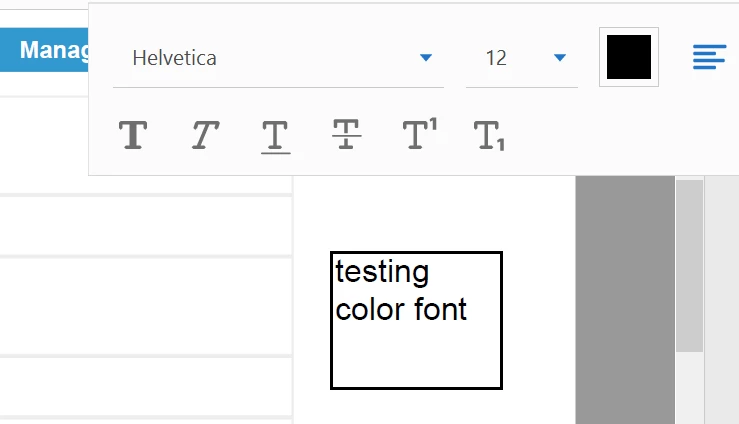
As shared above, that you are unable to set the font color as default. So If I understand your query correctly, then you are referring to the font color shown in the commenting text box below?

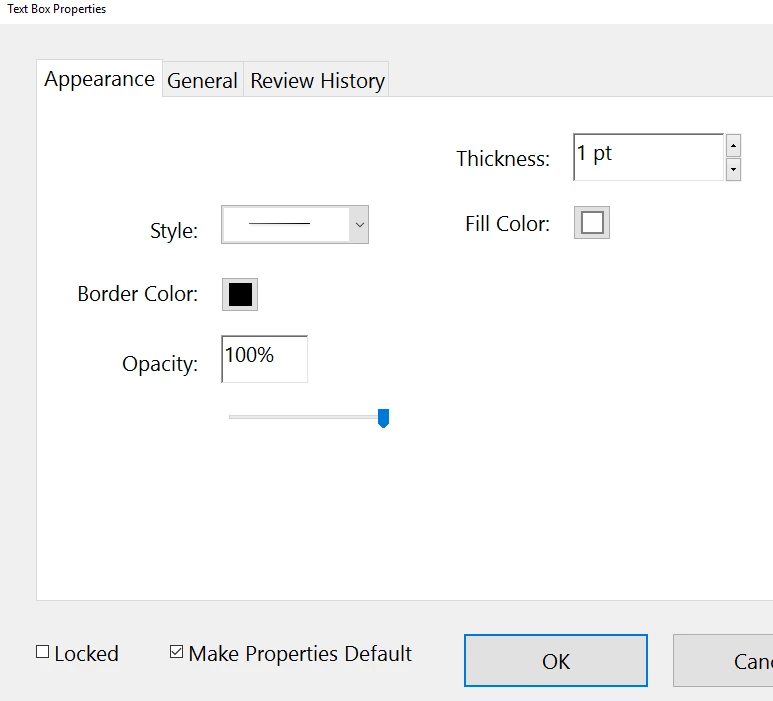
1- If yes, then this can be set to the desirable color as shown in screenshot.

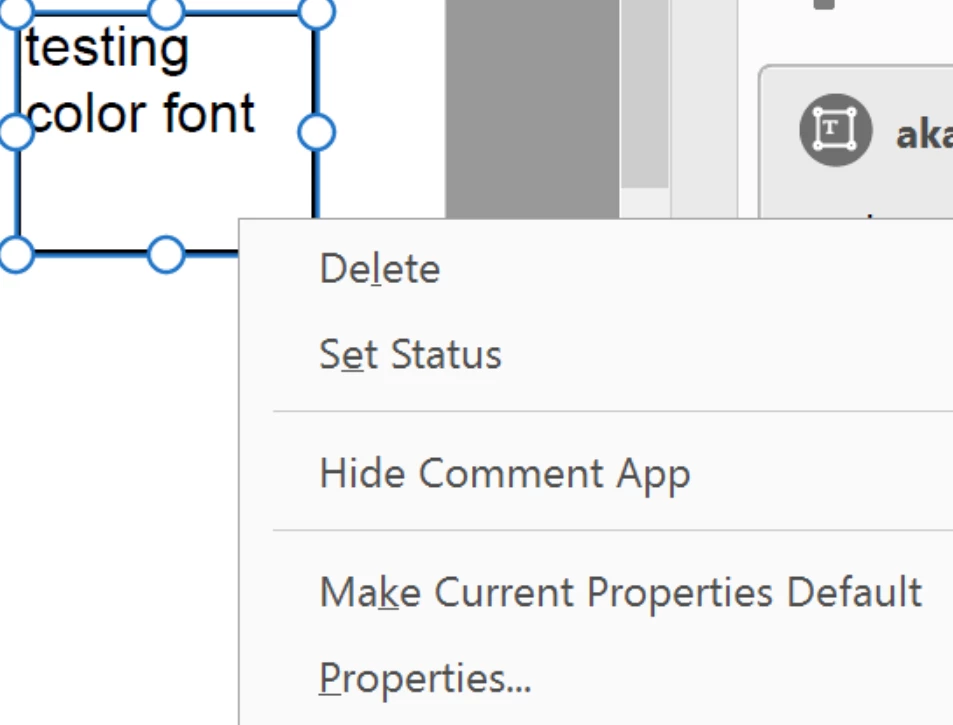
2- Right click on the Text-Box and select Properties.

3- Make the changes from here and select "Make Properties Default">Ok

Hope this helps.

Let us know if you are referring to something else.

Regards,

Akanchha

5 replies

Participant
February 28, 2024

Click on the Meatball menu at the bottom of the toolbar

The customise toolbar menu will pop-up.

locate Annotations in the list and click on the drop-down button. highlight the "Set or change properties for the selected text" option and Click on the add to tool bar button

.


Select the text you want to modify and click on the Aa button.


Note, You might need to close down the document and start it up again if it's randomly dissappearing. A glitch in the software I believe.

maryg82108480
Participant
January 20, 2023

The answer fails to address how you got yo yhr font selection on iamge 1. I cant seem to find that. This is vert frustrating

Participant
January 29, 2021

Sorry this doesn't help.  this is formatting the box, not the text.


Participant
April 3, 2021

There is one word for this - UNACCEPTABLE. As with many software companies the simple necessities are ignored / neglected and yet numerous ridiculouus (often annoying) features are introduced.


Always two steps forward and one step back. Software is generally becoming more and more frustrating because developers do NOT understand user needs..........


I pay a lot of money to Adobe and expect much MORE!


jane-e
Community Expert
Community Expert
April 3, 2021

@aresi77 wrote:

Software is generally becoming more and more frustrating because developers do NOT understand user needs


Hi aresi,

Adobe has a feedback forum for bug reports and feature requests that is separate from this one, which is for questions about how to use the software. The feedback forum for Acrobat is here: https://acrobat.uservoice.com/ The product developers will see all comments made on that forum.


When I started using Acrobat with version 2.0, there was no text editing whatsoever. Over the years as folks clamored to be able to make text edits, Adobe listened and responded to the needs of users. That being said, if you need to do serious text editing or writing from scratch, it is a best practice to use software designed for the task, such as Microsoft Word or Adobe InDesign. Then make a new PDF, preferably an Adobe PDF, as they are better constructed than PDFs made by other companies.


~ Jane


Participant
December 2, 2019

The confusing part is that there is no setting for font color default. You have to manually type something into the text box then change its color to the color you want as your default. Then right click properties and make default. Took me a minute to figure this out even after readig this post. 

Participant
June 11, 2020

I have Acrobat Pro DC version 2020.009.20063.  The above is fine for changing the default text color using the commenting tool for new text, but I need to change existing text using the editing tool.  When I need to change existing text, I make the edited text red so that I know at a glance what was changed when I print the document.  Is there a way to do this automatically?  The only way I've been able to figure out how do it is to select the text I want to change, change the color to red, then type the edit.  When I have a lot of edits this takes an insane amount of time and there's gotta be a better way to do it.  Thanks in advance for your help.

Participant
June 30, 2020

I have the same new update - unfortunately, after hours of reserach, it appears they no longer have the ability to "Make Properties Default" when you change the color.  You can go into the defaults and change Font Style and Size, just not the color any longer - such a shame.

AkanchhaS8194121
AkanchhaS8194121Correct answer
Legend
October 23, 2018

Hey TXEBWes,

As shared above, that you are unable to set the font color as default. So If I understand your query correctly, then you are referring to the font color shown in the commenting text box below?

1- If yes, then this can be set to the desirable color as shown in screenshot.

2- Right click on the Text-Box and select Properties.

3- Make the changes from here and select "Make Properties Default">Ok

Hope this helps.

Let us know if you are referring to something else.

Regards,

Akanchha

TXEBWesAuthor
Participant
October 24, 2018

I had done this and for some reason the only setting that saved was the outline color. In any case, third times the charm. Thanks for your help and detailed explanation.

-Wes

AkanchhaS8194121
Legend
October 25, 2018

You'r welcome Wes.

You may check the latest update for Acrobat which might help you. Adobe Acrobat official update (19.008.20080) is now available. This update will be automatically pushed to all existing installations of Acrobat. If you want, you may also manually trigger the update early by opening the application and going to Acrobat>Help > Check for Updates.

Thanks,

Akanchha