
Participant
June 15, 2020
Resuelto

Changing background color & font of Comments list

  • June 15, 2020
  • 2 respuestas
  • 3430 visualizaciones

Does anyone know how to change the background color & font of the Comments List for Acrobat Pro DC?  New user & at present, Comments shows as a grey background with black font, which is difficult to see & would like to change.  
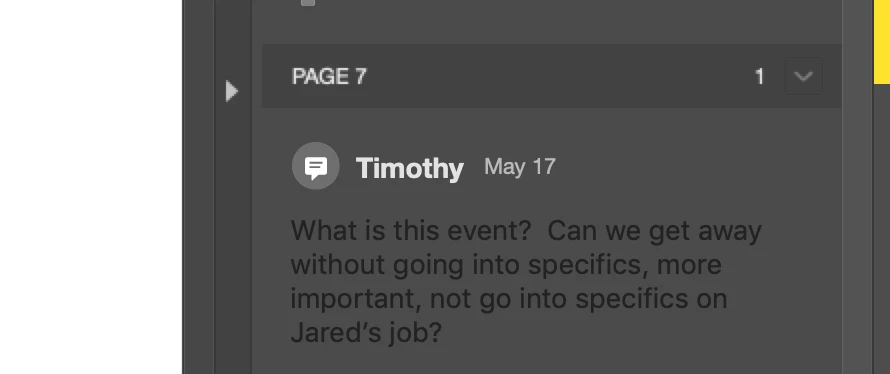
 

I got to the Preferences & the Comments category, which shows options for changing the style & size of the front, but nothing for changing the font color.  

 

Would love to be able to adjust the background, but even changing the font color would be a help.  Appreciate any thoughts or troubleshoots anyone has.  Thanks.

Mejor respuesta de Document Geek

Sorry, it is not possible to change the backgroung color. Here is what Adobe says about that.

2 respuestas

Known Participant
September 29, 2025

The black font on gray background is still a problem for me in 2025.001.20693

The problem also is inconsistent. Sometimes it's black and unreadable, most of the time it's white. It should always have the same (readable) color.

Document Geek
Community Expert
Document GeekCommunity ExpertRespuesta
Community Expert
June 15, 2020

Sorry, it is not possible to change the backgroung color. Here is what Adobe says about that.

TSang22Autor
Participant
June 15, 2020

What about the font color?  A black font against a dark grey background is near impossible to see, there's got to be at least a method of adjusting the font to make the comments legible?  

Participant
August 22, 2023

One quick (dirty) solution I found is to
1. Copy & paste the text to a text editor (e.g., MS Word) 
2. Change the font color to white 
3. Copy & paste the text with the new font color to the comment lists on Acrobat reader. 
Let me know if you have a better way of fixing this issue...