


Participant
April 26, 2023
Answered

Comment text box fill and border

  • April 26, 2023
  • 3 replies
  • 13950 views

How do I add a background fill and border to a comment text box in the new Acrobat? In the previous version, you could right click and change it in properties, but I can't seem to right click without it selecting the text.
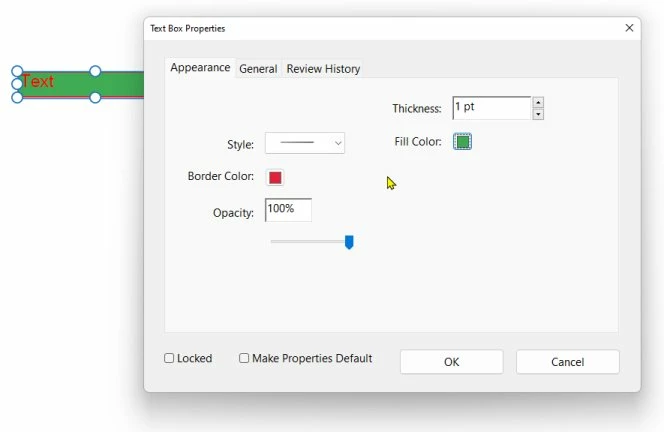
Correct answer Bernd Alheit

Select the comment text box and right click the mouse.

3 replies

Participant
January 29, 2025

The solution noted below is only a partial solution.  Regardless of what you have the opacity set to, the background color remains transparent.  I need a background that completely blocks out everything behind it.  Another downfall of having to do this in the form editor is that you're limited in how much you can rotate your text - you can only do it in 90 degree increments.  This does not work for me.

Adobe is really missing the mark on this.  I want the old version back!


Anyone have any other ideas?

S_S
Community Manager
Community Manager
March 4, 2025

Hi @aaron_8577,


Hope you are doing well. Sorry for the trouble, and the delayed response.


Please add your feedback here: https://adobe.ly/3XqiNrM to ensure it reaches the dev team for review and future implementations. 


-Souvik

Bernd Alheit
Community Expert
Bernd AlheitCommunity ExpertCorrect answer
Community Expert
April 27, 2023

Select the comment text box and right click the mouse.

Participant
November 21, 2024

That does not work on the new view Adobe Pro.

Bernd Alheit
Community Expert
Community Expert
November 22, 2024

It works in the new Acrobat.

maxwithdax
Community Expert
Community Expert
April 27, 2023

You have to be in Form Edit mode from the Tools Panel.

  1. Then right-click on the field.
  2. Select Properties
  3. then Fill Color


Participant
April 27, 2023

So it has to be a form now? There's no way to add a comment text box with a fill?

Thanks!